Submission Records
The History Records page is where you view and manage all submitted form data.
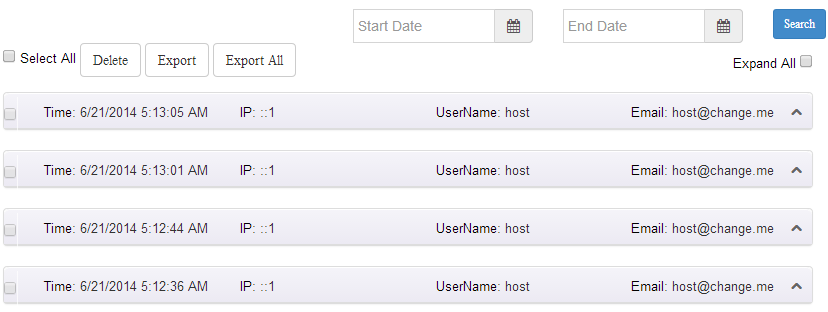
Viewing Records
- Records are listed in reverse chronological order; expand a record to see all its field values.
- Records also store Tracking Info such as the submitter's IP address and referring page. If Hide IP address is enabled in the General settings, the full IP address is not stored.
- Files uploaded by users are shown in the corresponding records and can be downloaded directly.
Permissions
By default only administrators can access the submission records. You can add other roles via View User Roles in the module's Settings.
Searching Records
- Enter the start and end dates in BeginDate and EndDate.
- Click Search to filter the submissions within that period.
Expand and Collapse
- Expand All: expands all records; click again to collapse them all.
- Each record can also be expanded/collapsed individually.
Deleting Records
- Check the records to delete and click Delete.
- A button for clearing all records at once is also provided — use with caution.
Scheduled Automatic Cleanup
For high submission volumes, enable the scheduled task (Schedule Enable) in the General settings; the module cleans up expired records automatically based on the Days Before setting.
Exporting Records
Submissions can be exported to multiple formats:
| Format | Description |
|---|---|
| Excel | Excel spreadsheet (default format) |
| CSV | Comma-separated text file |
| Word (doc) | Word document |
| HTML | HTML table |
| XML | XML data file |
| Text | Plain text |
Export options (such as whether to include tracking info) are configured in the General settings. In addition, the Email settings support scheduled exports — new records are exported to Excel and sent to a specified mailbox on a schedule.
Page Size
The Lists per page setting in the general settings controls how many records are displayed per page.