Please check our one page demo from here https://glend.dnngo.net/Construction01. When click menu, page will scroll down to the corresponding area. You can set it with following steps.

How to set OnePage
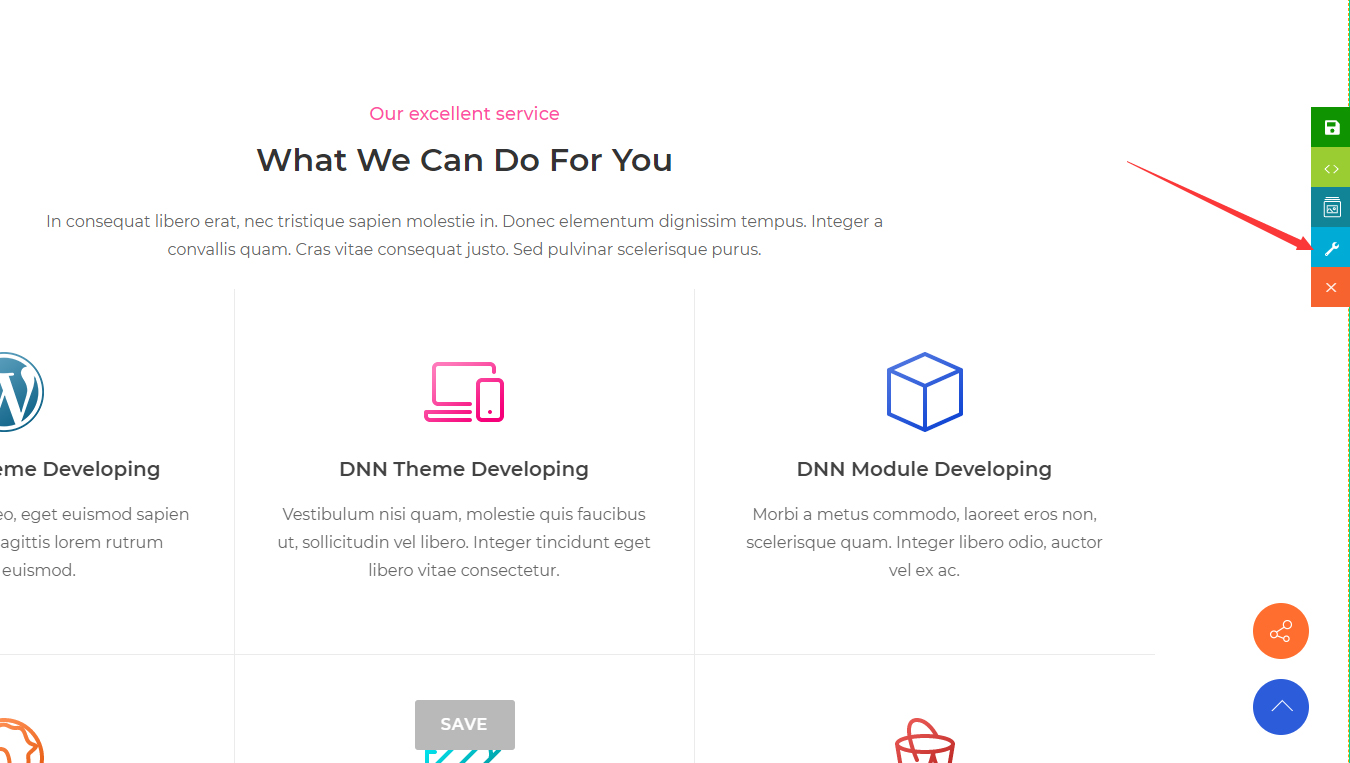
Step 01. Go back to page and click the Section Settings button
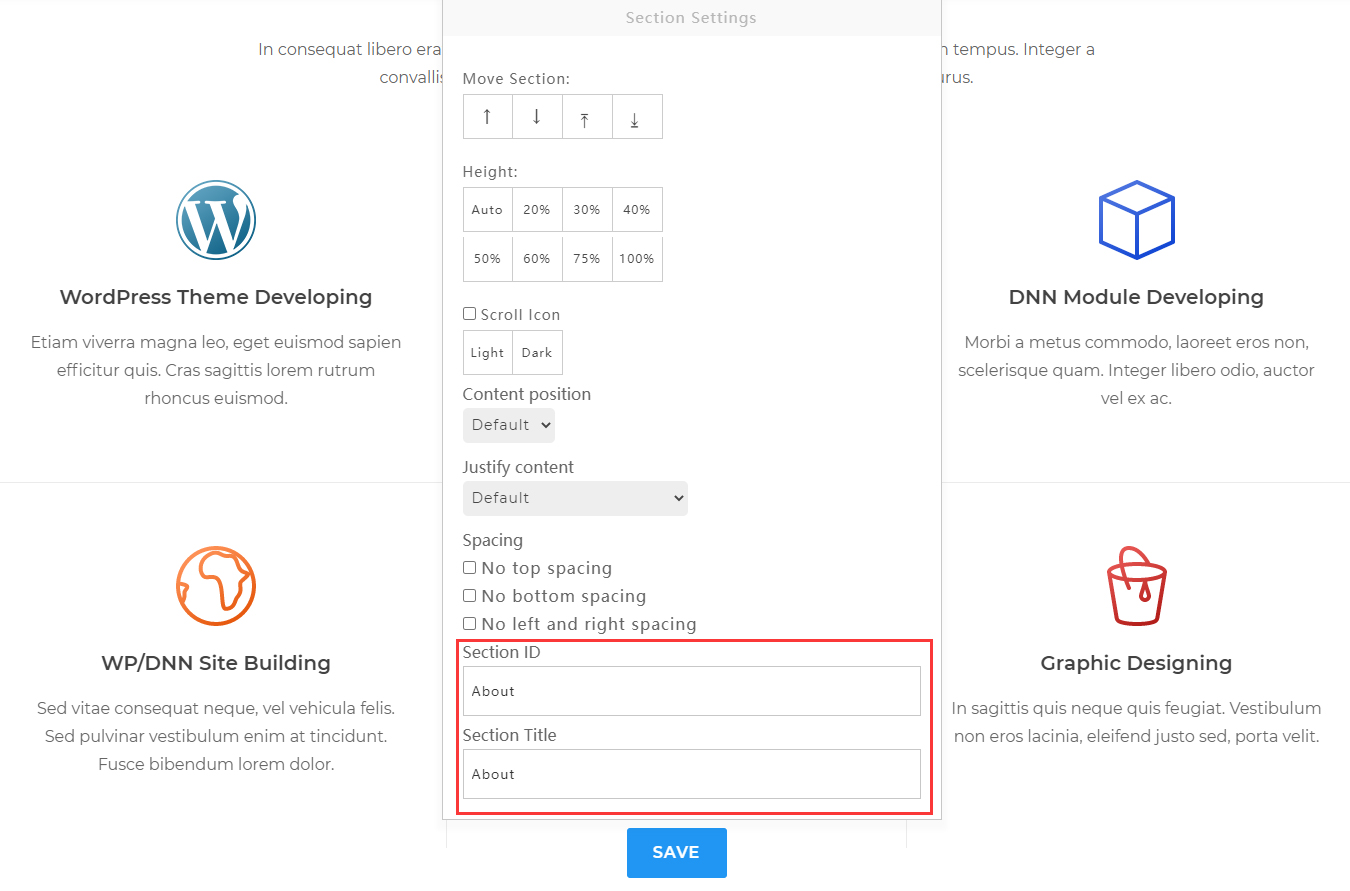
Step 02. Fill in Section ID and Section Title. There shouldn’t be any space in Section ID, and the text of Section Title will display on the right of nav.
Step 03. Go to the Admin > Pages of DNN site to add menu items. Set the Page Type to be URL, and input Anchor ID according to Step 1 to the setting of External Url. For example: https://#About. Input the menu name in the setting of Name, such as: About Us. Once the setting is done, when you click the About menu, page will scroll down to the anchor area of #About.

Step 04. You can add more anchor areas by following step 1, 2 and 3.