The module contains 7 effects in all, and every effect is different, you can use it according to your needs.

Effect List
Effect List
Effect_01_Responsive
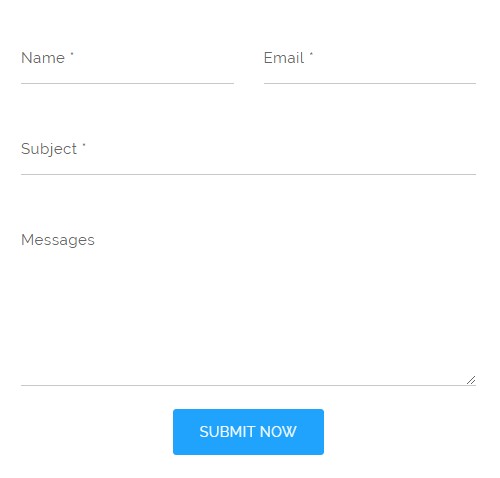
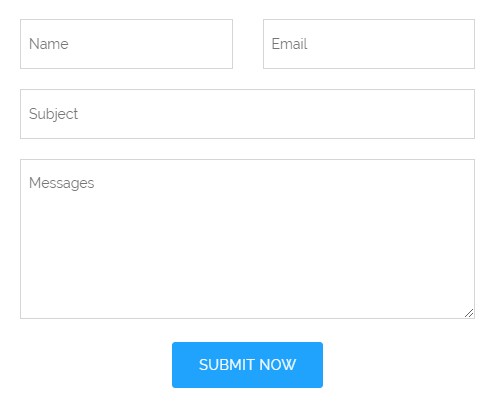
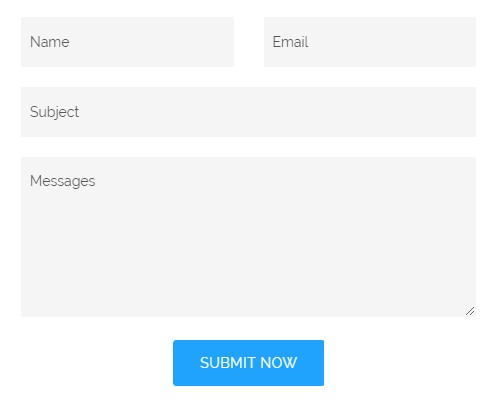
We provide 3 different form appearances for you to choose from. line, border, background
line:
border:
background:
Forms Style – Set the form style.
Forms Size – Set the form size.
Forms Color – Set the form color.
Forms Align – Set the alignment of the fields.
Display controls in one row – Set whether to display the fields and button in the same row.

Effect_02_Basic_Group
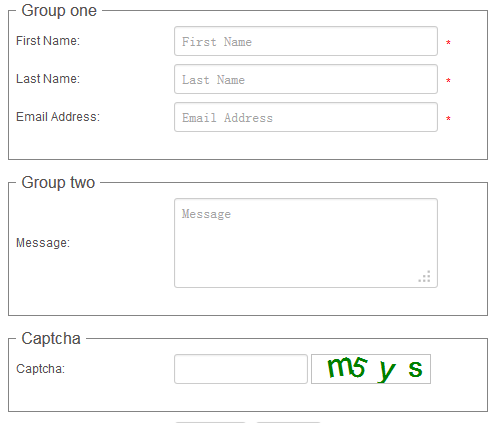
You can use this effect to display some fields in groups.
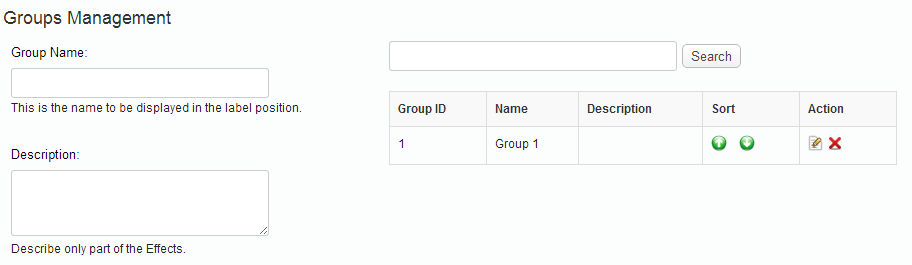
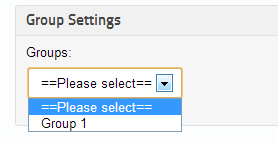
You need to add some groups in Groups.
Finally, the form will display in this way:
Effect_03_Collapsible_Group
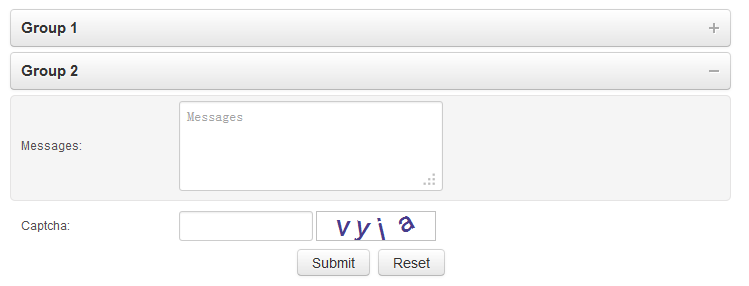
You can use this effect to expand or contract the field in one group, see below:
Effect_04_FancyBox
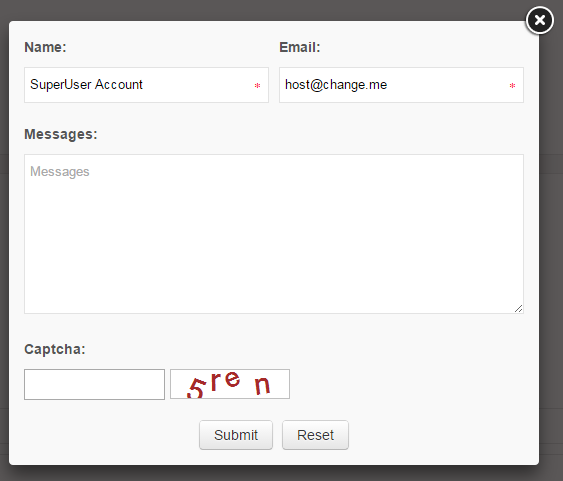
You can use this effect to display the form fields as Lightbox.
Also you can set the animation in Lightbox through Form Options interface.
Effect_05_HoverFancyBox
There will be a Contact Us button on the left side of the screen, the form will display as Lightbox on clicking this button.
Also you can set the animation in Lightbox though Form Options interface.

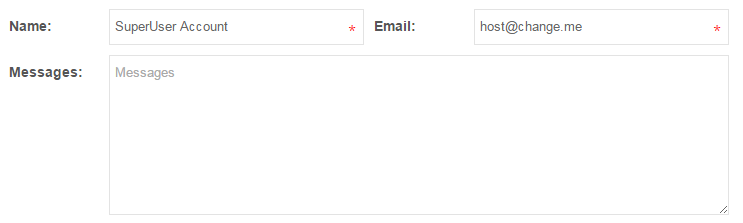
Effect_06_Responsive2
Below is the screen shot for effect:
Effect_07_Multi_Step_Form
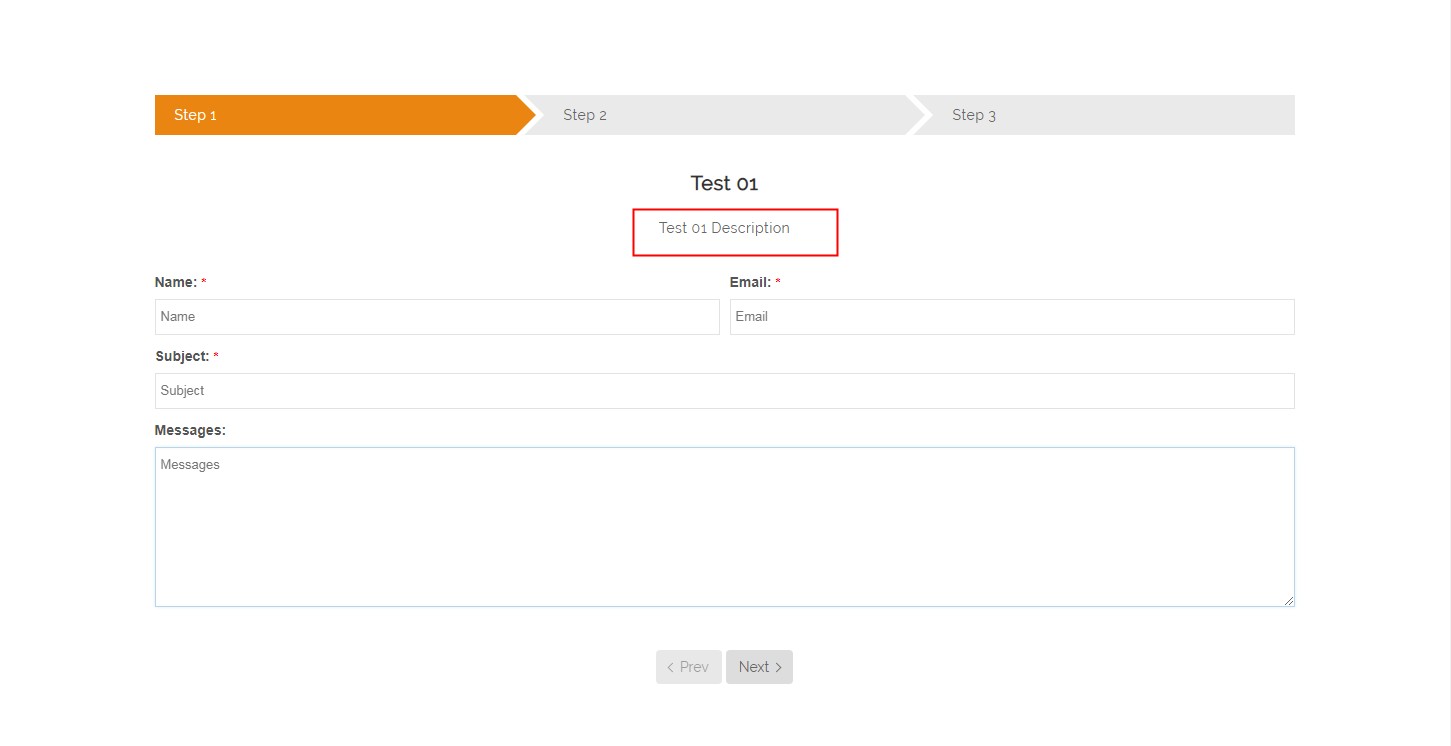
Below is the screen shot for effect:
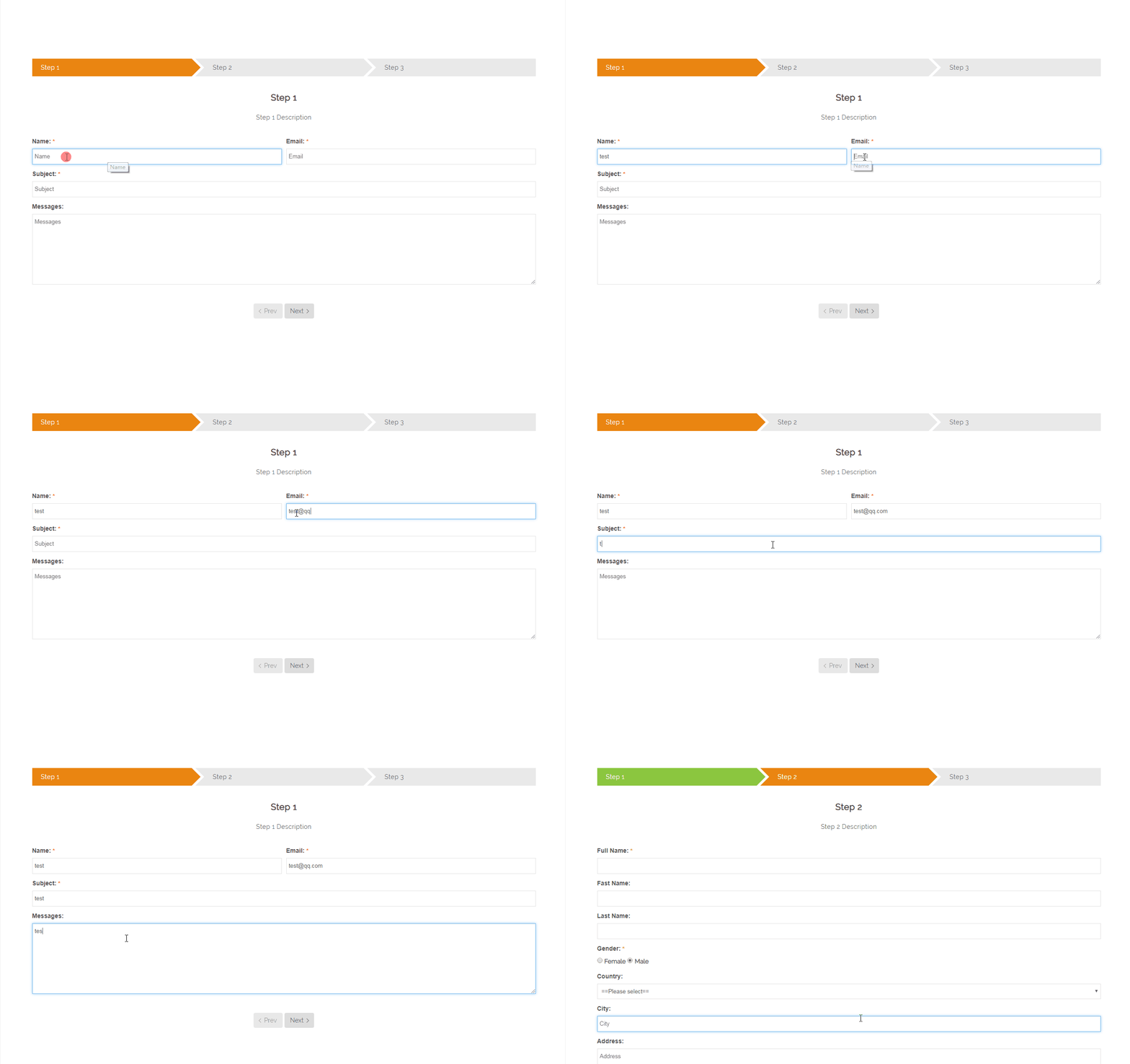
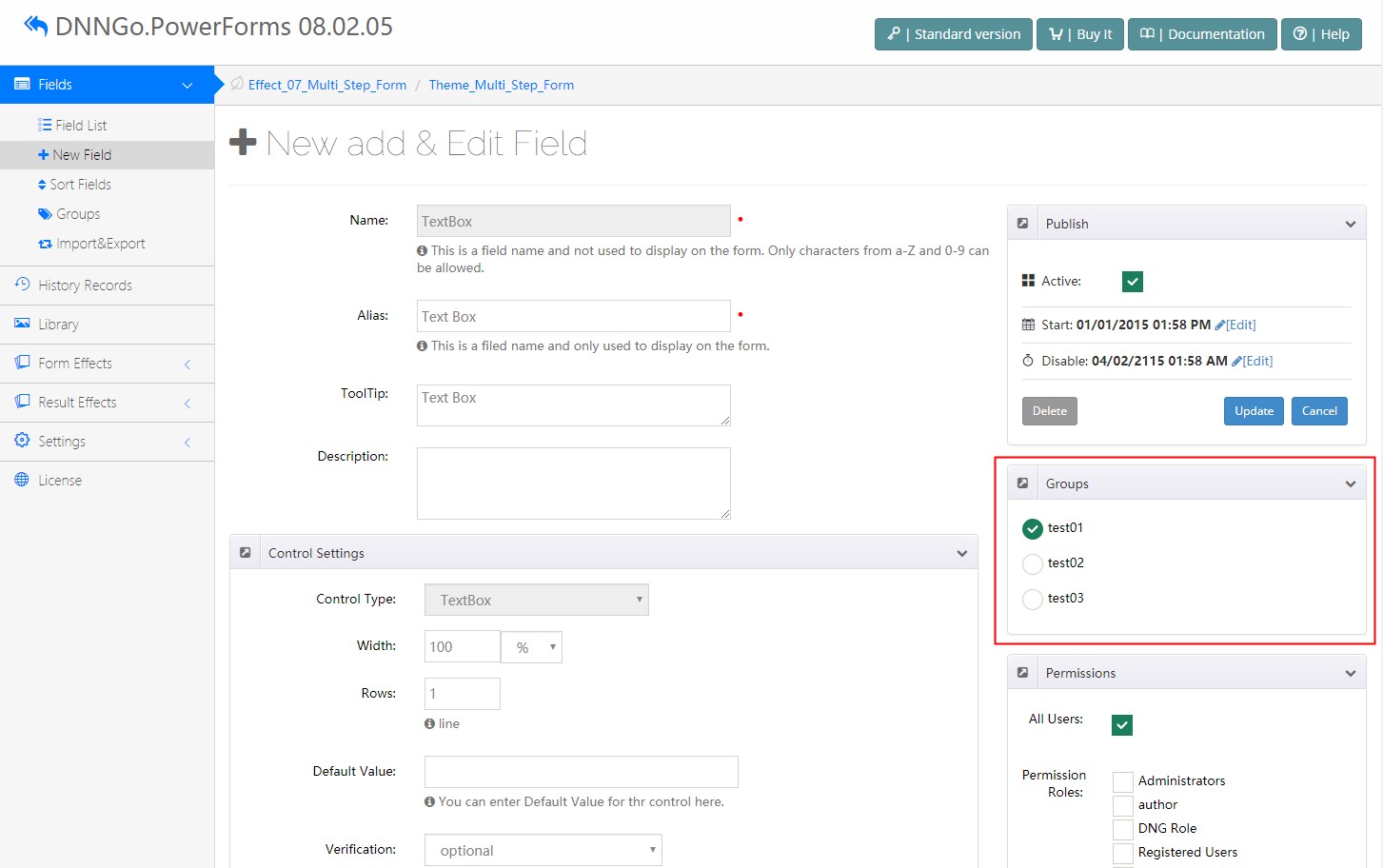
Each group represents one step.
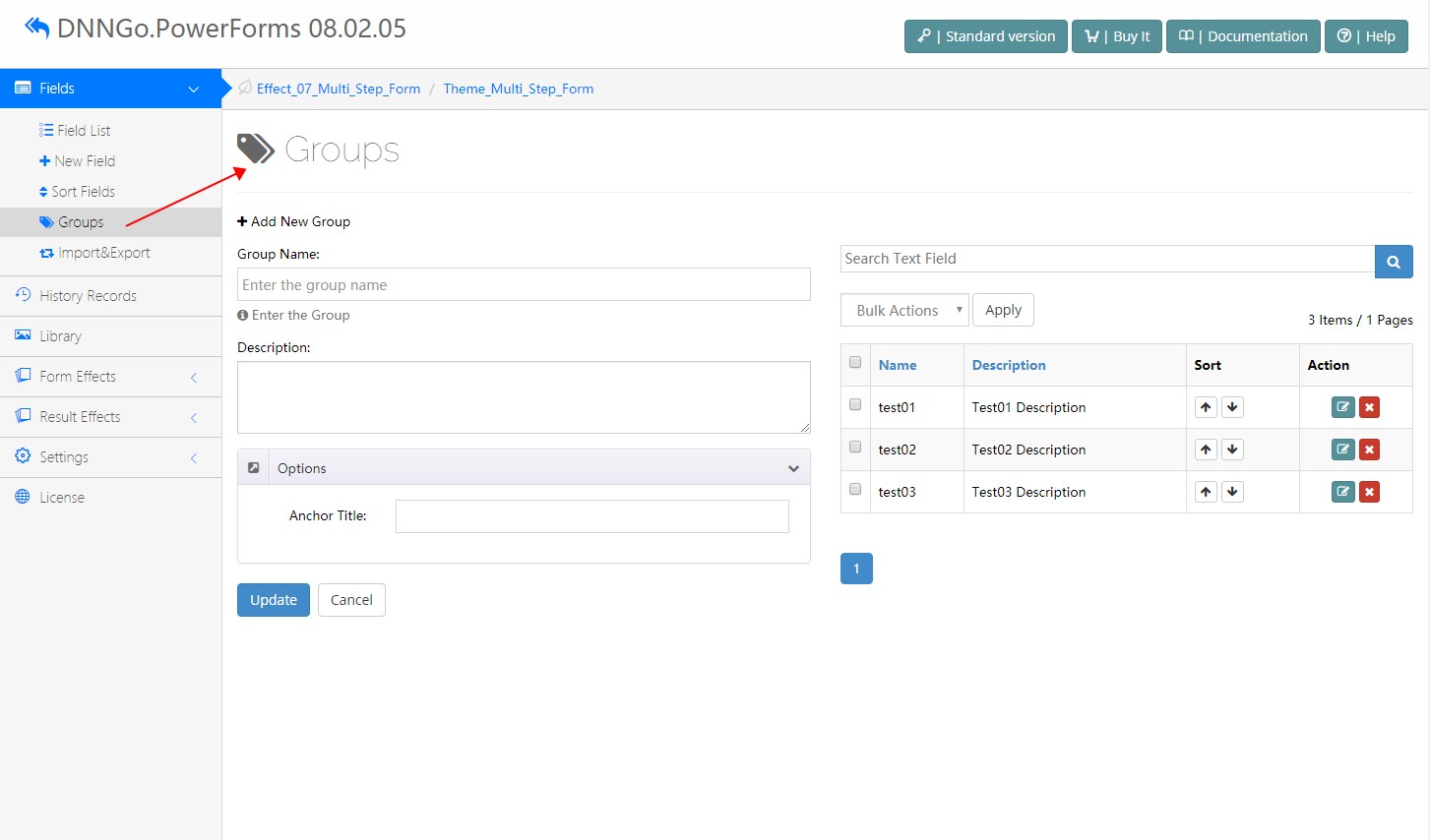
Group Name – Set the title of description area.
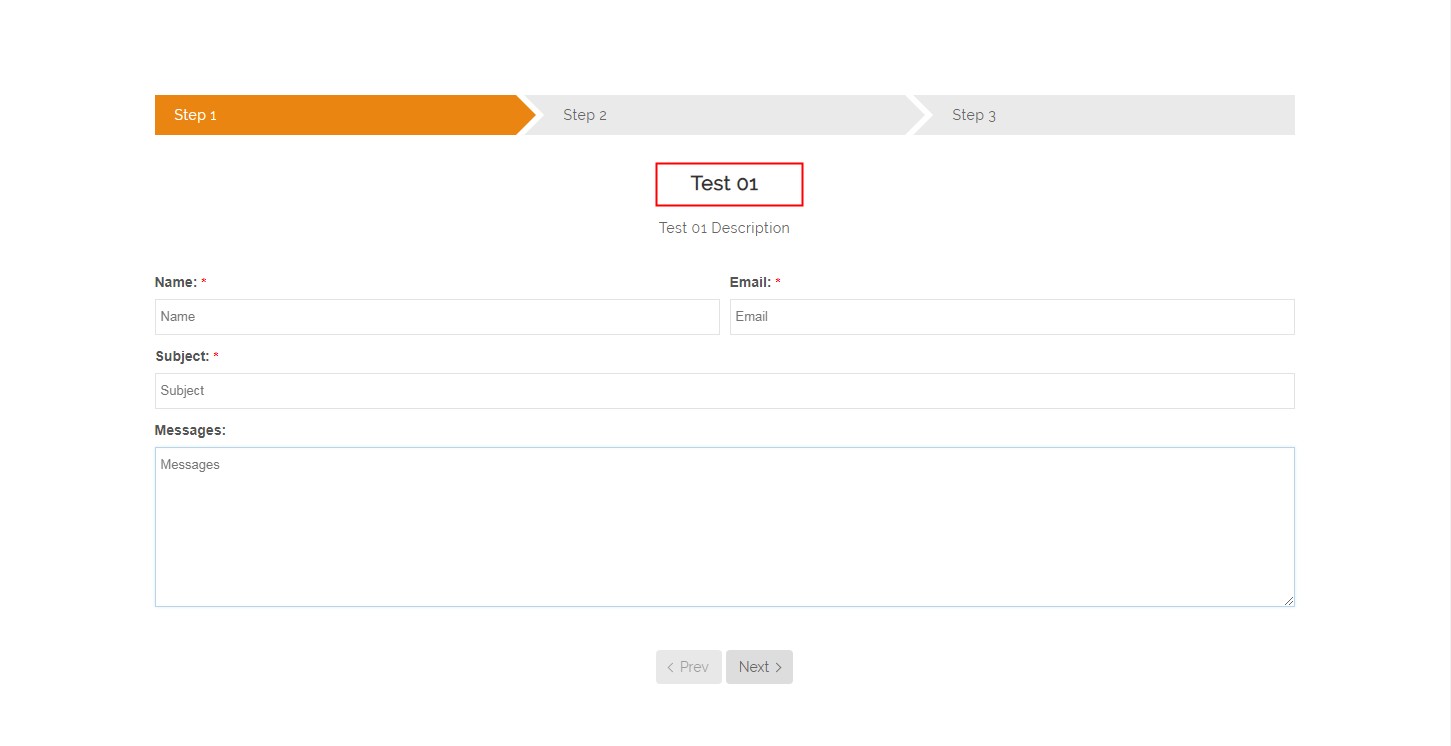
Description – Set the content of description.
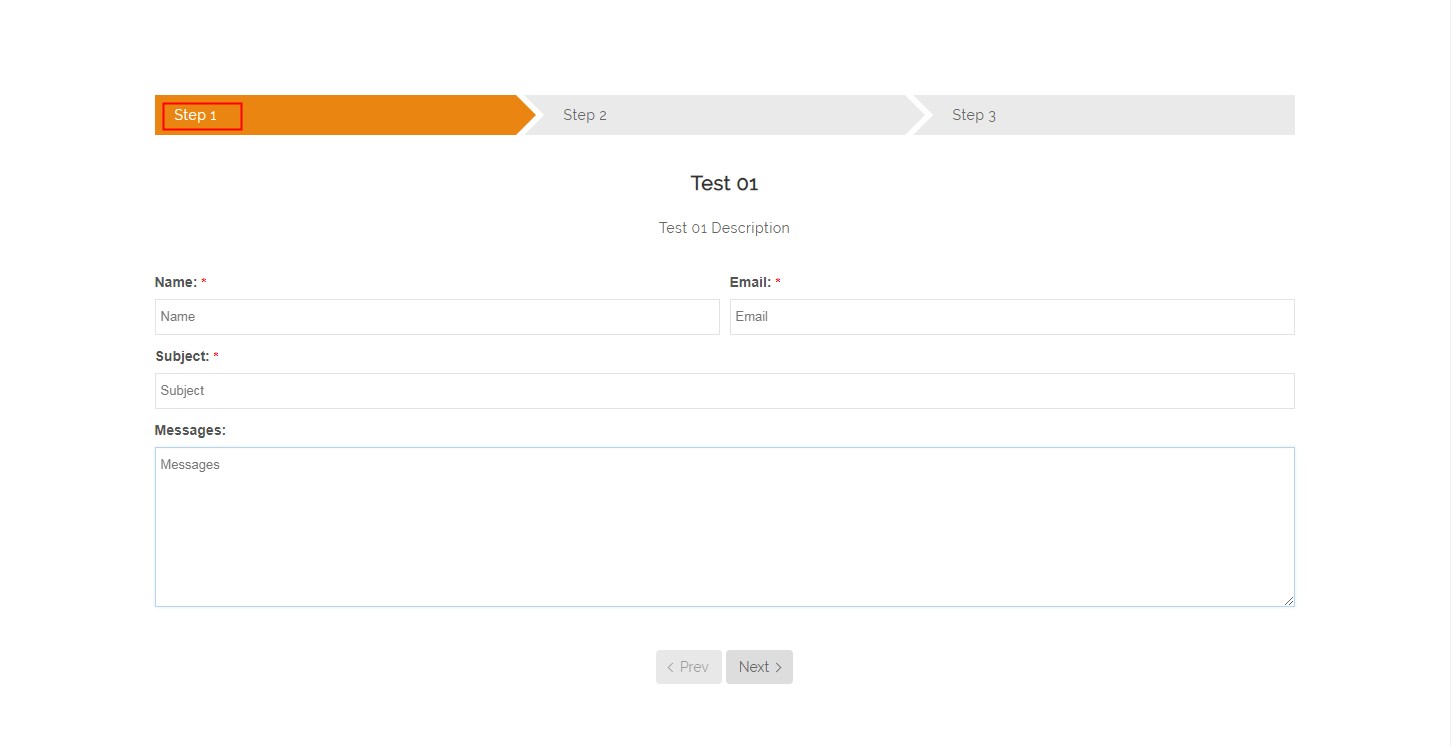
Anchor Title – Set the titles of steps.
Last, you need to select groups for the fields.
Effect_08_ExternalFancyBox
You can insert external links to other modules, after clicking this link, the form will show up as lightbox. You can click this address to see the demo. http://www.dnngo.net/OurModules/PowerForms/ExternalFancyBox.aspx
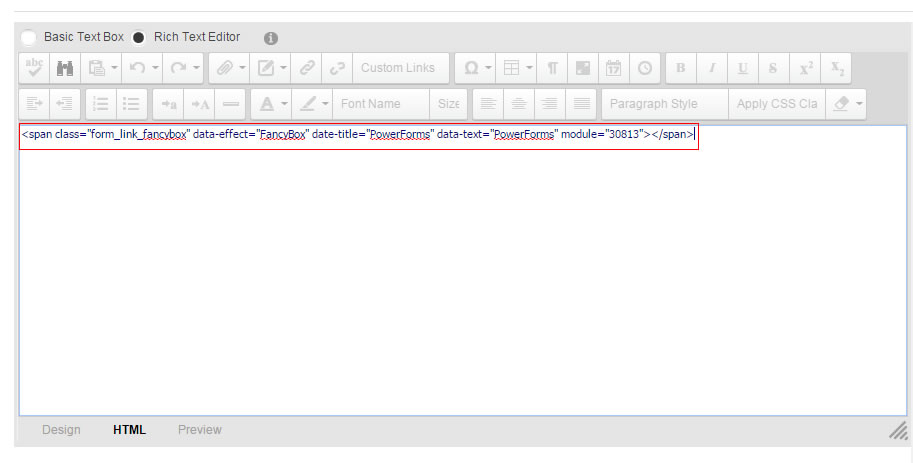
Find HTML for external links in Form Options.
Setup steps as follows:
Step 1. Find HTML for external links in Effect Options.
Step 2. Insert this HTML to any module.
The link can be image or text.
data-text – text for the link.
data-image -URL address for the image link.