PowerForms is a multi-effect submission form module. It is able to use ordinary, grouped, collapsable effect etc, and easy to switch between these effects. You can set the form module to own different functional modules like contact us, order product, collect polls etc. It can be set to allow email notification to both parties after the form submission and redirect to a specified page or download a specified file. There are 17 common-used controls in the module, easy for the user to input relevant data. The super powerful jQuery validation Engine ensures the security and convenience of data verification.

Introduction
Description
Features
- Support DNN 8 – DNN 9
- Support browsers like IE, EDGE, Firefox, Chrome, Safari.
- Support multiple form effects, support to add more form effects through a new version upgrade.
- Support different theme styles switch through a single effect.
- Support the appearance control through setting parameters. The type and quantity for the parameters of each effect is
separate. - Support 18 input control type support 10+verification type.
- Support jQuery validation Engine, data verification friendly and secure.
- Support to display the logged-in user’s name, mail address, country etc in the control.
- Support email notification to both parties after the form submission.
- Support a wizard form interface, support grouped forms.
- Support to import/export the custom filed, back up and restore the filed in a more convenient way.
- Support data export,, allows to export the collected information as cvs file.
- Support the temporary storage of the un -submitted form at the input state of the form, and avoid the data loss when
closing the page. - Support verification code, double verification of ajax and from.
- Support multiple PowerForms modules on one page.
- Support Premium User to have access to more form effects through a weekly update.
Module Installation
What Are The Requirements To Use Powerforms
To use Powerforms, you must be running DNN 8.x or higher. We have tested it with DNN8.x and DNN9.x.
Follow the steps below to install via Dotnetnuke.
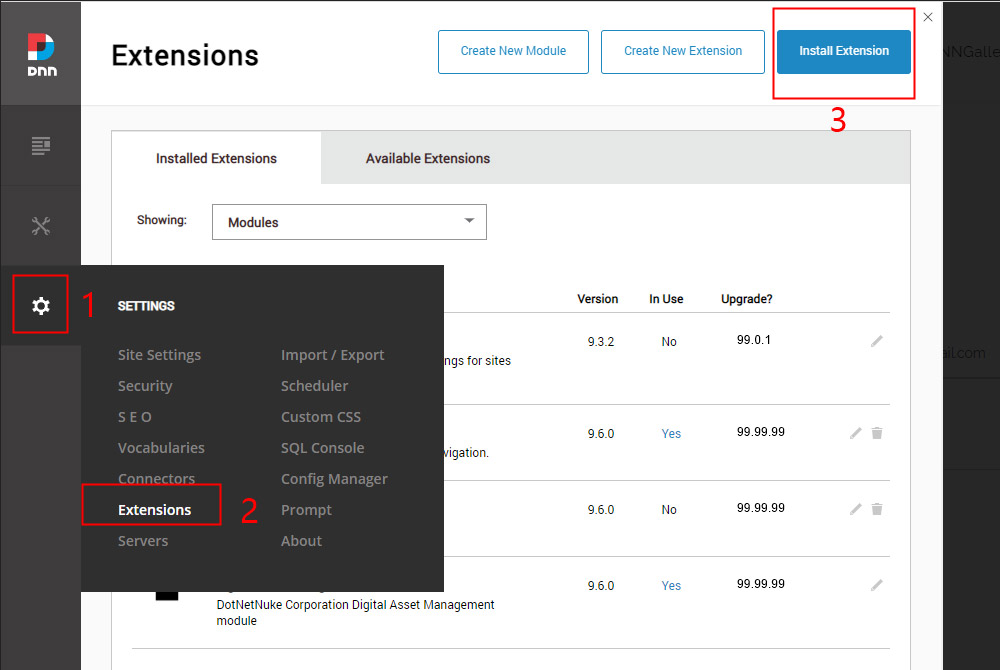
Step 1. Navigate toHost > Extensions.
Step 2. Click Install Extension Wizard and hit the Choose File button.
Step 3. Navigate to find the “DNNGo_Powerforms_x.x.x_PA.zip” file on your computer and click “Next” button.
Step 4. The module will be uploaded and installed.
Add the module to a page
Step 1. Log in to your site with an administrator account.
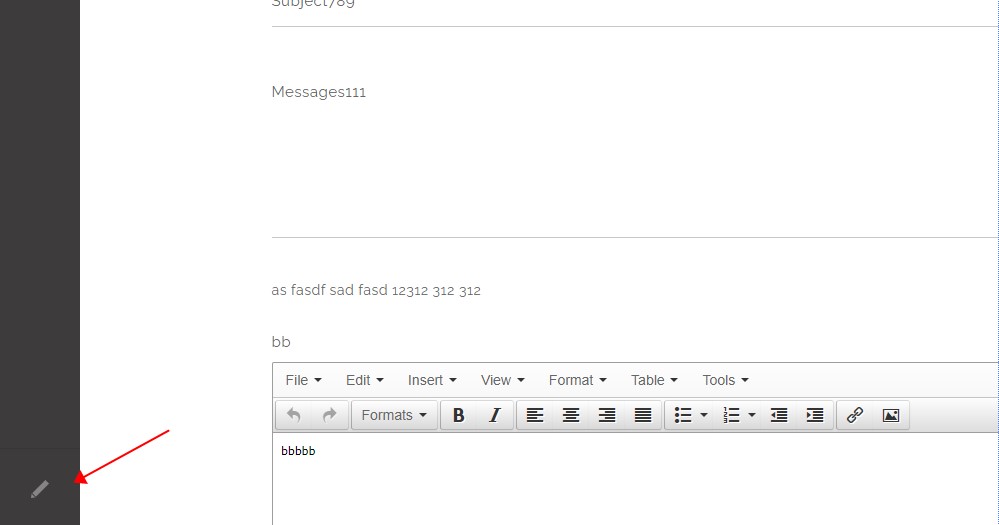
Step 2. Click the edit icon on the left bottom of the page.
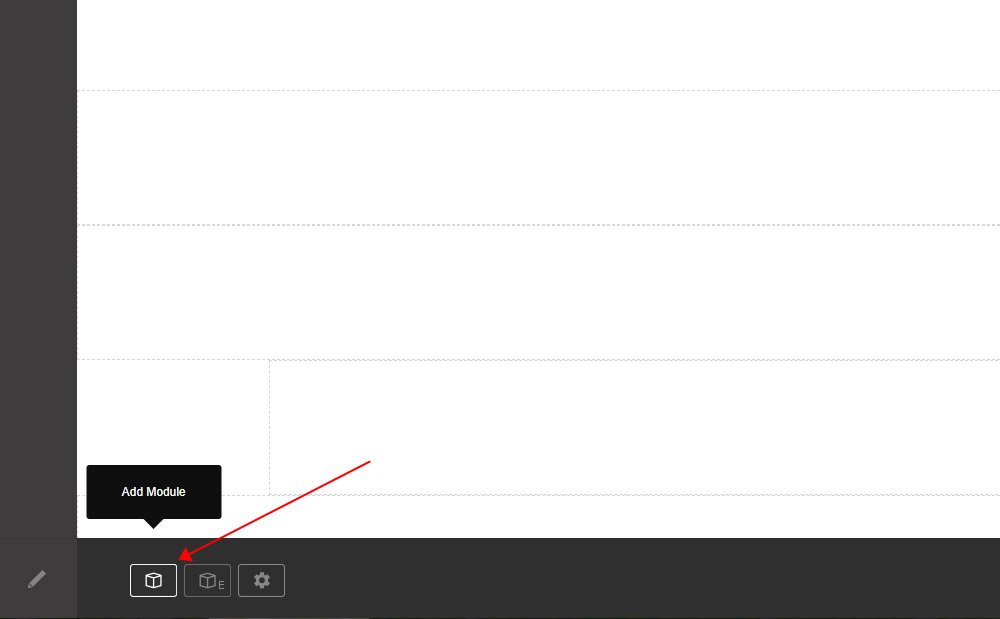
Step 3. Click the Add Module button.
Step 4. Find the DNNGo Powerforms module.
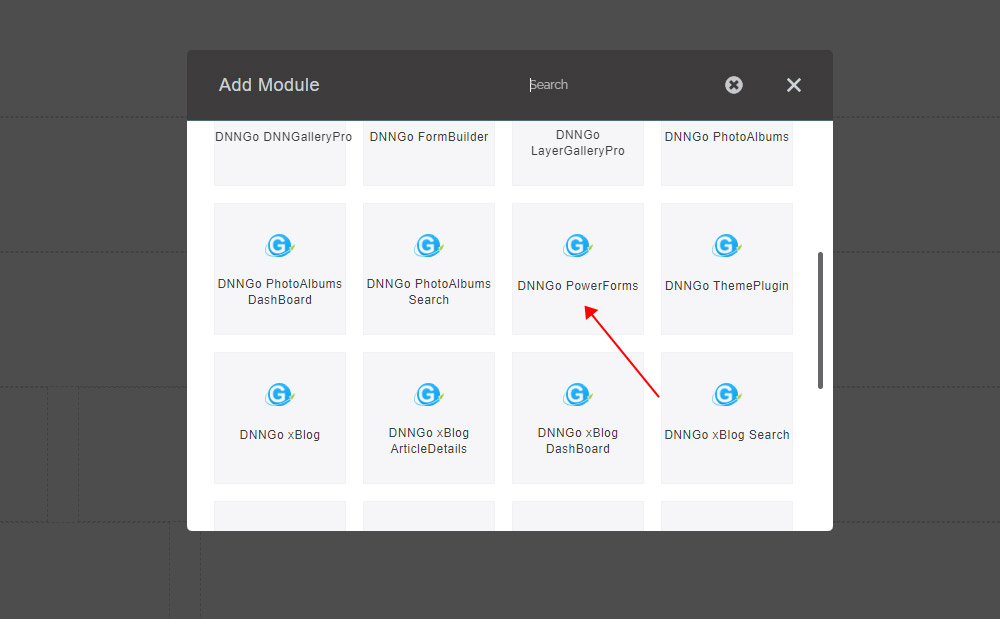
Step 5. Drag the module to a pane.
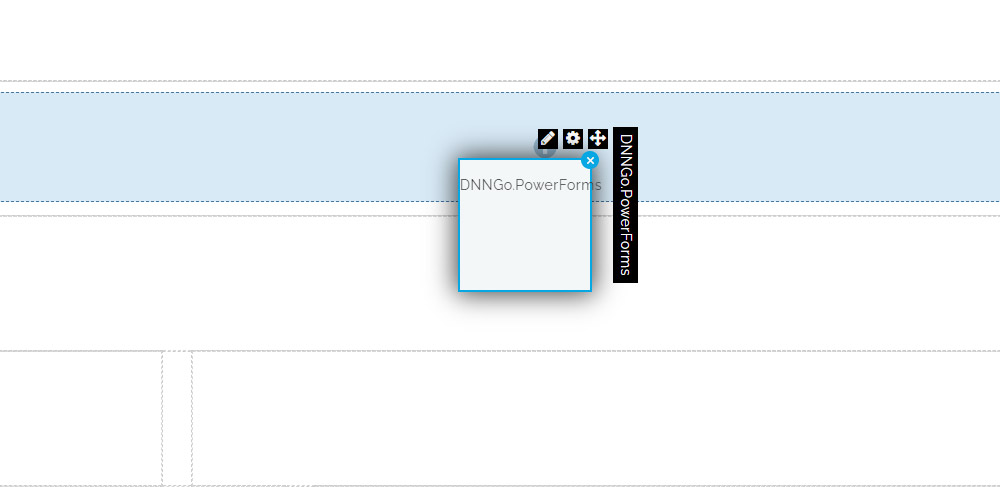
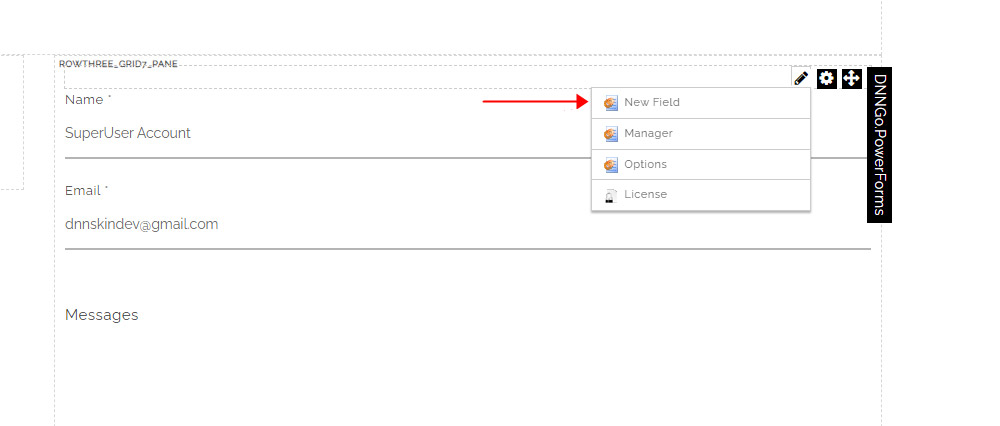
Step 6. After the operation is done, click the New Field to add fields.