Import & Export
This page covers the Export & Import page of the management UI. With this feature you can import all album data of one module instance into another — except module settings, everything (albums, tags, pictures and categories) can be imported and exported.
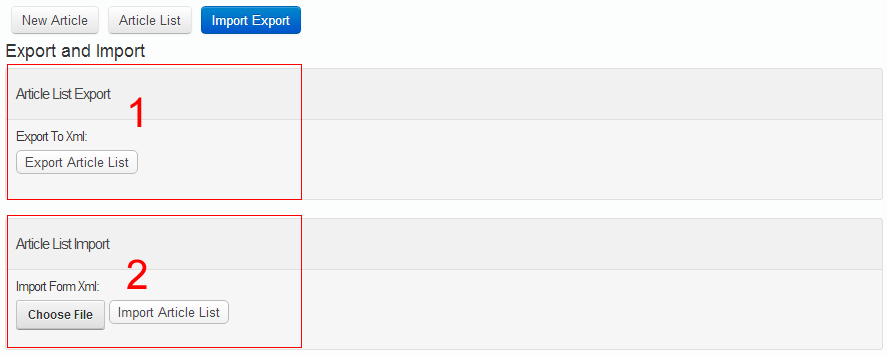
The page has two panels:
Exporting Data (Export All Items)
In the Export All Items panel, click Export Album List. All album data of the current module is exported as an XML file and downloaded to your computer.
Importing Data (Import All items)
In the Import All items panel:
- Click the file picker next to Import Form Xml and choose a previously exported XML file (required).
- Click Import Album List.
- Confirm the prompt "Are you sure to import?" — the data in the XML file is imported into the current module.
Use cases
- Site migration — move albums prepared on a test site to the live site.
- Module duplication — copy the data of one module instance into another to quickly build identical content.
- Backups — export XML regularly as a backup of your album data.
Note
Importing writes the XML data into the current module. Double-check that the target module is the right one before importing; for important data, export an XML backup from the source module first.
Next Steps
- Managing the Album List — review and manage the imported albums
- Media Library — manage media files in one place