
Import Page Templates
The skin package includes exported page templates for every demo page (85 in total). Importing them recreates our live demo pages on your own site. The example below recreates the Home Version 3 page.
The templates are located in the skin install folder:
Portals/_default/Skins/20073-UnlimitedColorsPack-055/pagetemplate/Before you start
Page templates cannot import image files. Besides the template itself, upload the images referenced by the template (you can grab them from the matching demo page or use your own) to the site root (for example Portals/0/).
- Go to Manage → Site Assets.
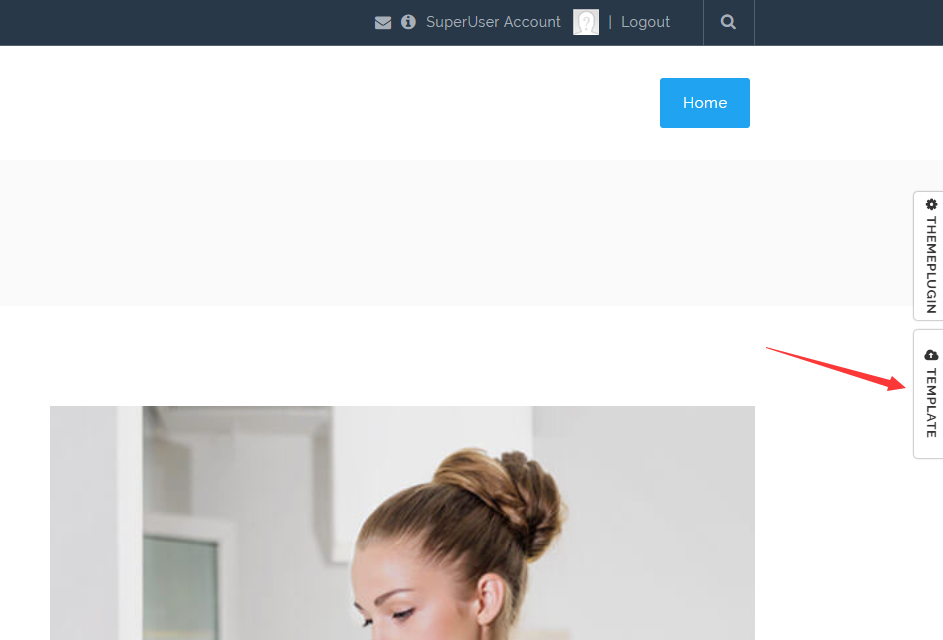
- Upload the
.page.templatefile (for exampleHomeVersion3.page.template) to the Templates folder.
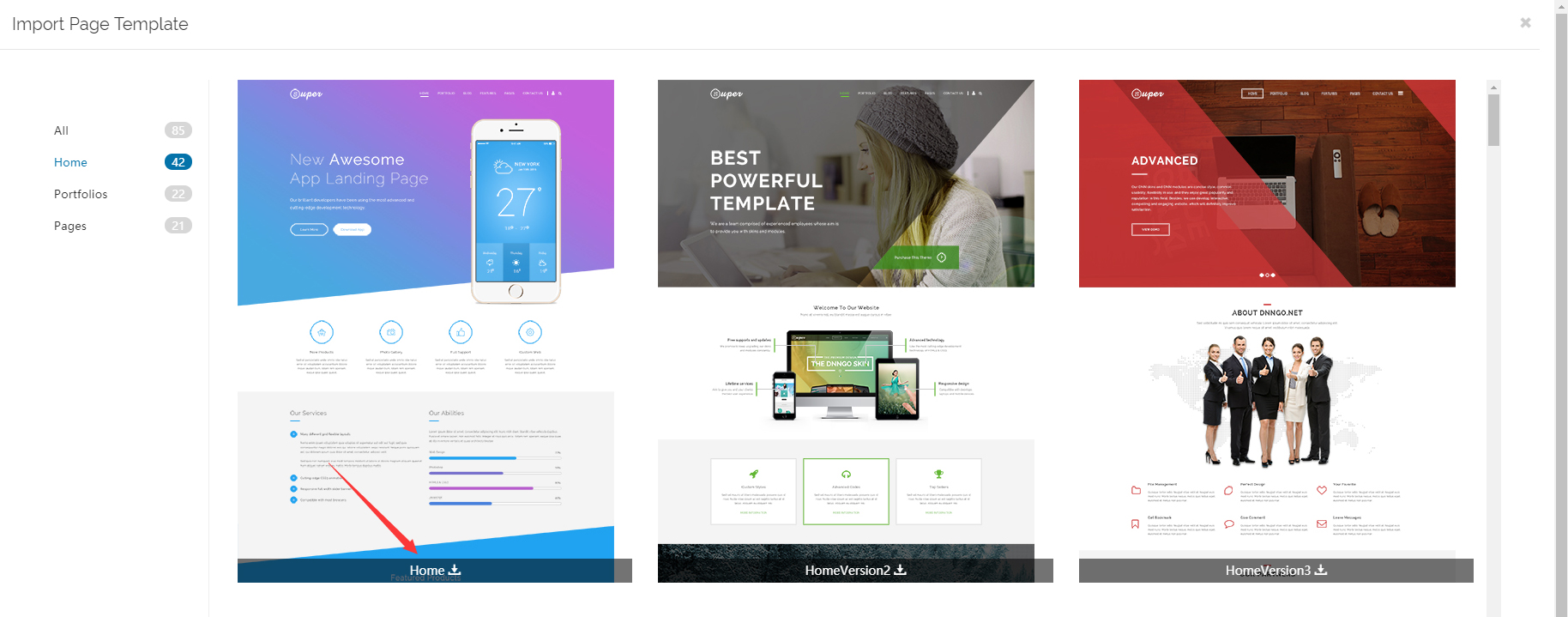
Upload the images referenced by the template to the site root (for example
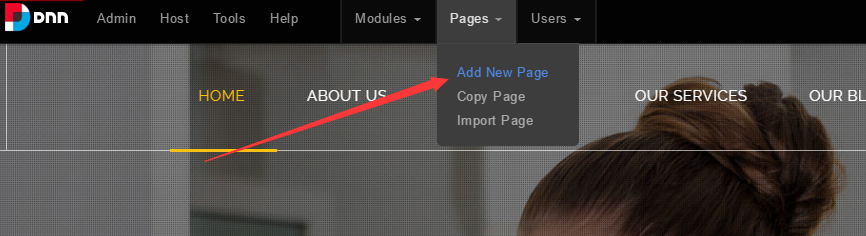
Portals/0/).Go to Content → Pages → Add Page.
- Choose the template in the Template dropdown.
- Click Add Page to create it. After importing, set the page skin to the matching
HomePageNNlayout if needed.
TIP
Page templates can only be imported when creating a new page; delete or rename an existing page with the same name first.
Skin file for each home version
After importing a home page template, make sure the page uses the matching HomePage skin layout:
| Home template | Skin file |
|---|---|
| Home (Version 1) | HomePage.ascx |
| HomeVersion2 ~ HomeVersion41 | HomePage02.ascx ~ HomePage41.ascx |
| One Page versions (11 / 19 / 21 / 24 / 34) | The matching HomePageNN.ascx, used together with anchor areas — see One Page |
| ComingSoon | ComingSoon.ascx |
The complete block-by-block code for every home version is in the Home Codes chapter.