
One Page
The skin includes 5 one-page home versions: Home Version 11, 19, 21, 24 and 34. Click the links to see them in action:
Anchor area
Clicking a top menu item scrolls the page to the matching area; clicking the dots on the right side of the page does the same.
These anchors are generated by the page's anchorTag. Put the code below into an HTML module on the page, and clicking the matching anchor will slide the page to that module's position:
html
<div data-title="ABOUT US" class="anchorTag" data-offset="-60" data-scrollshownav="true" data-menuanchor="true" > </div>Options:
| Option | Description |
|---|---|
data-title | The title shown in the right-side navigation. When a menu's Page Title equals data-title, clicking the menu text scrolls to this area |
data-menuanchor | Enables or disables the menu anchor feature |
data-scrollshownav | Enables or disables the dot navigation |
data-offset | Vertical offset of the anchor position |
data-icourl | Image URL shown in the right-side navigation |
data-iconame | Icon class name shown in the right-side navigation |
Setting up menu anchors
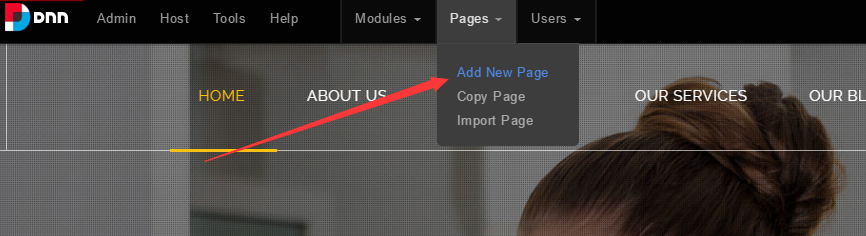
- Click the Add New Page button.
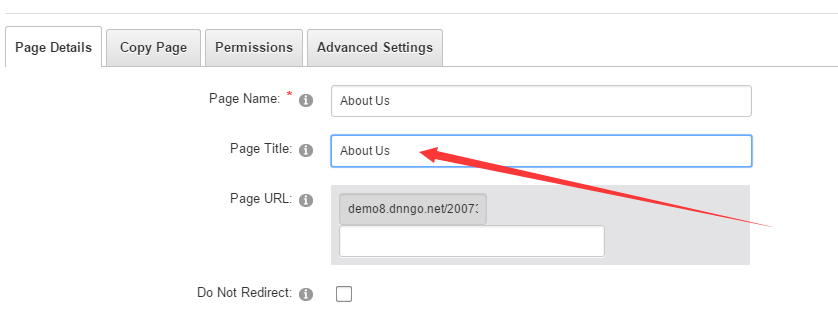
- Fill in Page Name and Page Title. The Page Title must match the
data-titlein the anchor code.
- Put the anchor code into an HTML module on the page. Clicking the top menu item will now scroll the page to the matching area.
html
<div data-title="About Us" class="anchorTag" data-offset="-60" data-scrollshownav="true" data-menuanchor="true"> </div>The complete block code (including anchor positions) for every One Page version is in the Home Codes chapter.