Skin List
In the Skin List you can view and switch the skin used by the module front end. Each skin is shown as a card with a preview image, name, version and a Demo Url link — click it to see the skin live on our demo site.
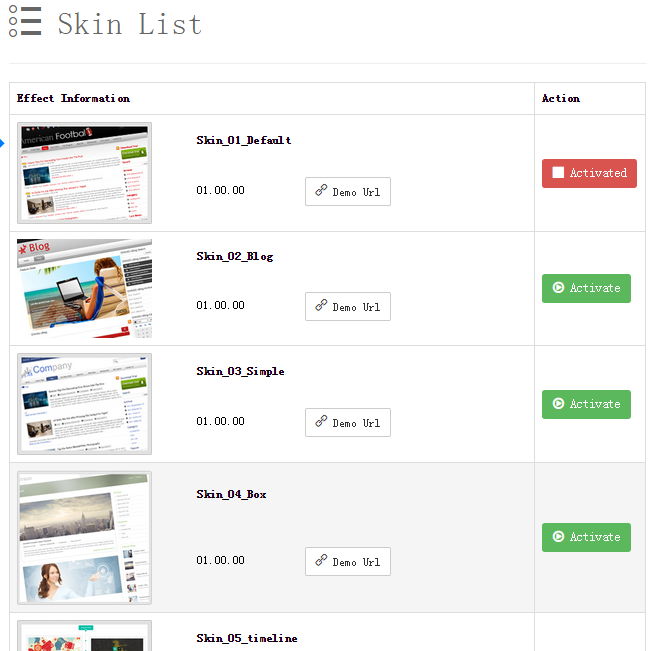
Built-in Skins
| Skin | Description | Demo |
|---|---|---|
| Classic | Classic blog layout, suits most blog sites, fully featured | Classic Blog Right Sidebar |
| Multi-author | Highlights author information, ideal for multi-author blogs and news sites | Multi-author Right Sidebar |
| Small | Minimal style for text-focused publishing sites | Small Right Sidebar |
| Timeline | Displays articles along a timeline for a strong narrative feel | Timeline Fullwidth |
| Timeline02 | A second take on the timeline style | Timeline2 Right Sidebar |
Switching Skins
Click the Activate button on the right of a skin to enable it. The skin currently in use shows an Activated state.
Risk-free switching
Switching skins does not affect your article data — the front end applies the new skin immediately. After switching, review the Skin Options page: options differ between skins.
Template technology
xBlog skins and templates use the Velocity template language. It is widely used and easy to learn — with the user manual and template manual you can access any blog or DNN data, and combine it with HTML to freely create all kinds of blog interfaces. Skins can be switched freely at any time.
Related Pages
- Skin Options — control the elements shown in the skin
- Skin Style — edit the full CSS of the current skin
- Effects — manage the gallery slideshow effects