Add New Post
Add New Post is the most frequently used feature of the blog module — create new articles or edit existing ones here. The editor is split into two columns: the left column holds the content and feature settings, the right column holds author, categories, tags, images and other attributes.
Content
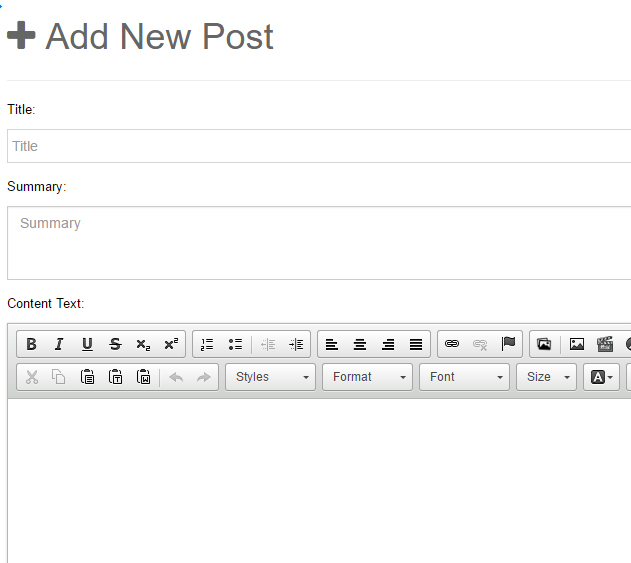
Fill in the Title and Content Text of the article; the Summary is optional. The title is required. When the summary is left empty, it is generated automatically by built-in rules.
Editor
xBlog uses CKEditor as the default editor. Images, videos and animations can be inserted into the editor directly from the media library.
Language Links
You can set links to other language versions for each article. When users switch languages on the page, they are redirected to the corresponding URL automatically.

SEO Settings
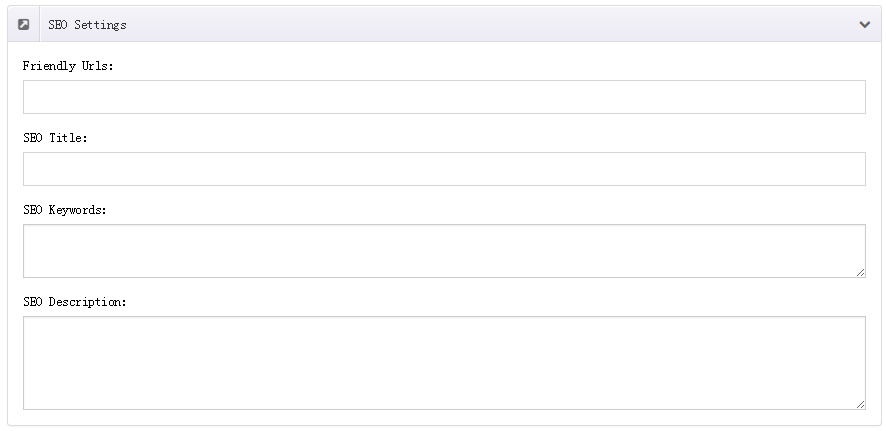
SEO fields are optional — xBlog generates them automatically using built-in rules when left empty.
| Field | Description |
|---|---|
| SEO Title | The page title shown in search engines |
| SEO Keywords | Page keywords |
| SEO Description | Page description |
| Friendly Url Name | Custom friendly URL for the article detail page. Characters not allowed by the URL rules cannot be used |
| Page Header Tags | Custom tags output into the page head (such as meta and Open Graph), controlled by the switch in SEO Settings |
Article Type
Choose the content type of the article in Article Type. Selecting a type shows its corresponding settings panel:
Default
A standard article with text and images. No extra settings.
Slider
Displays multiple images as a slideshow. Options:
- Auto Play — play automatically
- Auto Play Speed — interval between slides
- Animation Speed — animation duration
Quote
Displays a quote-style block. Set the Content (quote text) and Name (attribution).
Video
Embeds a video. VideoType supports three sources: HTML5 (local media files), YouTube and Vimeo:
- Video Ratio — aspect ratio (16:9 / 4:3 / 2:1 / 1:1)
- Video Poster — cover image (can come from the media library)
- For HTML5, fill in the mp4 / ogg / WebM video URLs — the visitor's browser picks the format it supports
Audio
Embeds audio. Fill in the mp3 / ogg / wav audio URLs as needed.
Text
A plain text article.
Link
The article itself is a link that redirects when clicked. Link Url supports three sources:
- URL — an external URL
- Page — a page on your site
- Files — a media library file
Additional Links
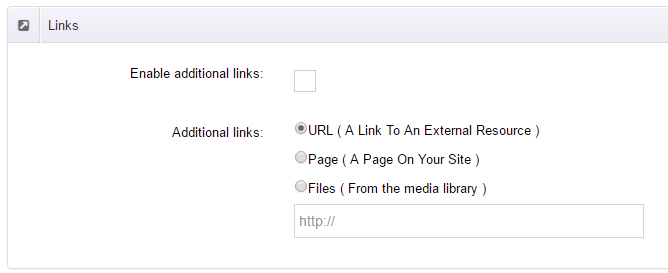
Enable Enable additional links to attach a link to the article. When users click the article title or the Read more link, they are redirected to that address. The link supports the same three sources: URL (external), Page (site page) and Files (media library file).
Rating
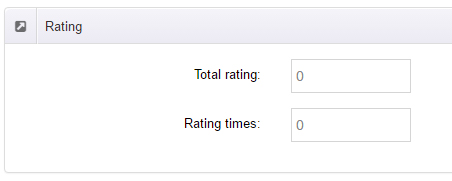
You can manually set the rating of an article:
- Total rating — the total rating value
- Rating times — the number of ratings
The front end displays the average calculated from the two values.
See Rating Settings for the global rating options.
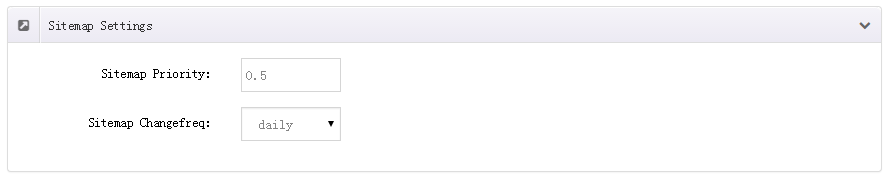
Sitemap Settings
Set the Sitemap options for the article. These options are reflected in the Sitemap URL provided by General Settings:
- Sitemap Priority — page priority
- Sitemap Changefreq — change frequency (always / hourly / daily / weekly / monthly / yearly)
Display Items
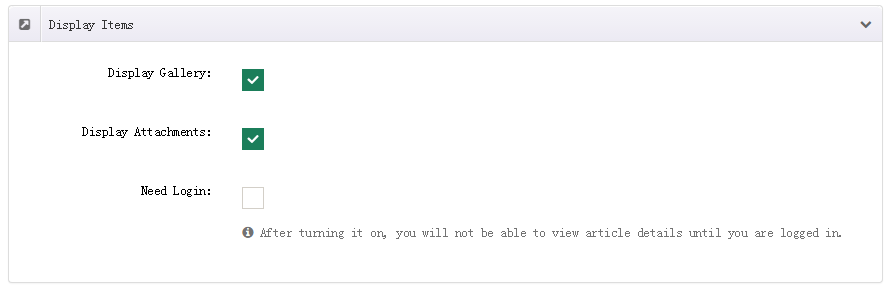
Control what is shown on the article detail page:
- Display Gallery — show the image gallery
- Display Attachments — show attachment downloads
- Need Login — when enabled, article details are hidden until the user logs in
Featured Image
The Featured Image is the main picture of the article. It appears in article lists, on the article detail page and in xBlog DashBoard modules.
Gallery Images
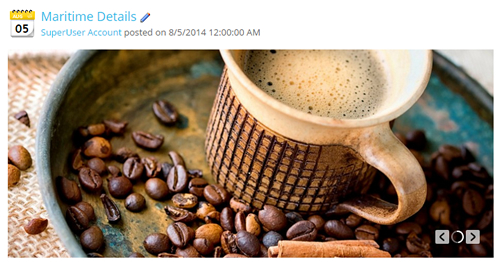
You can upload multiple Gallery Images for an article.
They are displayed as a slideshow on the article detail page. You can configure the slideshow effect on the Effects → Effect List page.
See Effects for details.
Attachments
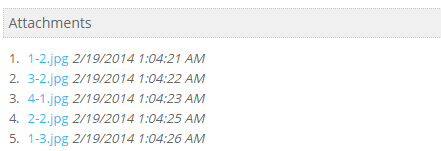
Upload attachments in the Attachments List.
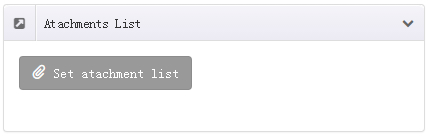
Visitors can download these files on the article detail page.
Author, Categories and Tags
Three attribute panels in the right column:
- Article Author — defaults to the current user. Click Set Article Author to assign another user as the author
- Categories — check categories from All Categories or Most Used, or click Add new category to create one on the spot
- Tags — enter tags separated by commas
Category management
Categories created here also appear in the Categories list, where you can fill in their SEO information.
Permissions
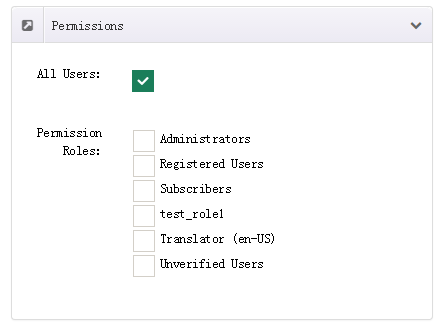
Set who can access the article — everyone or selected security roles only:
- All Users — when checked, everyone (including anonymous visitors) can access the article
- Permission Roles — when specific roles are checked, only those roles can access the article
Note
If you restrict the article to selected roles, make sure All Users is unchecked.
Publish
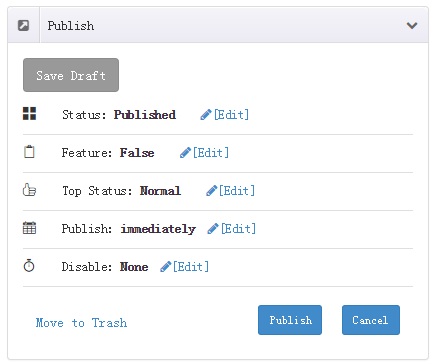
The Publish panel controls publishing behavior:
| Field | Description |
|---|---|
| Status | Published / Draft / Pending / Locked / Recycle |
| Feature | Mark as a featured article for lists and DashBoard modules |
| Top Status | Normal / Top (the article stays at the top of lists) |
| Publish | Immediately, or a scheduled publish time |
| Disable | The article stops being displayed after this time (defaults to ten years later) |
Review workflow
After enabling "Review new article" in General Settings, articles submitted by authors enter the list as Pending and are published only after an administrator approves them.