Categories
In the Categories interface you can create and manage article categories. The screen has two columns: the left form creates or edits a category, the right side lists all categories.
Add New Category
Fill in the following fields in the Add New Category form on the left:
| Field | Description |
|---|---|
| Name | Category name, required |
| Friendly Url Name | The word used in the category URL. Category Friendly URL must be enabled first in SEO Settings |
| Parent Category | Choose a parent from the tree dropdown to make this a sub-category; choose [Select] for a top-level category |
| Description | Category description |
Click Update to save.
Hierarchy
Categories support unlimited nesting. The dropdown shows the hierarchy with tree symbols (├┬, │├─, └─), so you can create any number of parent and child categories.
Category List
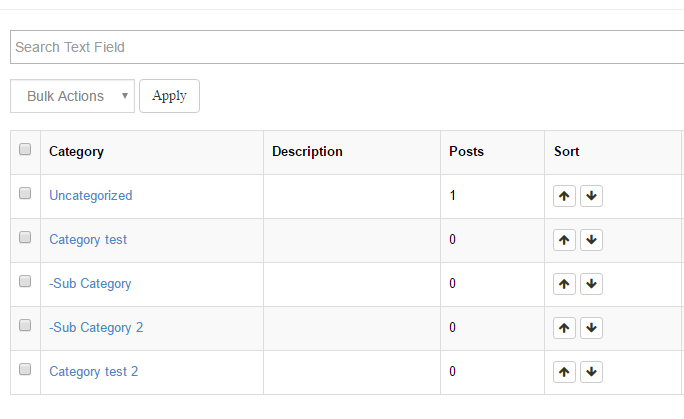
The right side lists all categories in a table with keyword search:
| Column | Description |
|---|---|
| Category | Category name. Click to open the front-end category page in a new window; sub-categories are prefixed with - |
| Description | Category description |
| Posts | Number of articles in this category |
| Sort | Click the up/down arrows to change the display order |
| Action | Edit, Remove |
Clicking Edit loads the category into the left form for editing. Clicking Remove deletes the category after confirmation.
Note
Deleting a category is immediate — double-check which articles belong to it first.
Bulk Delete
Check multiple categories, choose Delete in the Bulk Actions dropdown and click Apply to remove them in bulk.
Tips
- Categories structure your content. An article can belong to multiple categories (checked in the right column of Add New Post).
- Combine with Tags for more flexible organization.