All Posts
In the All Posts interface you can manage every article on the site: filter by status, search, sort, perform bulk actions and send newsletters. The Add New button in the top right opens the Add New Post screen.
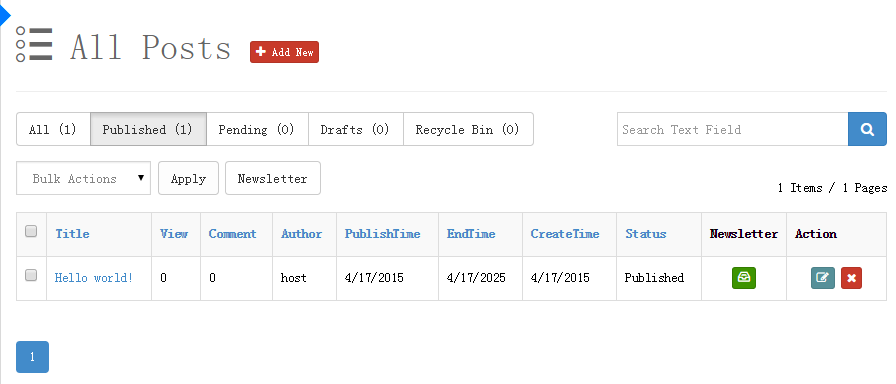
Status Filter
The top of the page is a status button group with record counts. Click to filter:
| Button | Description |
|---|---|
| All | Articles of all statuses |
| Published | Articles visible on the front end |
| Pending | Articles submitted by authors awaiting administrator review |
| Drafts | Unpublished drafts |
| Recycle Bin | Removed articles, viewable here |
Search
Enter a keyword in the search box on the right and click the search button to find articles by text fields such as the title.
Article List
| Column | Description |
|---|---|
| Title | Click to open the article page on the front end in a new window |
| View | View count |
| Comment | Comment count |
| Author | User who published the article |
| PublishTime | When the article was (or will be) published |
| EndTime | When the article stops being displayed |
| CreateTime | When the article was created |
| Status | Published / Pending / Draft etc. |
| Newsletter | Send a newsletter for a single article (see below) |
| Action | Edit, Remove |
Sorting and paging
Click a column header (title, view count, comment count, author, time columns, status) to sort by that column. The area below the list shows record and page counts (e.g. 14 Items / 2 Pages) with pagination. On small screens the action column collapses into a dropdown menu.
Row Actions
- Edit — open the article in the editor
- Remove — after confirmation the article is moved to the Recycle Bin; it is not permanently deleted and can be found under the Recycle Bin filter
Bulk Actions
- Check one or more rows (the header checkbox selects the whole page).
- Choose an action in the Bulk Actions dropdown:
- Published — publish in bulk
- Pending — set to pending review in bulk
- Delete — move to the recycle bin in bulk
- Click Apply and confirm.
Send Newsletter
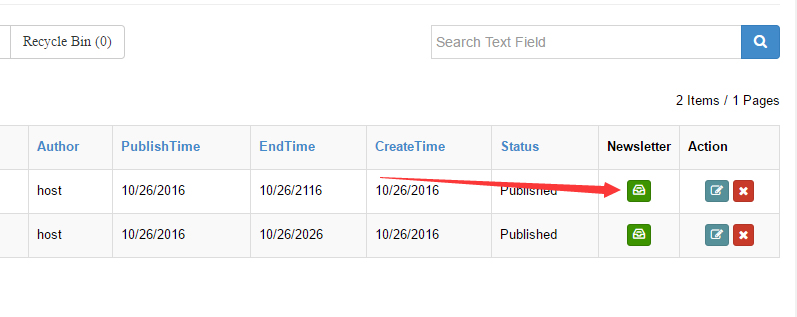
- Single article: click the Newsletter button in a row to send that article to subscribers.
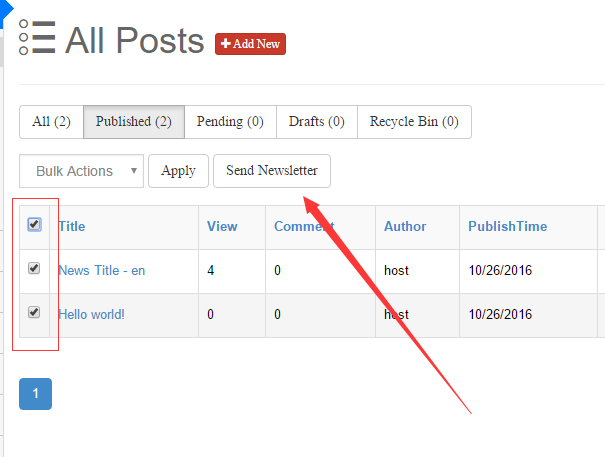
- Multiple articles: check multiple rows and click Send Newsletter above the list to combine them into one email.
You can also send multiple articles to a specific user.
Related
- Subscriber management: Subscribers
- Email templates: Email Settings