All Subscribers
In the All Subscribers interface you manage the subscription list. The Add Email and Add Role buttons in the top right add new subscribers.
The xBlog Subscription sub-module can also capture emails submitted by visitors.
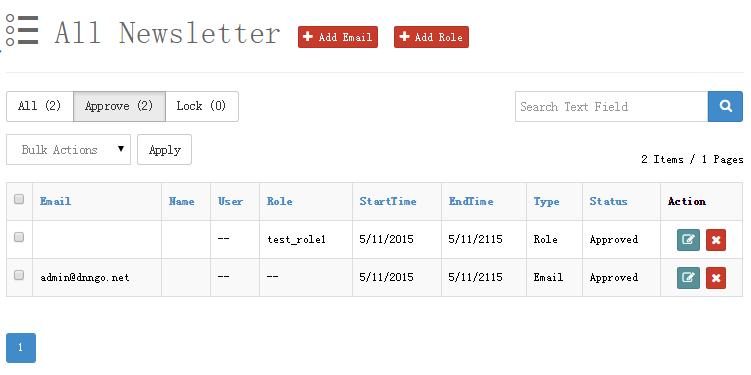
Status Filter and Export
The top of the page is a status button group with counts:
- All — all subscription records
- Approve — active subscriptions
- Pending — subscriptions awaiting confirmation
- Lock — locked subscriptions
Click Export All to export the full subscriber list for backup or migration to an email marketing system. The search box on the right searches by email.
Subscriber List
| Column | Description |
|---|---|
| Subscriber email address | |
| Name | Subscriber name |
| User | Associated DNN user (-- if none) |
| Role | Associated security role (-- for email subscriptions) |
| StartTime | When the subscription takes effect |
| EndTime | When the subscription expires; expired records stop receiving emails |
| Type | Email subscription / Role subscription |
| Status | Approved / Pending / Lock |
| Action | Edit, Remove |
Bulk Actions
Check multiple records and use the Bulk Actions dropdown to set them to Approved / Pending / Lock or Delete, then click Apply.
Adding Subscribers
Add Role
Adds a DNN security role to the subscription list — every user in the role receives the newsletter. The form contains:
- Role — pick a security role from the dropdown
- BeginDate — effective date
- EndDate — expiry date (the end date is constrained to be after the begin date)
Add Email
Adds a single email to the list. The form contains Email (required, must be a valid address), a begin date and an end date.
Batch Add Email
Imports a large number of addresses at once. Enter one subscription per line in the text box, email and name separated by a semicolon:
[email protected];full name
[email protected];Jane Doe- Existing subscription / unsubscription records are ignored automatically, so re-importing is safe
- Set the begin and end dates for this batch
Expiry
Subscribers stop receiving emails after EndTime. Set a distant end date (e.g. ten years out) for long-term subscribers, or edit the record later to extend it.
Sending Newsletters
Select articles in the All Posts list and click Newsletter to send them to subscribers.
With automatic subscription email enabled in Email Settings, subscribers receive an email with the article content whenever an article is published.
Unsubscribing
Newsletters include an unsubscribe link so users can cancel at any time.