Set Up Mega Menu
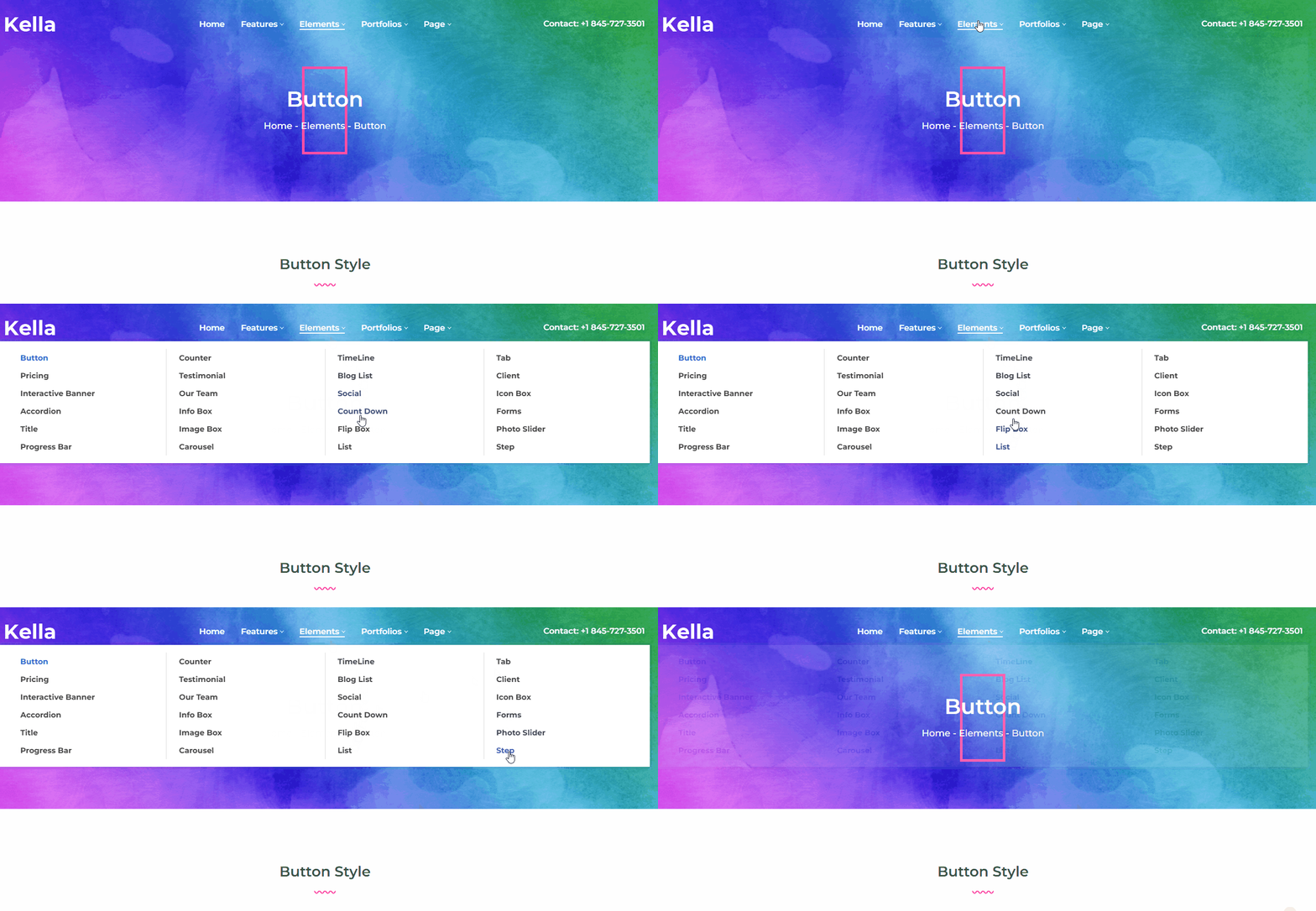
Mega Menus allow you to add multi-column drop-down menus to your navigation with rich media such as images and videos.
Setup Steps
Step 1. Log in to your site as super administrator.
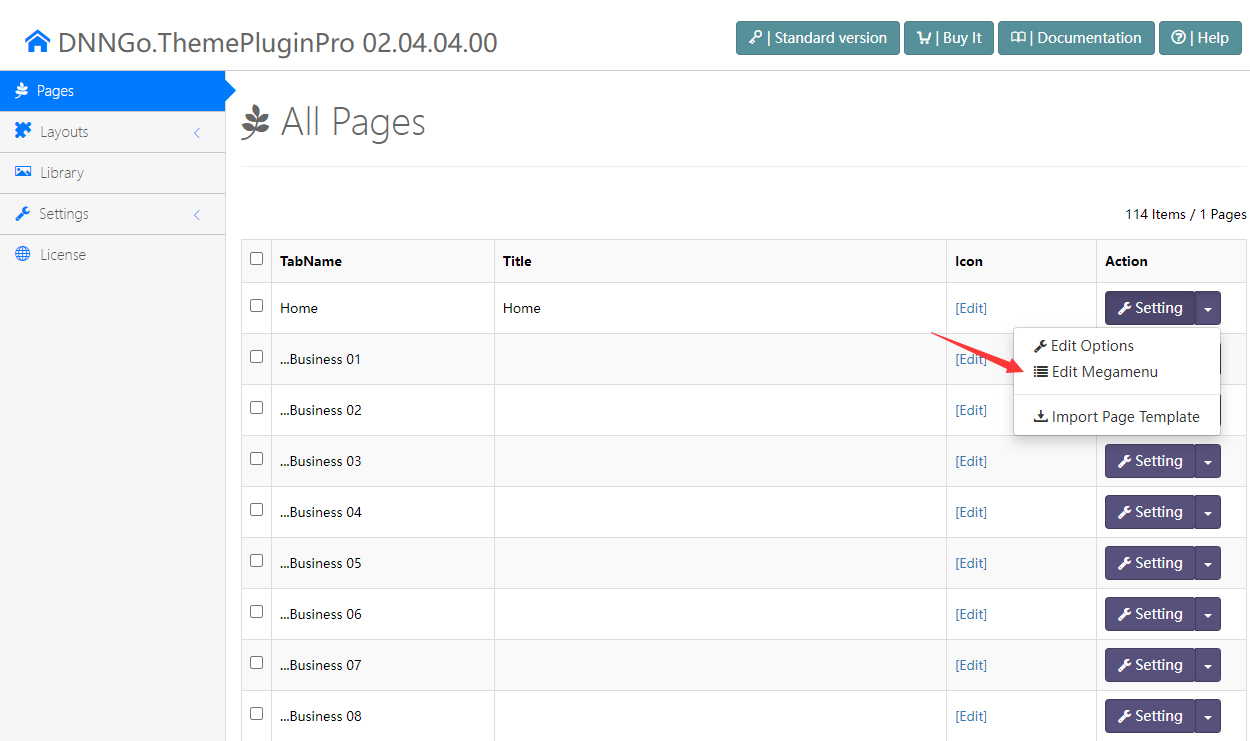
Step 2. Go to ThemePluginPro > Pages.
Step 3. Click the Edit Mega Menu button.
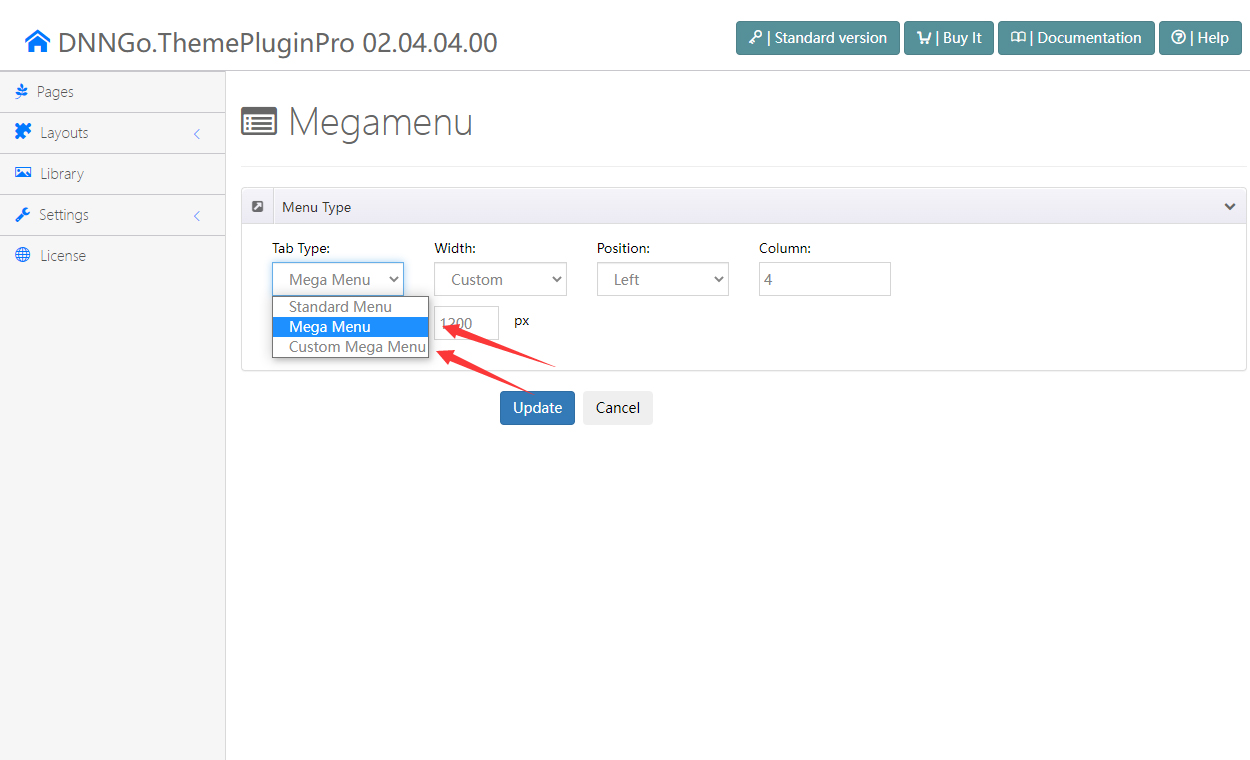
Step 4. The Mega Menu comes in 2 types:
- Mega Menu — add a multi-column drop-down menu to your navigation
- Custom Mega Menu — insert extra HTML modules and 3rd party modules into the drop-down menu
Mega Menu
After selecting the Mega Menu type, you will find the options below.
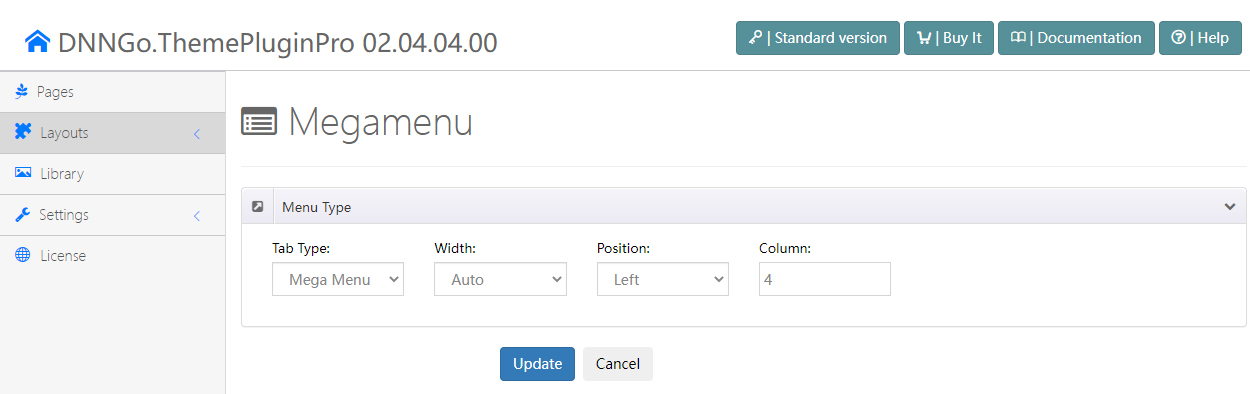
Width
You can set the width of a drop-down menu with this option.
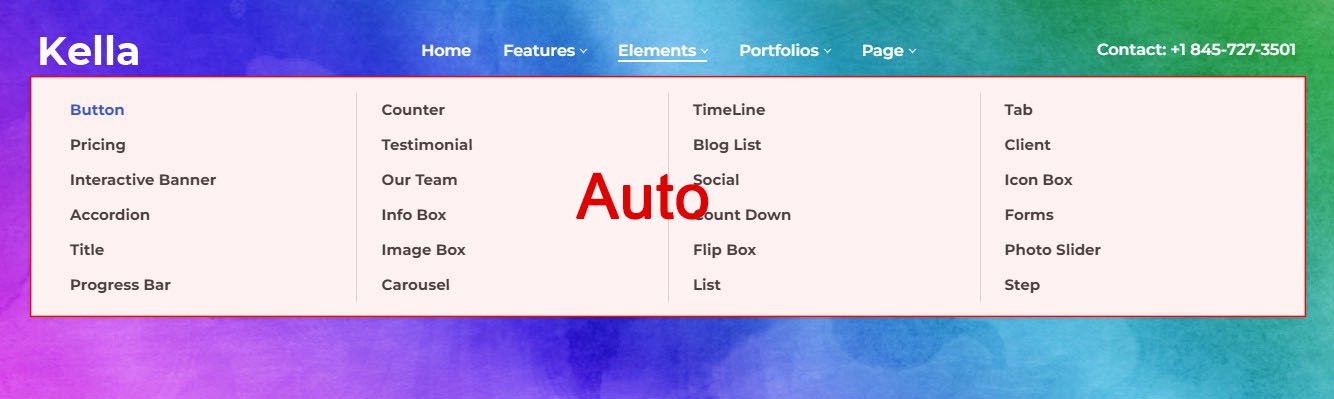
- Auto — the width of the sub-menus is the same as the theme's content area width
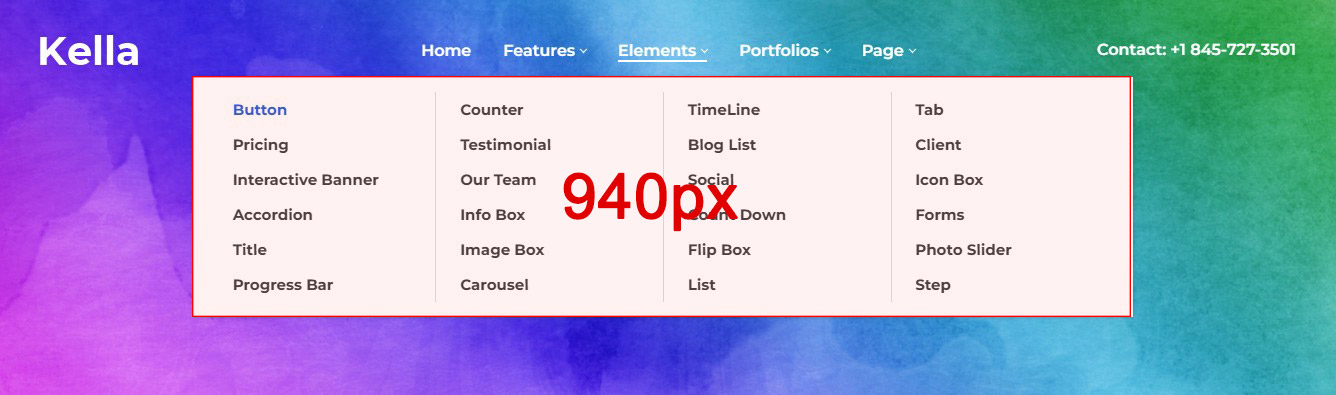
- Custom — set the width of the sub-menus to a specific value
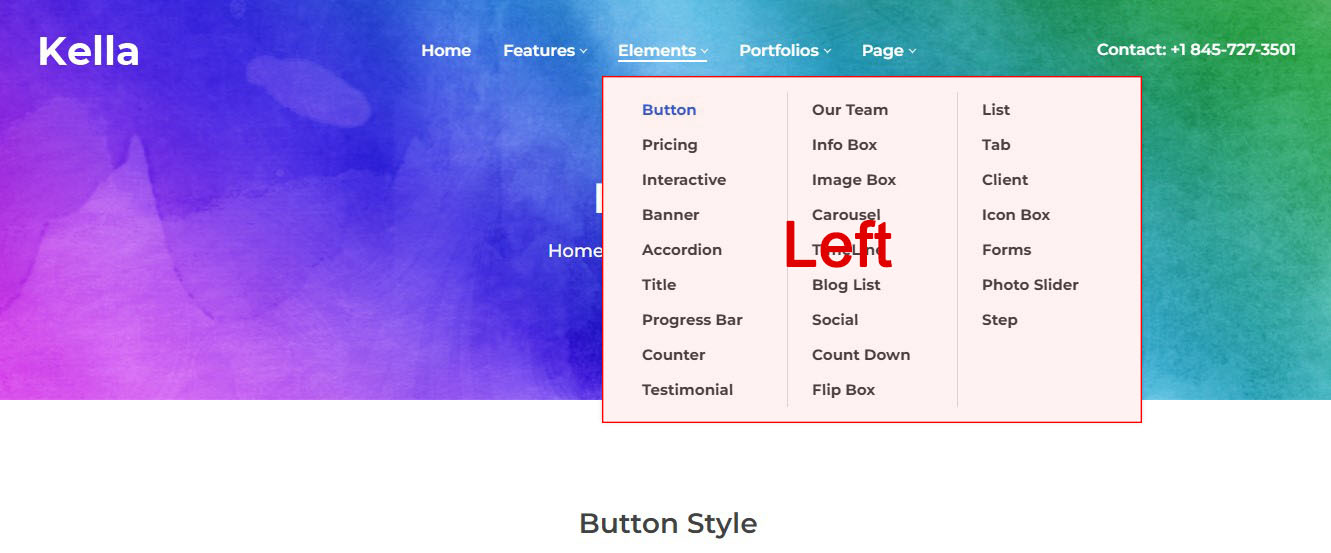
Position
You can set the position of a drop-down menu with this option.
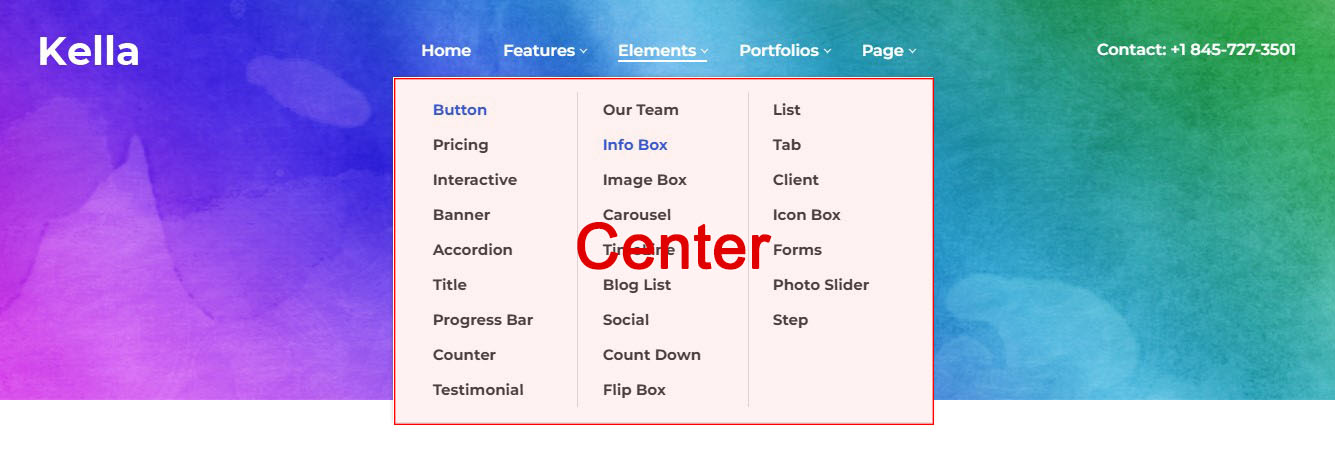
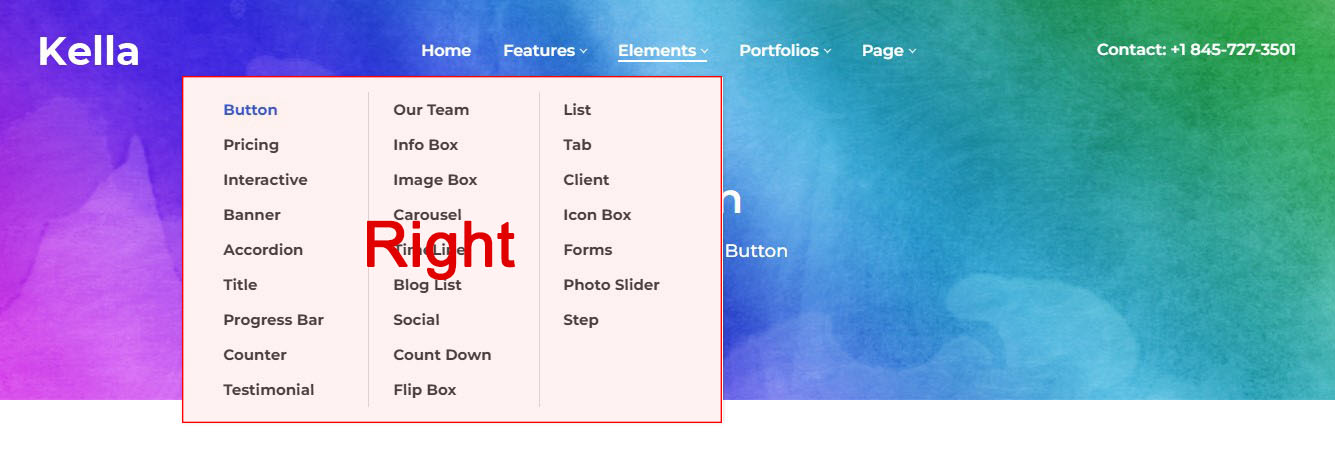
Column
You can set how many columns a sub-menu is displayed in with this option.
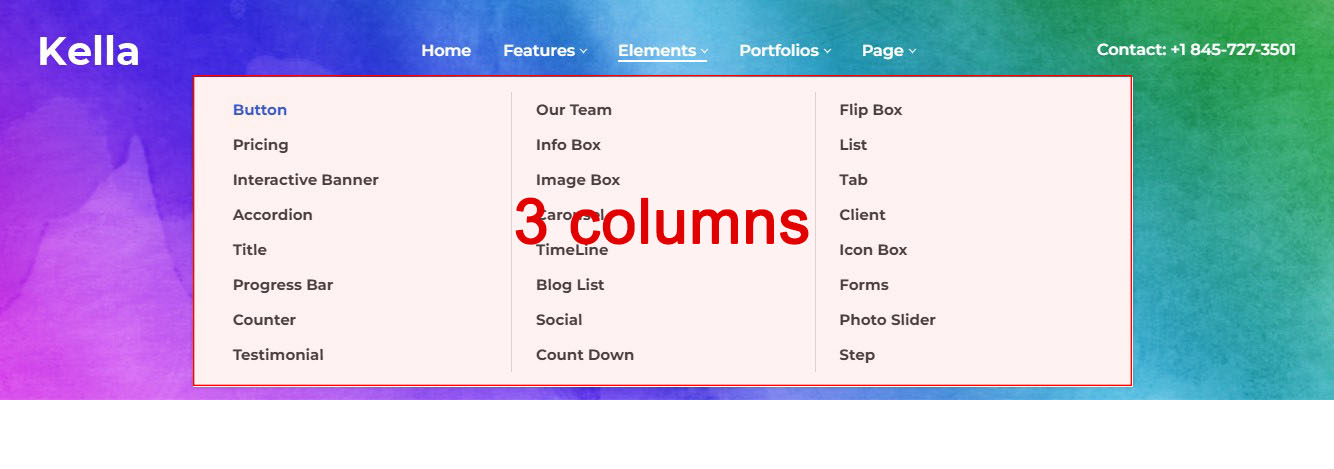
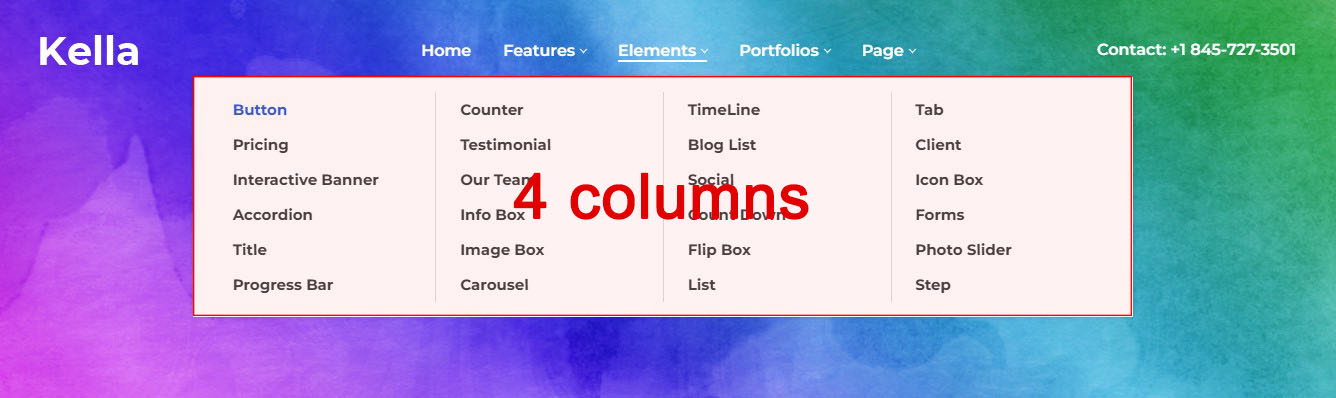
Custom Mega Menu
With this setting you can insert extra HTML modules and 3rd party modules into the pop-up menu. The setting steps are as follows:
Step 1. Set Tab Type to Custom Mega Menu.
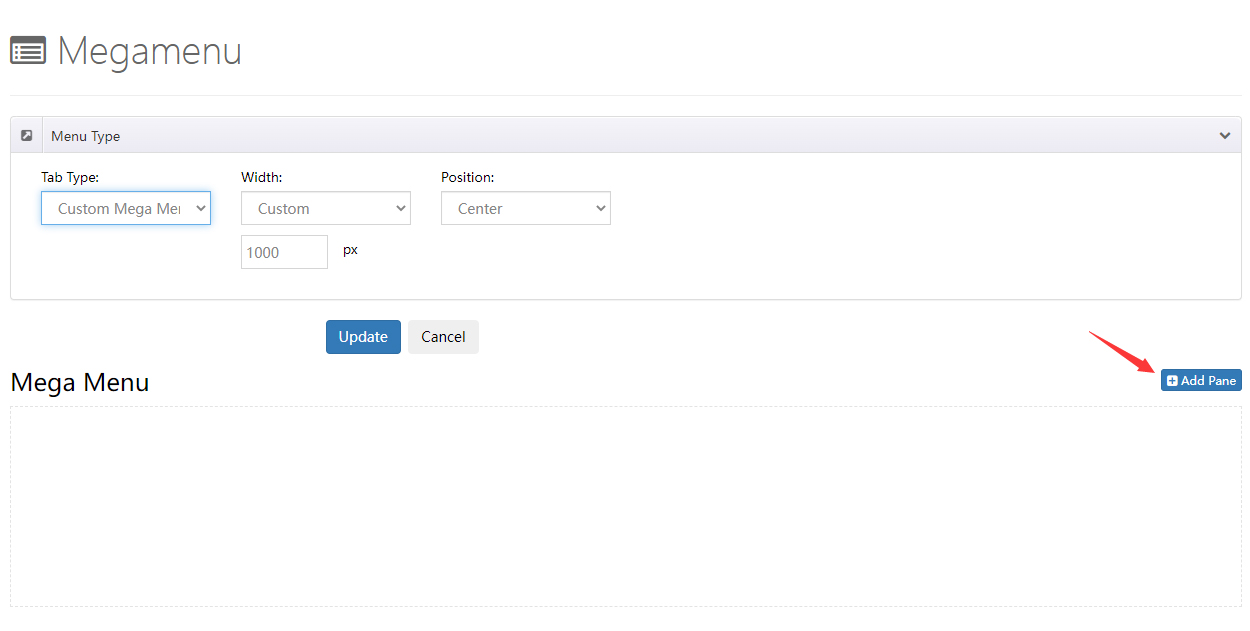
Step 2. Click the Add Pane button.
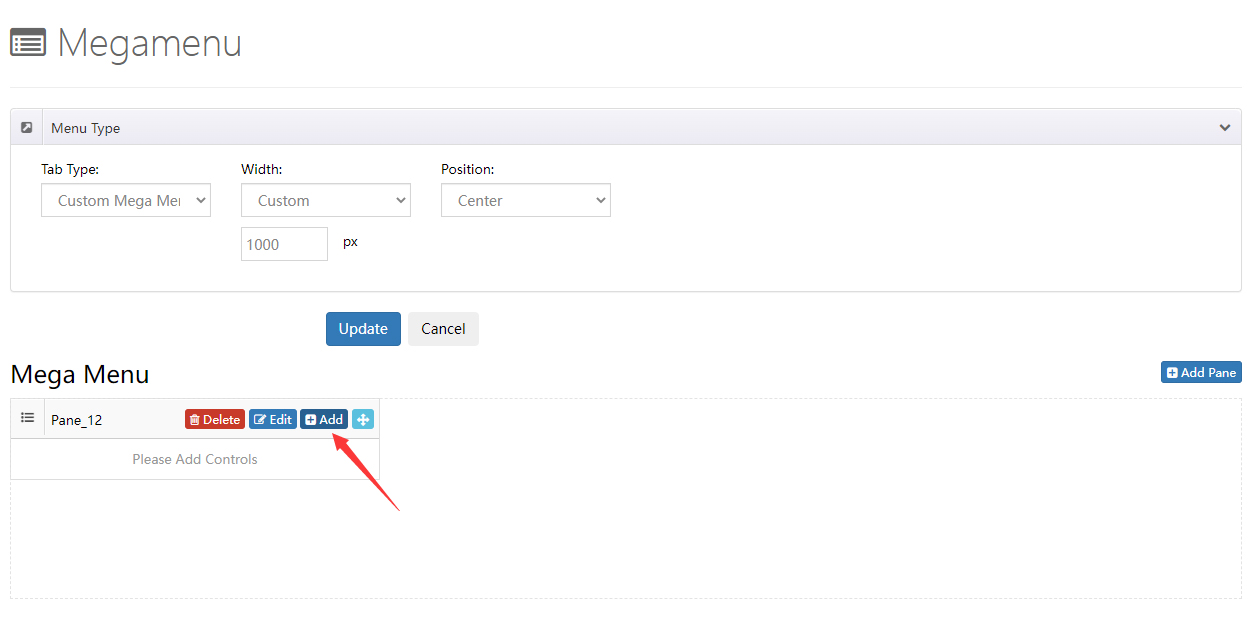
Step 3. Click the Add button to add a control to a pane. There is a total of 3 controls: Menu, HTML and Module.
Step 4. You can add multiple panes to a drop-down menu.
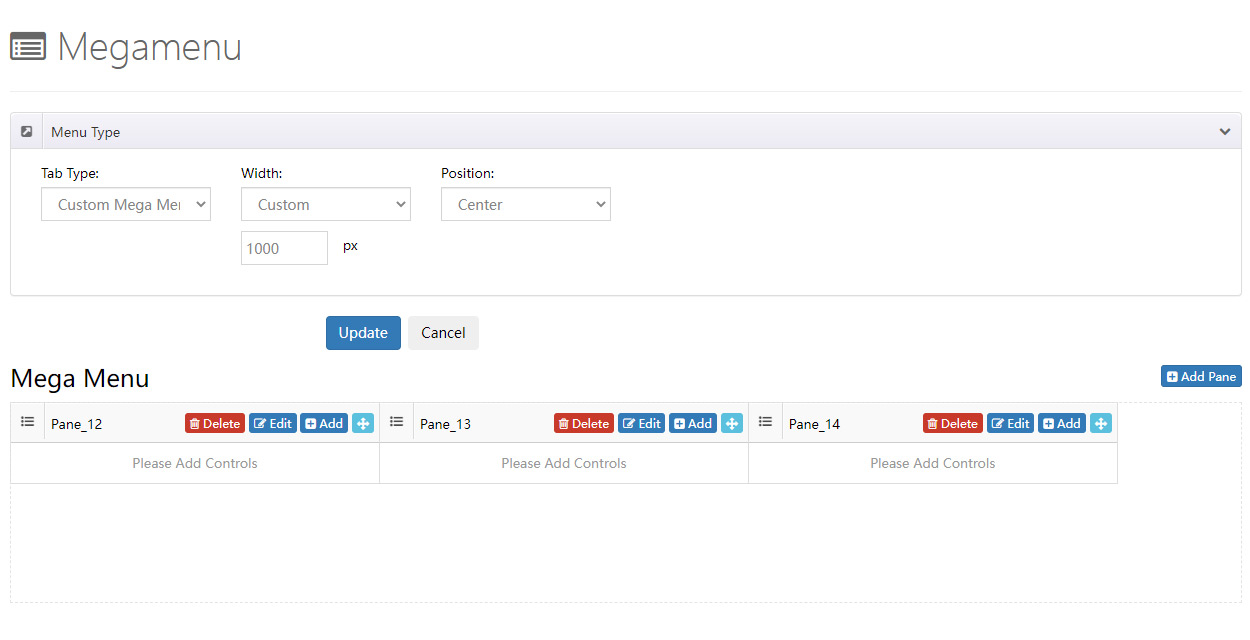
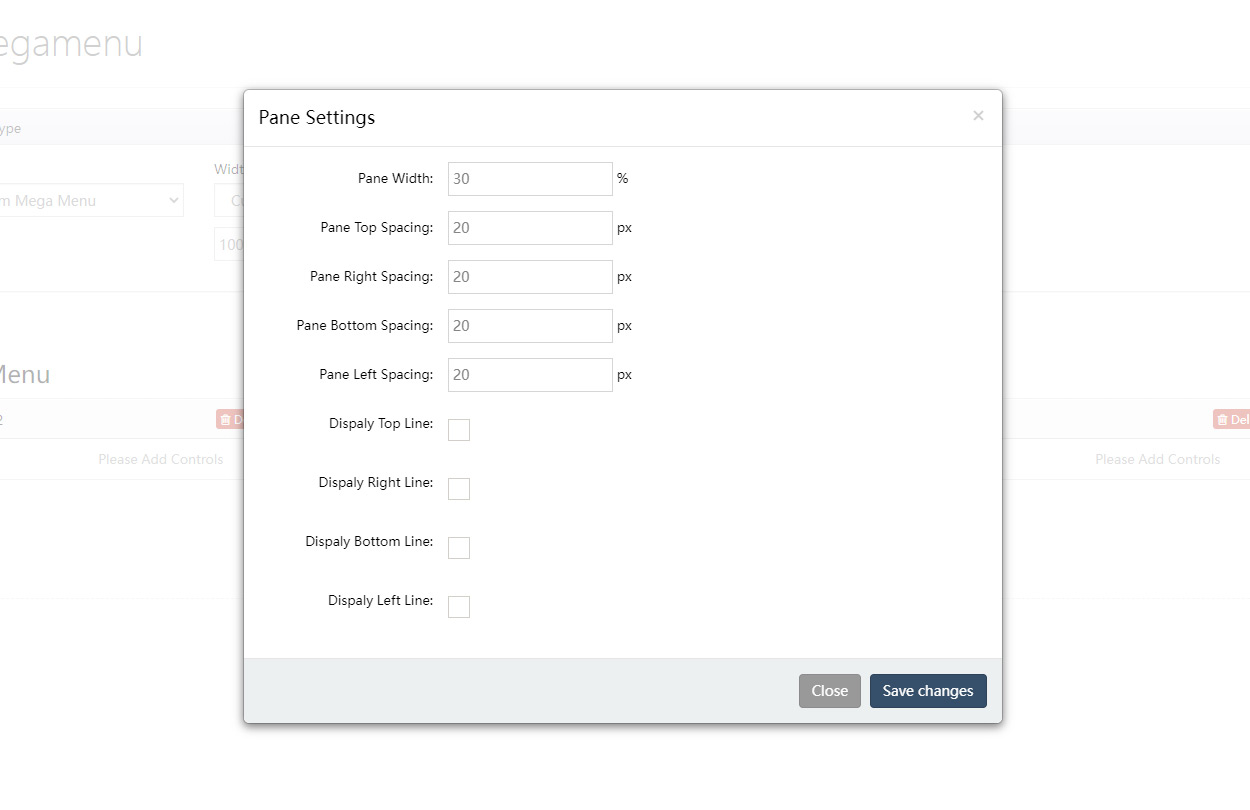
You can set the width of a pane and the spacing between panes by clicking the edit icon.