

Build a Full Page Site
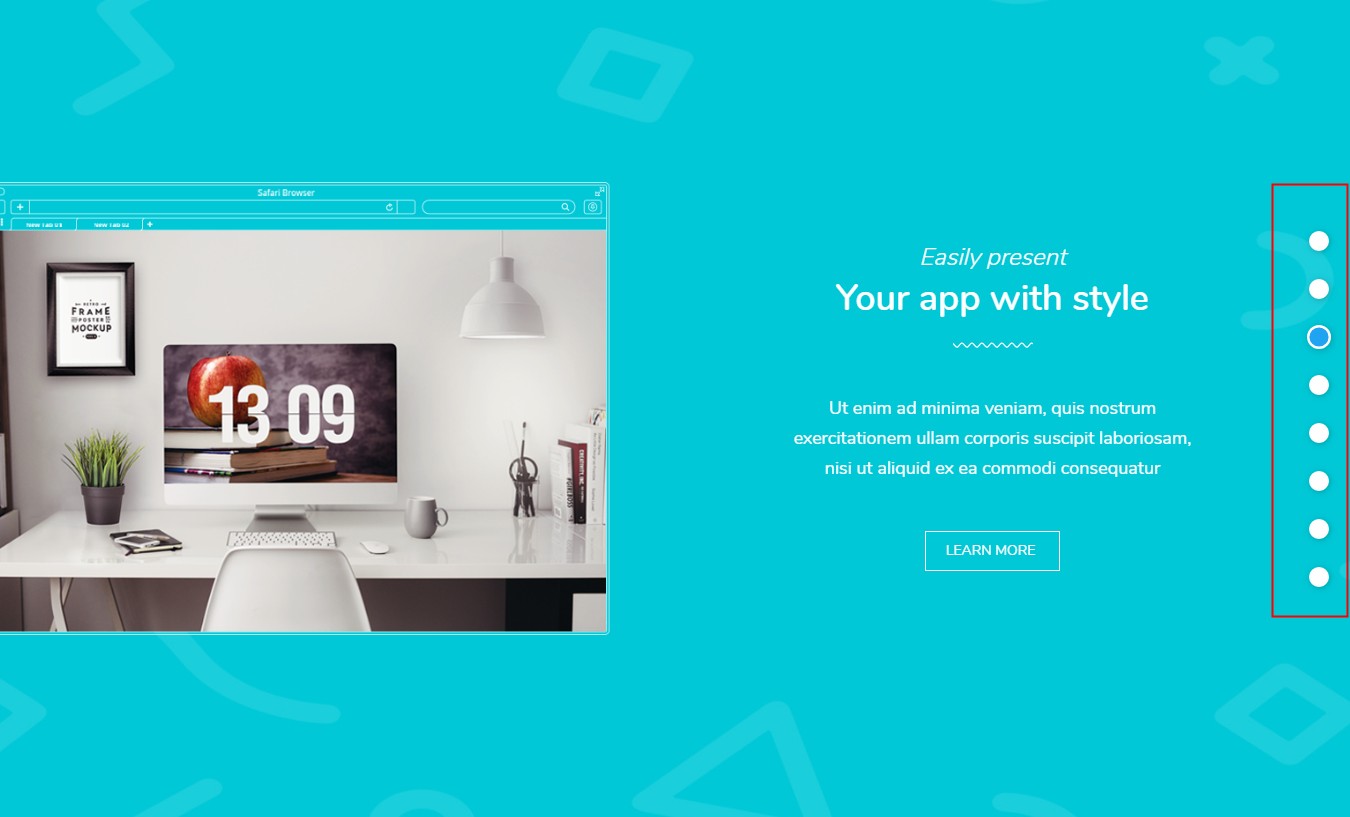
Take a look at the Full Page demo first: https://theme.dnngo.net/fullpage. The page snaps between full-screen sections — use the dot navigation on the right to switch. Set yours up as follows.

Steps
Log in as a superuser
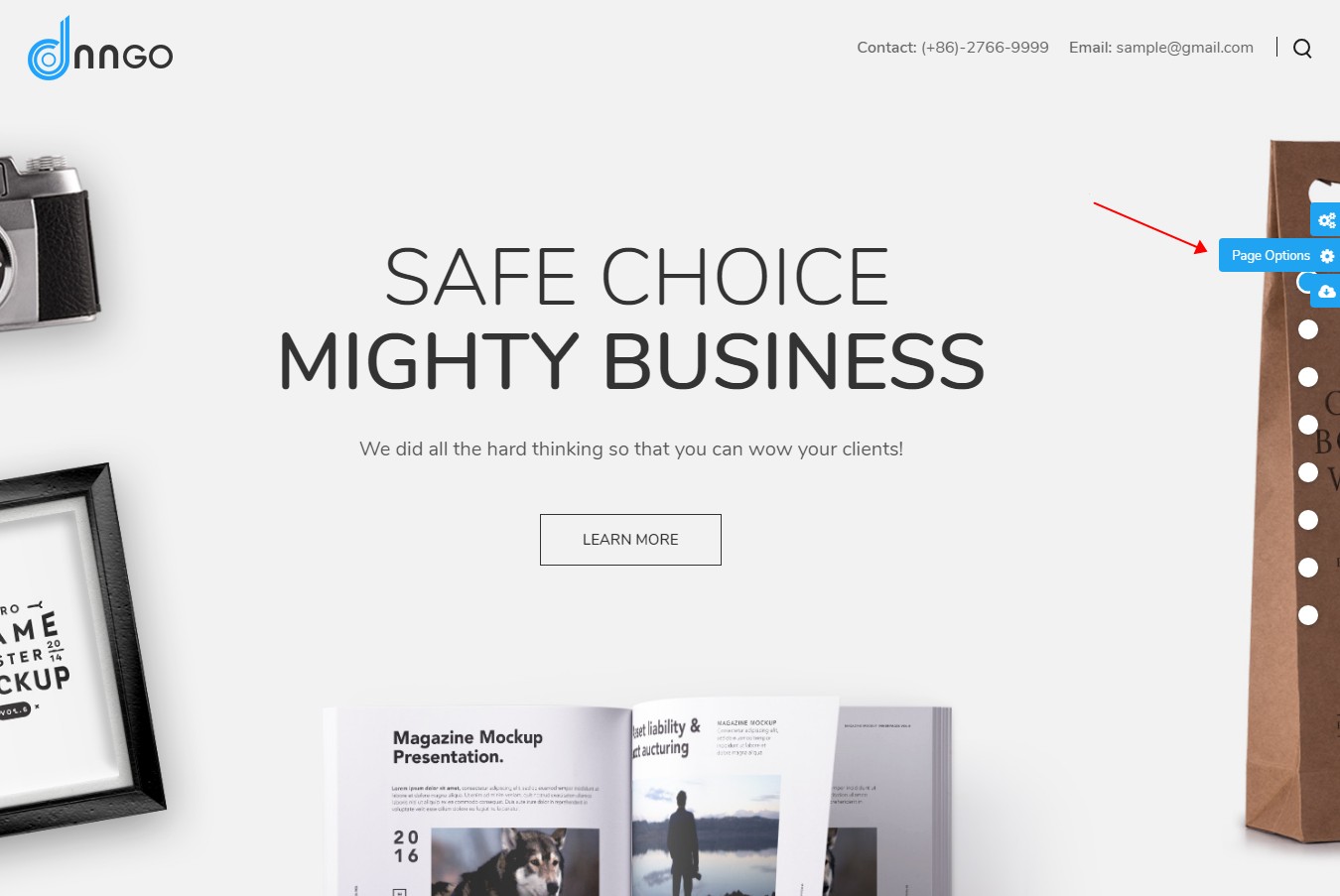
Click the Page Option icon on the right side of the home page
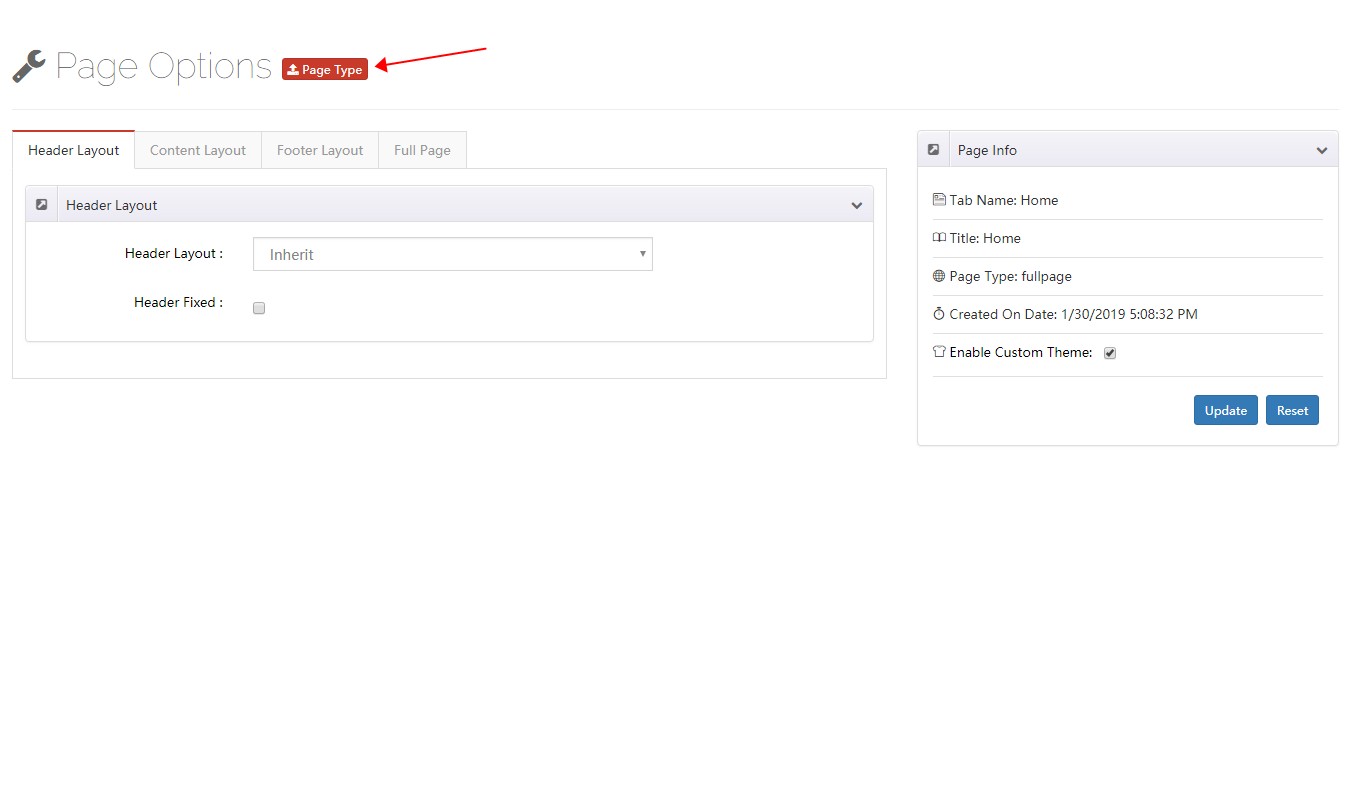
Click the Page Type button
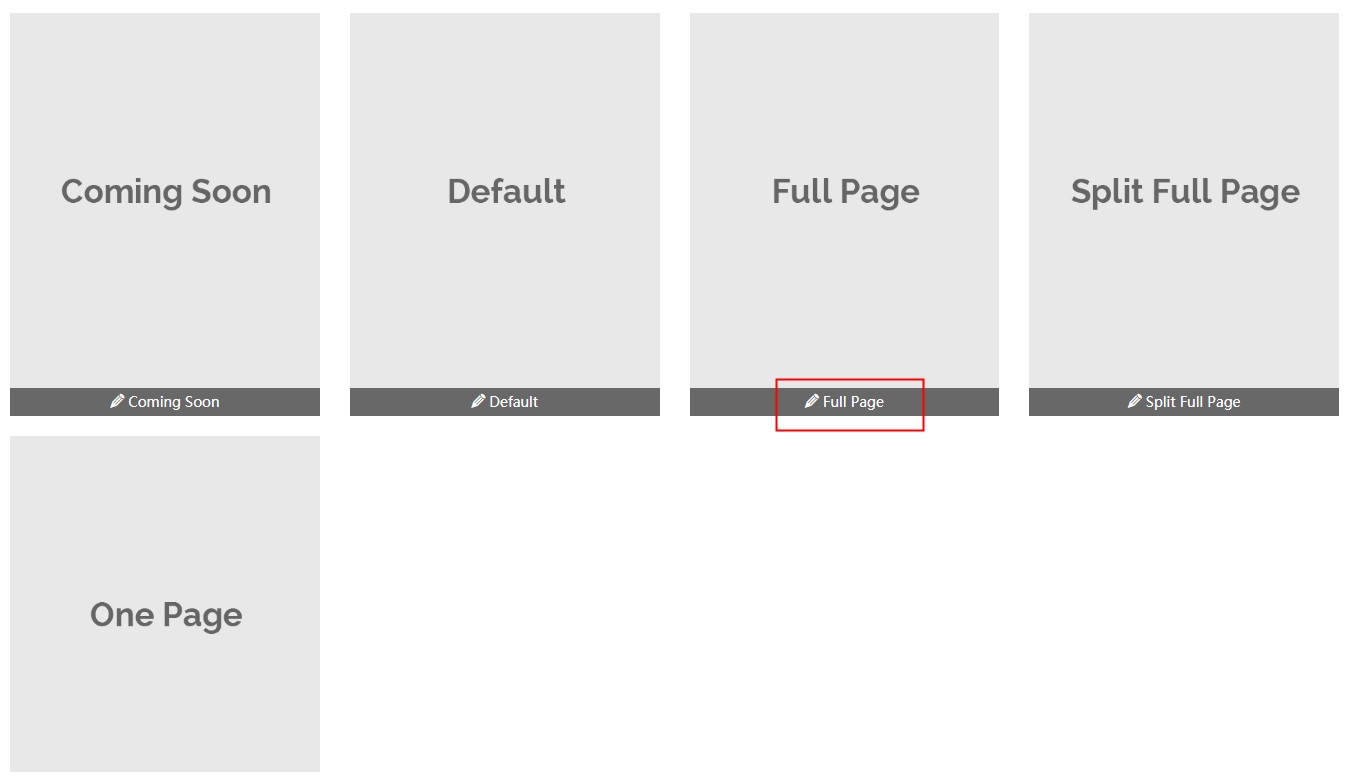
Choose Full Page
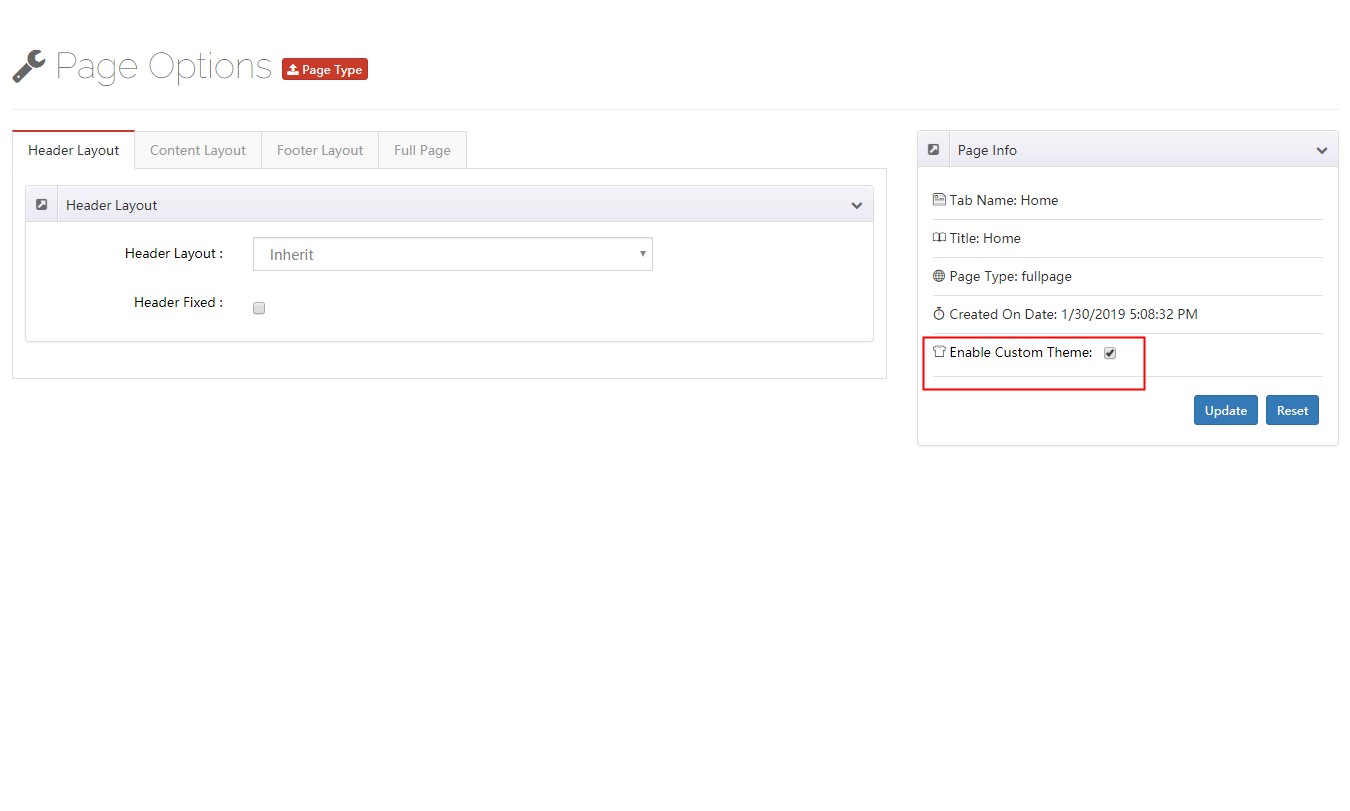
Check Enable Custom Theme
Go to Layout > Content Layouts and edit or create a layout
Drag layouts into the container — each row becomes one full-screen section
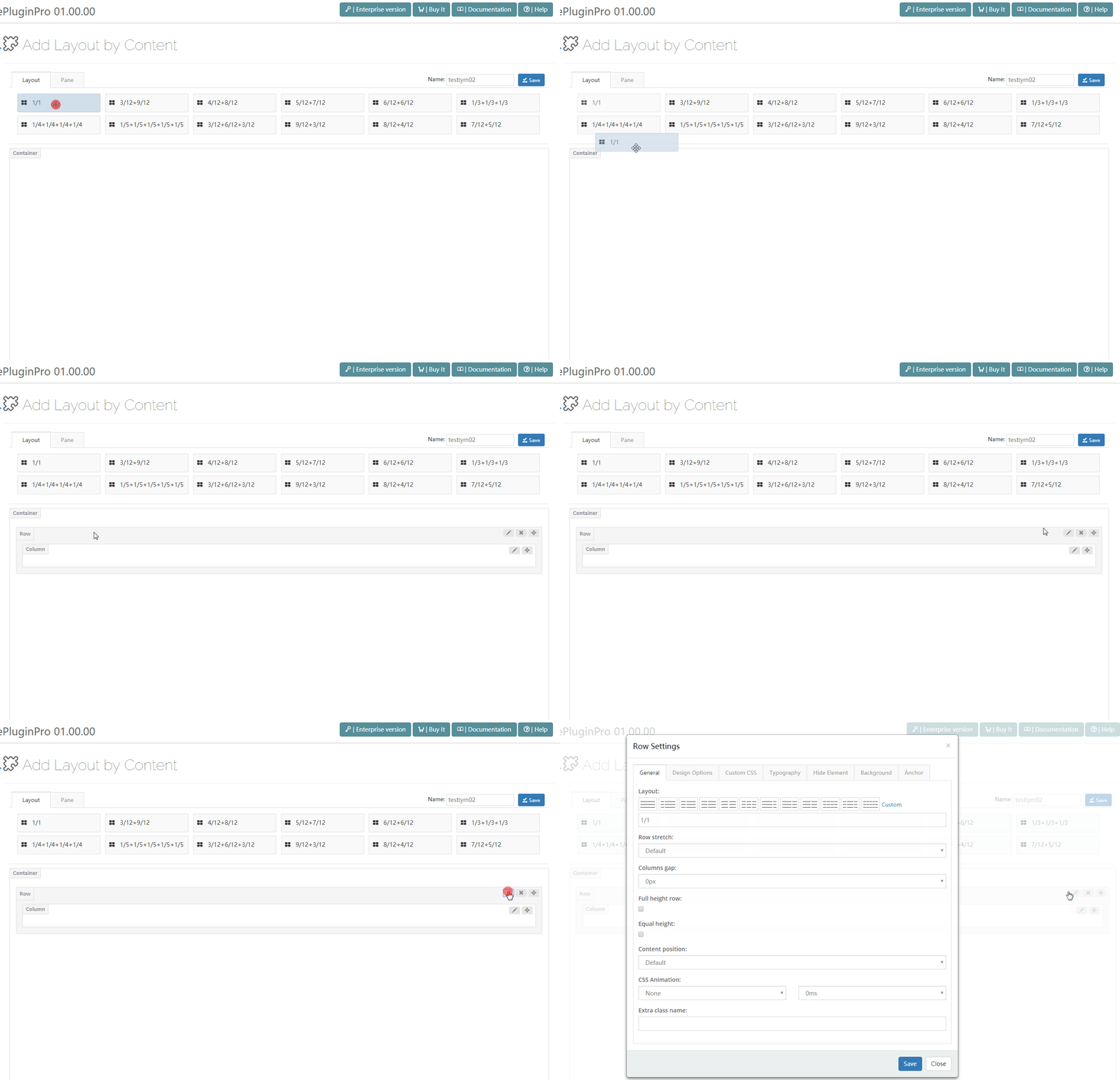
Open the General tab and enable Full height row. To center the content vertically, set Columns position to Middle
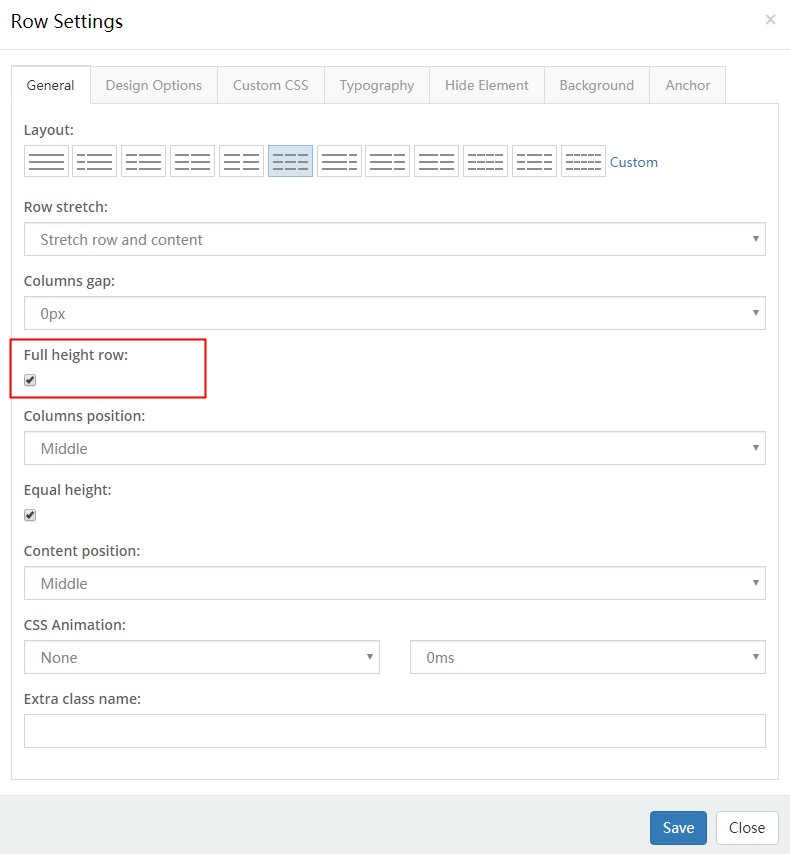
Open the Anchor tab and fill in Anchor ID and Anchor Title. The Anchor ID must not contain spaces; the Anchor Title appears in the side navigation
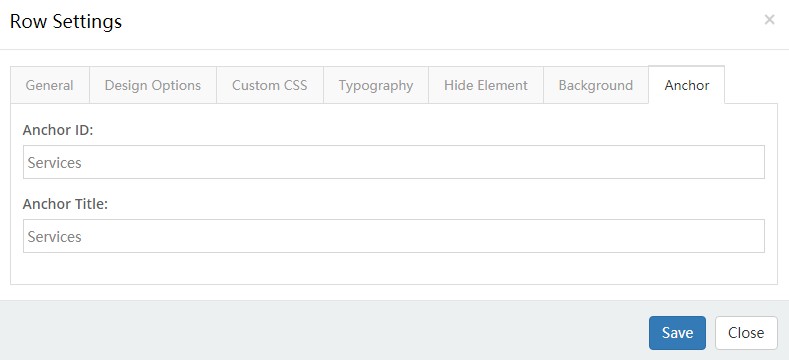
Repeat steps 7, 8 and 9 to add more sections
Full Page Options
Full Page pages come with a few extra settings.
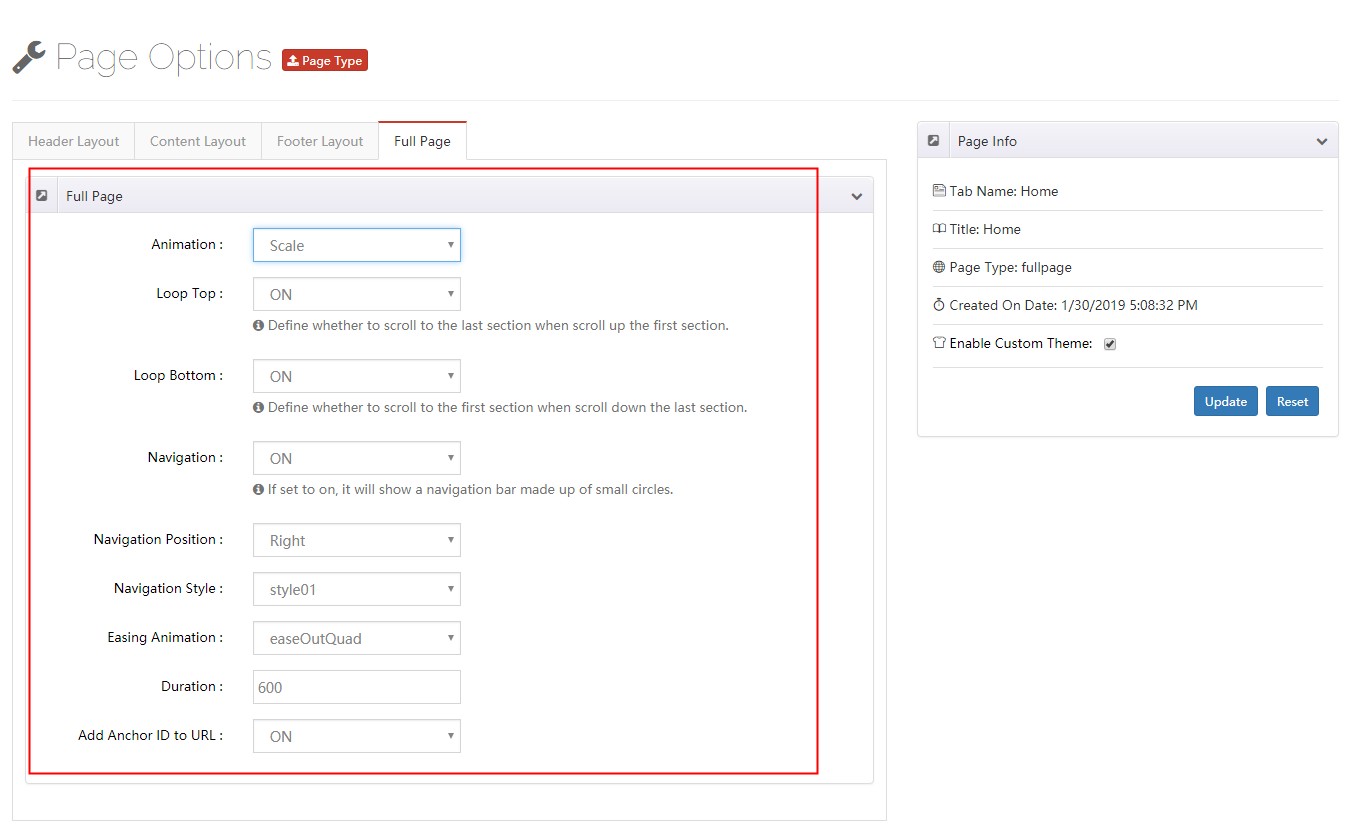
| Setting | Description |
|---|---|
| Animation | The transition effect — 5 built-in effects |
| Loop Top | Scrolling up from the first section jumps to the last |
| Loop Bottom | Scrolling down from the last section jumps to the first |
| Navigation | Show a dot navigation bar |
| Setting | Description |
|---|---|
| Navigation Position | Dots on the left or right of the window |
| Navigation Style | Look of the dot bar — 3 styles |
| Easing Animation | Transition effect |
| Duration | Duration of the transition |
| Add Anchor ID to URL | Write the anchor ID into the address bar — e.g. https://theme.dnngo.net/fullpage#AboutUs, where AboutUs is the anchor ID. Opening that link directly shows the About Us section |