

Build a One Page Site
Take a look at the One Page demo first: https://theme.dnngo.net/onepage. Clicking a menu item smoothly scrolls the page to the matching section. Set yours up as follows.

Steps
Log in as a superuser
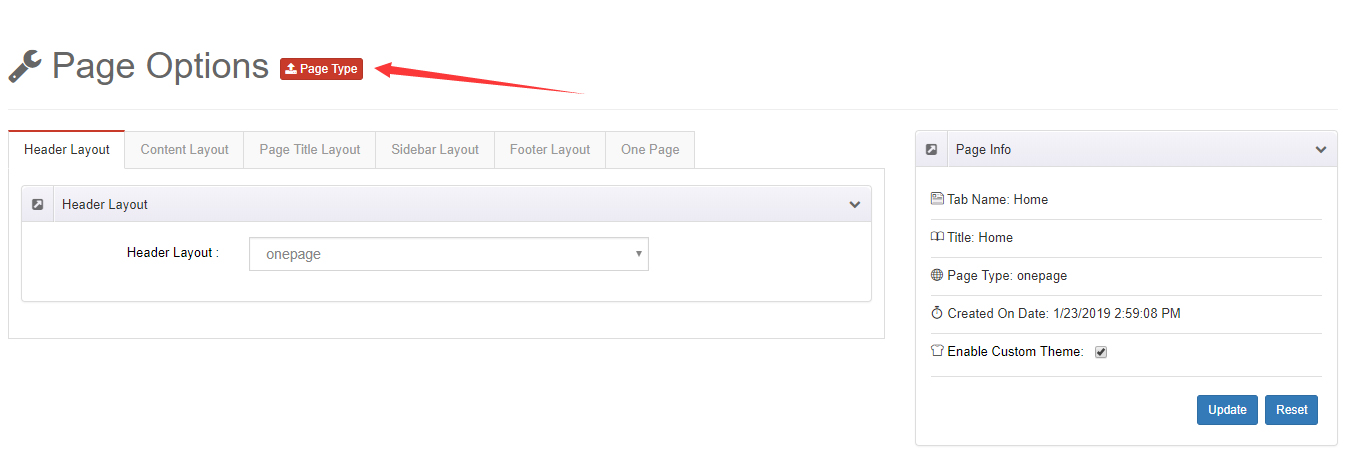
Click the Page Option icon on the right side of the page

Click the Page Type button
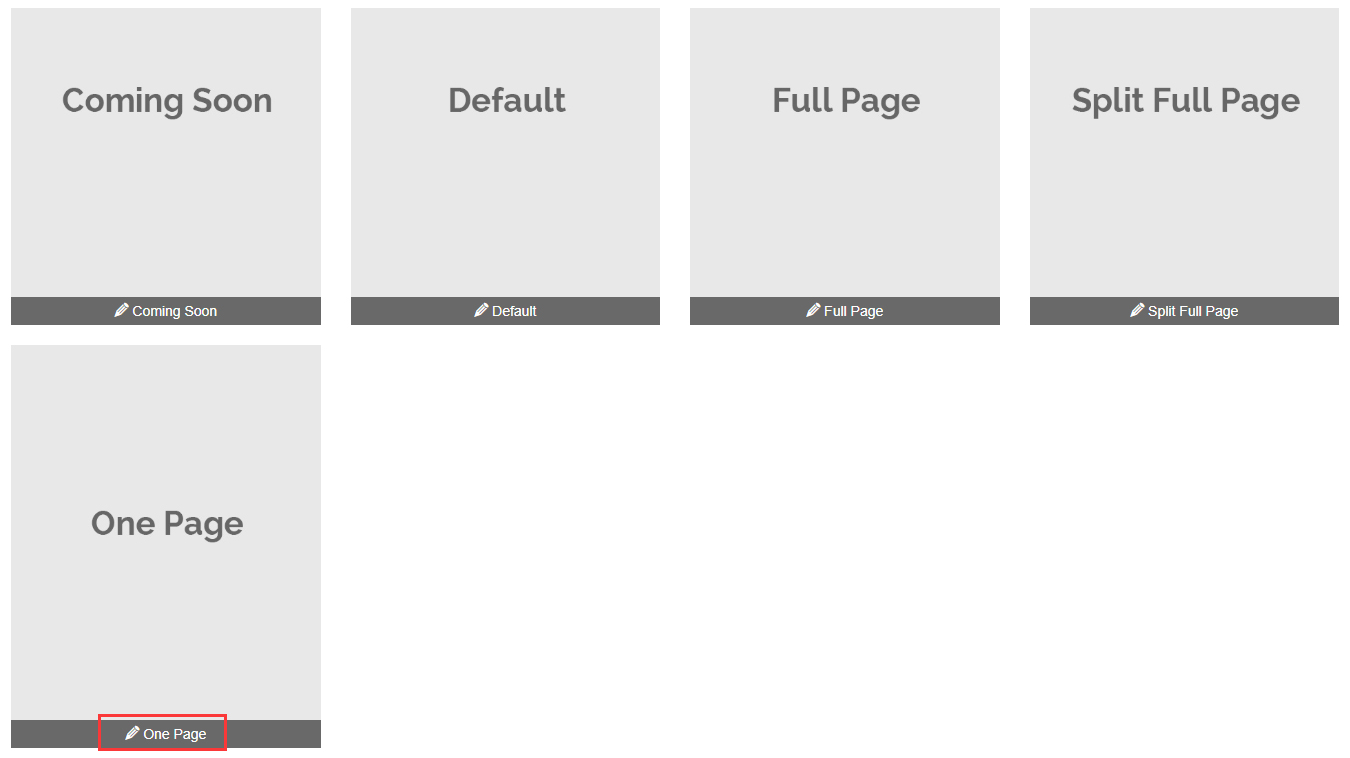
Choose One Page
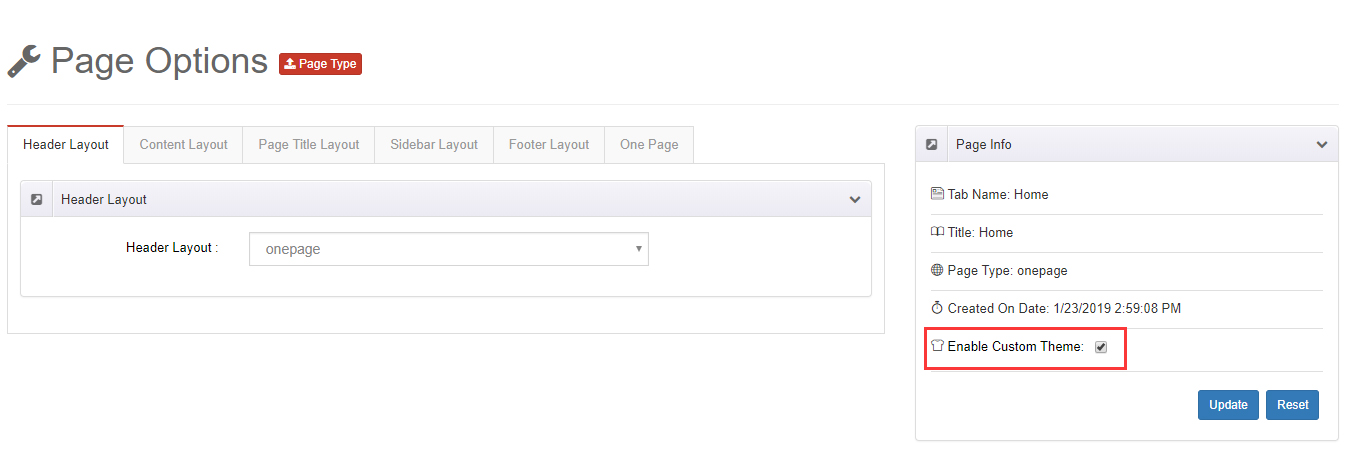
Check Enable Custom Theme
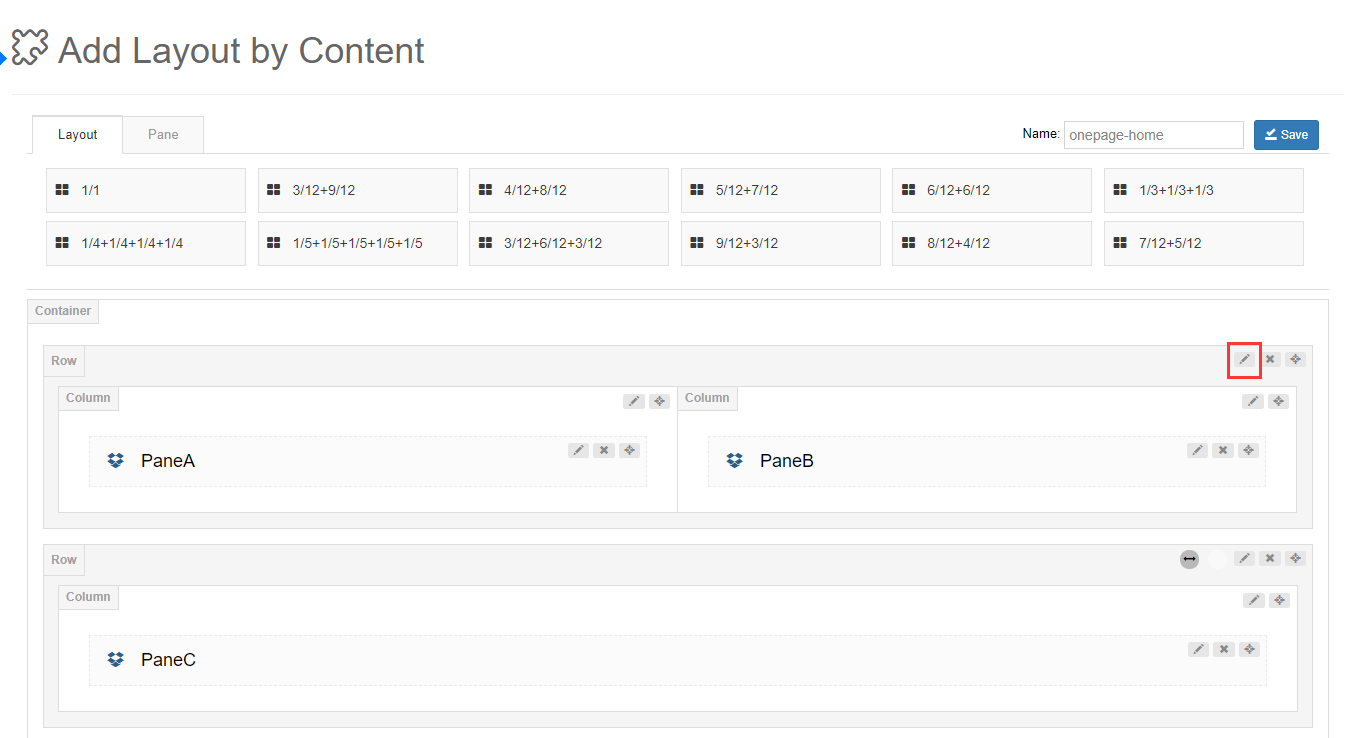
Go to Layout > Content Layouts and edit or create a layout
Edit a row
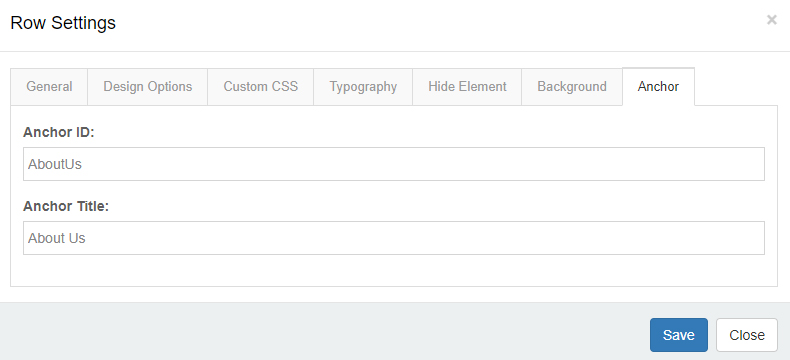
Open the Anchor tab and fill in Anchor ID and Anchor Title. The Anchor ID must not contain spaces; the Anchor Title appears in the side navigation
Go to Admin > Pages in the DNN site and add the menu items. Set Page Type to URL, put the Anchor ID from step 8 into External Url (e.g.
#AboutUs), and give the menu a Name (e.g.About Us). Now clicking the About Us menu scrolls the page to the#AboutUssection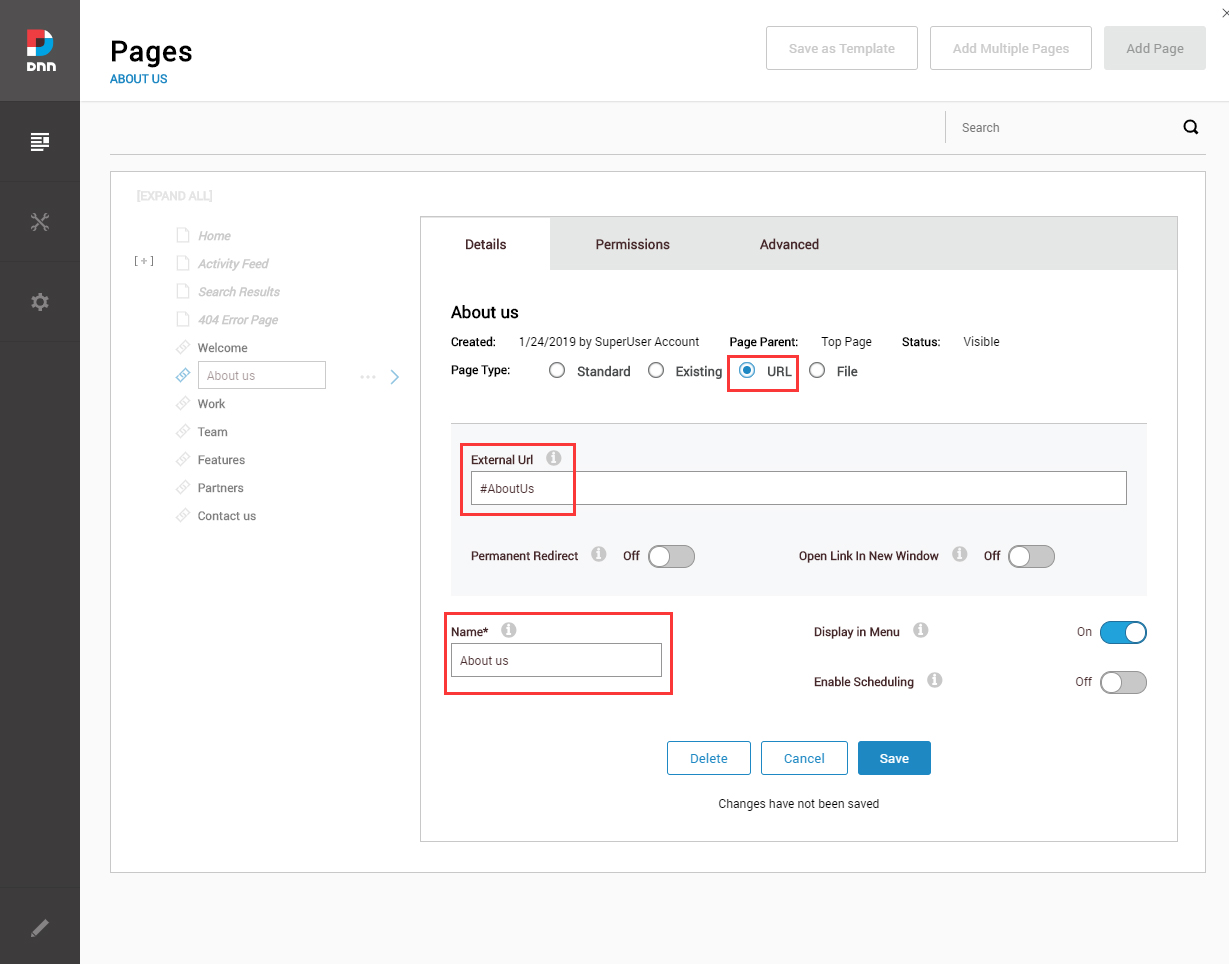
Repeat steps 7, 8 and 9 to add more anchor sections
One Page Options
One Page pages come with a few extra settings.
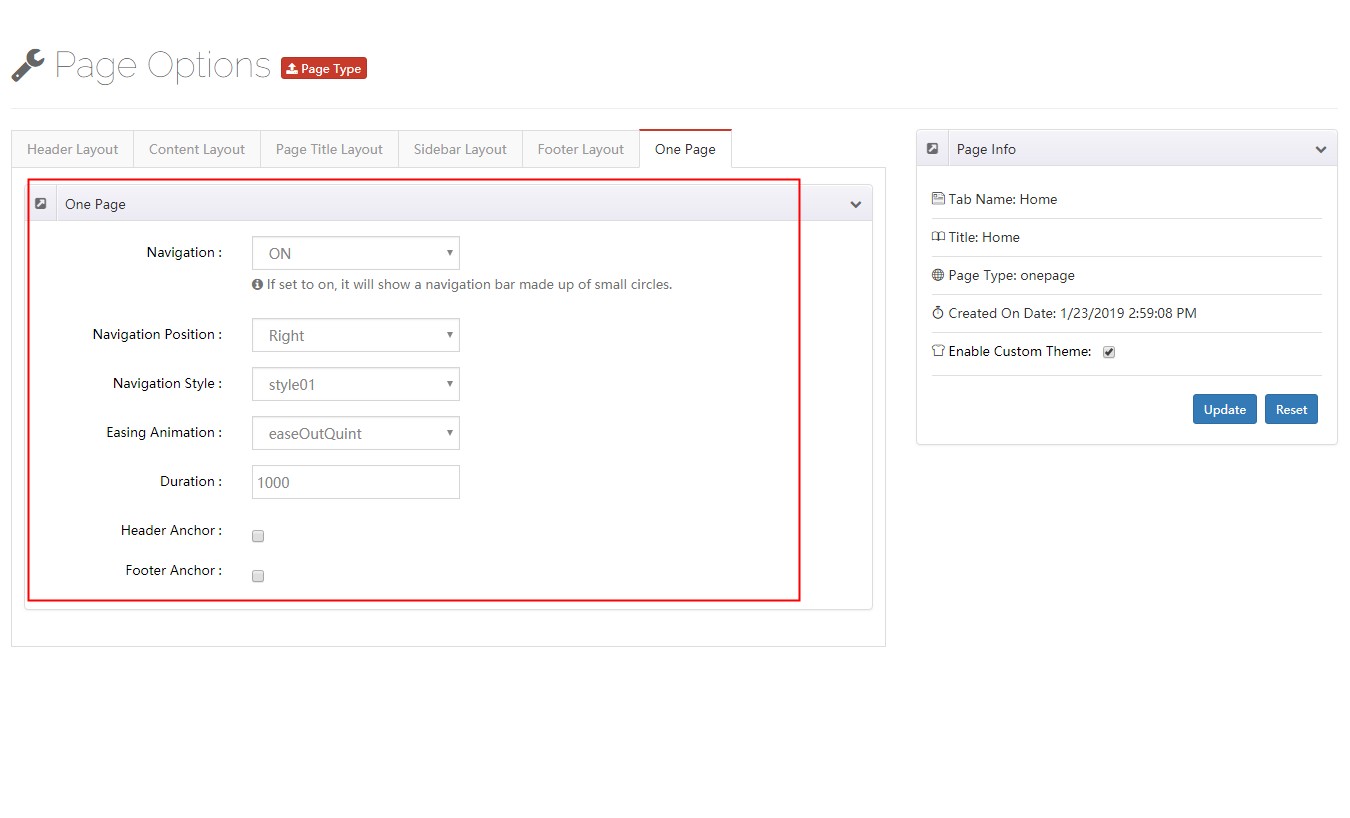
| Setting | Description |
|---|---|
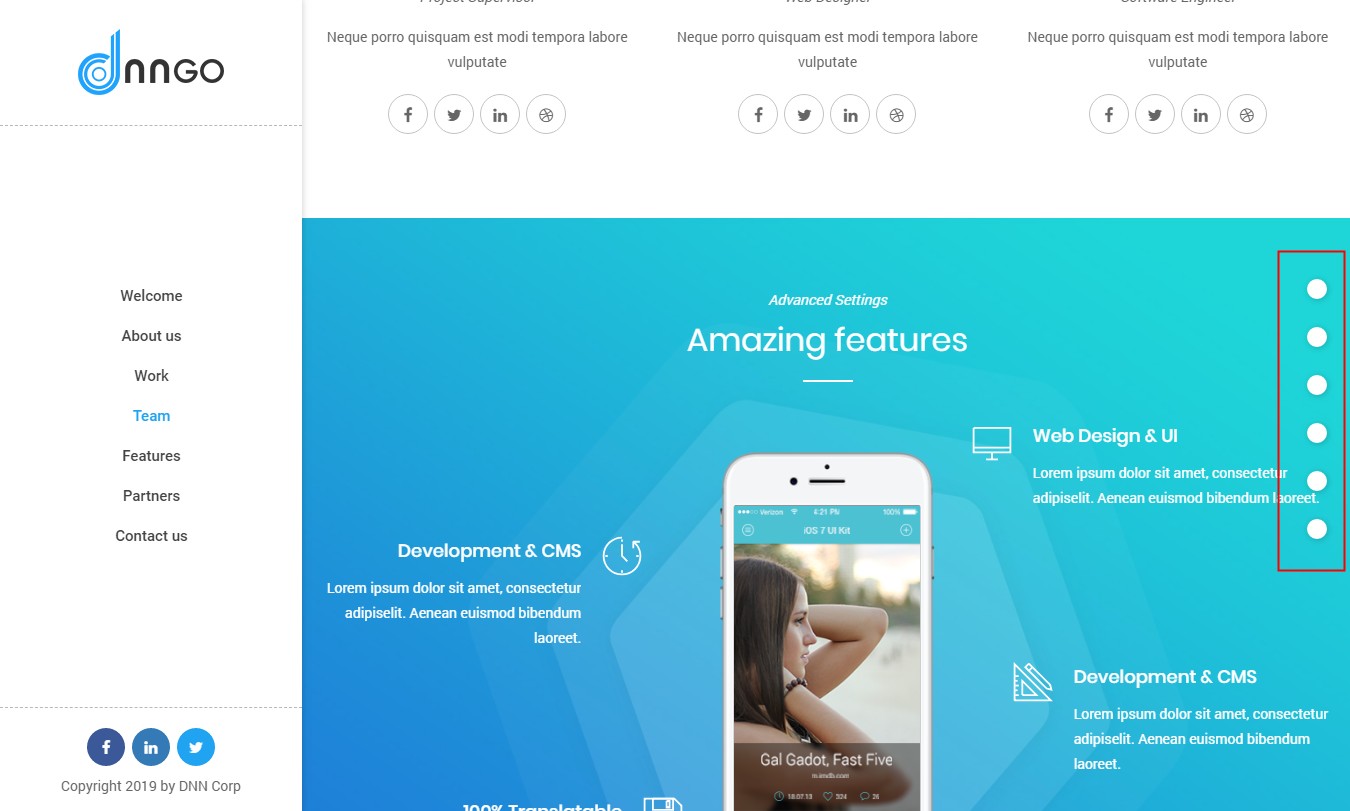
| Navigation | Show a dot navigation bar |
| Setting | Description |
|---|---|
| Navigation Position | Dots on the left or right of the window |
| Navigation Style | Look of the dot bar — 3 styles |
| Easing Animation | Transition effect |
| Duration | Duration of the transition |
| Header Anchor | The anchor of the header |
| Footer Anchor | The anchor of the footer |