Import & Export
The Export & Import feature backs up module data and lets you copy items from one module instance to another — very useful for site migration and page rebuilds.
Open it via the Import Export menu in the management area. The page title reads Export & Import and it has two panels.
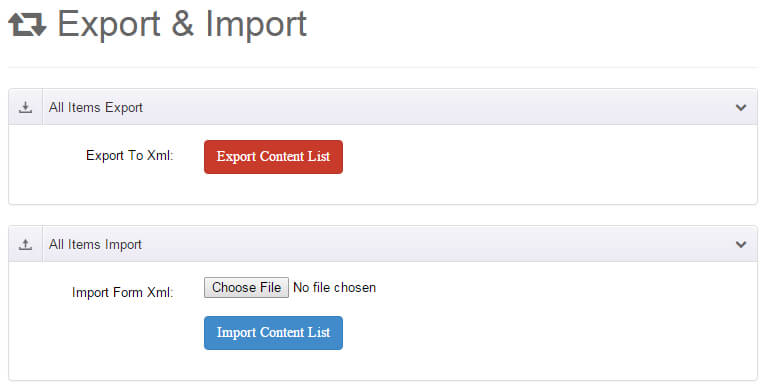
Exporting (All Items Export)
In the All Items Export panel, click the Export Content List button:
- The module packs all items of the current instance (including field values) into an XML file and downloads it automatically;
- The XML contains items and field structures — keep it as a backup.
Importing (All Items Import)
In the All Items Import panel:
- Click the file box and select a previously exported XML file (required);
- Click Import Content List;
- Confirm the dialog and the items are written into the current instance.
TIP
Imported items are appended — existing data is never cleared. To fully restore, clean up old items in All Items first, then import.
Typical Scenarios
| Scenario | How |
|---|---|
| Site migration | Export XML on the old site → install the module on the new site → import |
| Quick page copy | Export, import into another instance, then fine-tune |
| Pre-upgrade backup | Export before upgrading the module, just in case |
| Effect comparison | Import the same data into two instances with different effects |
WARNING
Import & Export covers items only. The effect choice and parameters belong to the module instance — see Data Source Sharing or reconfigure them.
Next Steps
- All Items — review the imported items
- Data Source Sharing — share one data source across modules