All Items
All Items is the data management hub of the module — it lists every item of the current module instance. Adding, editing, sorting and deleting all happen here.
Click All Items in the management area to open the list. The breadcrumb at the top shows the current effect and theme (e.g. Effect_01_SlideShow_H / Theme_01_Default), and the page title varies by effect — for slideshow effects it reads All Sliders.
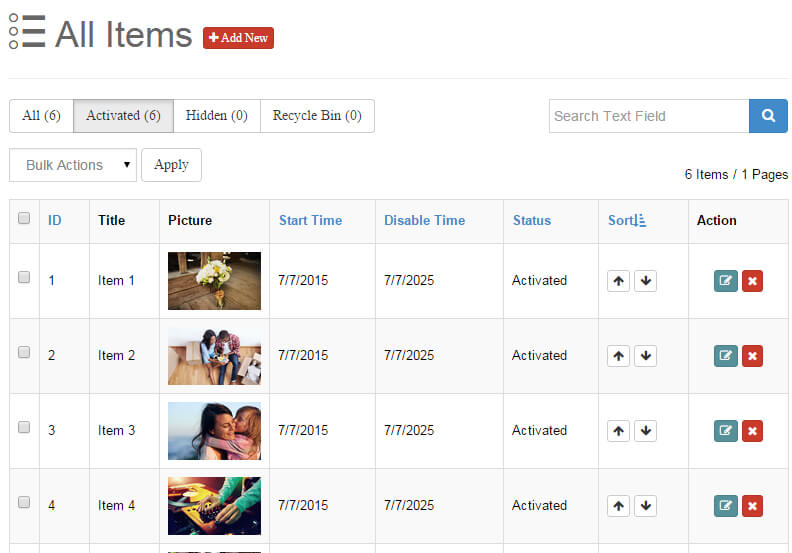
Page Overview
Status filter tabs
Tabs above the list filter items by status (counts shown in parentheses):
| Tab | Description |
|---|---|
| All | All items, including hidden ones |
| Activated | Activated items only |
| Hidden | Hidden items only |
| Recycle Bin | Removed items not yet permanently deleted |
Search
The search box on the right filters items by keyword (title and other text fields). Type a keyword and click the magnifier button.
Bulk actions
Select multiple items (or use the header checkbox to select all), then pick an action in the Bulk Actions dropdown and click Apply:
| Action | Description |
|---|---|
| Activated | Activate the selected items |
| Hidden | Hide the selected items |
| Delete | Permanently delete the selected items (used with the recycle bin) |
Item Table
Each row shows one item:
| Column | Description |
|---|---|
| Checkbox | Selects the item for bulk actions |
| ID | Item number; click the header to sort by ID |
| Title | Item title |
| Picture | Item thumbnail |
| Start Time | Go-live time; sortable; enables scheduled publishing with the Data Filter |
| Disable Time | Expiry time; sortable; the item stops showing after it |
| Status | Current status (Activated / Hidden) |
| Sort | Sort position: up/down arrows per row to move the item |
| Action | Edit and Remove buttons |
Sorting
There are two ways to control the order:
- Manual sorting: click the up/down arrows on each row to move items; most effects display items in this order;
- Field sorting: click the ID, Start Time, Disable Time or Status headers to sort the list view.
TIP
To make the front end sort automatically by date or another field, configure Sort by in the module's Data Filter settings.
Deleting and the Recycle Bin
Deletion is a two-step process to avoid accidents:
- Click Remove at the end of a row — the item is moved to the Recycle Bin;
- Switch to the Recycle Bin tab to restore items via the bulk action Activated, or permanently delete them with Delete.
WARNING
Only Delete from the recycle bin permanently removes an item. A plain Remove never loses data — items can always be restored.
Pagination
The bottom of the list shows item statistics (e.g. 7 Items / 1 Pages) and pagination controls. Pages are created automatically when there are many items.
Next Steps
- Adding Items — learn how to fill in the item form
- Import & Export — back up or migrate data
- Effect List — change the display effect