Set Up One Page
Check our one page demo here: https://kella.dnngo.net/creative05/. When you click a menu item, the page scrolls down to the corresponding area. Set it up with the following steps.
Steps
- Log in to your site as super administrator
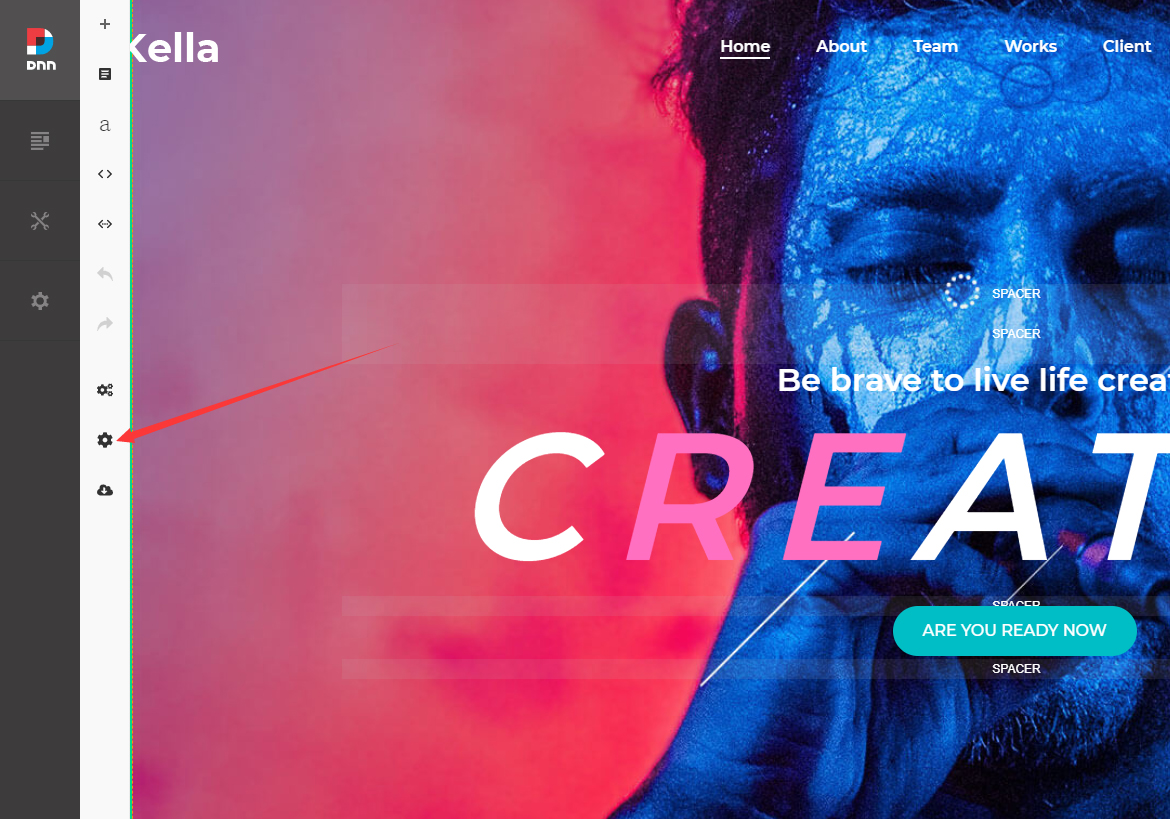
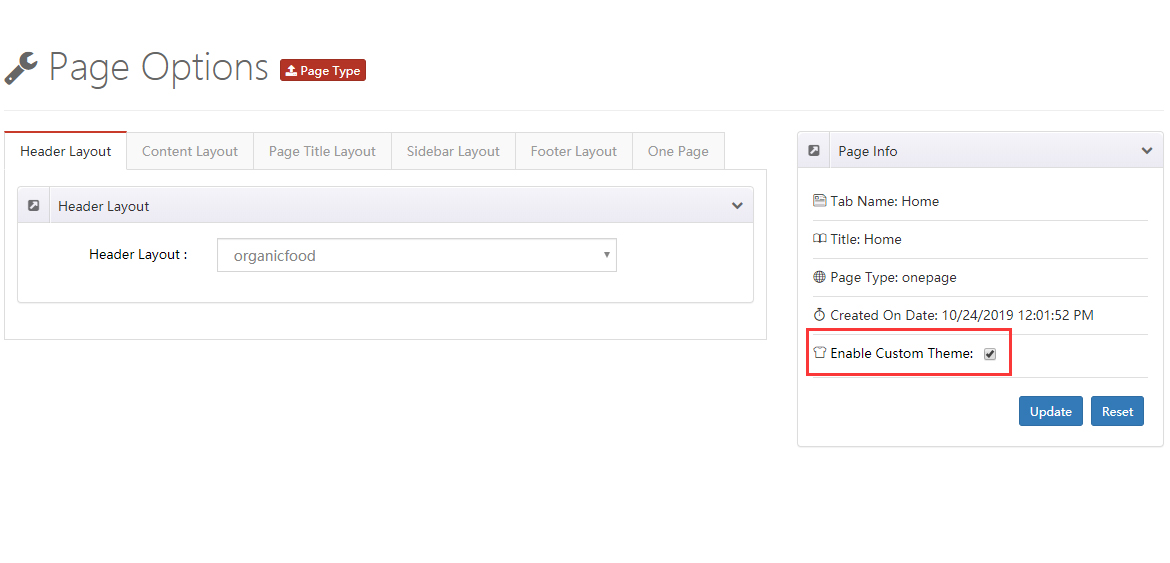
- Click the Page Options icon on the left of the page
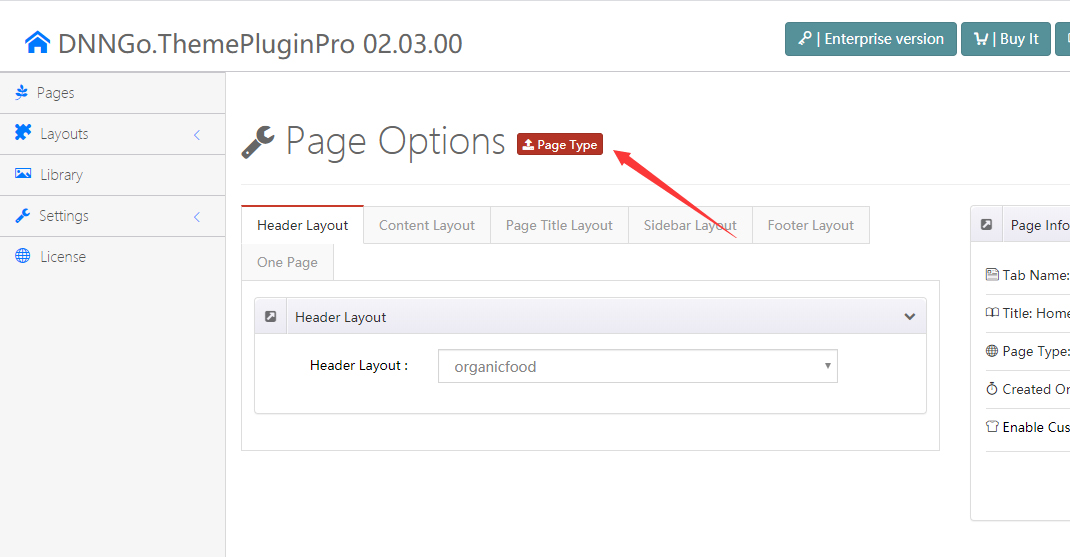
- Click the Page Type button
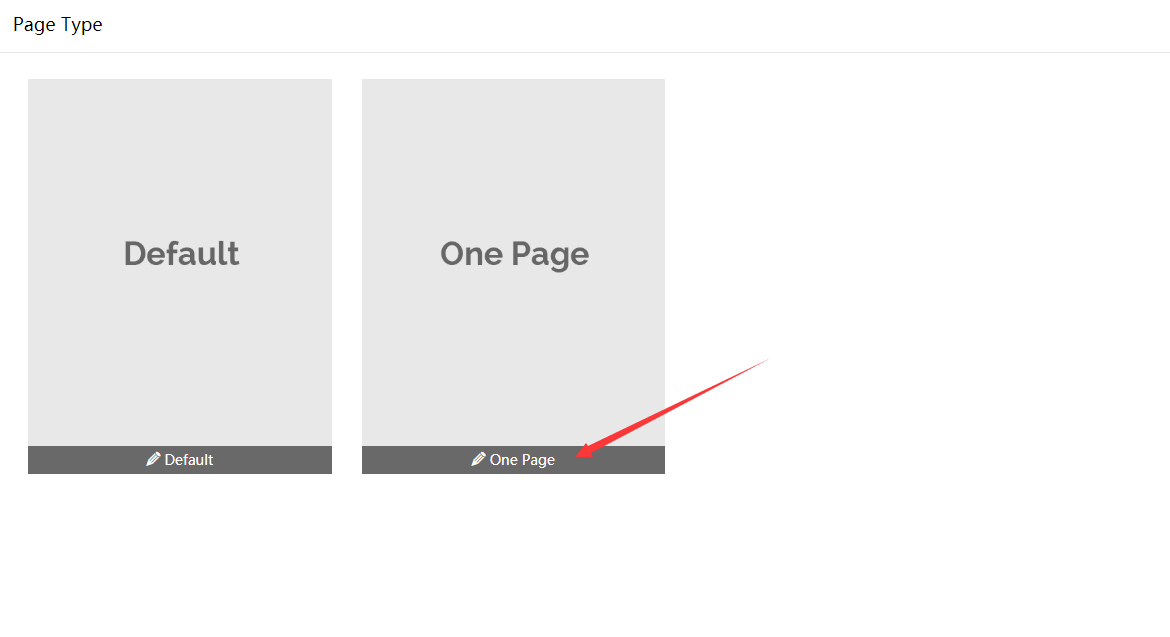
- Choose One Page
- Choose Enable Custom Theme
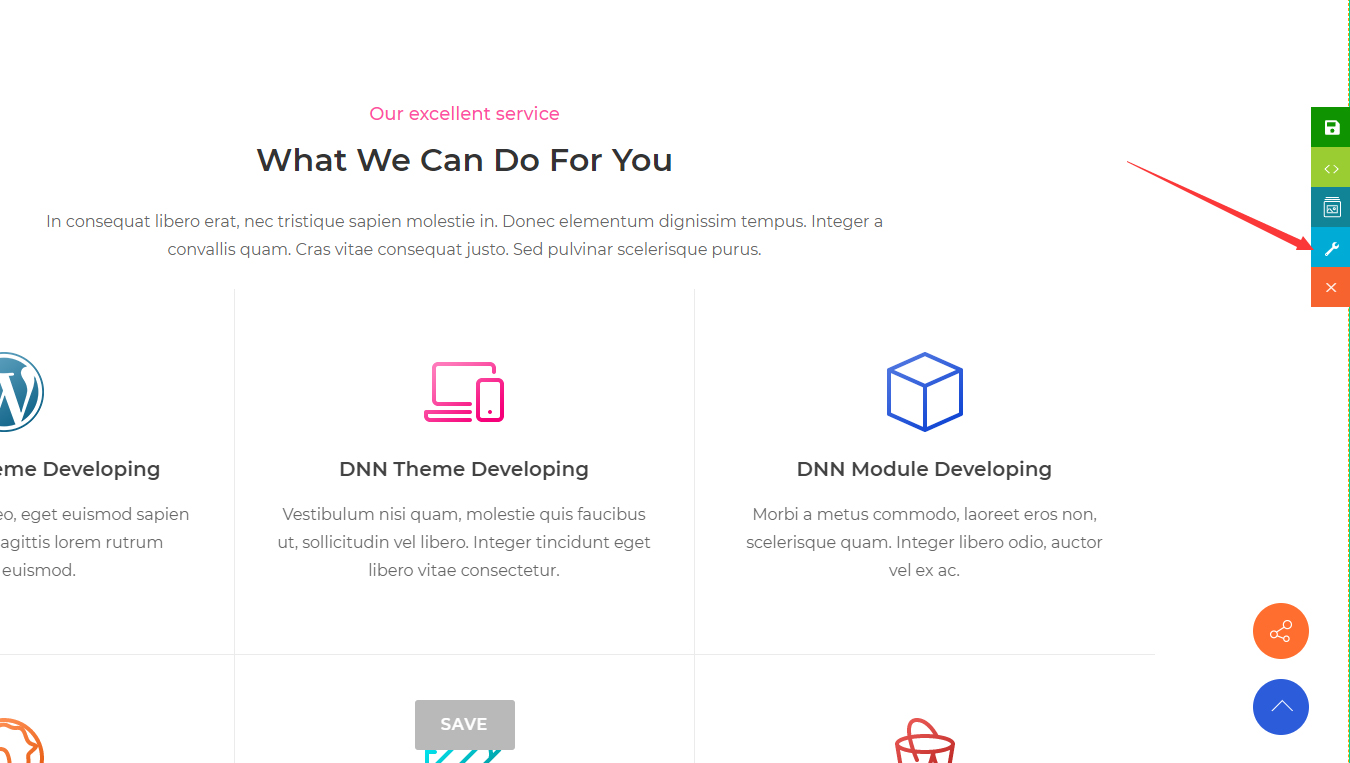
- Go back to the page and click the Section Settings button
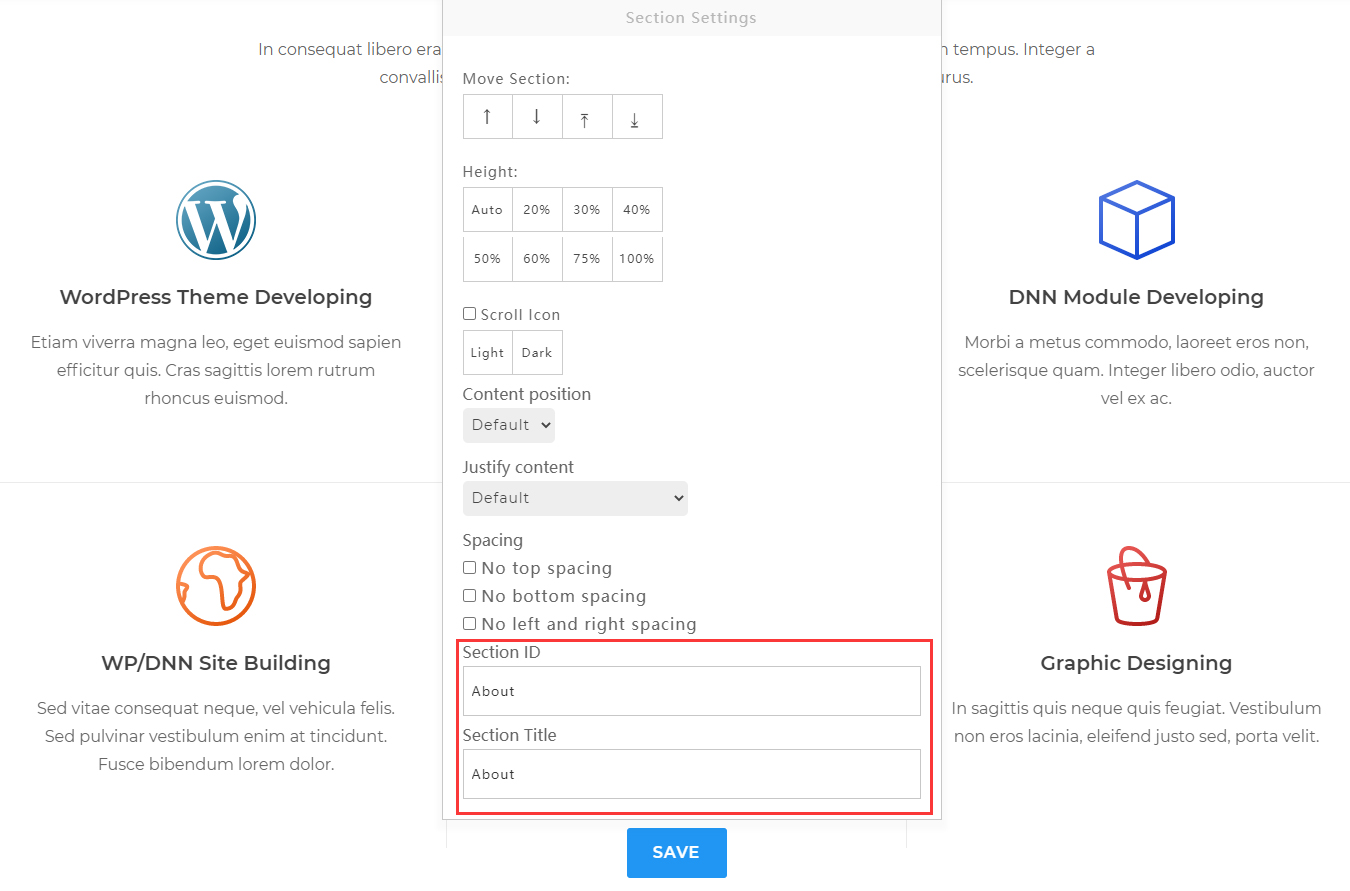
- Fill in Section ID and Section Title. There shouldn't be any space in the Section ID, and the text of the Section Title will display on the right of the nav
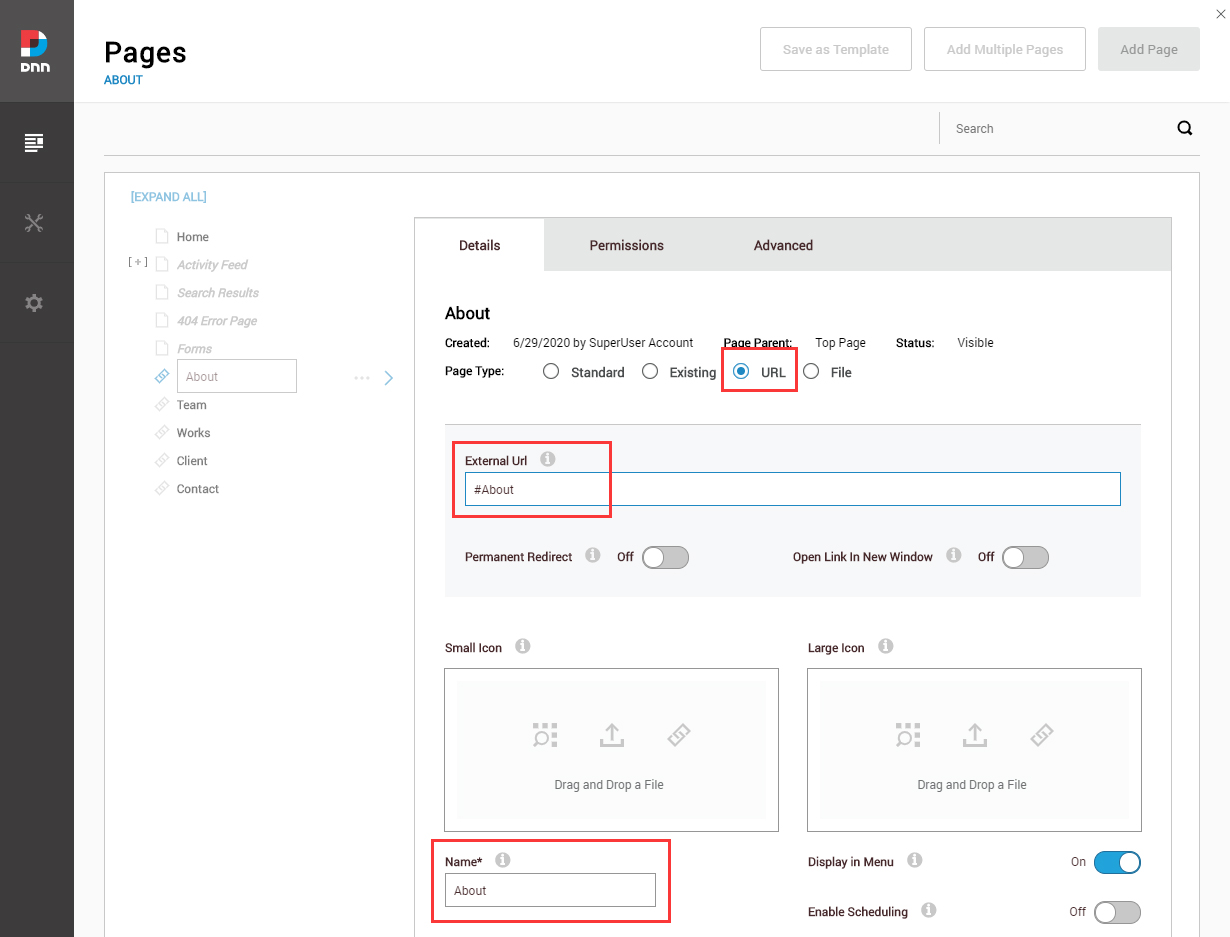
- Go to Admin > Pages of the DNN site to add menu items. Set the Page Type to URL, and input the Anchor ID from step 7 in the External Url setting — for example
#About. Input the menu name in the Name setting, such asAbout Us. Once done, when you click the About menu, the page scrolls down to the anchor area of#About
- You can add more anchor areas by following steps 6, 7 and 8
One Page Settings
Pages of the One Page type have some extra settings.
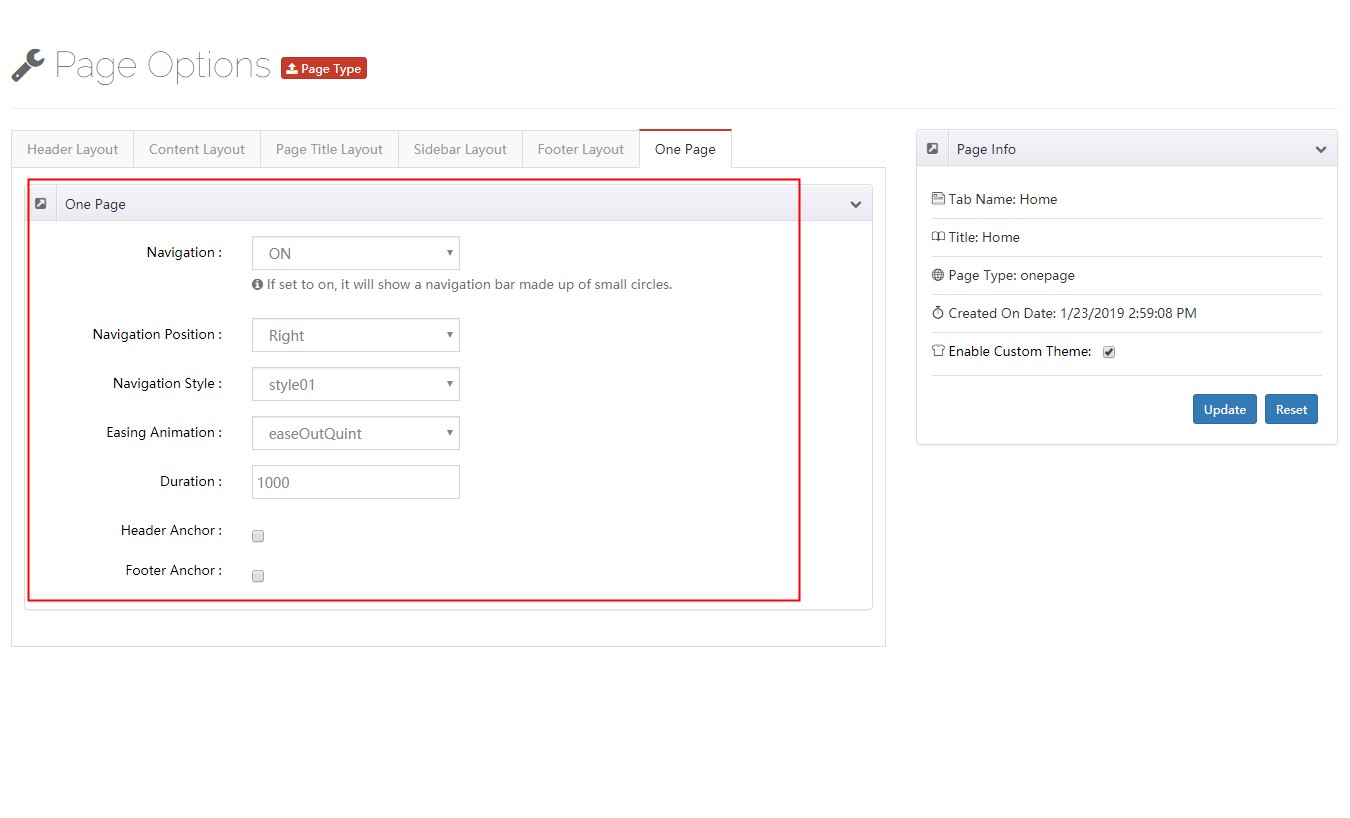
| Option | Description |
|---|---|
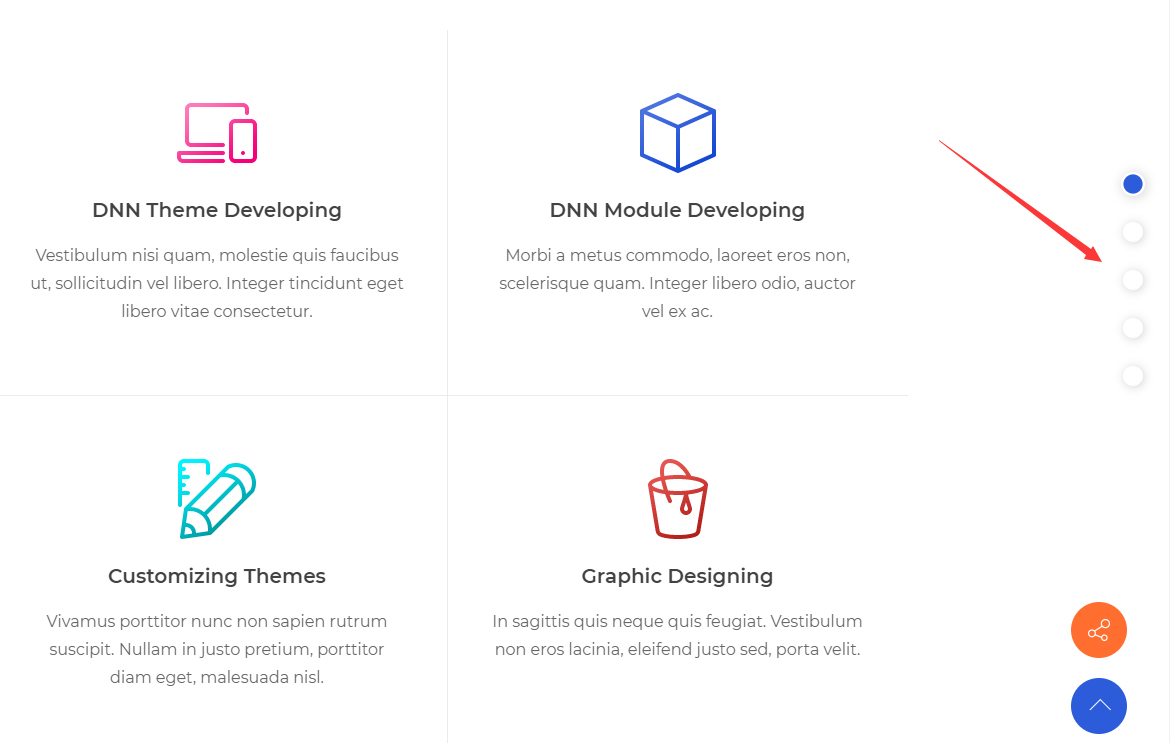
| Navigation | If set to on, it shows a navigation bar made up of small circles |
| Navigation Position | Set the nav bar on the left or right of the window |
| Navigation Style | Set the appearance of the nav bar — 3 appearances are included |
| Easing Animation | The transition effect of the animation |
| Duration | The duration time of the animation |
| Header Anchor | Set the anchor of the header |
| Footer Anchor | Set the anchor of the footer |