How to Set Forms
The Obvio theme includes many form styles, such as subscription forms and contact forms. This page describes the parts of a form, how to manage form fields and how to configure the SMTP server.
Form Module
Since v4.0 of the theme, forms are powered by the Form Builder module (older versions used PowerForms). This page is based on Form Builder. For the full module documentation, visit Form Builder docs.
The Two Parts of a Form
There are 2 parts included in a form:
- Front-end display — added to the page through the Content Builder module
- Back-end data — fields and submitted records managed in the form module
Front-end Display
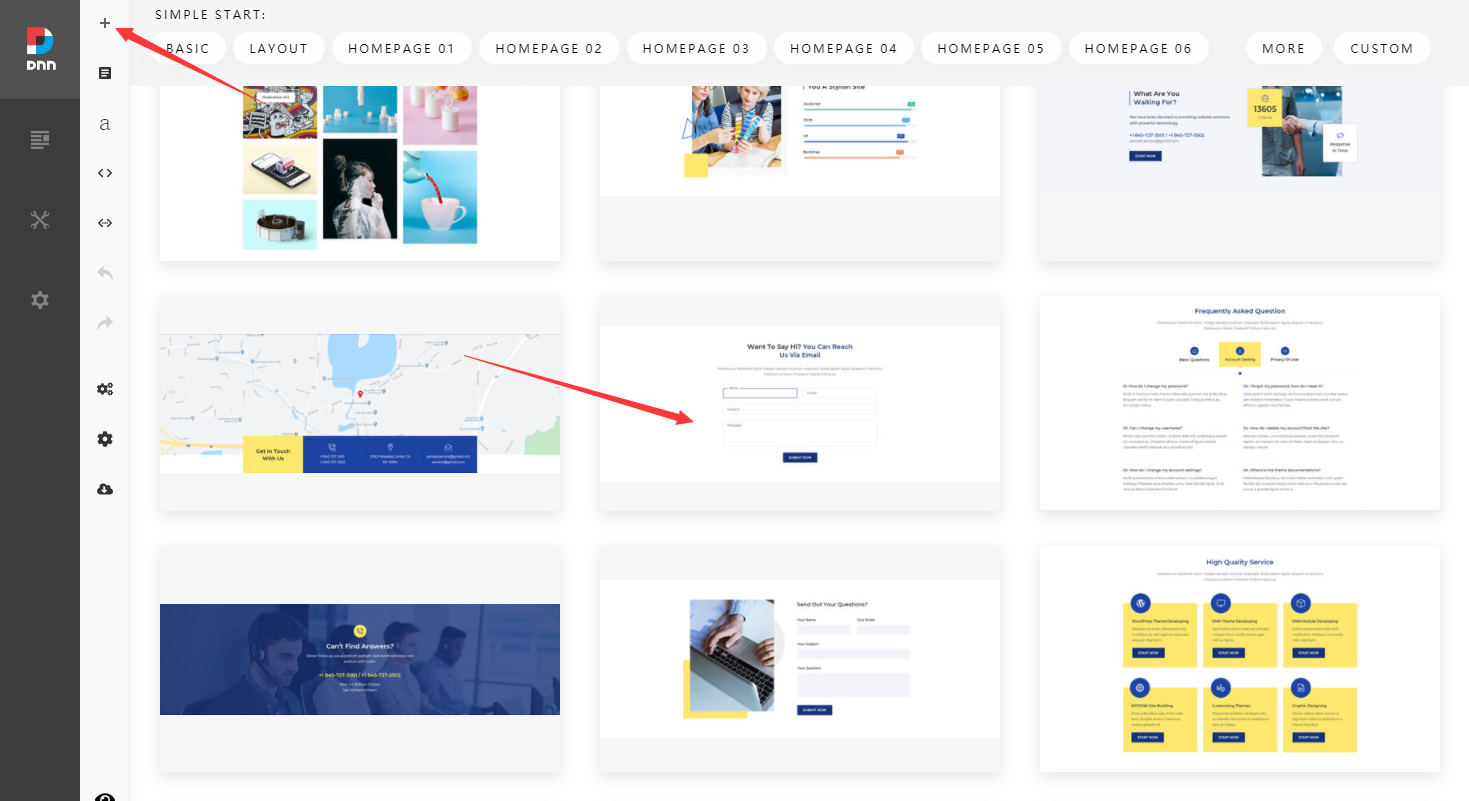
Add a section with a form for your page through the Content Builder module:
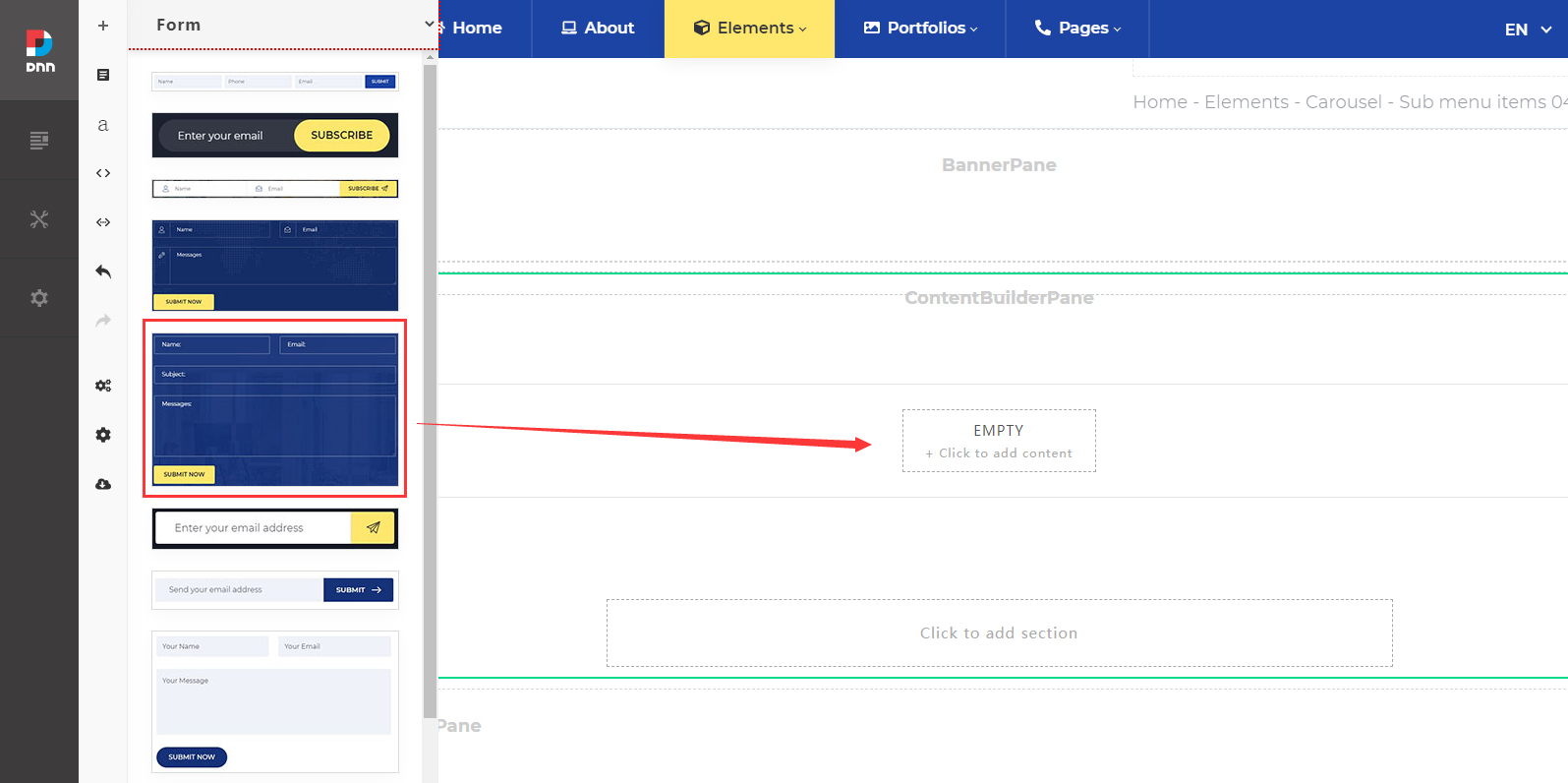
Or add a form content block for your page:
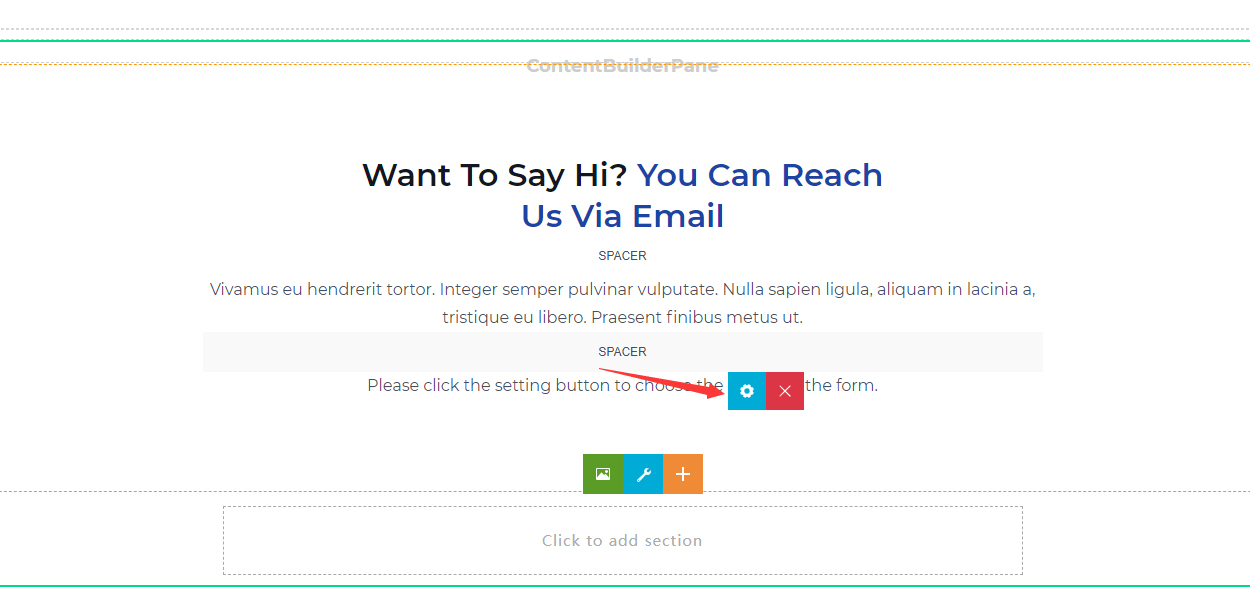
After adding the section, the form still won't appear — you also need to set the form's Source:
In the Source listing, all form modules of the site are listed:
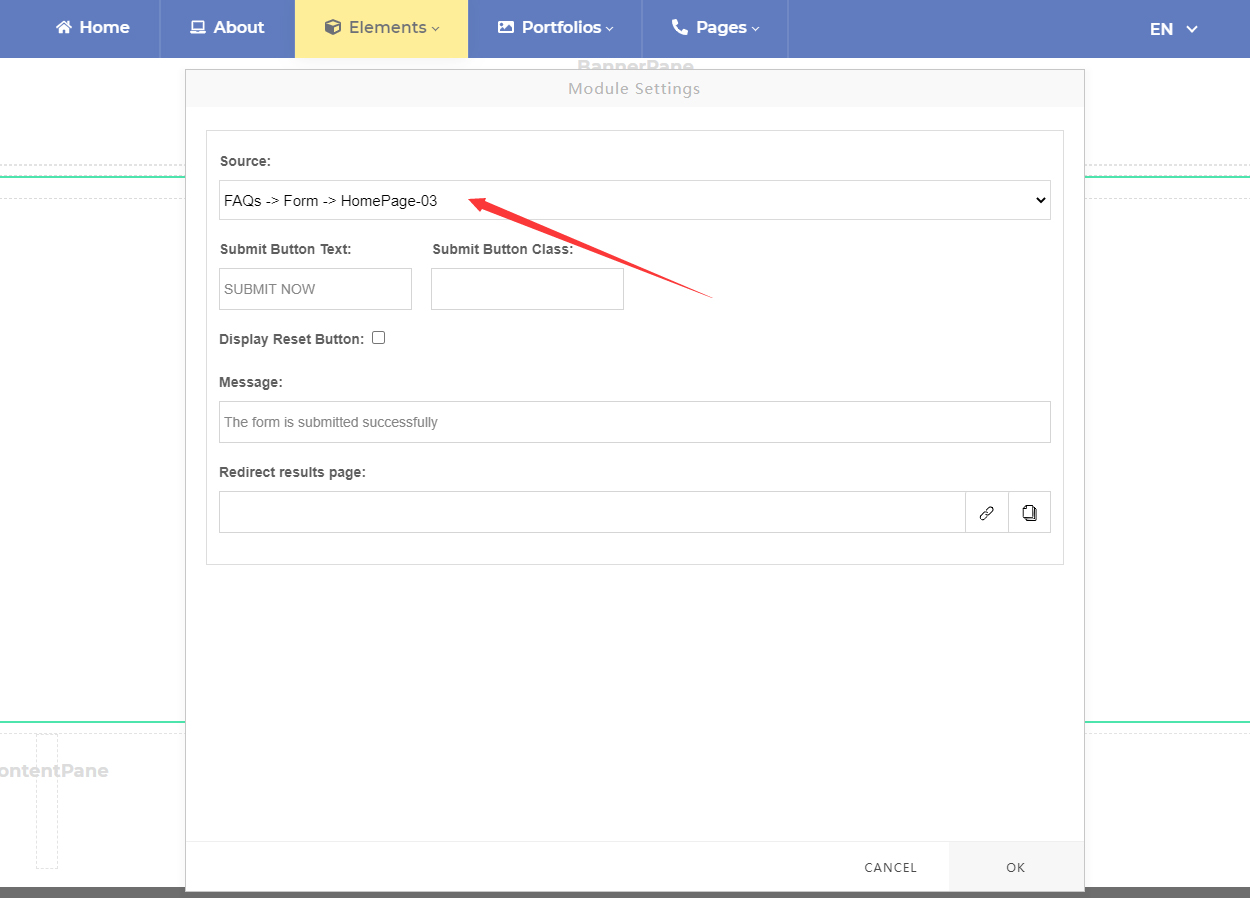
After selecting one of the form modules, this form will display all fields of that module:
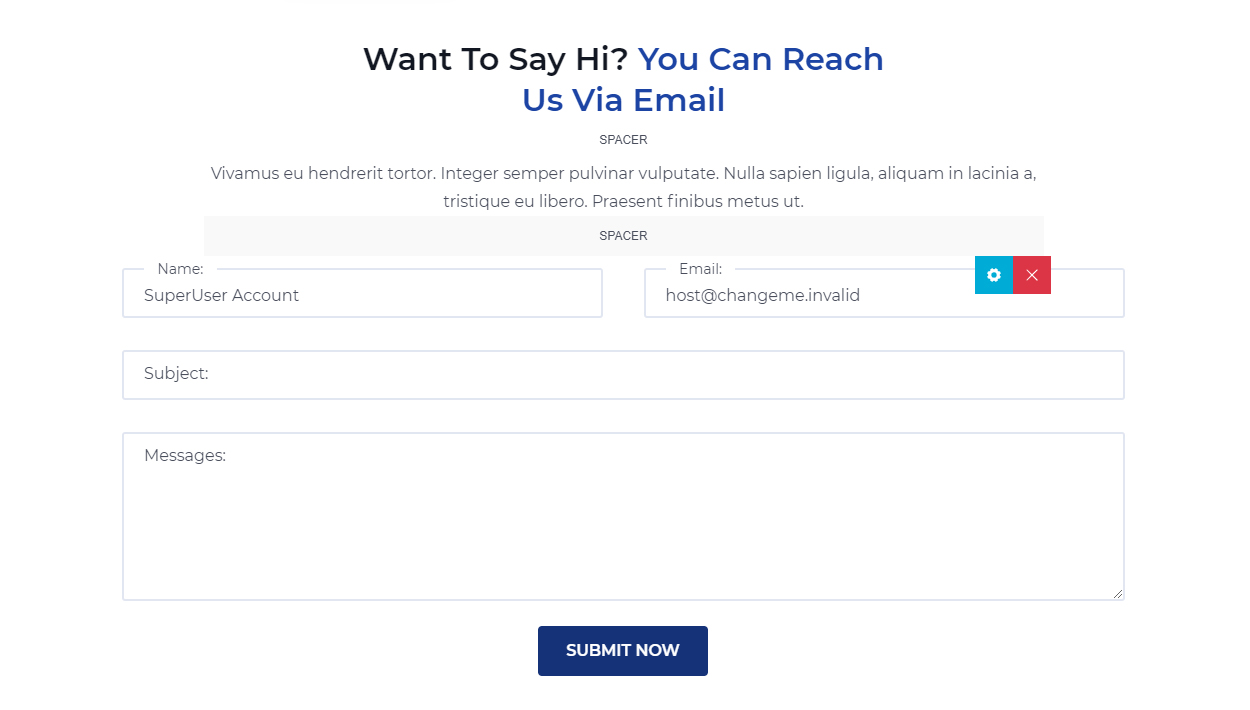
For the full flow of importing predefined forms and adding them to pages, see Import Forms and Add Form to Page.
Manage Form Fields
The fields (elements) of a form are managed in the Form Builder module:
- Log in as an administrator and open the Form Builder Admin page
- Click Manager and choose the form to edit
- Manage the fields in the form editor:
| Action | Description |
|---|---|
| Add a field | Click or drag an element icon from the top toolbar into the builder panel |
| Configure a field | Click the gear icon (⚙) on the element and adjust its properties in the settings panel |
| Reorder | Click and drag an element to reposition it |
| Duplicate / Delete | Use the duplicate or trash icon on the element |
Deleting an element loses historical data
Once an element is deleted, you can no longer view data that was previously submitted through it. To keep the data, hide the element instead of deleting it.
For element types and form settings (notifications, confirmations, anti-spam and more), see the Form Builder module documentation.
Check Submitted Records
In the management interface of the form module you can check the history records submitted by users, for export or follow-up.
Set Up SMTP Server
You need to set up your SMTP server correctly, otherwise neither users nor admins will receive form notification emails.
- Log in to your site with a superuser account
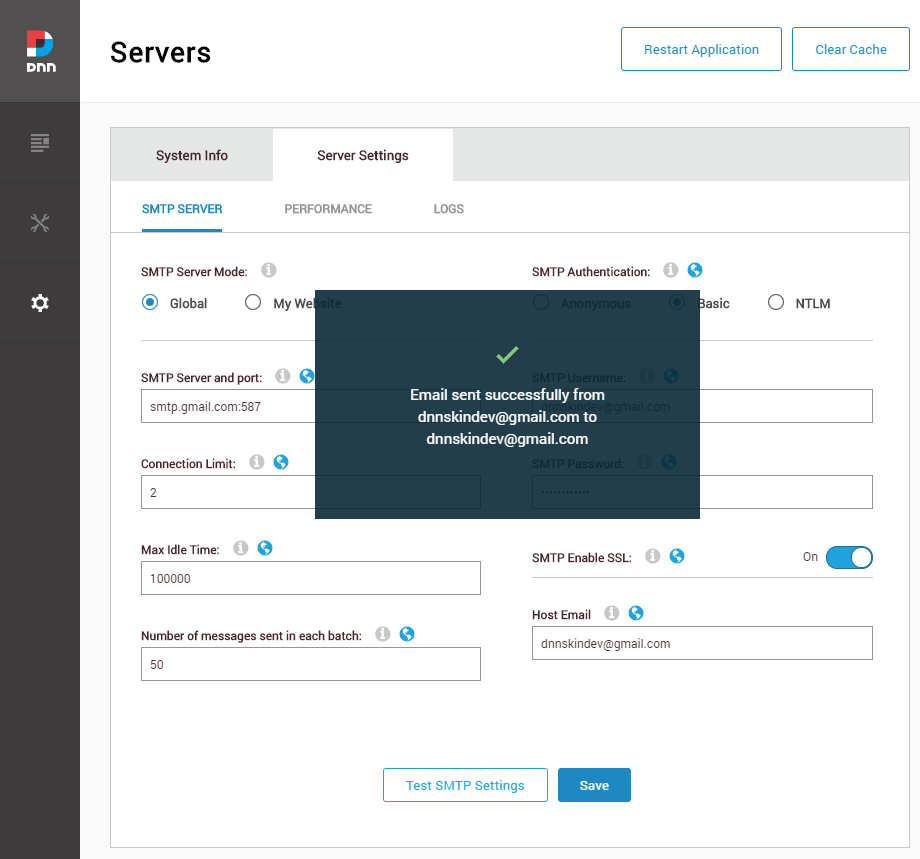
- Go to the Settings > Servers > Server Settings > SMTP Server page
- Enter the SMTP server information correctly (for the SMTP details, please ask your email provider)
- Click the Test SMTP Settings button to test if your SMTP server is working fine