Link & SEO
The Link & SEO settings let you add a hyperlink to the entire slide and attach custom attributes to the slide's HTML element.
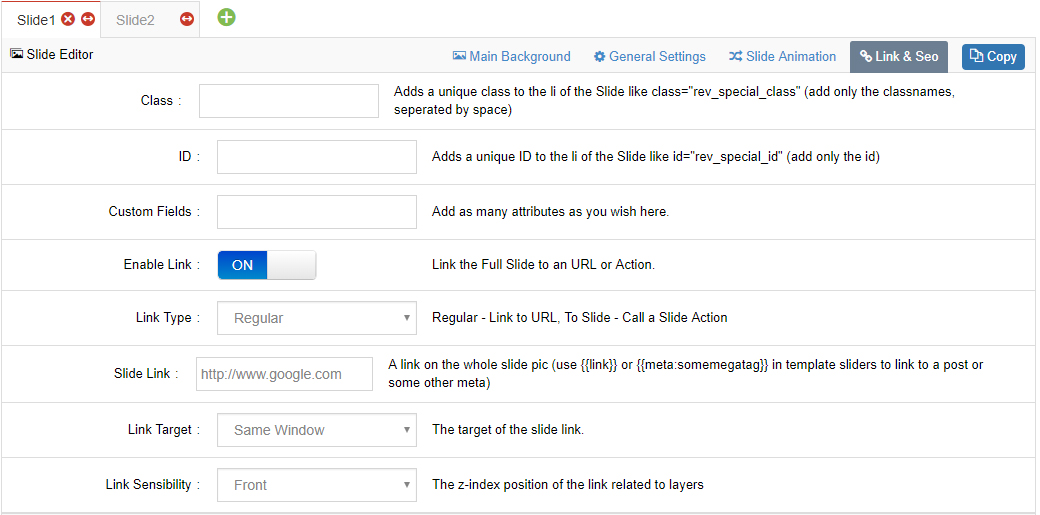
Class, ID & Custom Fields
For advanced usage, you can add a special class name, ID attribute, or additional attributes to the HTML list element that represents the slide — useful for custom CSS or JavaScript targeting.
Slide Link
Enable Link
- Enable: add a link to the entire slide.
- Disable: no master slide link.
Link Type: Regular
- Slide Link: Add a URL to one of your site's pages or an external website.
- Link Target: "Same Window" or "New Window" (i.e. new tab).
- Link Sensibility:
- Front — The slide's hyperlink is placed on top of the slide's content layers (only a good option when the content layers are not hyperlinked).
- Back — The slide's hyperlink is placed behind the slide's content layers, allowing for additional hyperlinked content layers.
Link Type: To Slide
- Link To Slide: Options are "Next Slide" and "Previous Slide". You can also choose "Scroll Below Slider", which scrolls the page to additional content beneath the slider when the slide is clicked.
Next Steps
- General Settings — slide state and scheduled visibility
- Background Type — Alt text and titles for image backgrounds