Slide Layers
Layers are content elements stacked on top of the slide's background. With layers you can place text, images, videos and buttons over the background and enrich them with animations.
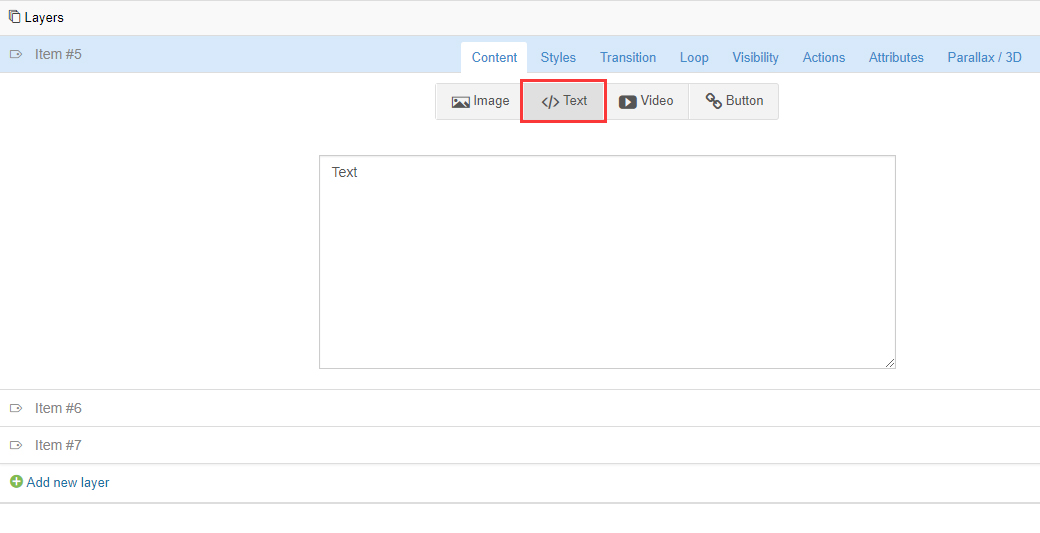
Layer Types
When editing a slide, you can add the following four layer types:
Text
Type in some regular text to be used for the layer's content.
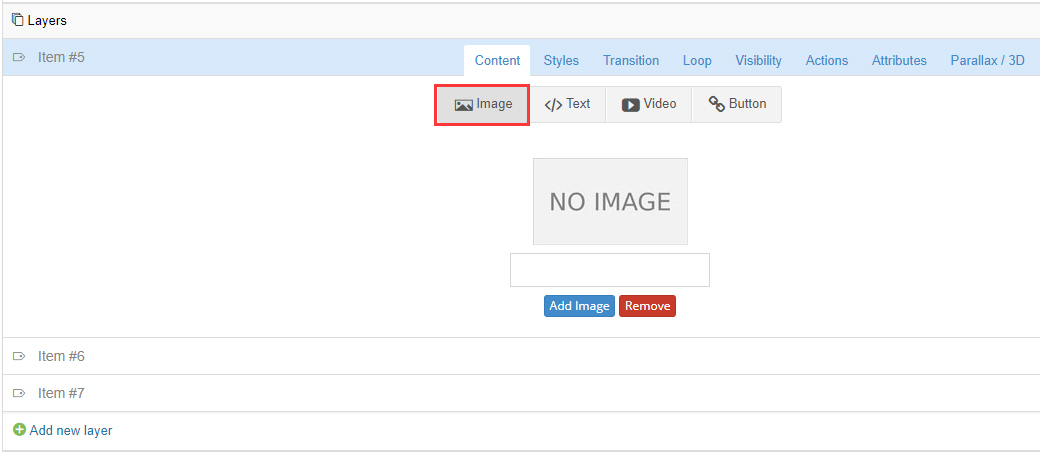
Image
Add an image to be used for the layer's content.
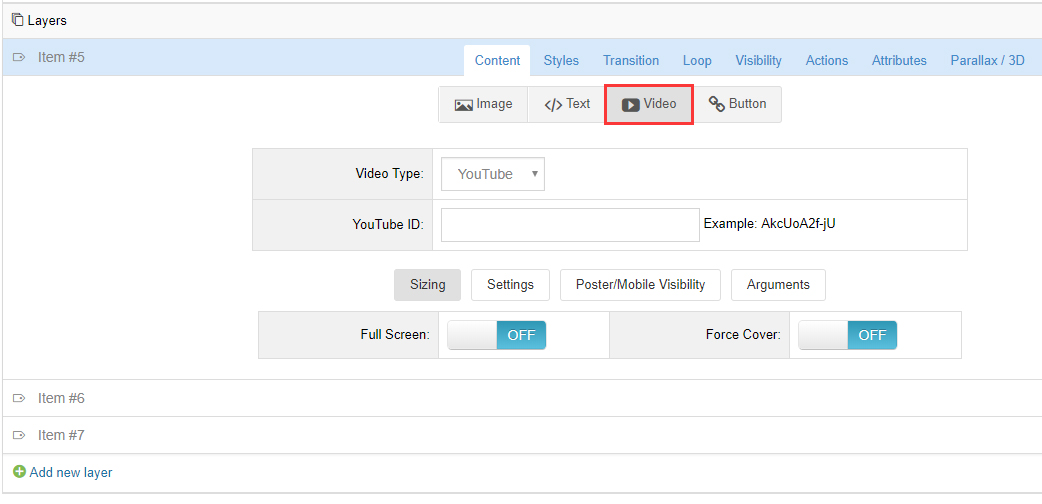
Video
Add a video to be used for the layer's content. The type of video can be YouTube, Vimeo and HTML5 Video.
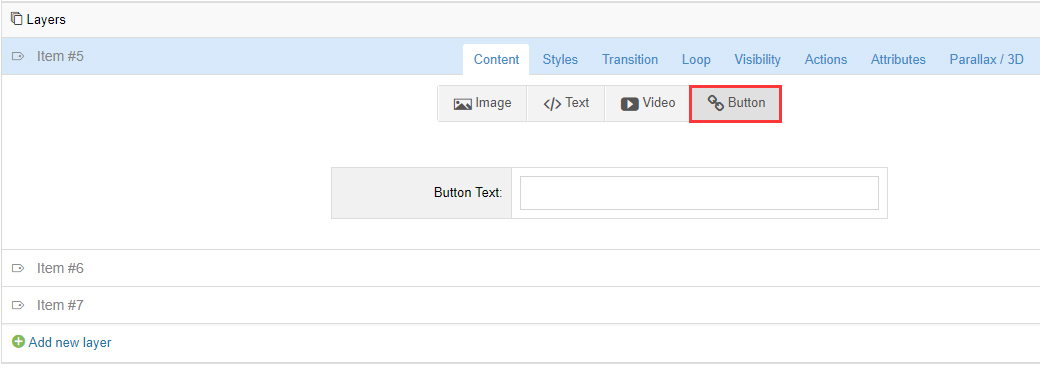
Button
Add a button to be used for the layer's content.
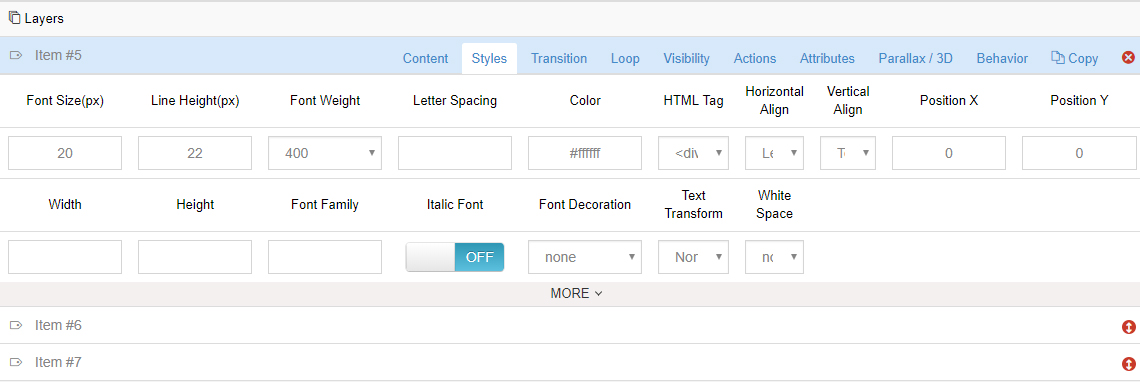
Layer Management
In the layers panel you can reorder, duplicate, delete and lock layers, and change their stacking order.
Select a layer to edit its content and settings in the panel.
Layer Styles
Basic Styles, Size & Position
You can set the text color, size and location of the layer.
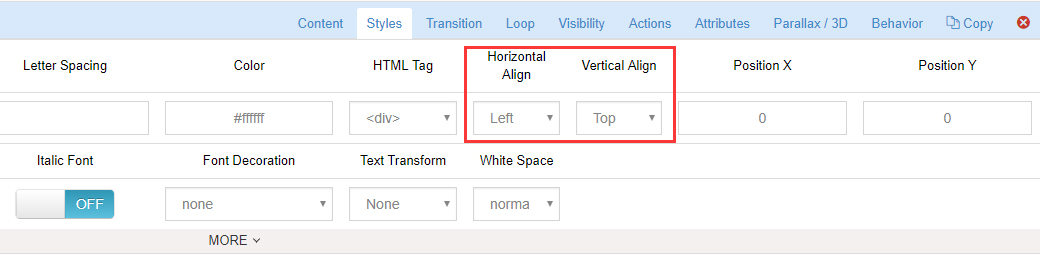
Horizontal / Vertical Align
Alignment can be based on the Layers Grid Size or the entire size of the slider, which is set in the layer's Behavior section.
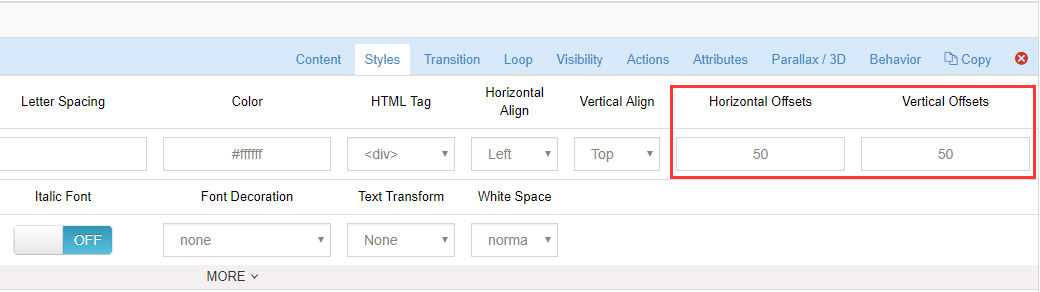
Horizontal / Vertical Offsets
Offset positions from initial alignments. For example, a "Horizontal Alignment" of "center" with a "Horizontal Offset" of 50px would equal 50px to the left of center.
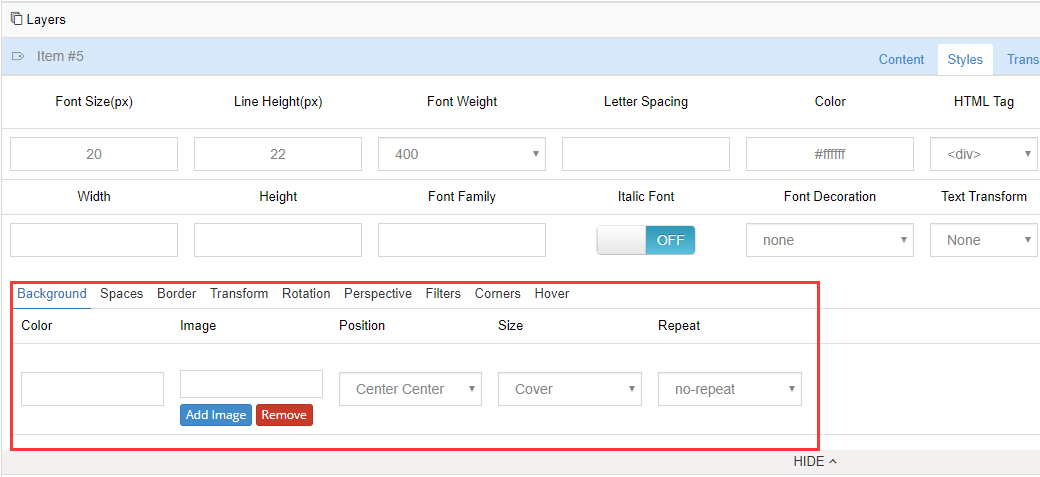
Background / Advanced Styles
Click the "more" button to activate the advanced styling section (background color, borders, padding, etc.).
Layer Animations
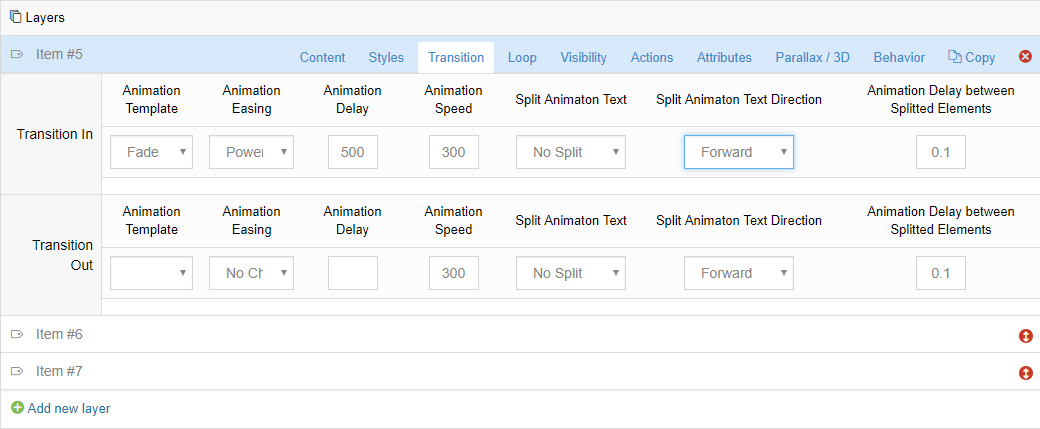
Animation Template
Choose from 30+ prebuilt animations.
Animation Easing
"Easing" is what gives a web animation that "real life" type of movement. Choose between over 35 options to see which one you like best. The most commonly used options are Power2.easeOut and Power3.easeOut.
Animation Delay
The time when the layer will begin to animate into view.
Animation Speed
How long the animation will last from start to finish in milliseconds (1000 = 1 second).
An optimal number depends on your chosen animation. For example, when using a simple "Fade", a number between 300-500 is usually best, but for more complex animations (especially with an "easeInOut" easing), a higher number such as 500-1000 works well.
Animate by Words, Letters or Lines
For text-based layers, you can animate words, letters or lines one by one with this option. Choose "No Split" to just animate the entire layer at once.
Split Animation Direction
Choose which direction to animate your split words/letters/lines. Options are "forward", "backward", "middle to edge" and "edge to middle", or "random".
Split Animation Delay
When animating by words, letters or lines, each element animates one after the other — the delay value here is the amount of time used for this sequenced animation.
The delay value is in milliseconds. A number between 5-30 usually works best.
Loop Animations
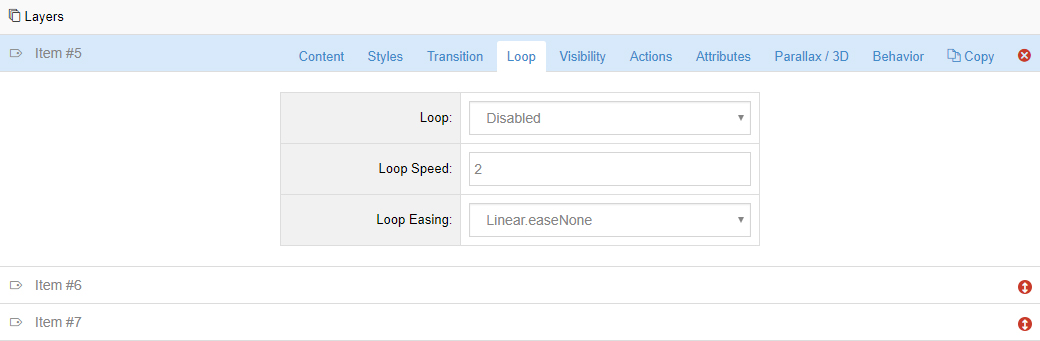
Apply continuous, animated movement to the layer even after its initial entrance animation has finished (e.g. floating, pulsing).
Layer Mobile/Device Visibility
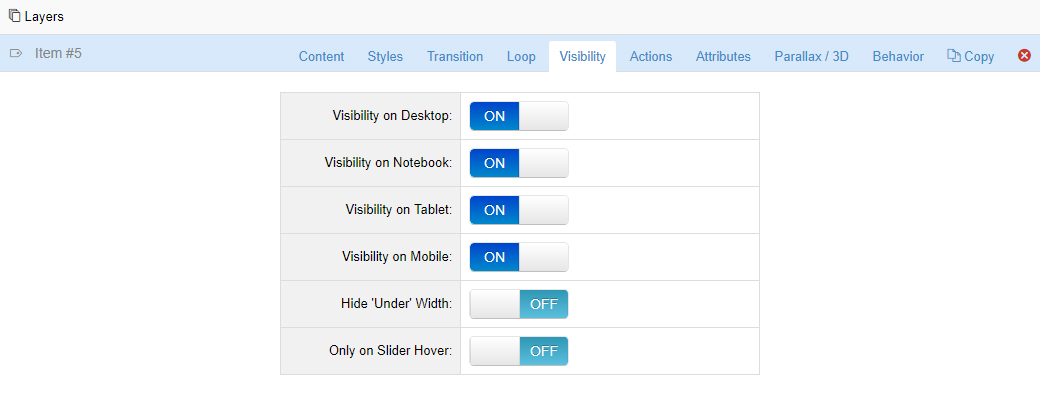
Choose when the layer should be visible — per device, above a certain screen width, or on mouse hover.
Actions
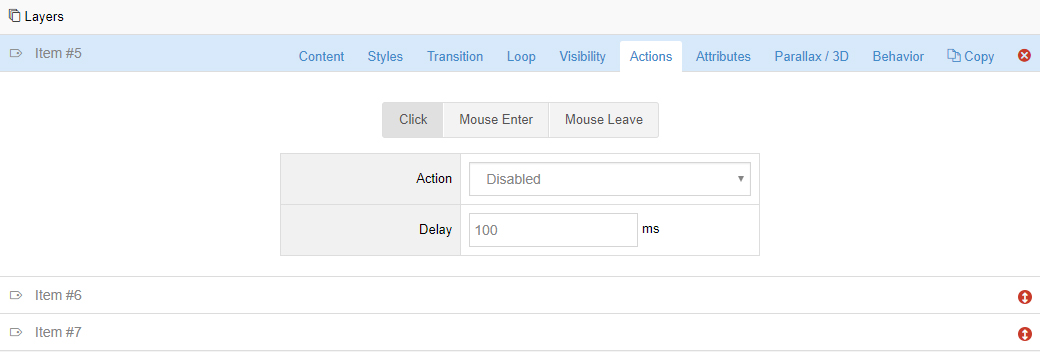
An "Action" is essentially something that happens when the user interacts with the layer's content (clicking the layer, or mouse hover).
Attributes
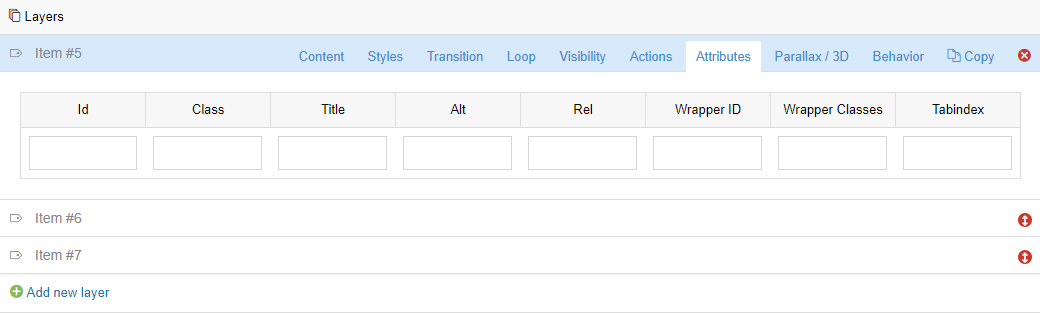
Layer attributes help with adding advanced custom CSS for a specific layer, and are also useful for enhancing accessibility. For example, a custom class could be added to a layer, and then some CSS could be applied to it.
Parallax / 3D
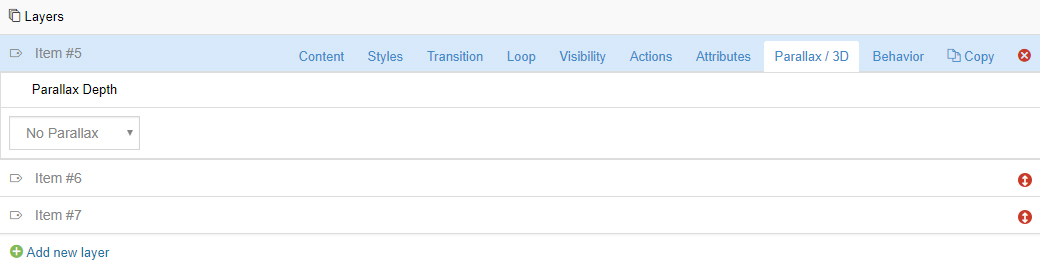
Apply a "Parallax Level" (1-15) or "3D Depth" to the layer. See Parallax & 3D.
Behavior
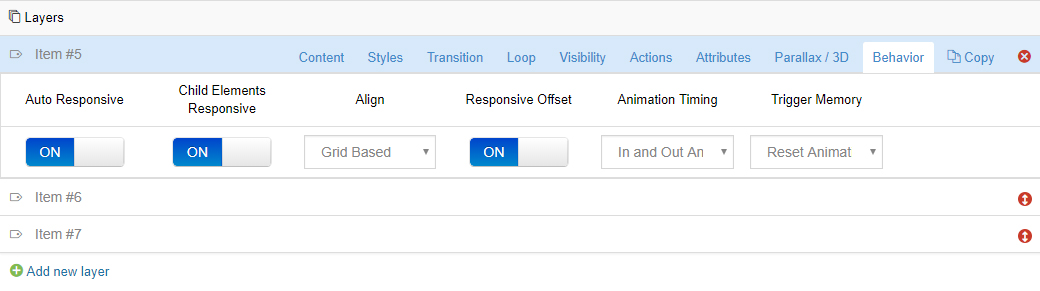
Auto Responsive
Choose to make the layer responsive by default (the layer resizes when the slider resizes).
Child Elements Responsive
If the layer contains additional content, the slider will attempt to resize all nested elements.
Boxed (Grid Based)
The layer will always be aligned and positioned based on the slider's grid size.
Slide Based (full-width)
Alignment and positioning of layers will always be based on the slider's actual size.
Static Layers
Besides the layers of each individual slide, you can click Static Layers in the Slides panel to add layers that stay visible across all slides — for example a site logo, a fixed "Buy Now" button or contact details.
Static layers support layer animations and scroll effects, and the "Effects on Elements" section of scroll effects has dedicated options for static layers (split by whether parallax is enabled). Static Layers Position and Static Layers Overflow settings are also provided to control the alignment and boundary clipping of static layers.
Next Steps
- Parallax & 3D — parallax levels and 3D depth
- Scroll Effects — apply effects to layers on scroll