Background Type
You can choose the display type of the slide background: background image, color, transparent, or video (YouTube, Vimeo, HTML5).
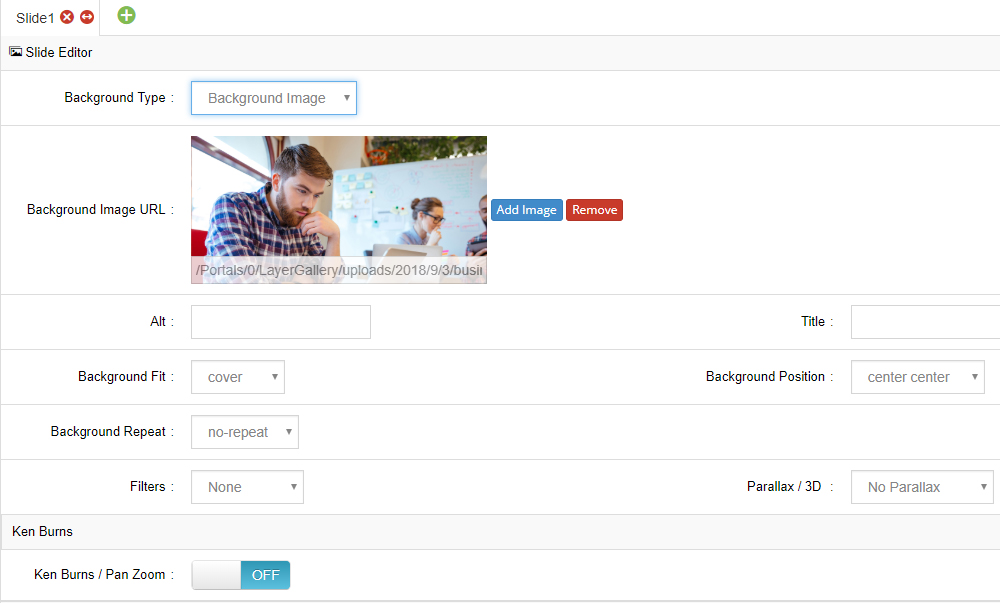
Background Image
Background Image URL
Set the image URL. You can enter a URL directly or pick an uploaded image from the Media Library.
Alt Text
Set an SEO title for the image.
Title
Set the image title.
Background Fit
- Cover: The most common option. Your image will always fill the entire size of the slider (cropping may occur).
- Contain: The entire image always fits inside the slider's boundaries. Image cropping will never occur, but you may end up with blank space on the sides of the image.
Background Position
Sets the alignment of the image inside the slider area (center, left, right, top, bottom, etc.). See W3Schools: background-position.
Background Repeat
Sets whether the image tiles and repeats — useful for texture backgrounds. See W3Schools: background-repeat.
Filters
Add Instagram-type filters to your slide's background image.
Parallax / 3D
To use this option, first make sure Enable Parallax is set to ON in the slider's main parallax settings.
Adding a parallax level here will apply movement to the main background based on mouse-move, scrolling, or both.
Ken Burns Effect
An elegant pan/zoom that will move and scale the main background image slowly after the slide comes into view.
Transparent
Set to not display any background; the slider's own background will show through. Useful for stacking with other slides or minimal designs.
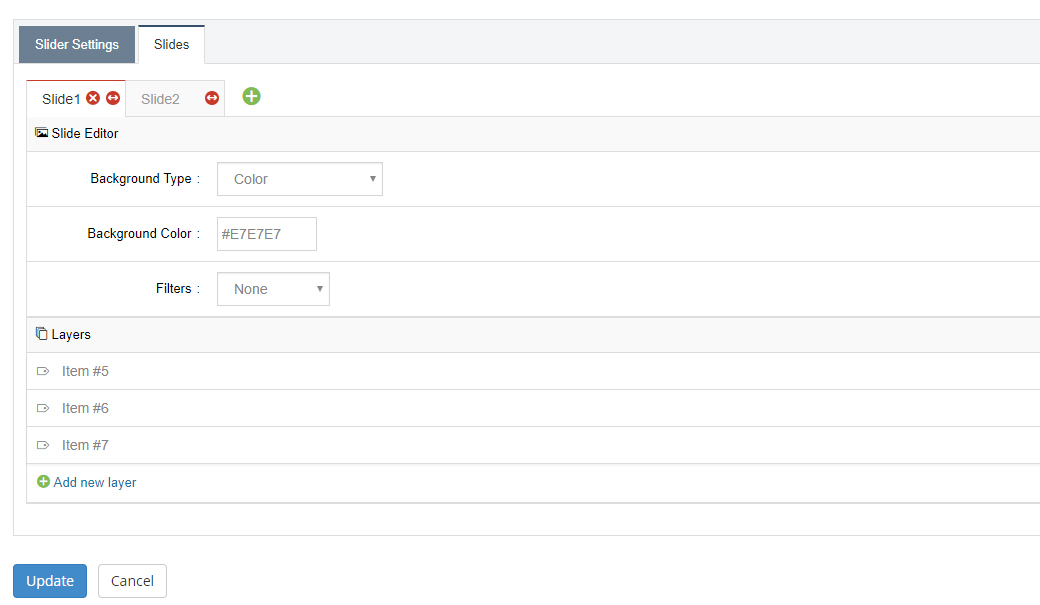
Color
Use a solid color as the slide's main background.
YouTube Video
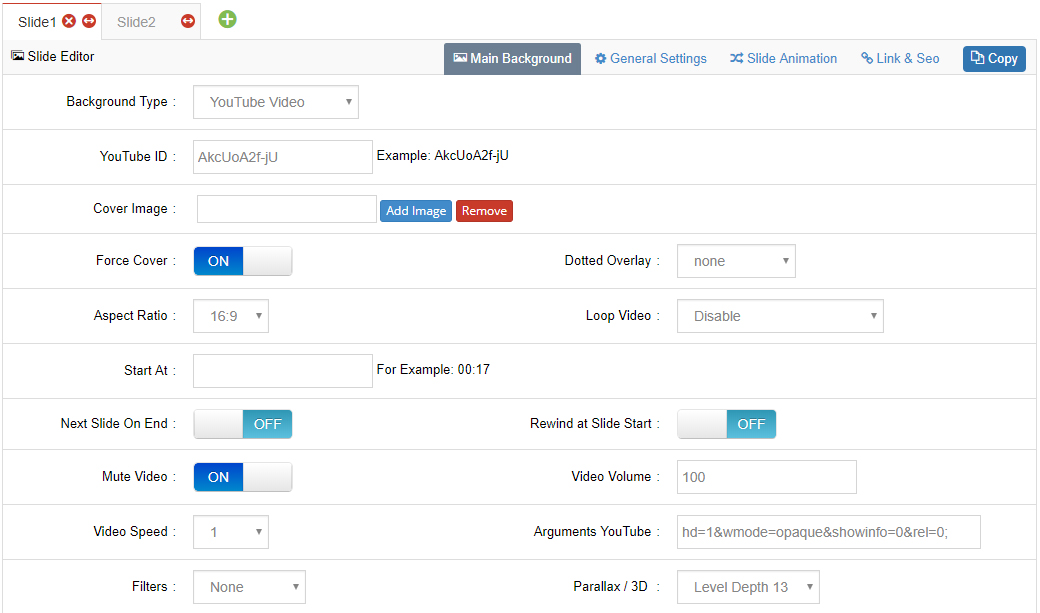
YouTube ID
Visit the video on YouTube.com and view the URL in the browser's address bar. The ID is the part after "v=". In the following example, the ID is AkcUoA2f-jU:
https://www.youtube.com/watch?v=AkcUoA2f-jUSet Cover Image
The video's "cover" is what will animate when the slide first appears.
Force Cover
- ON: The video covers the entire size of the slider (usually the best option for video backgrounds). Cropping may occur depending on the video's aspect ratio in relation to the slider's size.
- OFF: The video always respects its aspect ratio and is never cropped. Blank space may occur on the sides depending on the aspect ratio.
Dotted Overlay
Choose to display a "mesh-like" transparent graphic on top of the video, adding some extra style.
Aspect Ratio
YouTube offers two versions of the video: 16×9 or 4×3. For video backgrounds, 16×9 is usually best.
Start At
Start the video at a specific time, in minutes:seconds format.
Loop Video
- Disable: The video plays only once each time the slide is shown.
- Loop – Slide is paused: The video loops endlessly.
- Loop – Slide does not stop: The video loops endlessly until the slide's delay is reached.
Next Slide On End
- ON: The slide changes immediately as soon as the video ends.
- OFF: If the video's length is less than the slide's delay, the slide will not change until the delay time has been reached.
Rewind at Slide Start
- ON: The video always starts from the beginning each time the slide is shown.
- OFF: Once the video plays, if the slide is changed before the video ends, the video resumes from the same point when returning to the slide.
Mute Video
Choose to mute the video's volume if it normally has sound.
Video Speed
A special option to play the video at a "fast forward" speed.
Arguments
Additional parameters that can be passed to the video — see the YouTube player parameters list.
Vimeo Video
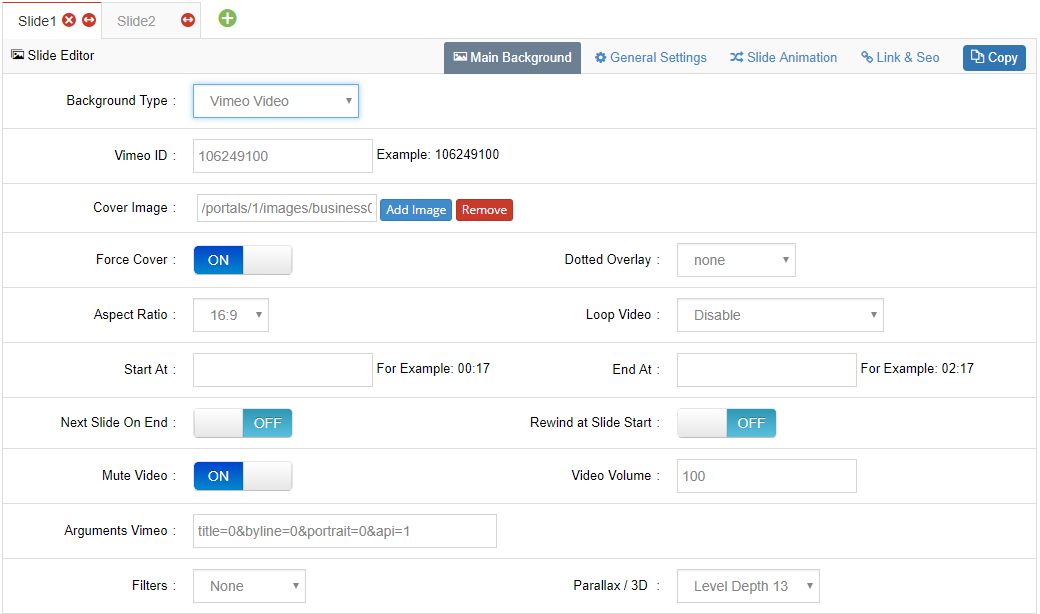
Vimeo ID
Visit the video on vimeo.com and view the URL in the browser's address bar. The ID is the part after "vimeo.com/". In the following example, the ID is 106249100:
https://vimeo.com/106249100Cover Image / Force Cover / Dotted Overlay / Aspect Ratio
Same as the identically named options for YouTube video backgrounds.
Start At / End At
Start and/or end the video at a specific time, in minutes:seconds format.
- Example "Start At" value:
00:17(start the video 17 seconds in) - Example "End At" value:
02:17(end the video at 2 minutes, 17 seconds)
Loop / Next Slide On End / Rewind at Slide Start / Mute / Video Speed / Arguments
Same as the identically named options for YouTube video backgrounds. For "Arguments", see the Vimeo embedding parameters list.
HTML5 Video
Set Video URLs
Upload a video to your site via FTP, and enter the full URL of the video in the fields.
An "MPEG" version of your video (a file ending with ".mp4") is mandatory. MPEG works almost everywhere except Firefox on Macs. Because of this, it's also important to include an alternative version of the video, which can be either "WEBM" or "OGV" — Firefox on Mac supports both, so you only need one or the other. You can use a free tool such as Miro Video Converter to create "ogv" and "webm" versions of your video.
Cover Image / Force Cover / Dotted Overlay / Aspect Ratio
Same as the identically named options for YouTube video backgrounds.
Start At / End At / Loop / Next Slide On End / Rewind at Slide Start / Mute
Same as the identically named options for YouTube video backgrounds.
Mobile autoplay
Some mobile devices block video autoplay by default. Enable HTML5 Autoplay on Mobiles in Problem Handlings to autoplay HTML5 background videos or video layers on mobile devices.
Next Steps
- General Settings — set slide delay and publish state
- Slide Animation — configure background transitions