How to Set Up PowerForms
Replaced by FormBuilder
Starting with the Minis theme version 4.6, the form solution has been replaced with the FormBuilder module. This page is for users who are still using the older PowerForms module.
The Minis theme includes a variety of built-in form styles, such as subscription forms and contact forms. You can see them in action on the demo page.
A form consists of two parts: the front-end display part is added to the page through the Content Builder module, and the back-end part is configured in the PowerForms module.
Front-end Display
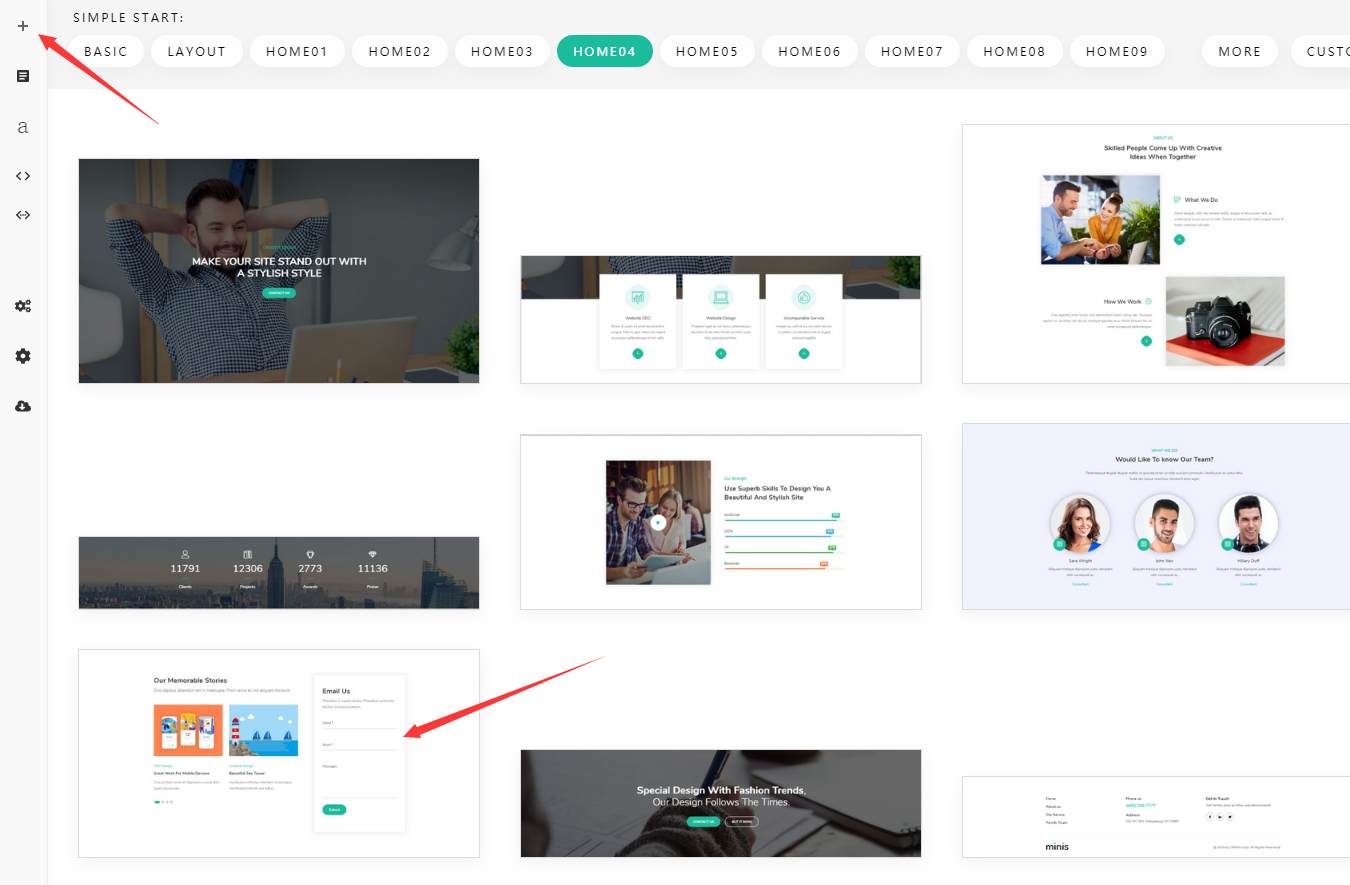
Add a Section with a form to the page through the Content Builder module:
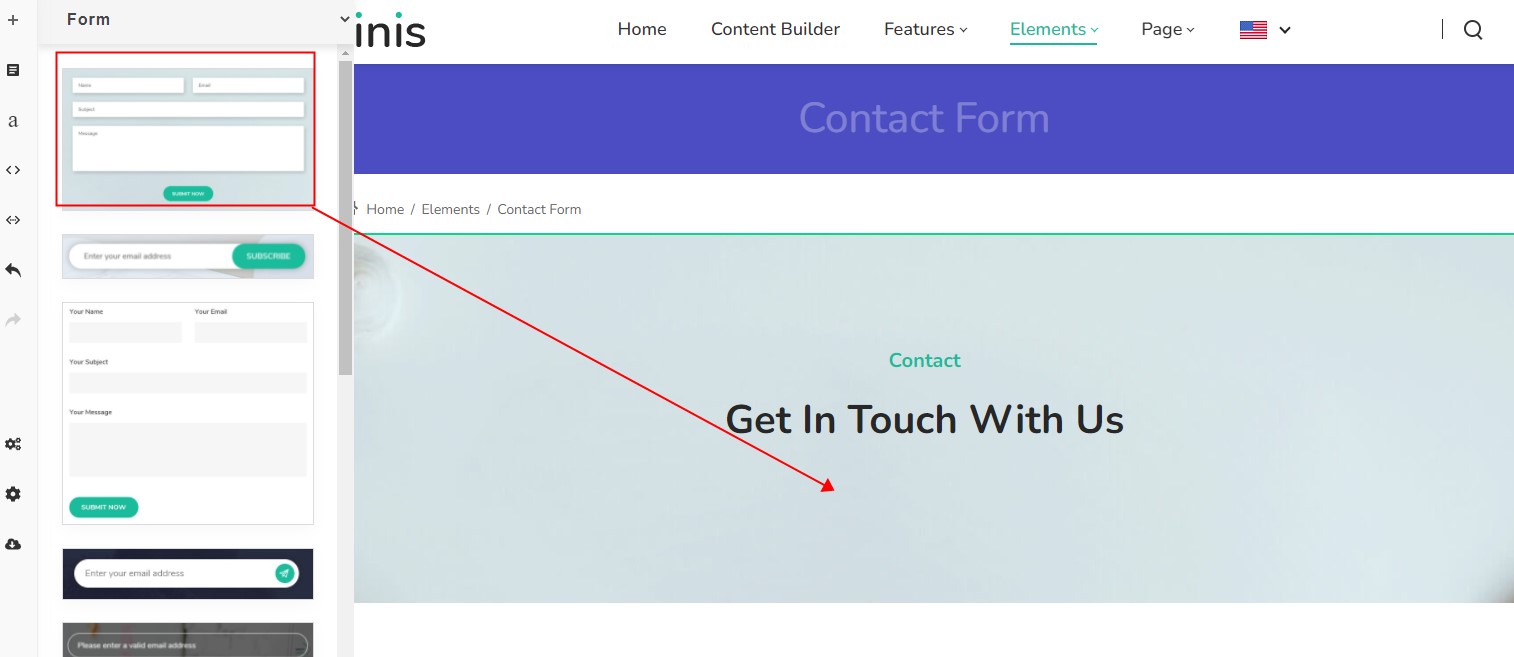
Or add a form content block to the page:
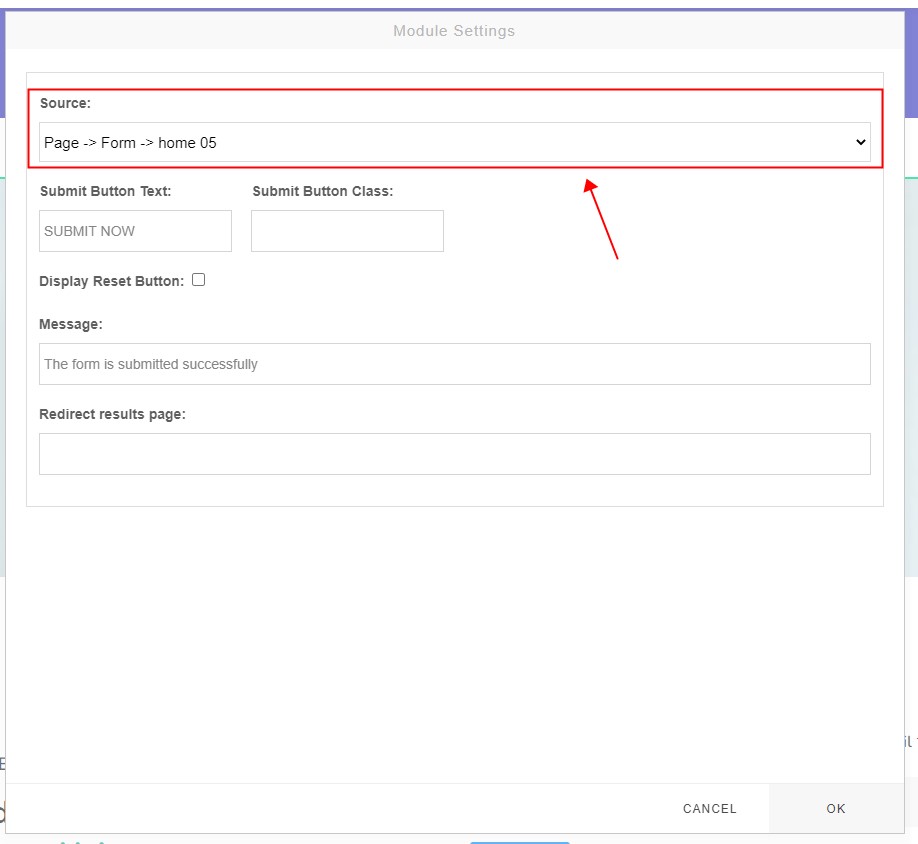
After the setup is complete, the form will not appear immediately, because you also need to set a data source (Source) for the form:
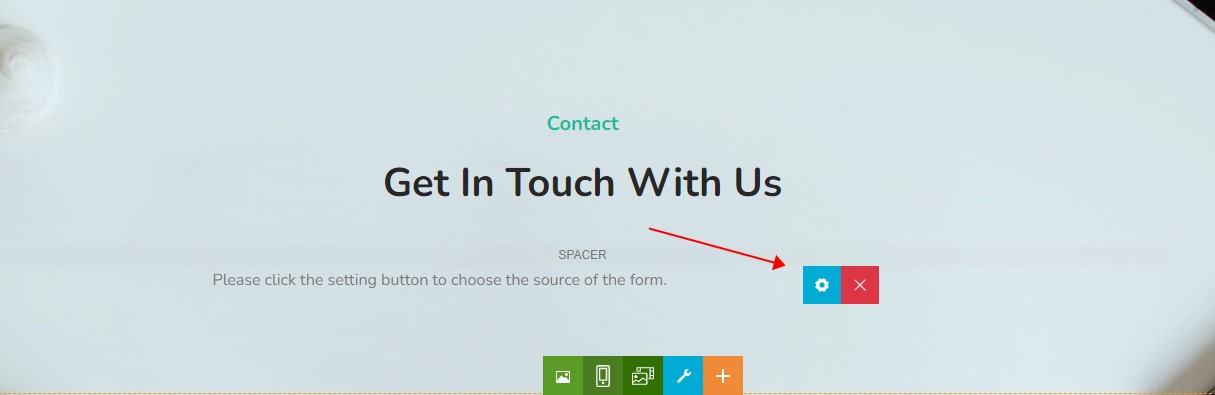
The Source list shows all PowerForms modules in the site:
Setting Up Fields
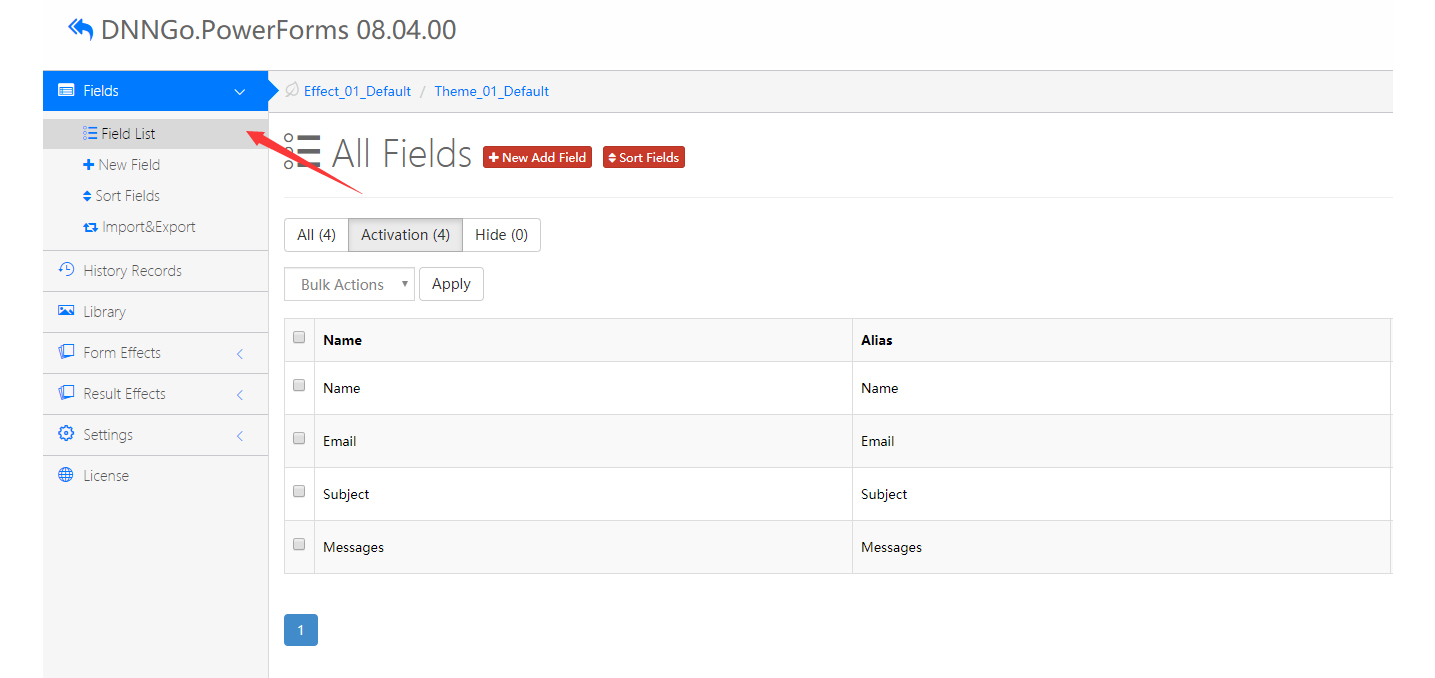
In the left menu, open Fields > Field List to edit or add fields:
Setting the Field Width
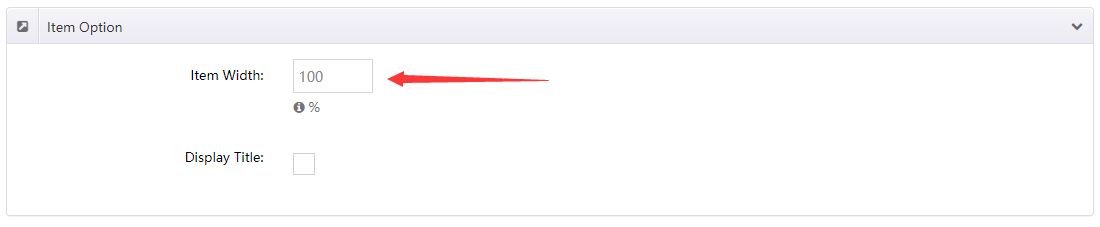
In the field editing screen, you can set the width for each field. When the width is set to 100, the field occupies an entire row:
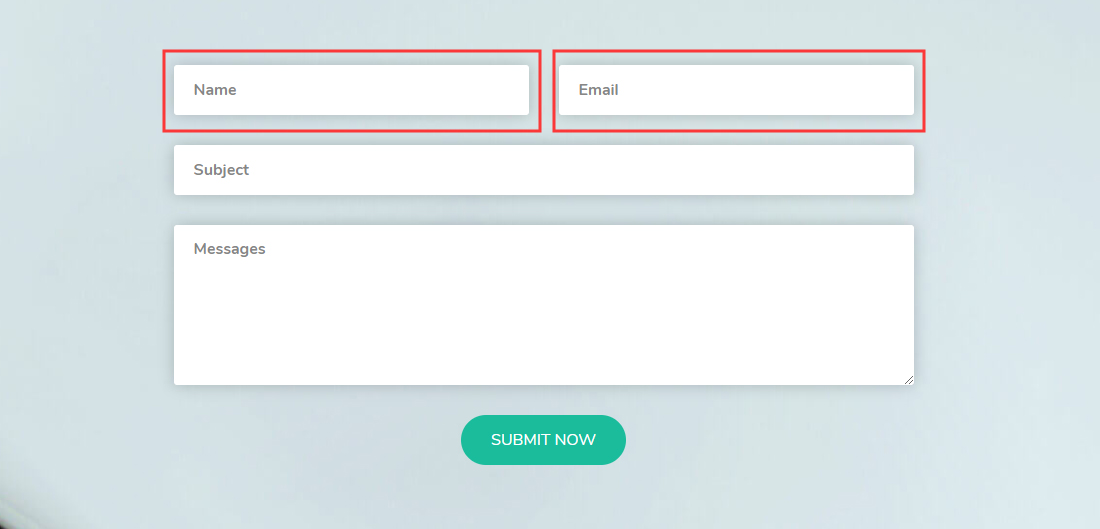
When the widths of two fields are both set to 50, the two fields are displayed on the same row:
Viewing Submission History
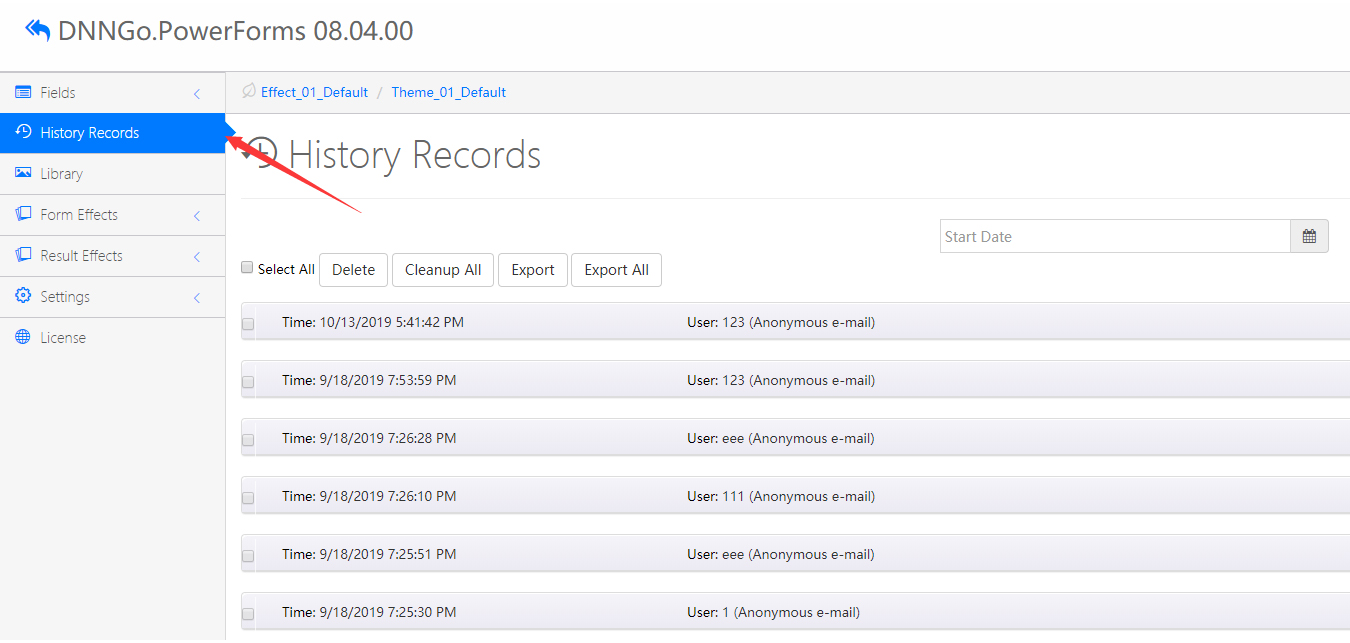
In the left menu, open History Records to view the history of user submissions:
For more detailed instructions on the PowerForms module, see the official documentation.
Setting Up a Subscription Form
A subscription form usually only needs an email field. Set it up as follows:
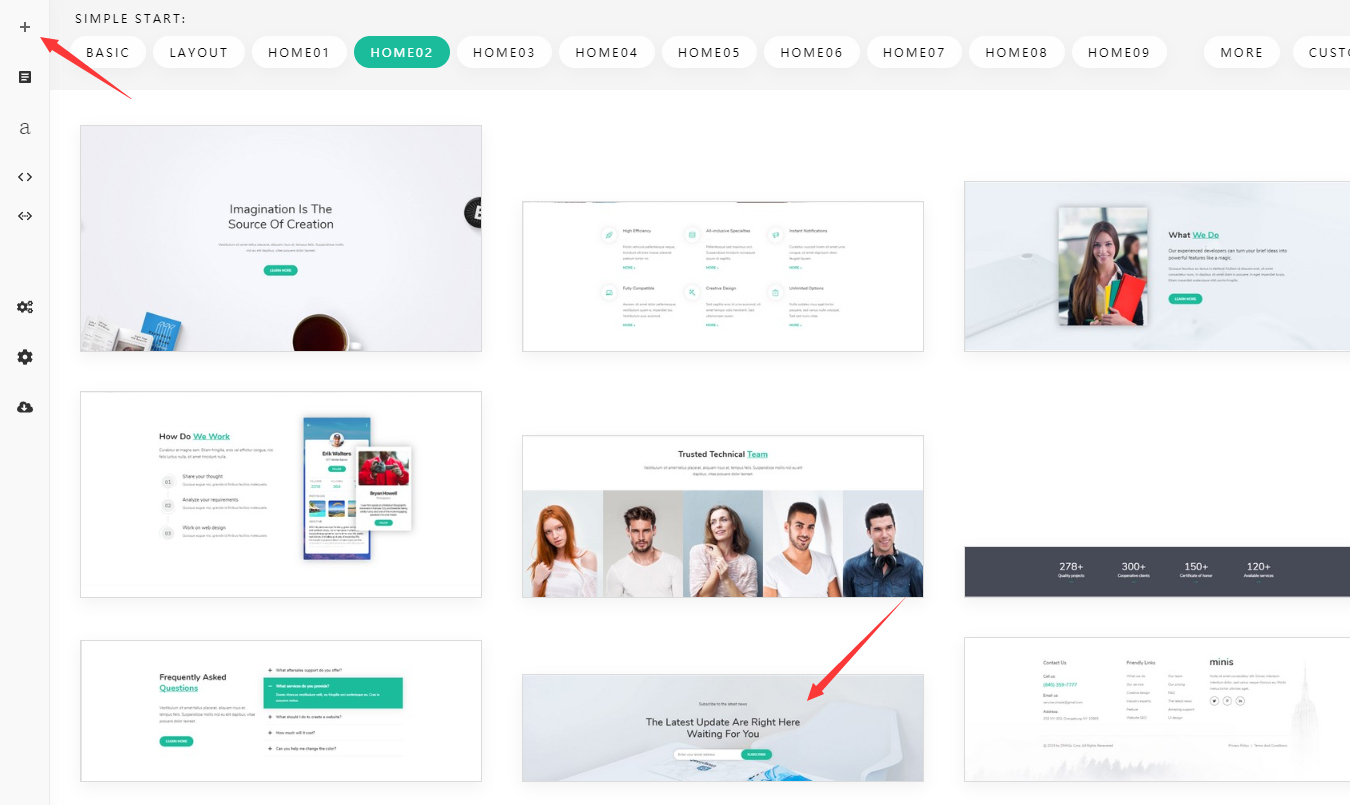
- Add a subscription-style form Section to the page
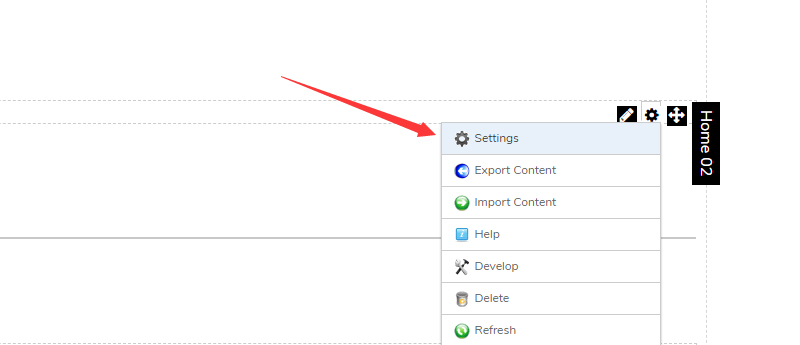
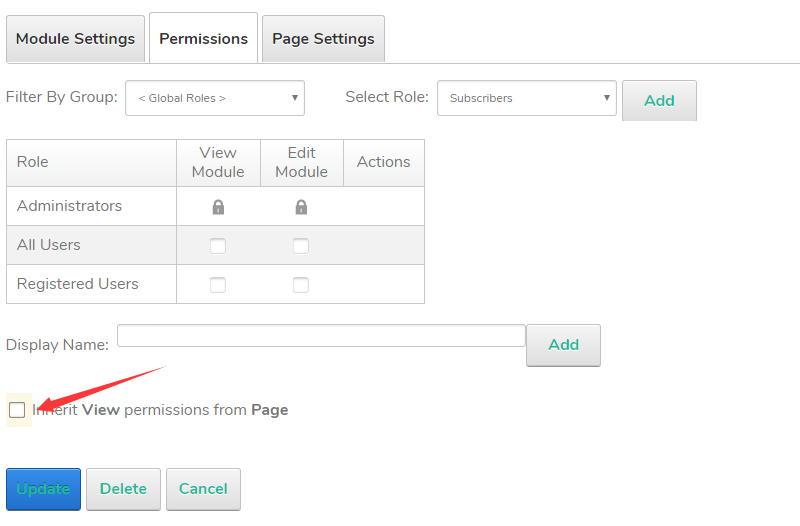
- Add a PowerForms module to the page and set the module permissions to visible to administrators only
- Go to the field list page of this PowerForms module and delete all fields except the Email field
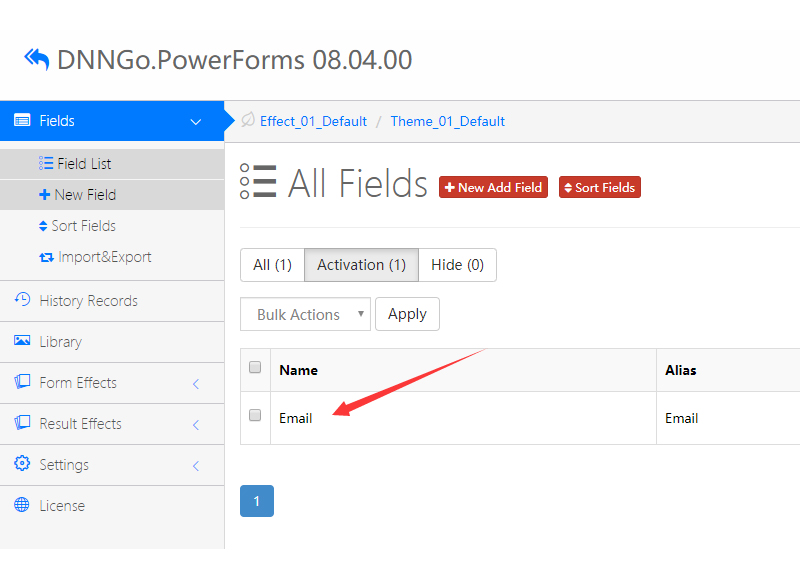
- Return to the subscription page and click the Settings button
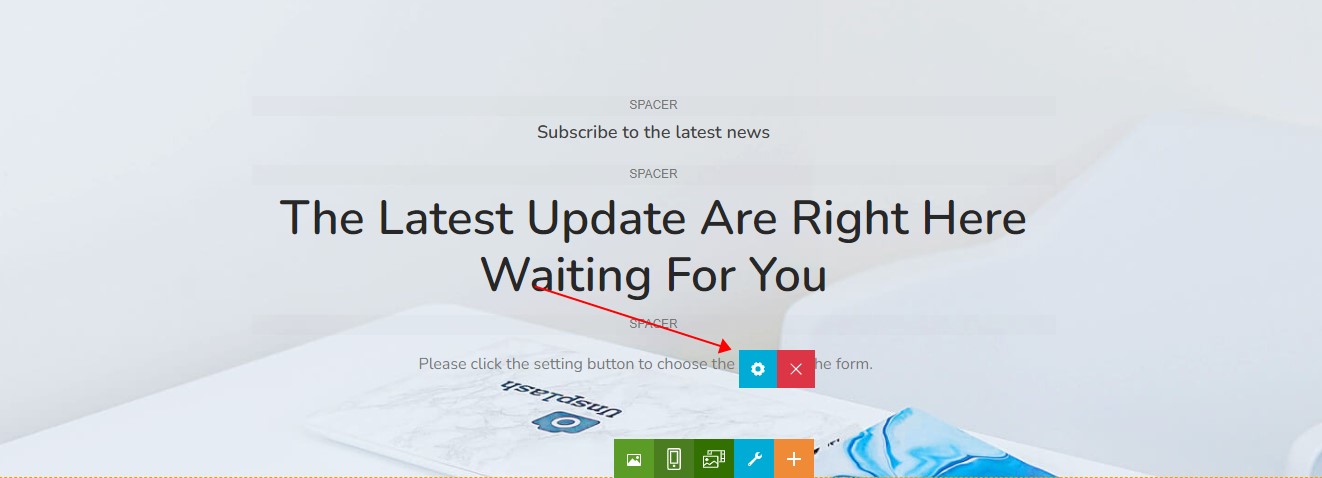
- Select the PowerForms module you just added in the Source list
Once you complete these settings, the subscription form will display correctly.
Configuring the SMTP Server
The SMTP server must be configured correctly; otherwise, neither users nor administrators will receive form notification emails.
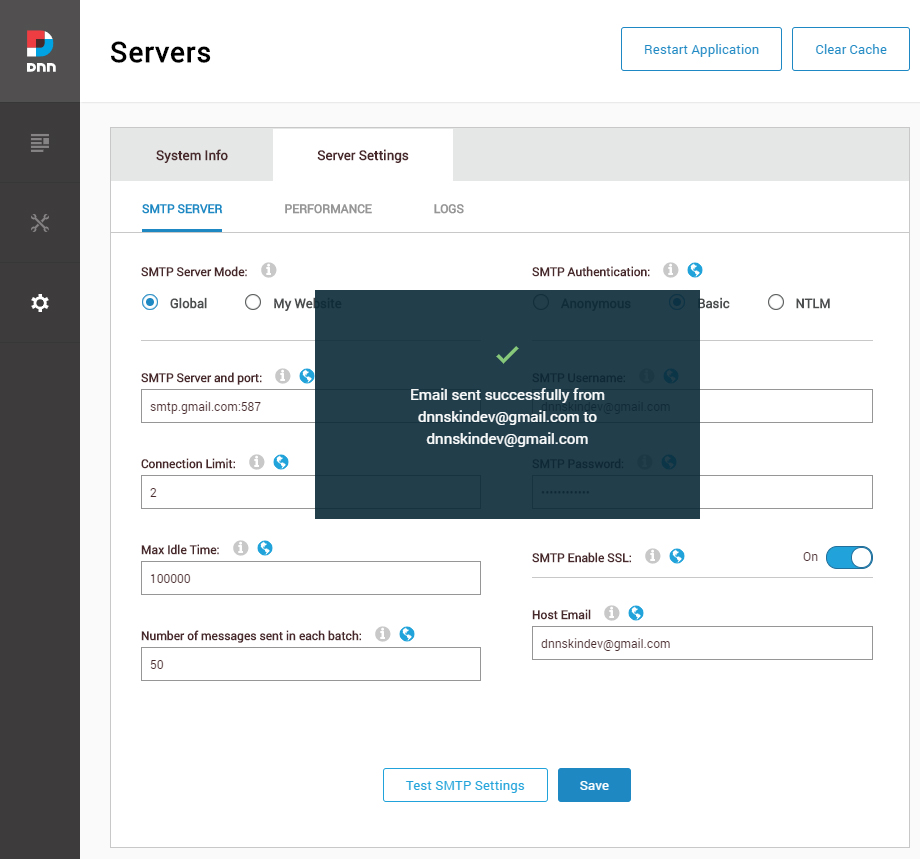
Log in to the site with a superuser account, go to the Settings > Servers > Servers Settings > Smtp Server page, fill in the SMTP server information correctly (get the details from your email provider), and finally click the Test SMTP Settings button to test whether the SMTP server is working properly: