

Getting Ready
The first time you use the theme on a site, run the theme initialization once. We also recommend adjusting the HTML editor settings so the theme's helper tags are not stripped on save.
Theme Initialization
- Log in to your site as a superuser
- Create a blank page
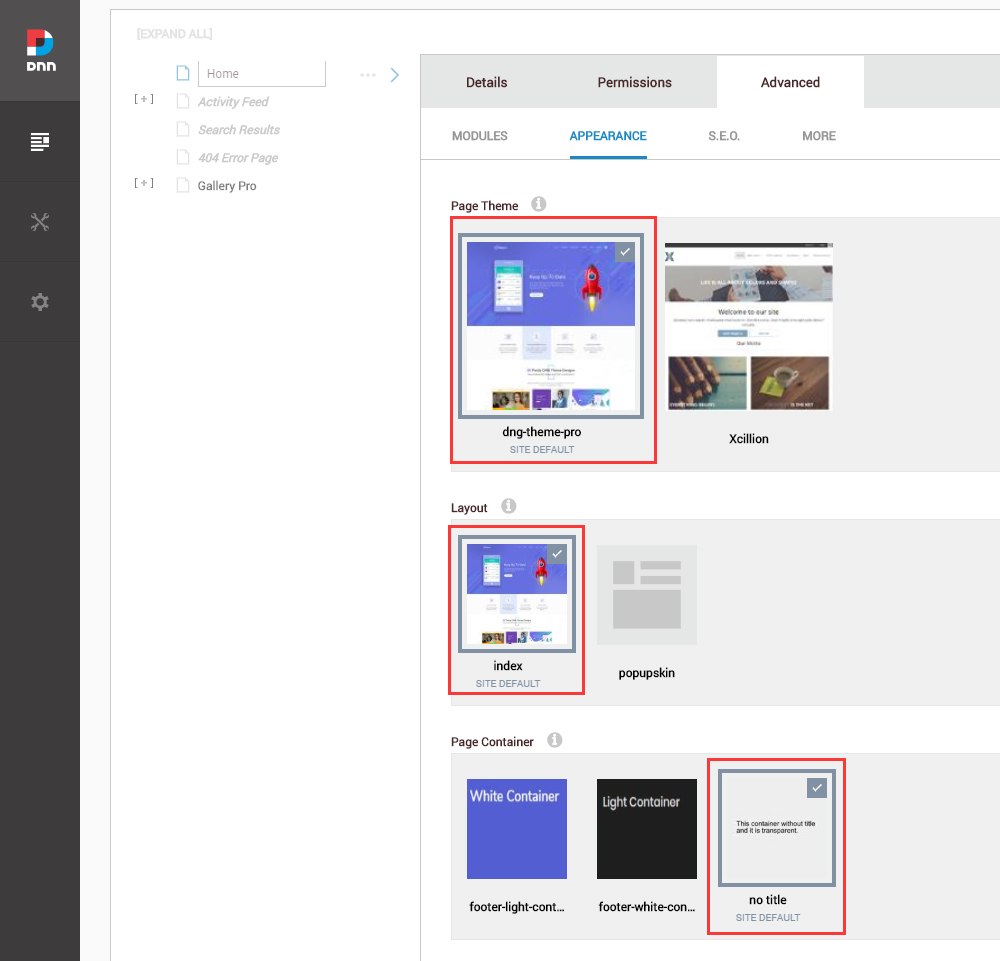
- Set the page Theme to dng-theme-pro, the Layout to index, and the Container to No Title
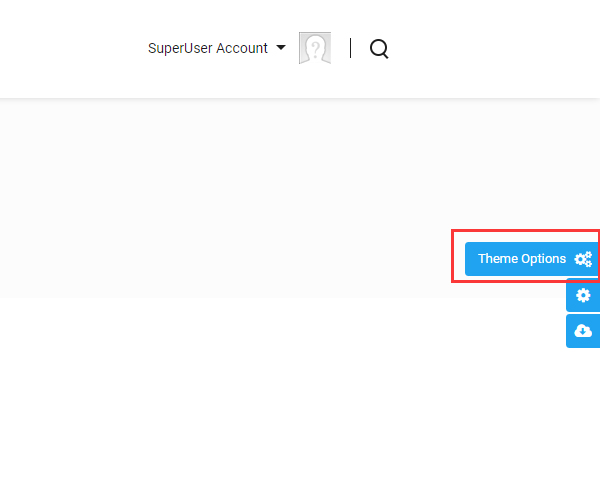
- Click the Theme Option button on the right side of the screen
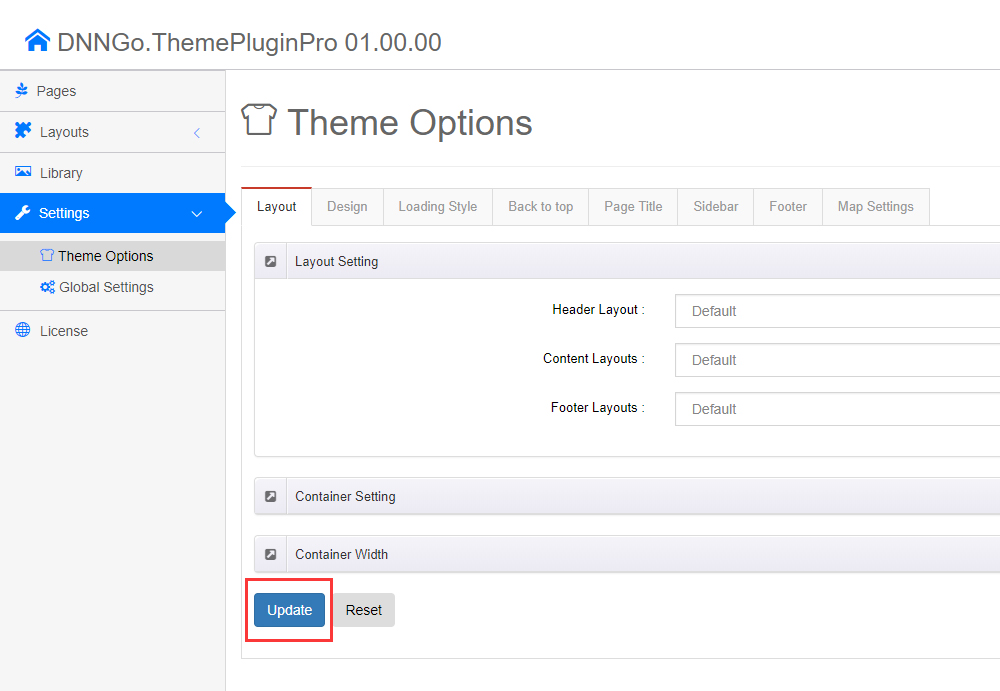
- Click the Update button once
Once this is done, you can build pages quickly by importing page templates — see Import a Page Template.
Adjust the HTML Editor Settings
By default, the DNN HTML editor removes div tags with empty content. For example, add <div class="pt-20"></div> in the HTML editor, save, and the code is gone the next time you edit. The theme relies on many of these empty divs for spacing and helper styles, so change the editor settings to keep them:
- Log in as a superuser
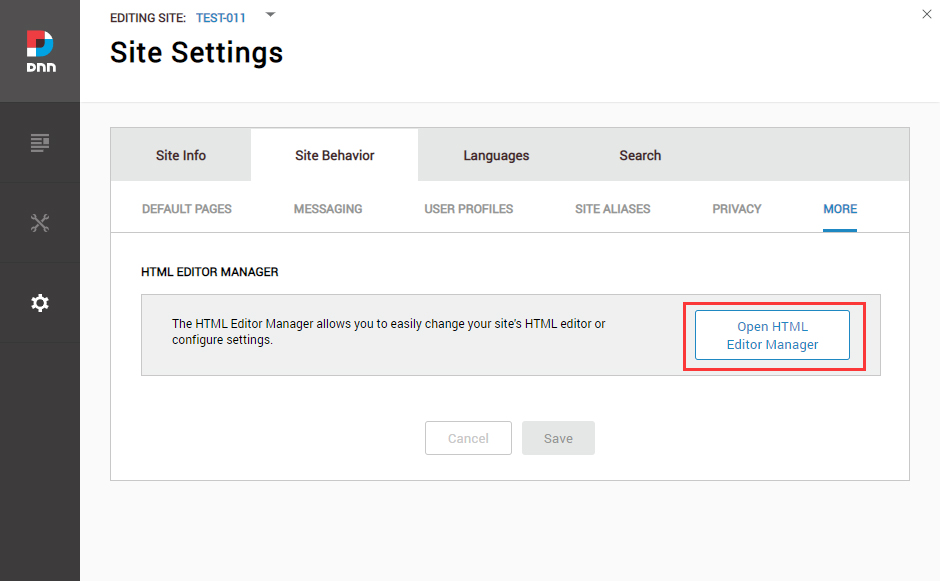
- Go to SETTINGS > Site Settings > Site Behavior > MORE and click Open HTML Editor Manager
- Open the Editor Config tab
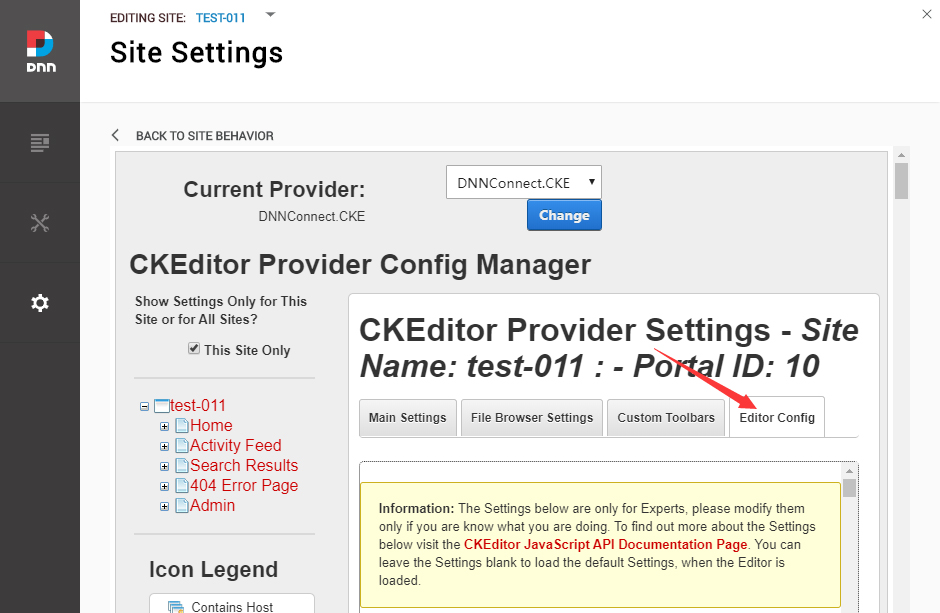
- Set AllowedContent to true
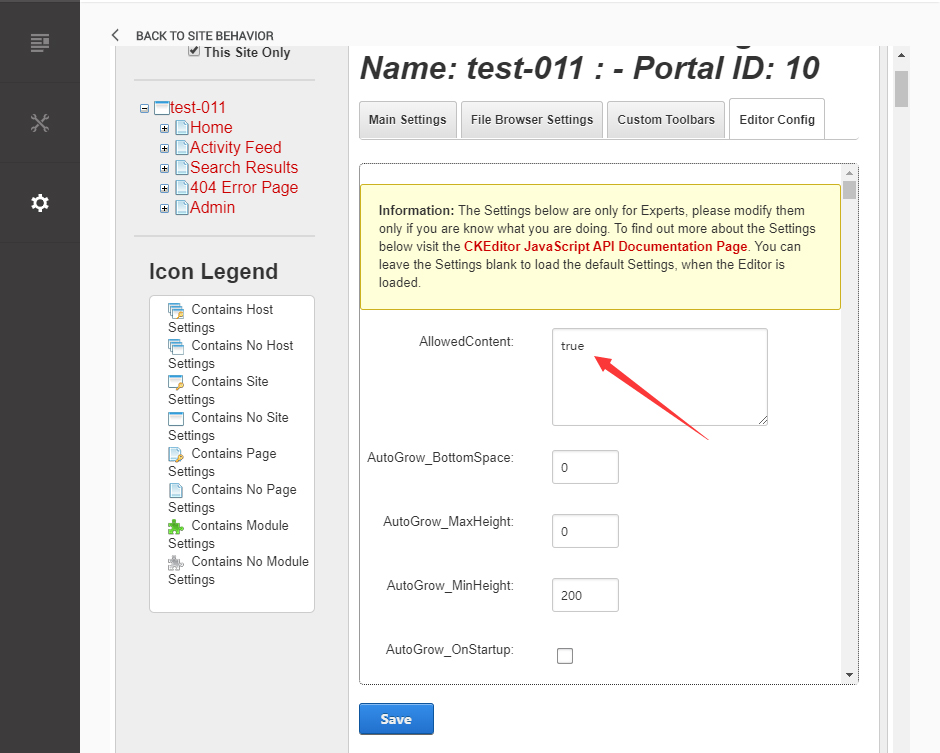
- Set FillEmptyBlocks to false
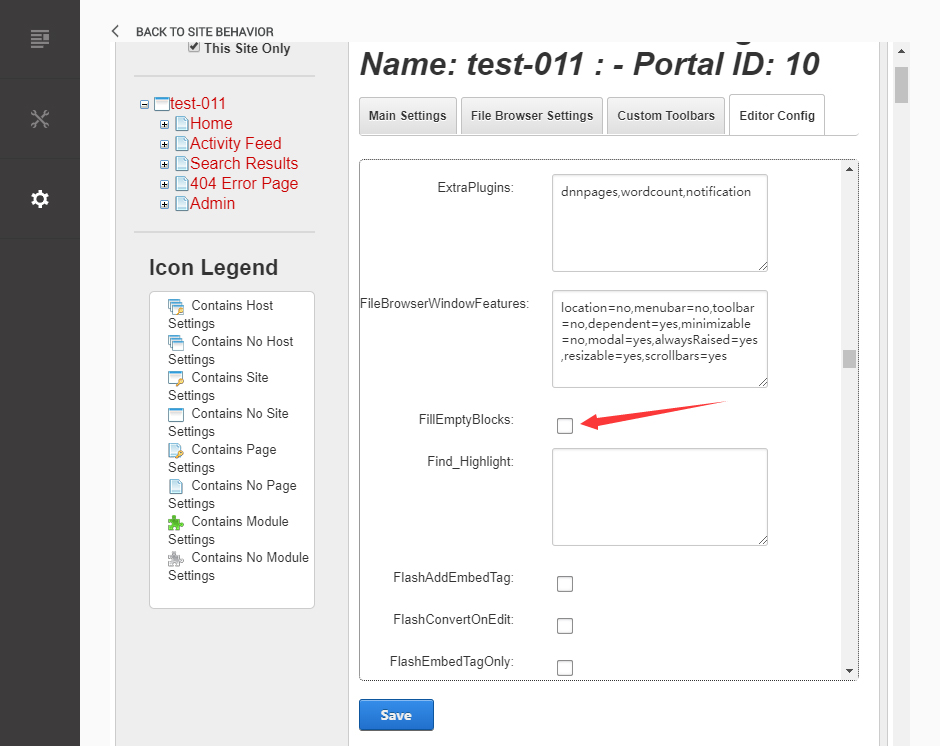
- Set ignoreEmptyParagraph to false
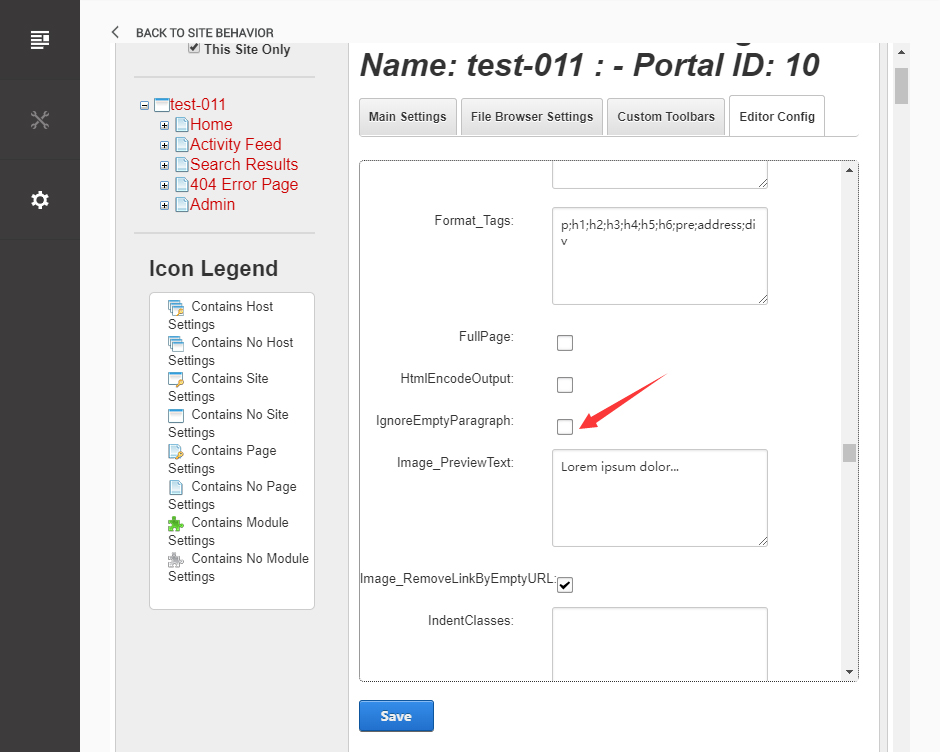
- Click Save
Recommended on every site
Whether the site is new or existing, apply this setting before working with the theme. Otherwise empty divs are silently dropped on every save, breaking page spacing and layout.