
How to Set Up Fixed Elements
Fixed elements let you attach image elements to a section that move as the page scrolls or the mouse moves. See the demo: https://glend.dnngo.net/en-us/Features/Fixed-Element — as the page scrolls down, the image elements float up and down.
Adding fixed elements
- Click the Fixed Element button on the right of a section.

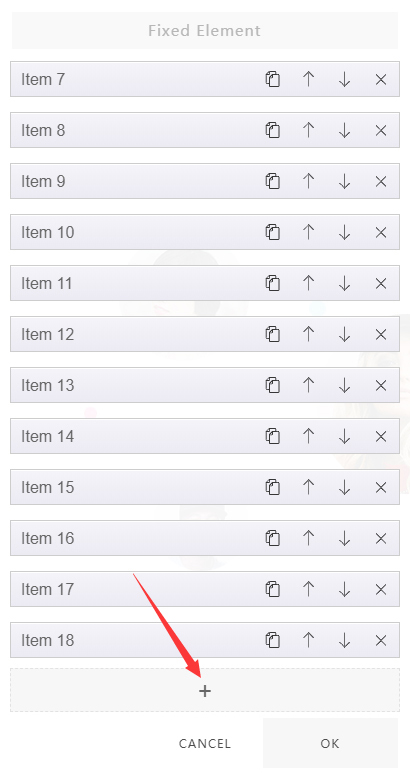
- Click the add icon.
- Add images.
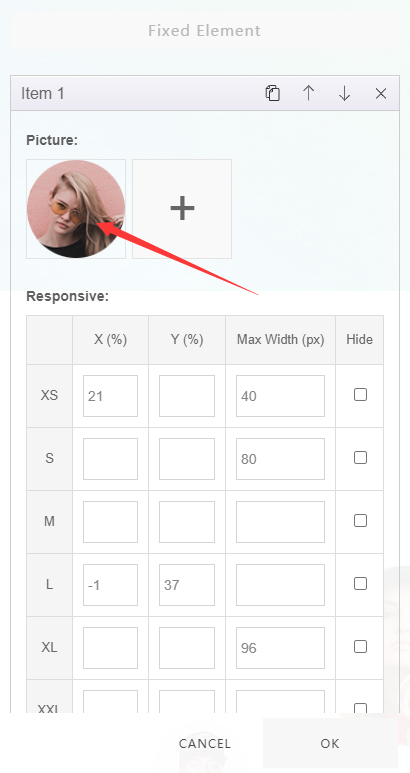
Positioning fixed elements
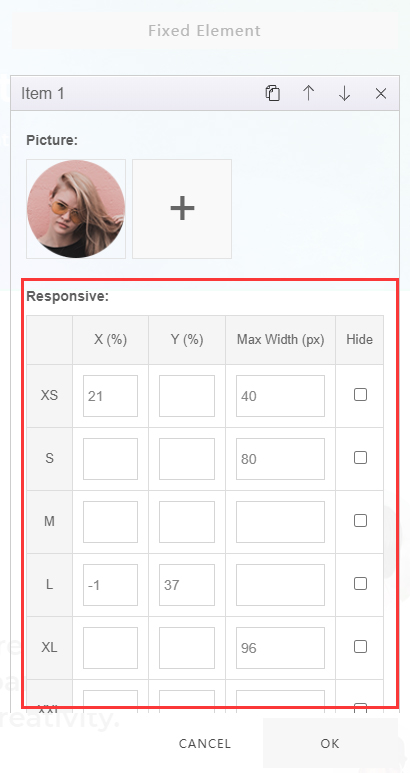
Set the position of fixed elements under Responsive.
| Setting | Description |
|---|---|
| X (%) | Horizontal position of the element |
| Y (%) | Vertical position of the element |
| Max Width (px) | Maximum width of the element |
| Hide (px) | Hide the element below a given width |
| XS / S / M / L / XL / XXL | Responsive breakpoints — set the element's display position per device |
Add animations
Two kinds of animation are available:
| Animation | Description |
|---|---|
| Parallax Scroll | Elements move at a different speed while the page scrolls — demo: https://glend.dnngo.net/en-us/Features/Parallax-scrolling |
| Mouse Follow | Elements follow the mouse — demo: https://glend.dnngo.net/en-us/Features/Mouse-follow |
TIP
The Mouse-follow entry in the Page Templates list is a complete demo of the mouse-follow effect — import it to see how it is built.