How to Set Up a OnePage Site
A OnePage site is a single long page: clicking a menu item smoothly scrolls the page to the matching section. See the demo: https://glend.dnngo.net/Construction01.
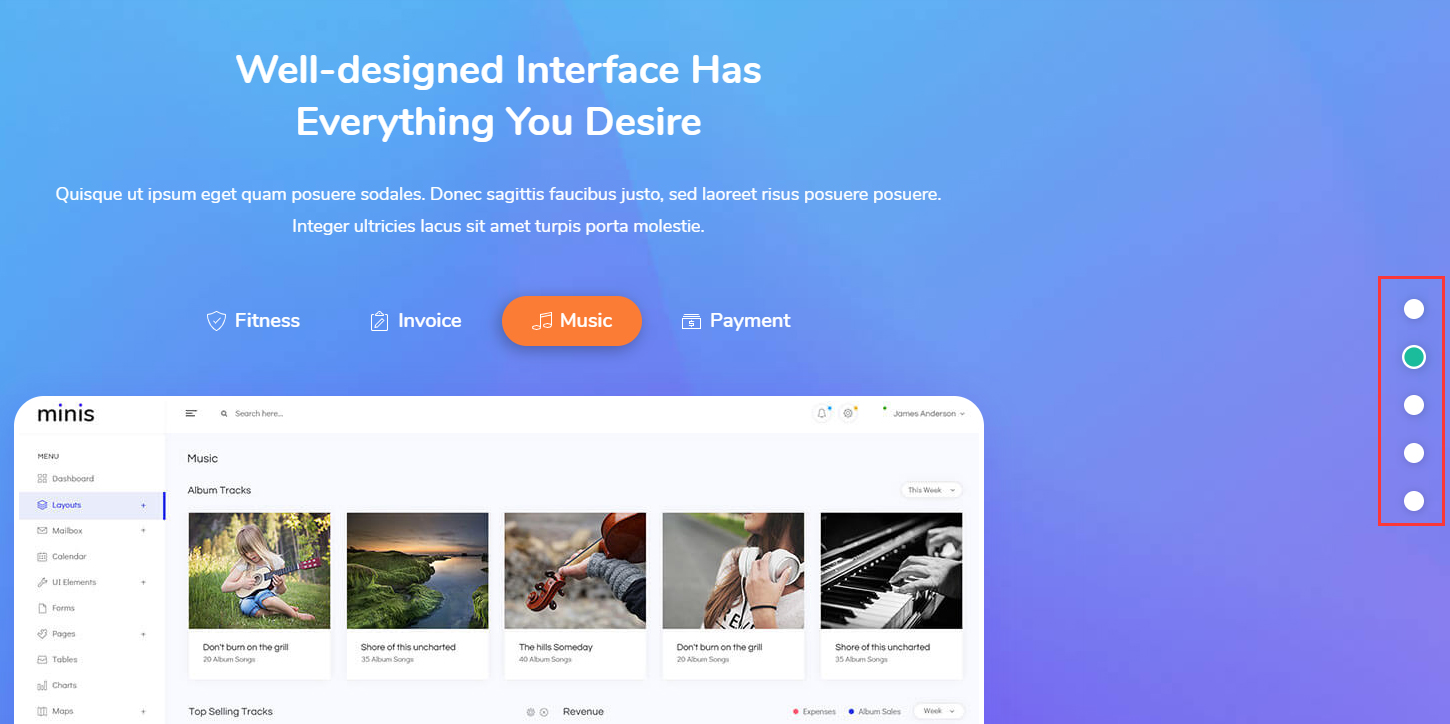
Glend supports two approaches. The recommended one is the anchor method (set anchors on a normal page's sections and jump to them with URL menu items). The theme also retains a dedicated One Page page type with its own dot navigation, switched on through Page Options.
Method 1: the anchor method (recommended)
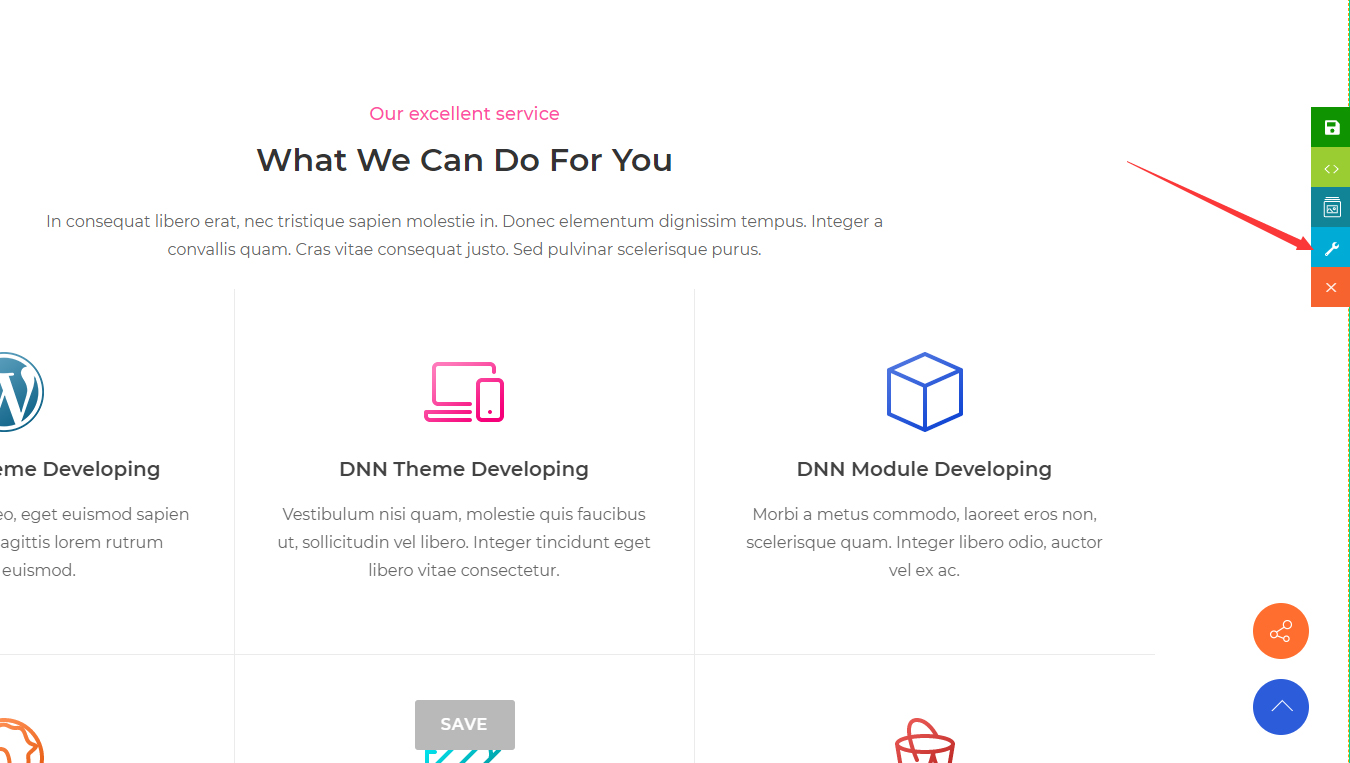
- Go back to the page and click the Section Settings button.
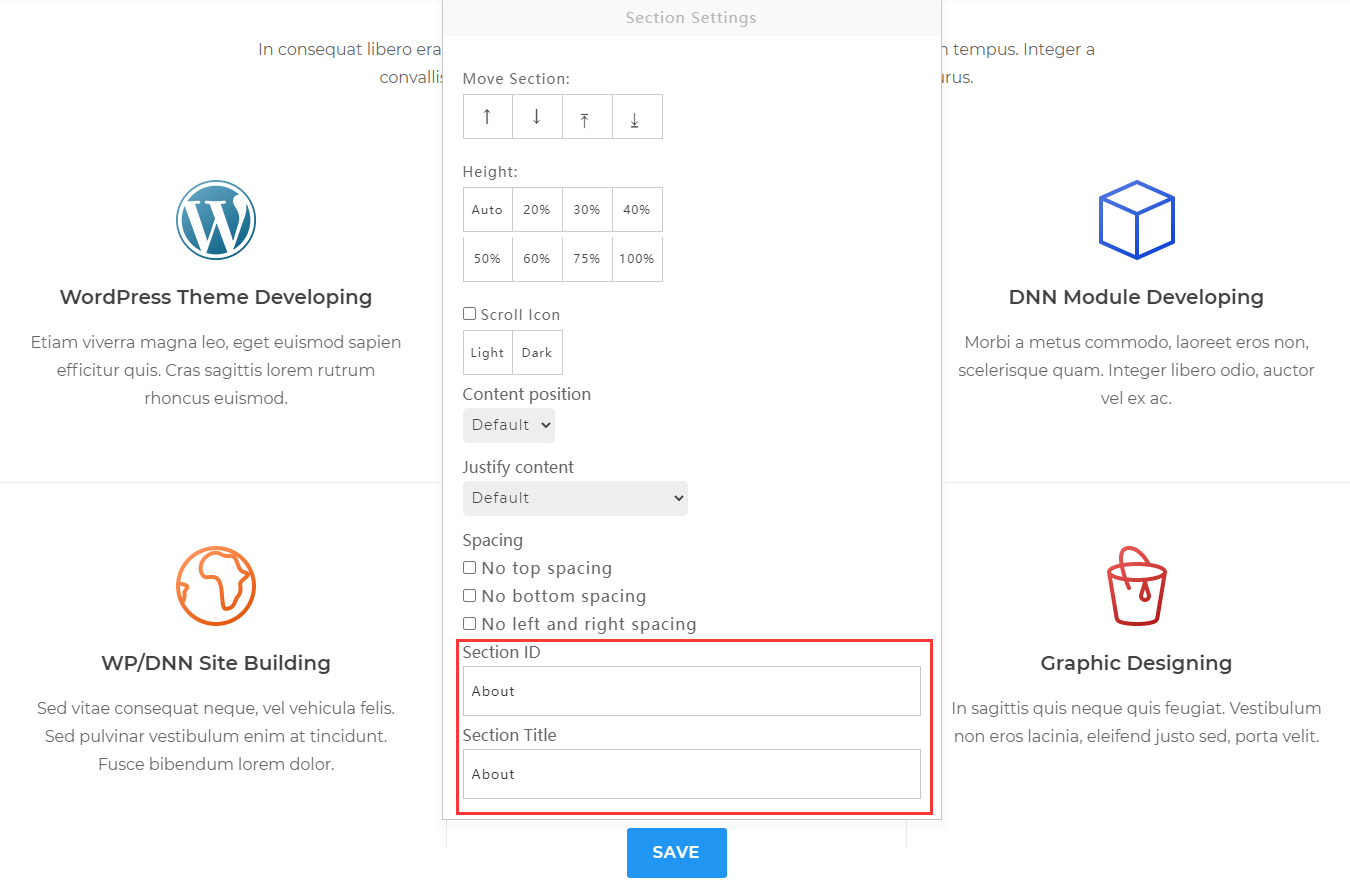
- Fill in the Section ID and Section Title. The Section ID must not contain spaces; the Section Title is displayed on the right side of the navigation.
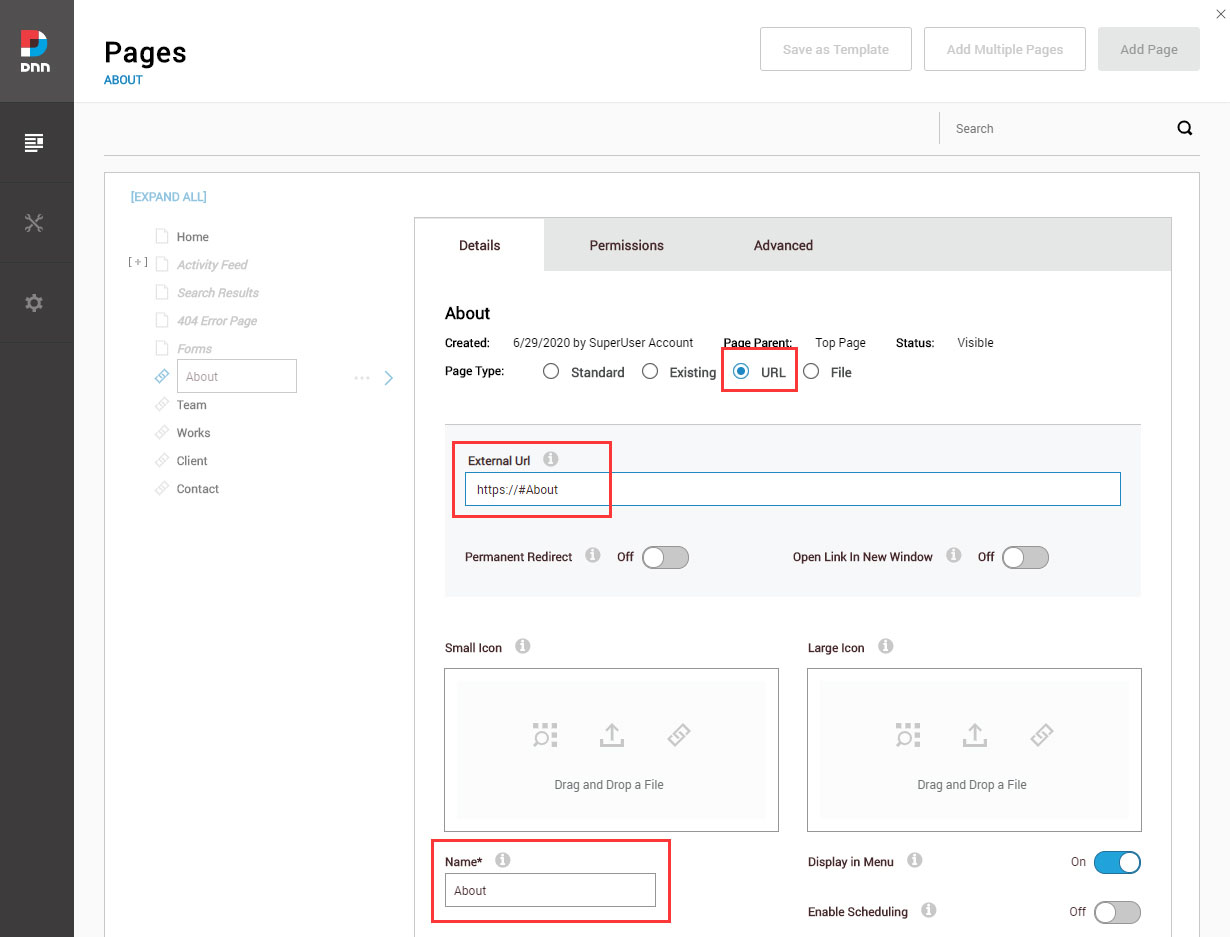
Go to Admin > Pages in your DNN site and add the menu item:
- Set Page Type to URL
- Set External Url to the anchor address, for example
https://#About— the part after#is the Section ID from step 2 - Enter the menu name under Name, for example
About Us
Now clicking the About menu scrolls the page to the
#Aboutanchor area.
- Repeat steps 1–3 to add more anchor areas.
Demo template
The Construction01 template in the Page Templates list is a complete demo of this method — import it and study its Section settings.
Method 2: the One Page page type
Log in as a superuser.
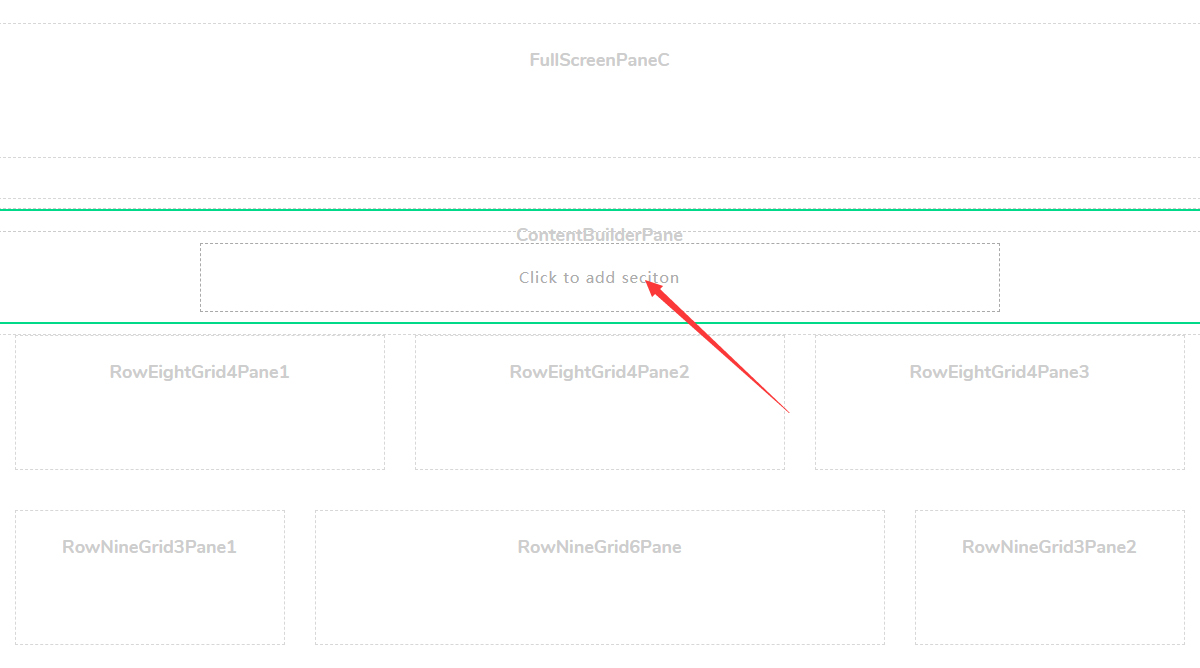
Add the DNNGo ContentBuilder module to the ContentBuilderPane (skip this step if the page already includes it).
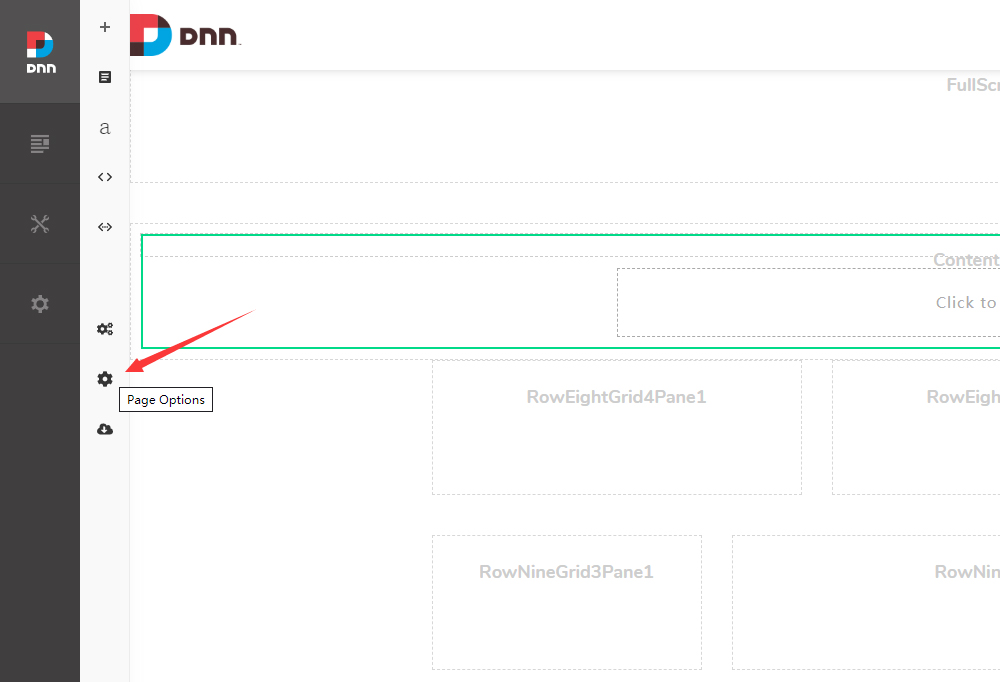
Click the Page Options icon on the left of the page.
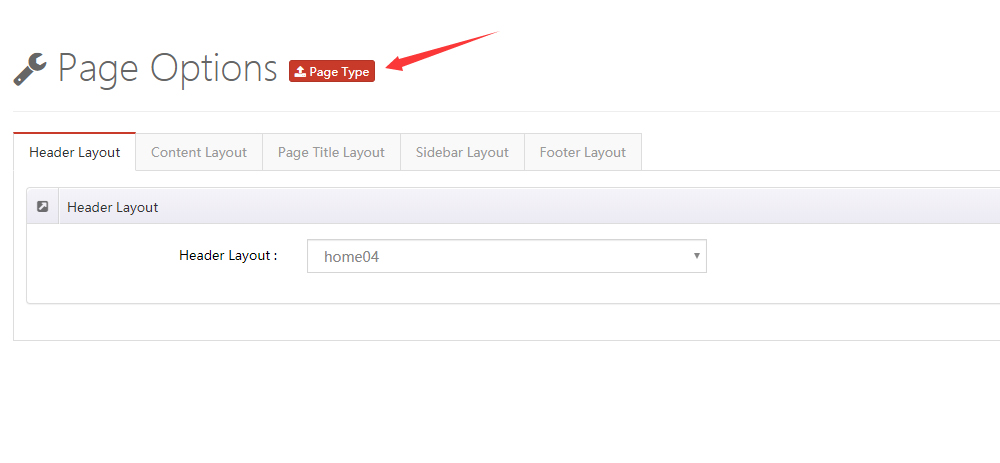
- Click the page type button.
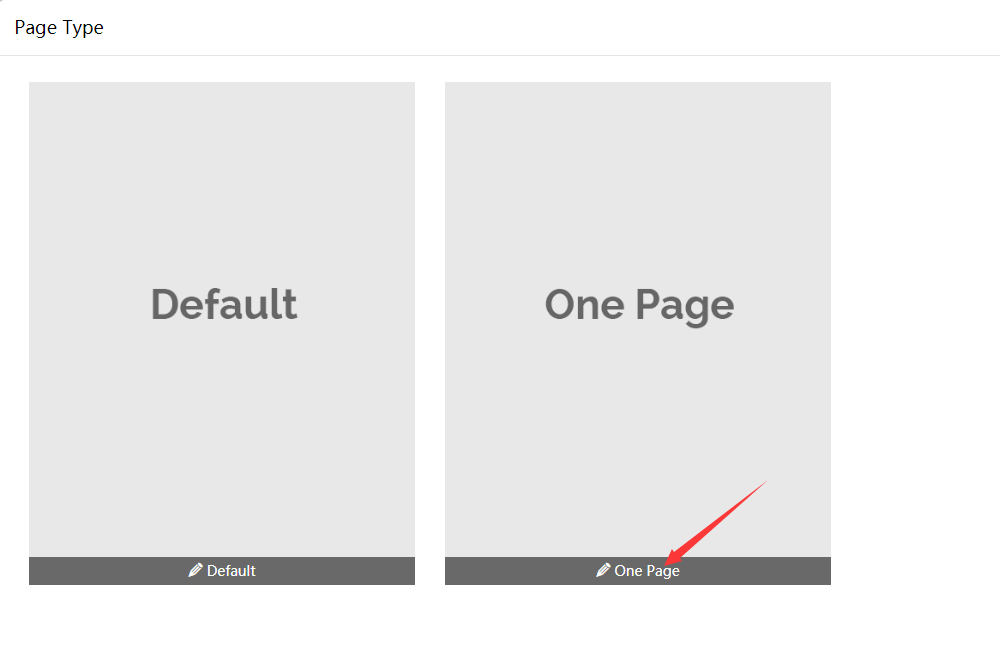
- Choose One Page.
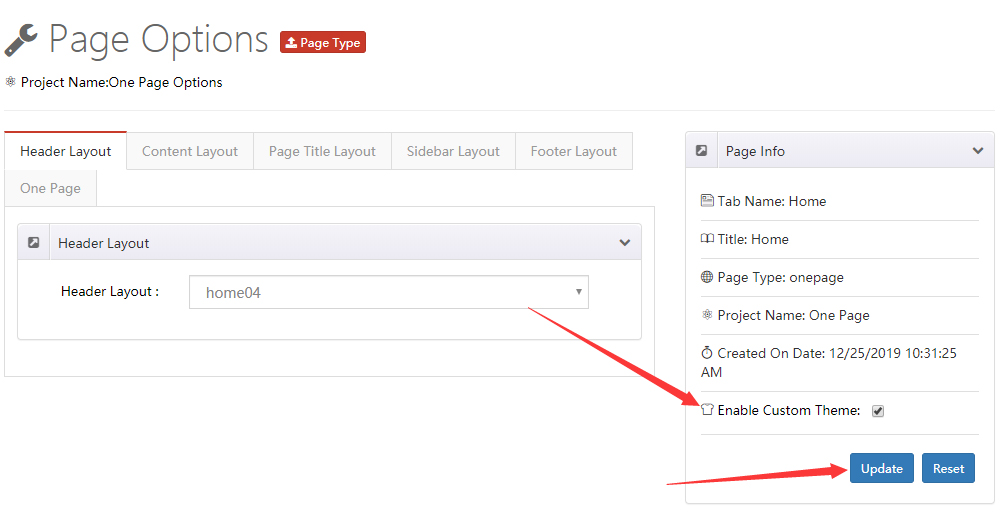
- Check Enable Custom Theme.
- Return to the page and add sections in the Content Builder module.
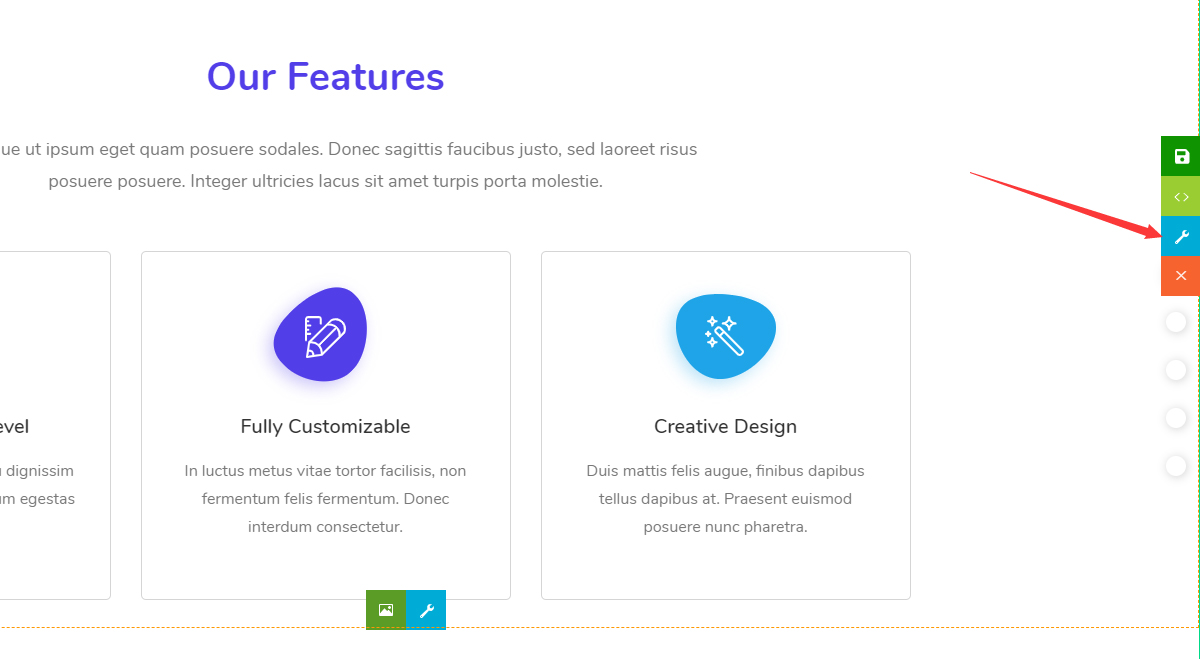
- Click Section Settings.
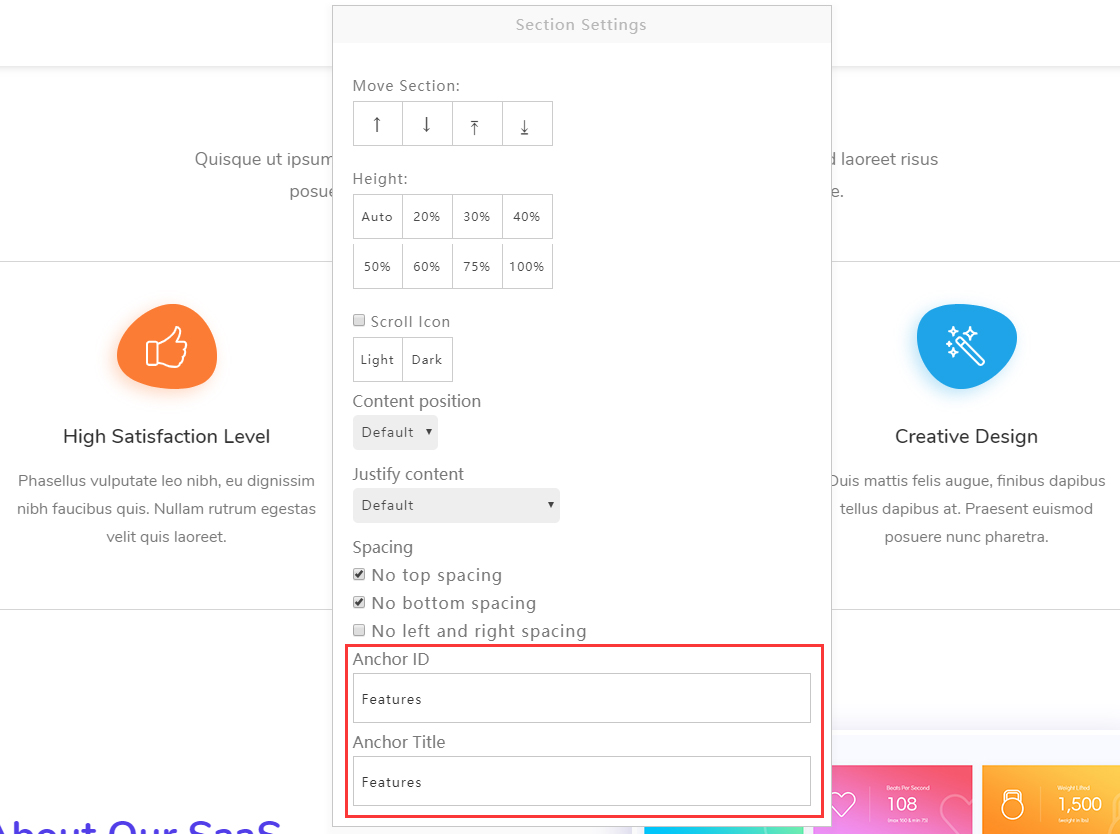
- Fill in the Anchor ID and Anchor Title. The Anchor ID must not contain spaces; the Anchor Title is displayed on the right side of the navigation.
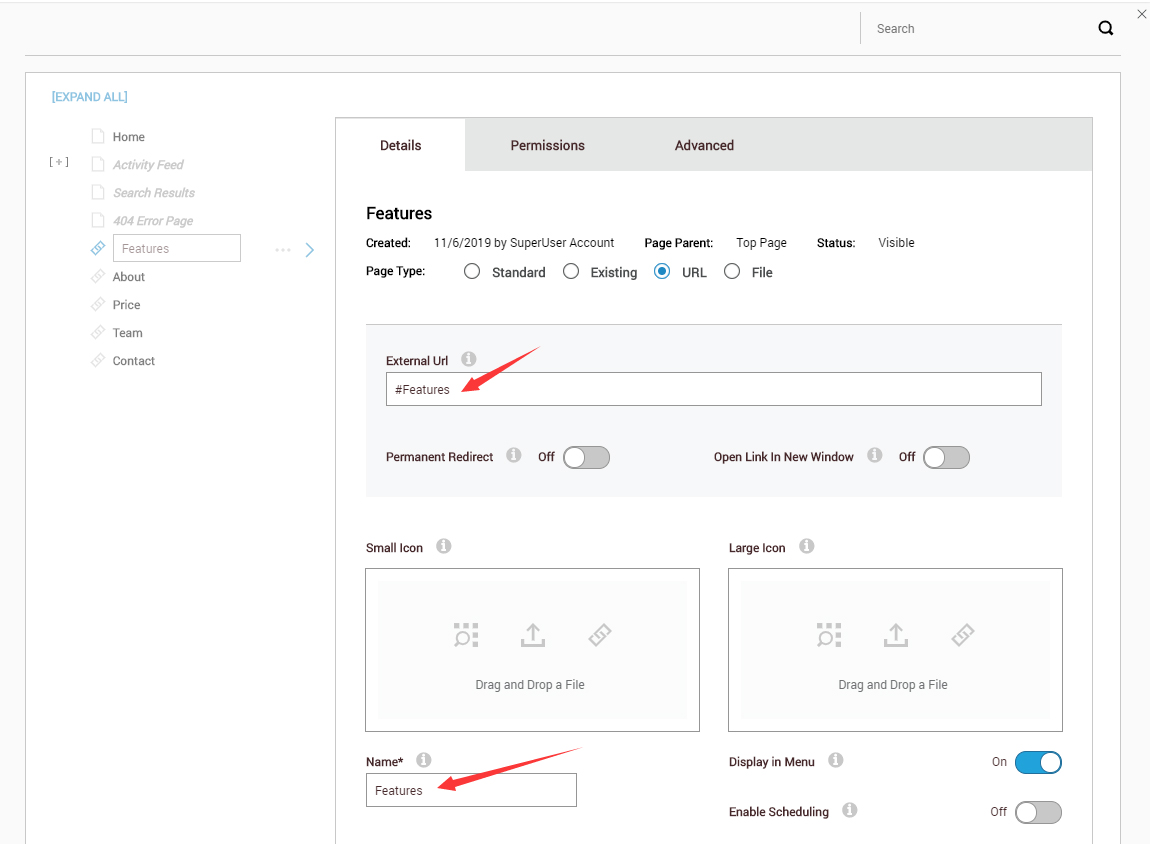
Go to Admin > Pages in your DNN site and add the menu item:
- Set Page Type to URL
- Set External Url to the anchor address, for example
#Features— the part after#is the Anchor ID from step 9 - Enter the menu name under Name, for example
Features
Now clicking the Features menu scrolls the page to the
#Featuresanchor area.
- Repeat steps 8–10 to add more anchor areas.
Extra settings for One Page pages
Pages of the One Page type have some settings of their own:
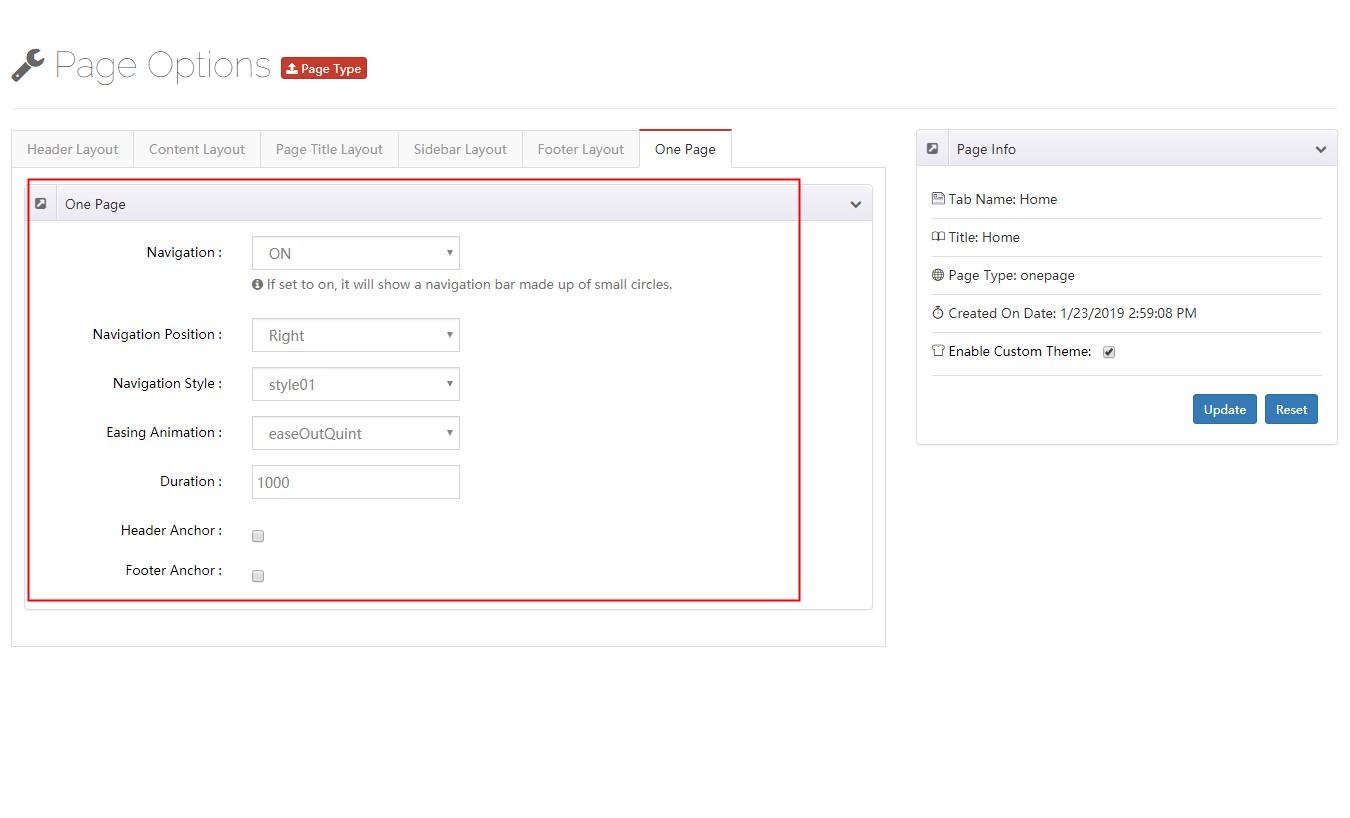
| Setting | Description |
|---|---|
| Navigation | When on, shows a navigation bar made of small dots |
| Navigation Position | Place the dot navigation on the left or right of the window |
| Navigation Style | The look of the navigation bar — 3 styles included |
| Easing Animation | The transition effect between sections |
| Duration | Duration of the animation |
| Header Anchor | The anchor of the header |
| Footer Anchor | The anchor of the footer |