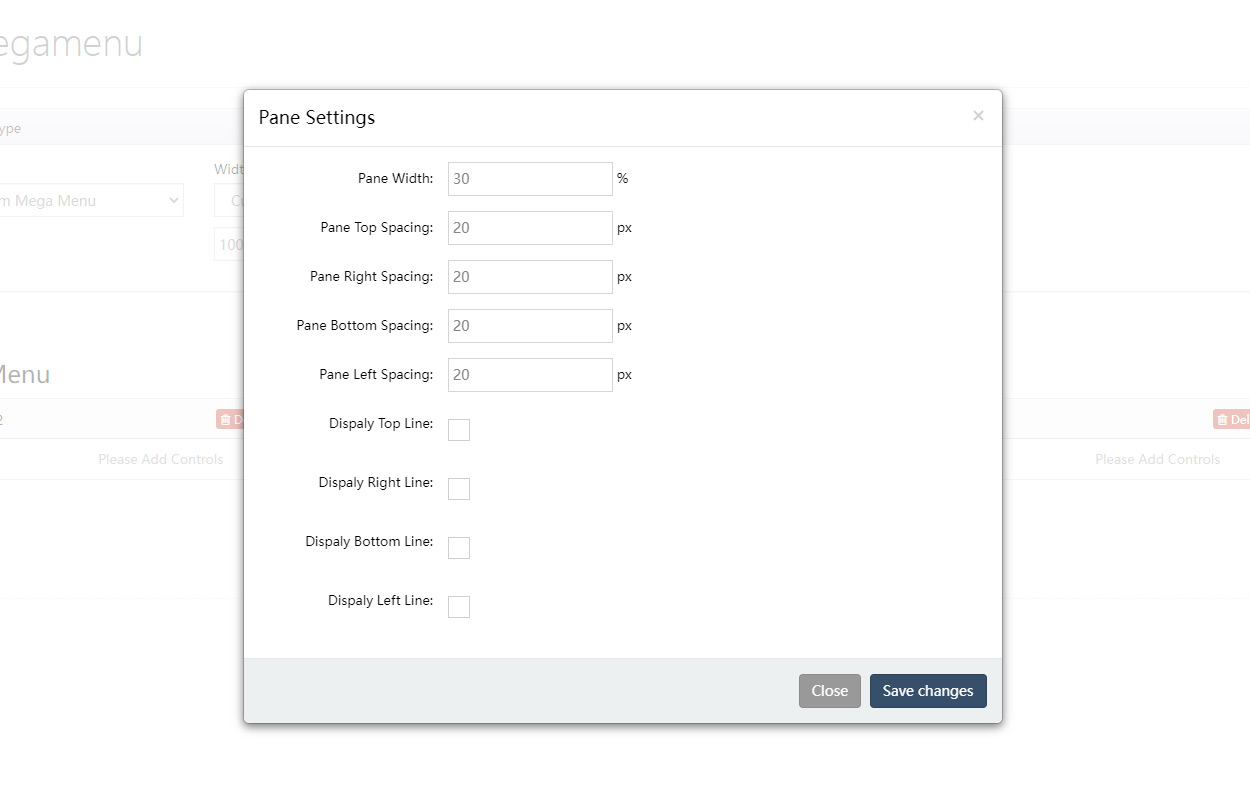
How to Set Up a Mega Menu
Mega menus let you add multi-column drop-downs to your navigation, complete with rich media such as images and videos.
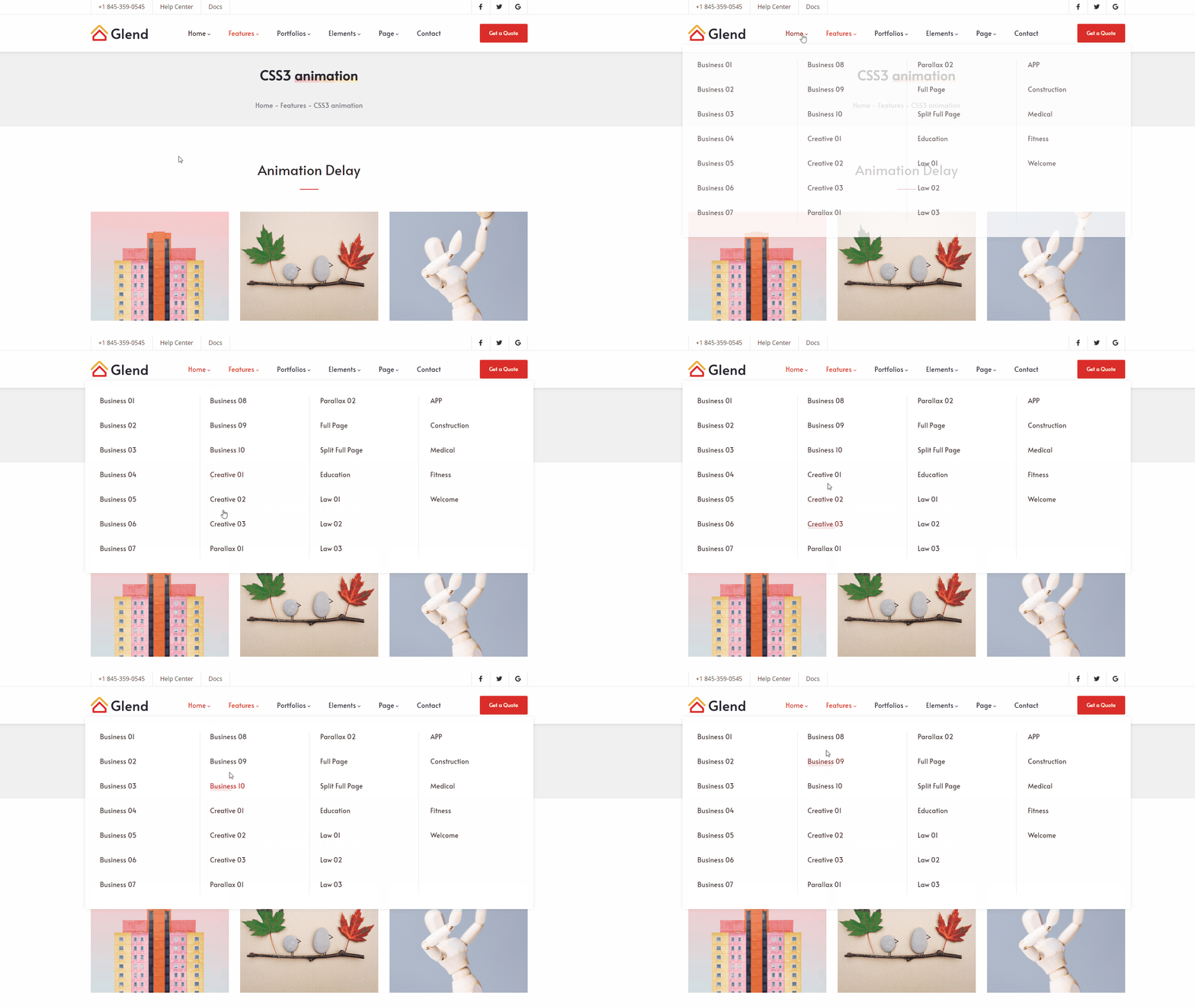
Steps
Log in to your site as a superuser.
Go to ThemePluginPro > Pages.
Click the Edit Megamenu button of the target page.
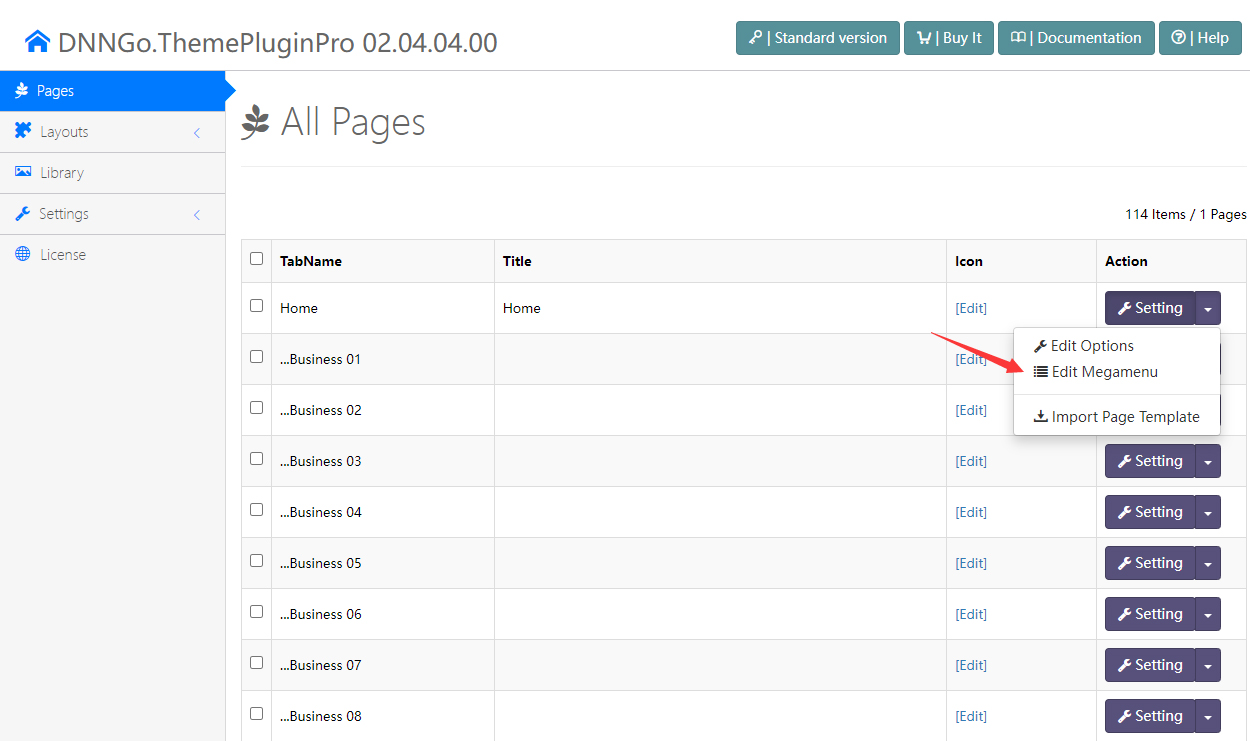
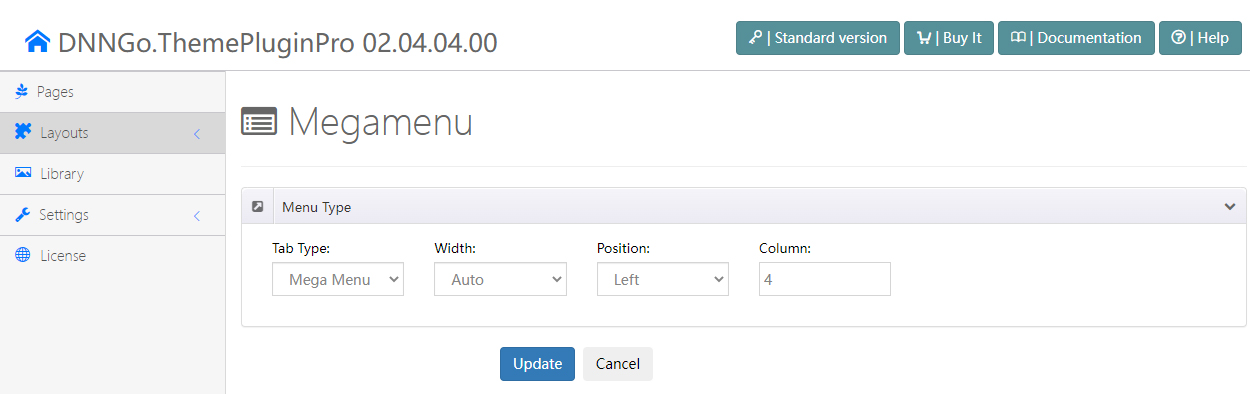
- Choose the pop-up menu type. There are 2 types:
- Mega Menu: a multi-column drop-down menu on your navigation.
- Custom Mega Menu: additionally lets you insert extra HTML modules and third-party modules into the drop-down.
Mega Menu Type
After selecting the Mega Menu type, the following options are available:
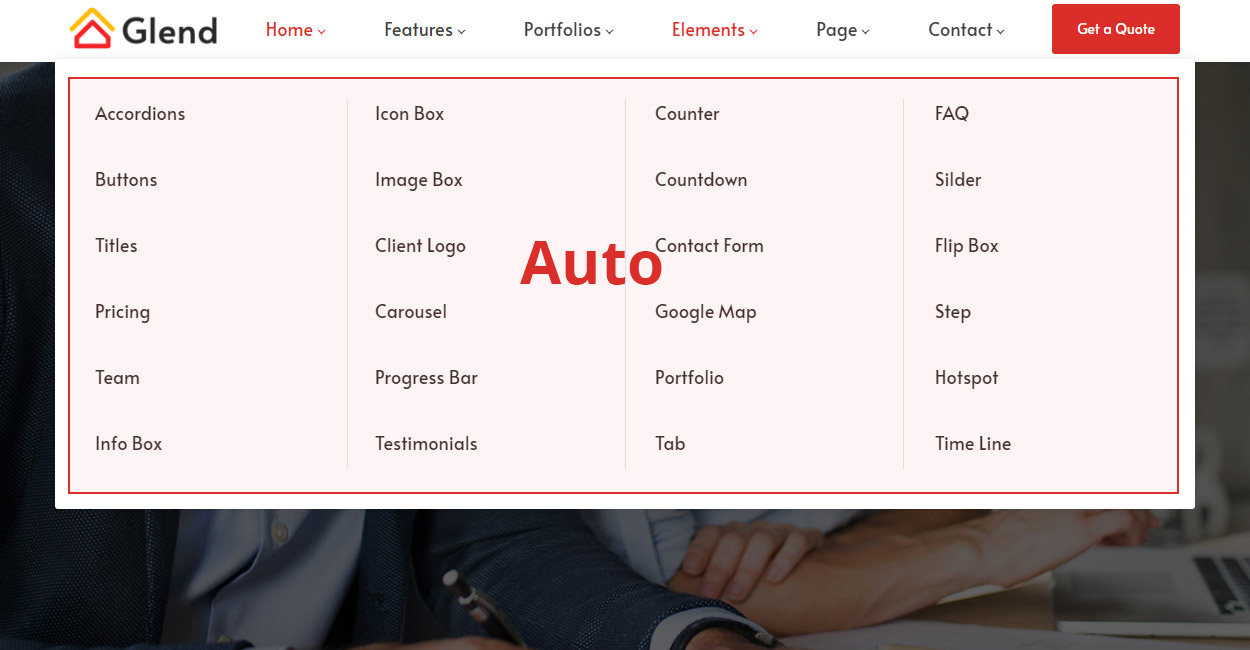
Width
- Auto: the sub-menu is as wide as the theme's content area.
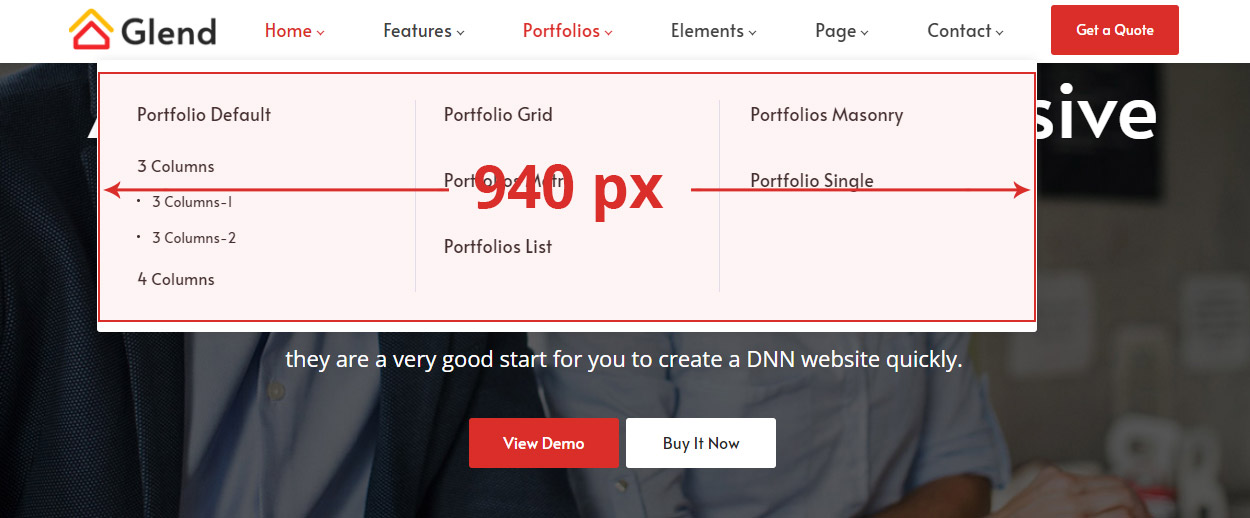
- Custom: set the sub-menu to a specific width.
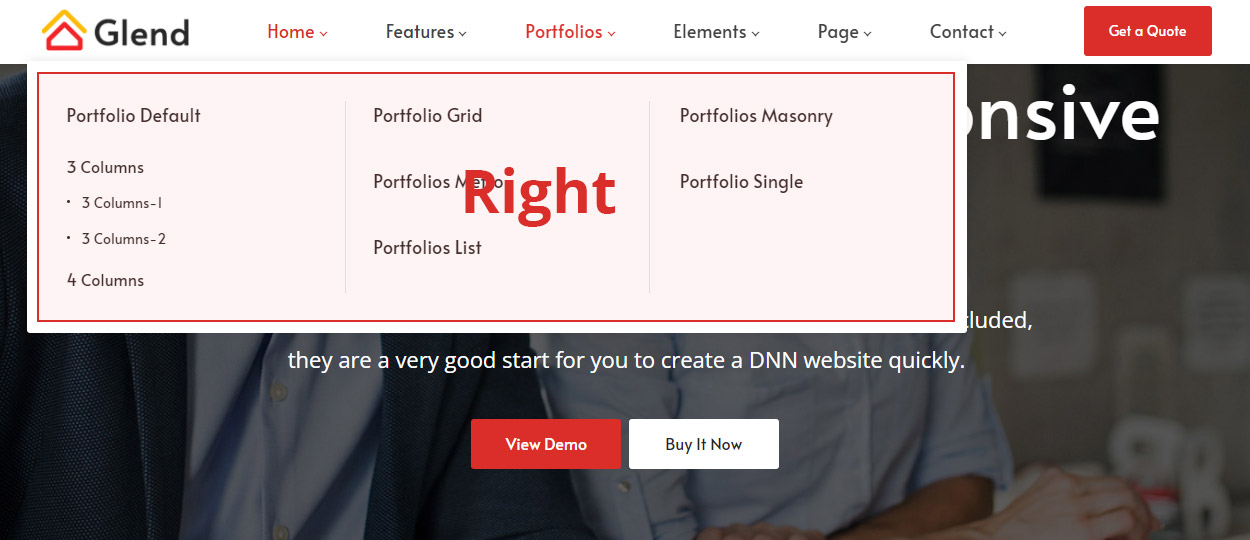
Position

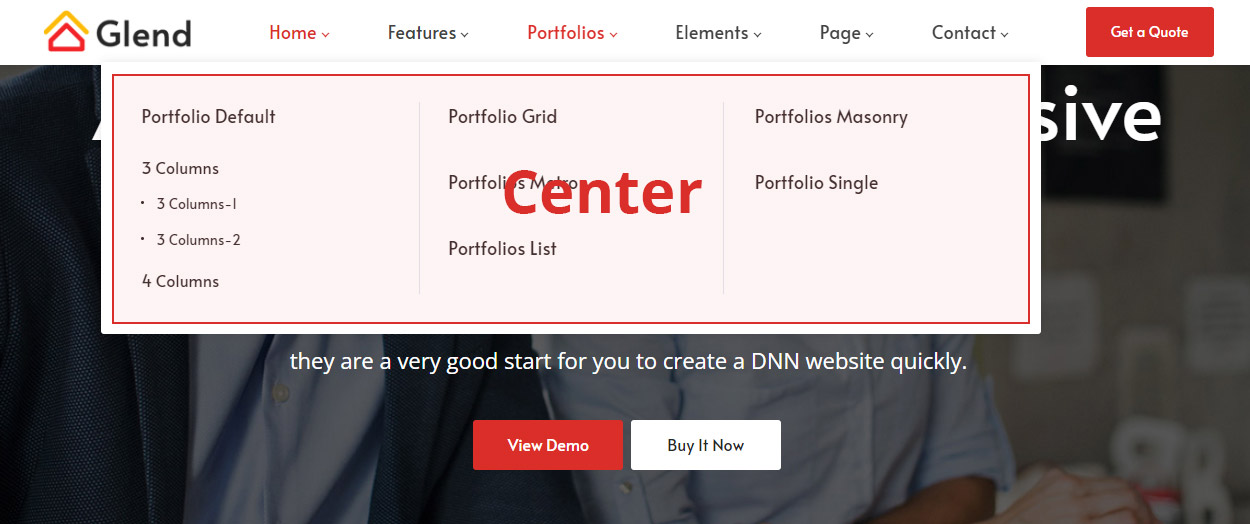
Column
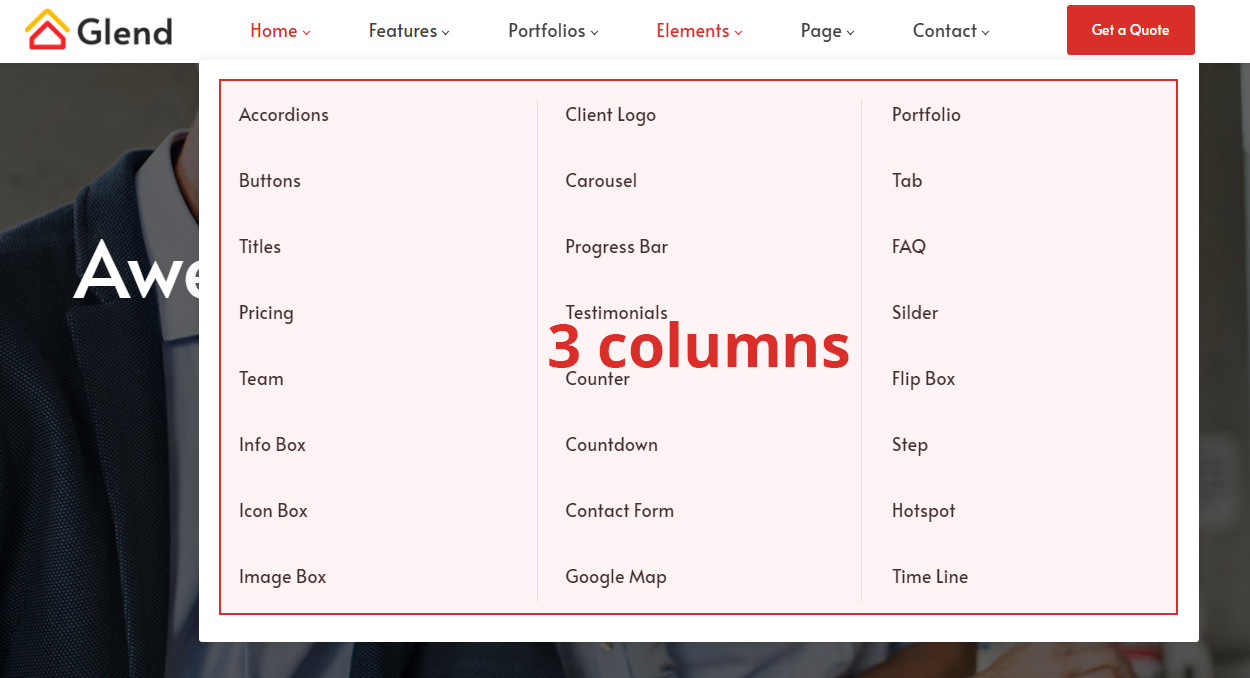
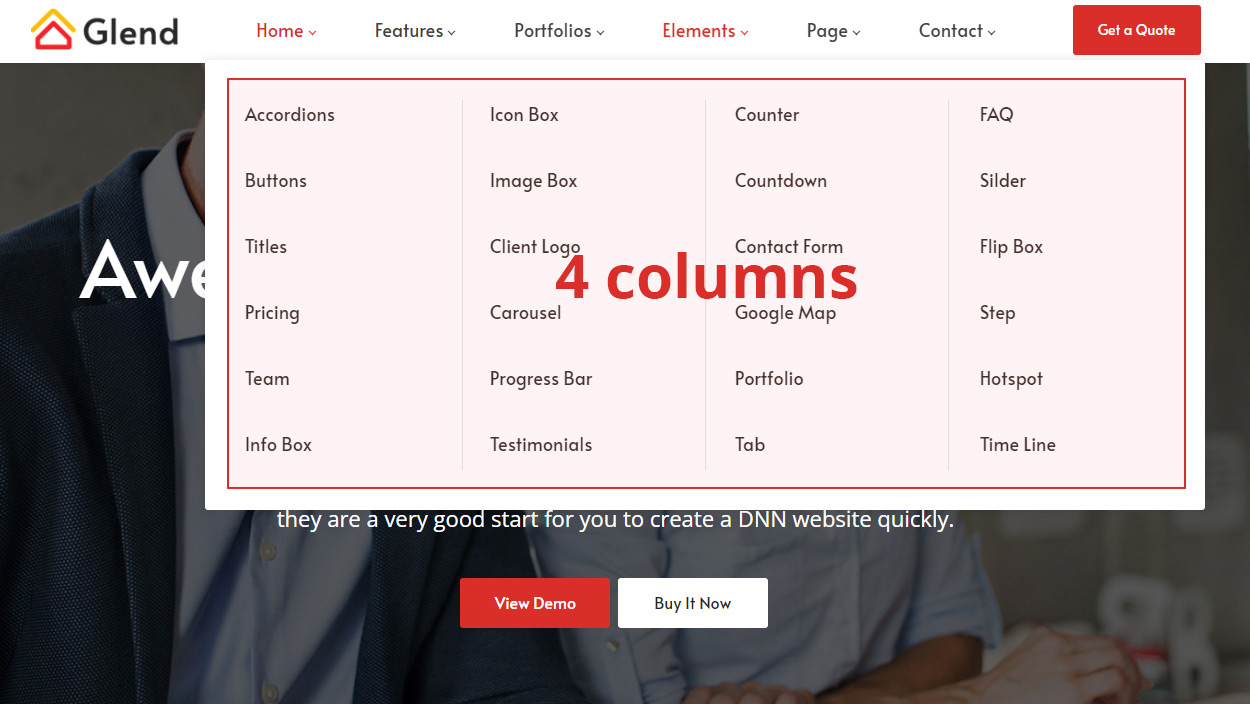
Custom Mega Menu Type
Insert extra HTML modules and third-party modules into the pop-up menu:
Set Tab Type to Custom Mega Menu.
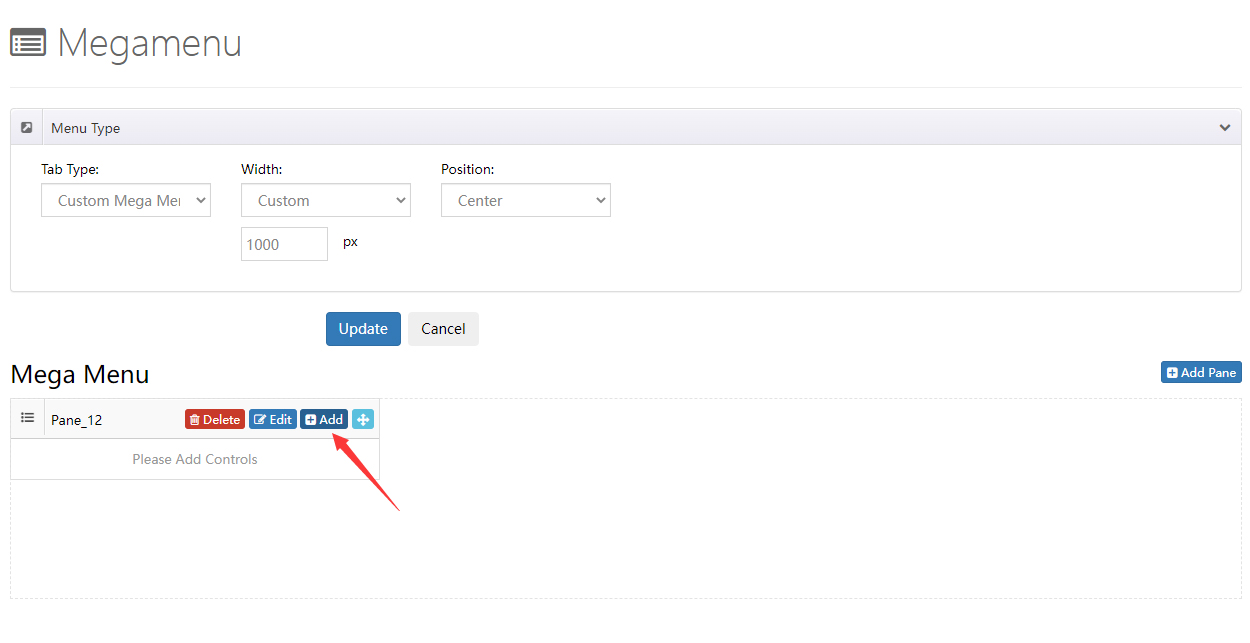
Click the Add Pane button.
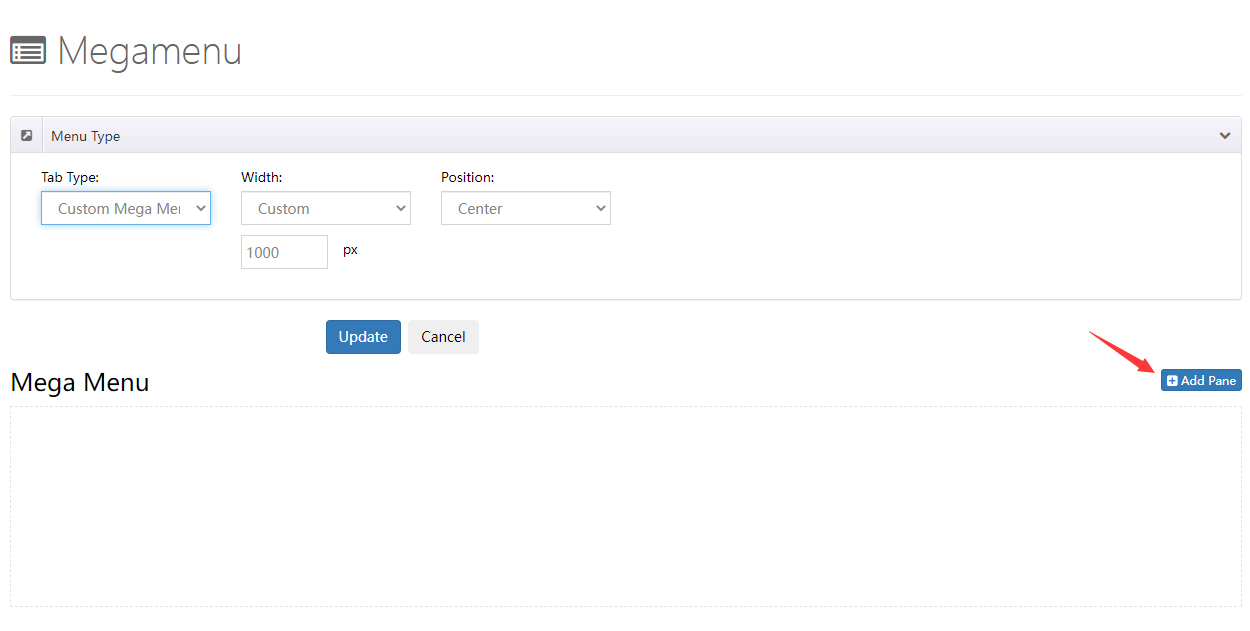
- Click the Add button to add a control to a pane. There are 3 controls: Menu, HTML, and Module.
- You can add multiple panes to one drop-down menu.
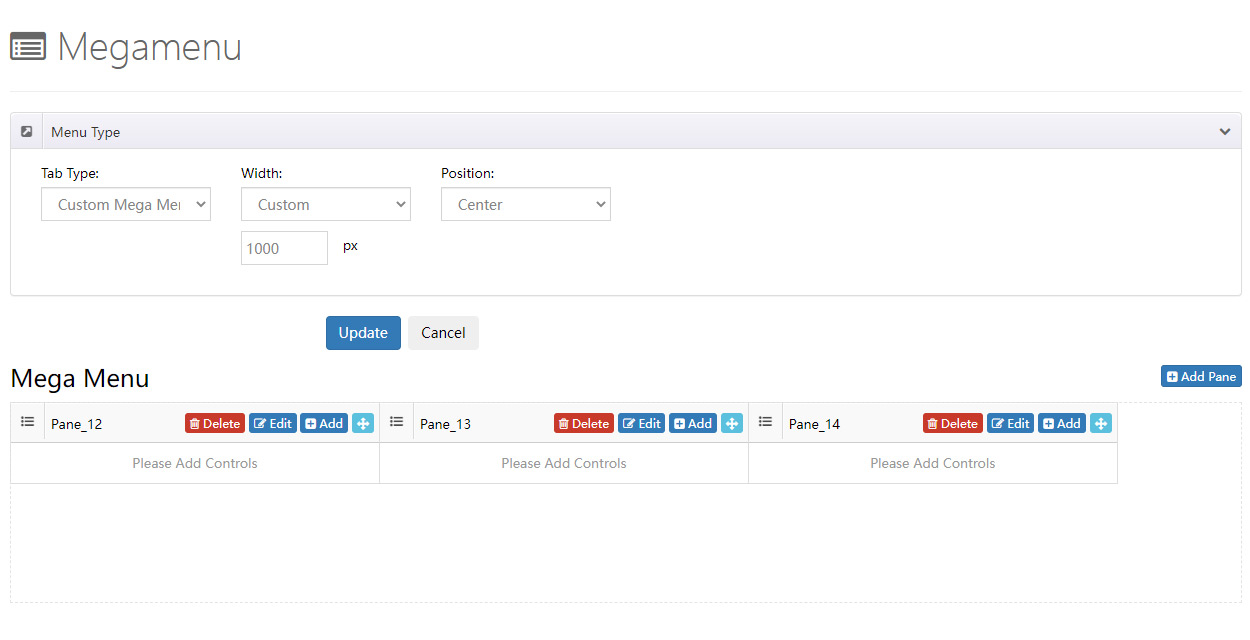
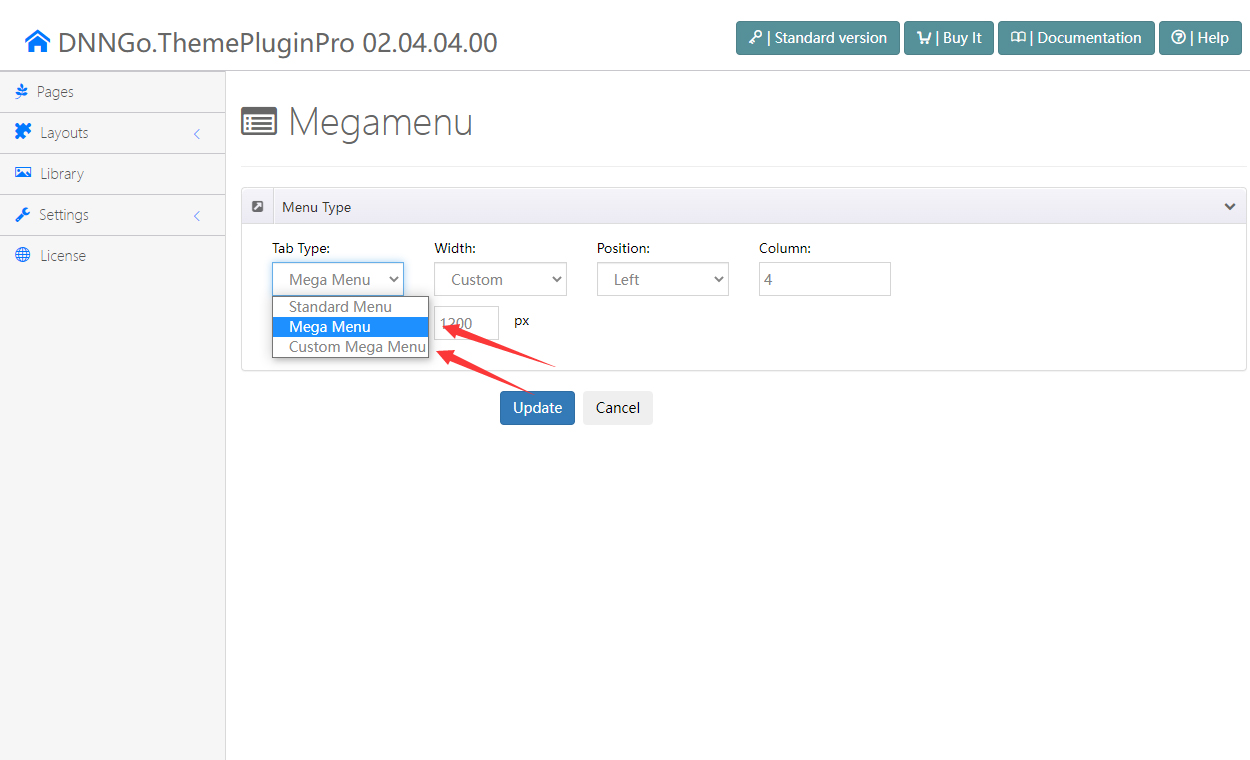
Click the edit icon to set each pane's width and the spacing between panes.