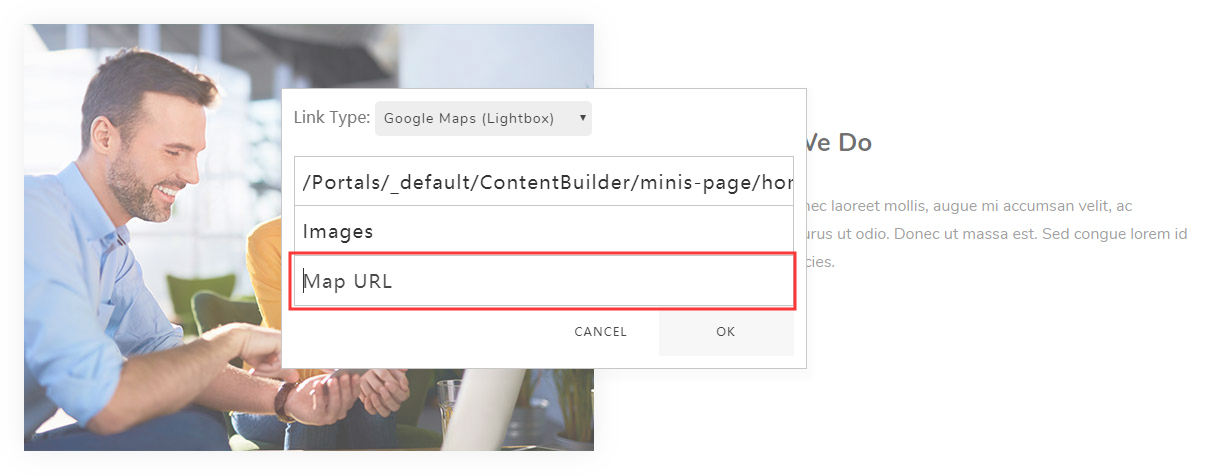
Lightbox
You can apply a Lightbox to images and links. When the image or link is clicked, an image, video, or map opens in a lightbox popup.
Watch the video below for the steps:
Supported Lightbox Types
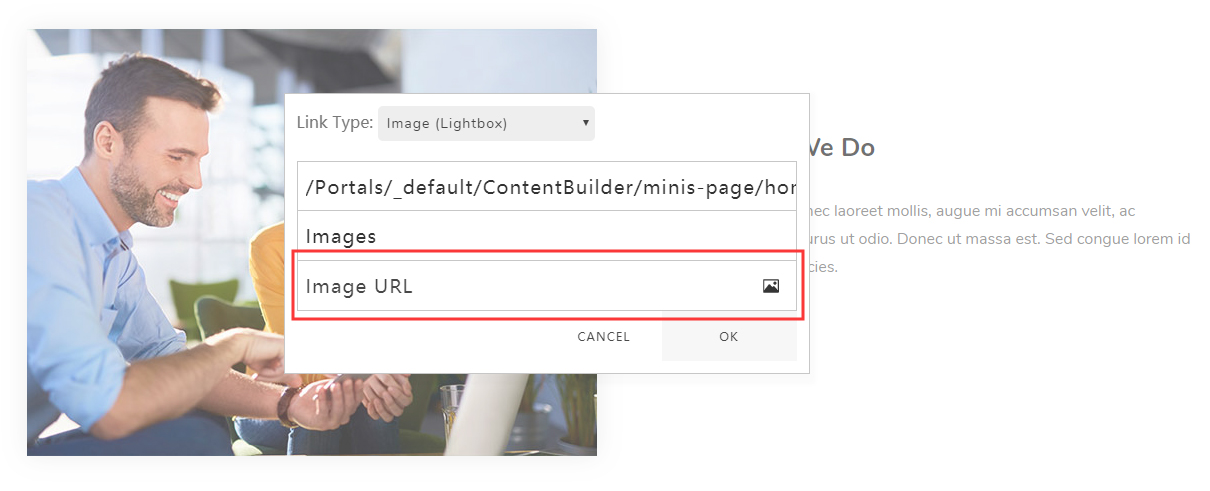
Image (Lightbox)
Set Link Type to Image (Lightbox), then enter the image URL in Image URL, or upload an image directly.
YouTube Video (Lightbox)
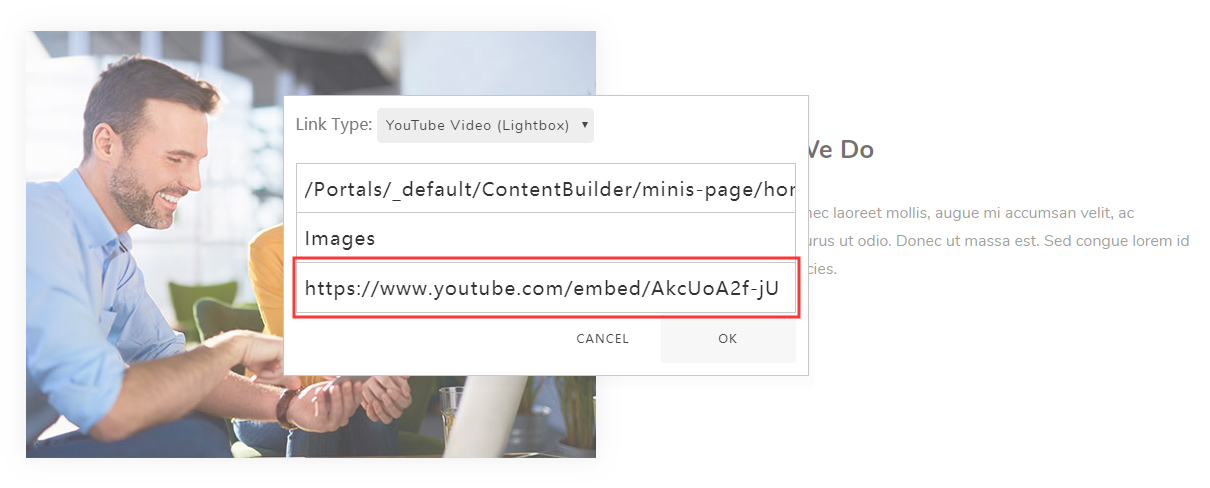
Set Link Type to YouTube Video (Lightbox), then enter the video URL in YouTube URL.
For example: https://www.youtube.com/embed/AkcUoA2f-jU, where AkcUoA2f-jU is the video ID — just replace it with your own video ID.
Vimeo Video (Lightbox)
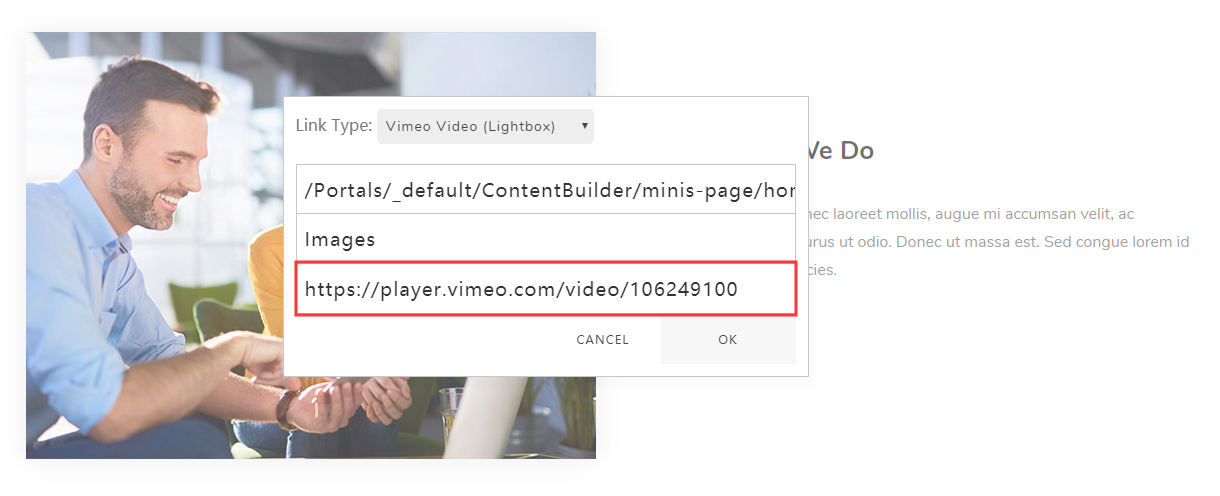
Set Link Type to Vimeo Video (Lightbox), then enter the video URL in Vimeo URL.
For example: https://player.vimeo.com/video/106249100, where 106249100 is the video ID — just replace it with your own video ID.
HTML5 Video (Lightbox)
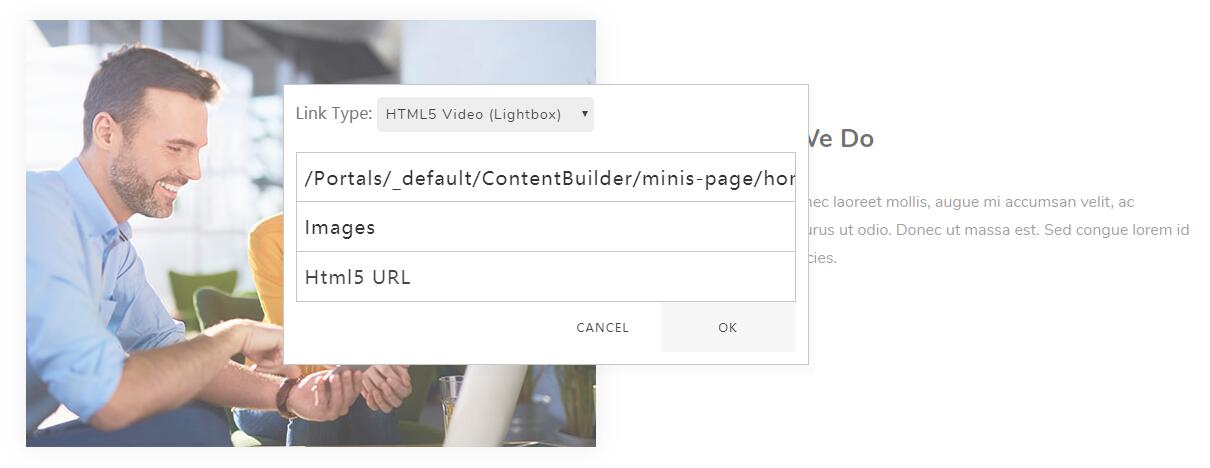
Set Link Type to HTML5 Video (Lightbox), then enter the video URL in HTML5 URL.
Format requirements
The HTML5 video lightbox supports only the MP4 format.
Google Map (Lightbox)
Set Link Type to Google Map (Lightbox), then enter the map's embed URL in Google Map URL, for example:
https://www.google.com/maps/embed?pb=!1m18!1m12!1m3!1d3023.4180044887703!2d-73.99952068428715!3d40.730826844399864!2m3!1f0!2f0!3f0!3m2!1i1024!2i768!4f13.1!3m3!1m2!1s0x89c25990e23d7e8d%3A0xfa615edfd1b67e18!2sWashington%20Square%20Park!5e0!3m2!1sen!2sus!4v1575362448308!5m2!1sen!2sus