
Lightbox
Images and links can open in a lightbox: when clicked, images, videos or maps are displayed in a pop-up overlay.
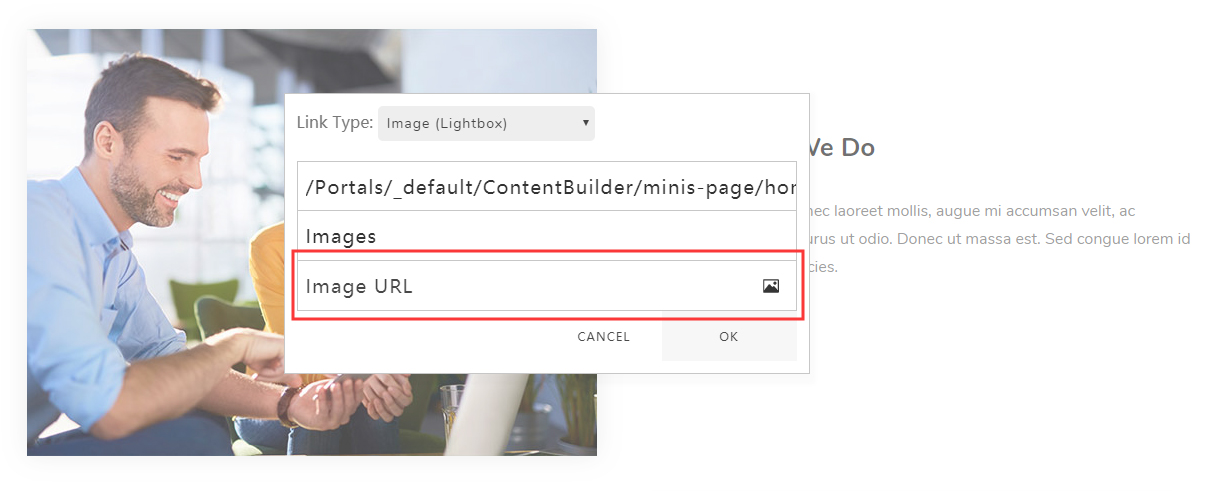
Image (Lightbox)
Set the Link Type to Image (Lightbox), then enter an image URL in the Image URL, or upload an image.
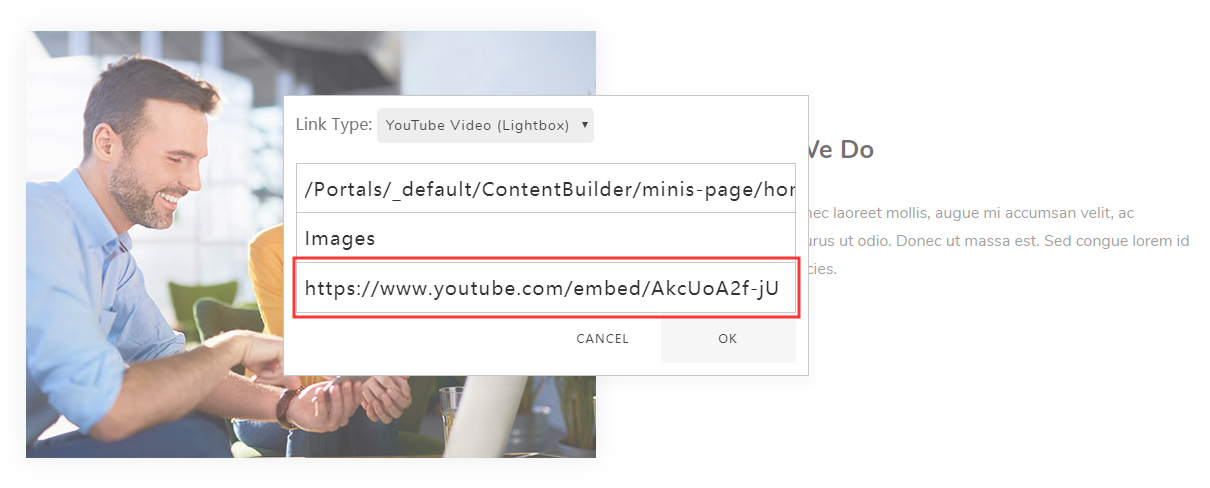
YouTube Video (Lightbox)
Set the Link Type to YouTube Video (Lightbox), then enter a video URL in the YouTube URL. For instance: https://www.youtube.com/embed/AkcUoA2f-jU — AkcUoA2f-jU is the video ID, and you can use your own video ID instead.
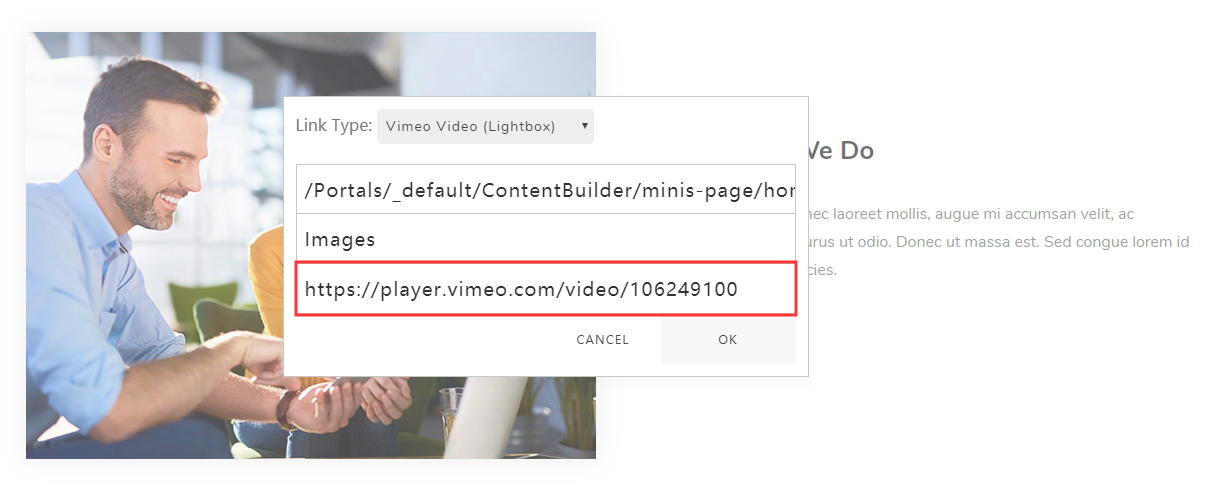
Vimeo Video (Lightbox)
Set the Link Type to Vimeo Video (Lightbox), then enter a video URL in the Vimeo URL. For instance: https://player.vimeo.com/video/106249100 — 106249100 is the video ID, and you can use your own video ID to replace it.
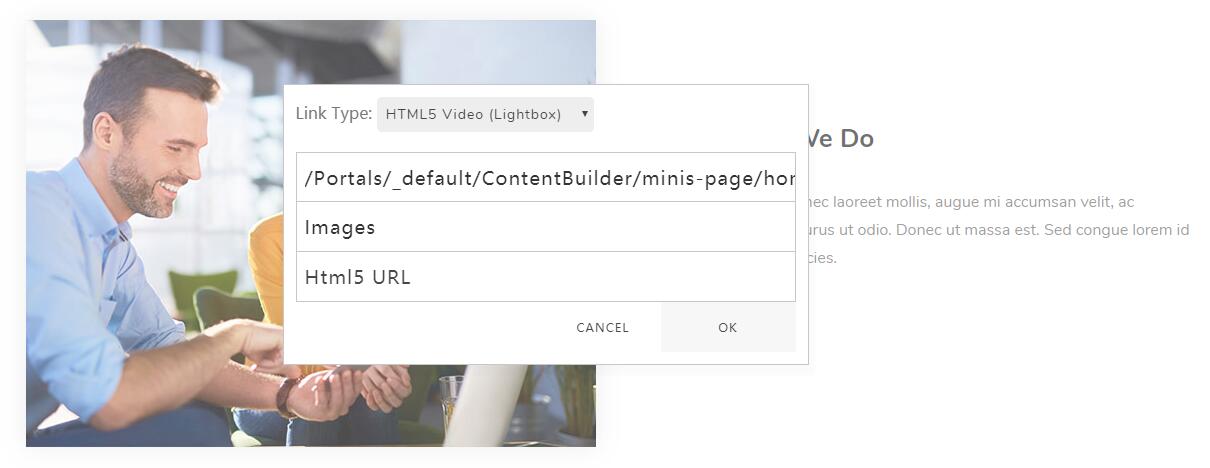
HTML5 Video (Lightbox)
Set the Link Type to HTML5 Video (Lightbox), then enter a video URL in the HTML5 URL. Please note the video format has to be MP4.
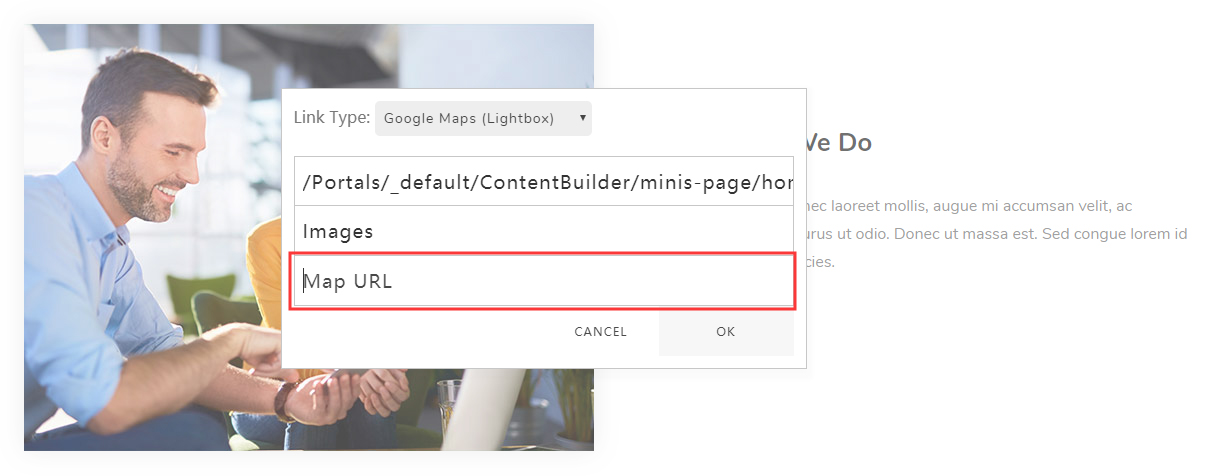
Google Map (Lightbox)
Set the Link Type to Google Map (Lightbox), then input a map URL in the Google Map URL. Open the target location in Google Maps and copy the iframe src URL from Share > Embed a map.
Lightbox Group
You can link multiple images to the same lightbox:
Content (Lightbox)
You can set a lightbox for HTML content: