
Theme Options
On this settings page, you can apply global settings to the appearance of the entire site. The screen is organized into the following tabs: Layout, Design, Loading Style, Fixed Widget, Page Title, Breadcrumbs, Sidebar, Sidebar Menu, Footer, Plugins.
Relationship between Theme Options and Page Options
The values set here are the site-wide defaults. If a page needs different styles, override them individually in that page's Page Options.
Cache note
After saving, the page may not immediately reflect your changes due to browser caching. Press Ctrl + F5 to force a refresh.
Layout
Layout Setting
Choose the layouts for the site's three main areas: Header, Content, and Footer. These layouts can also be created in ThemePluginPro > Layout:
| Setting | Description |
|---|---|
| Header Layout | The site's header layout; it can also be created in ThemePluginPro > Layout > Header Layout |
| Content Layouts | The site's content layouts; they can also be created in ThemePluginPro > Layout > Content Layout |
| Footer Layout | The site's footer layout; it can also be created in ThemePluginPro > Layout > Footer Layout |
Container Setting
| Setting | Description |
|---|---|
| Container Layout | The theme's display mode: Boxed (narrow) or Wide |
| Content Margin | The spacing around the content area |
| Container Width | The width of the content area; responsive widths can be set for different resolutions |
Design
Body Background
Set the background color or background image of the entire page.
Content Style
Set the text color, font size, and more of the content area.
H1 - H6 Style
Set the text color, font size, and more of each heading level from H1 to H6.
Custom Color
Set custom text colors or background colors. Add <div class="color1">text</div> in the HTML editor to use it. Custom Font Family, Custom Font Size, Custom Line Height, Custom Letter Spacing, and Custom Shadow work the same way.
Loading Style
The loading animation displayed while the page loads.

| Setting | Description |
|---|---|
| Enabled | Whether to enable the loading animation |
| Background Color | The background color of the loading animation |
| Color | The color of the loading spinner |
Fixed Widget
The fixed widget is displayed in the bottom-right corner of the page.
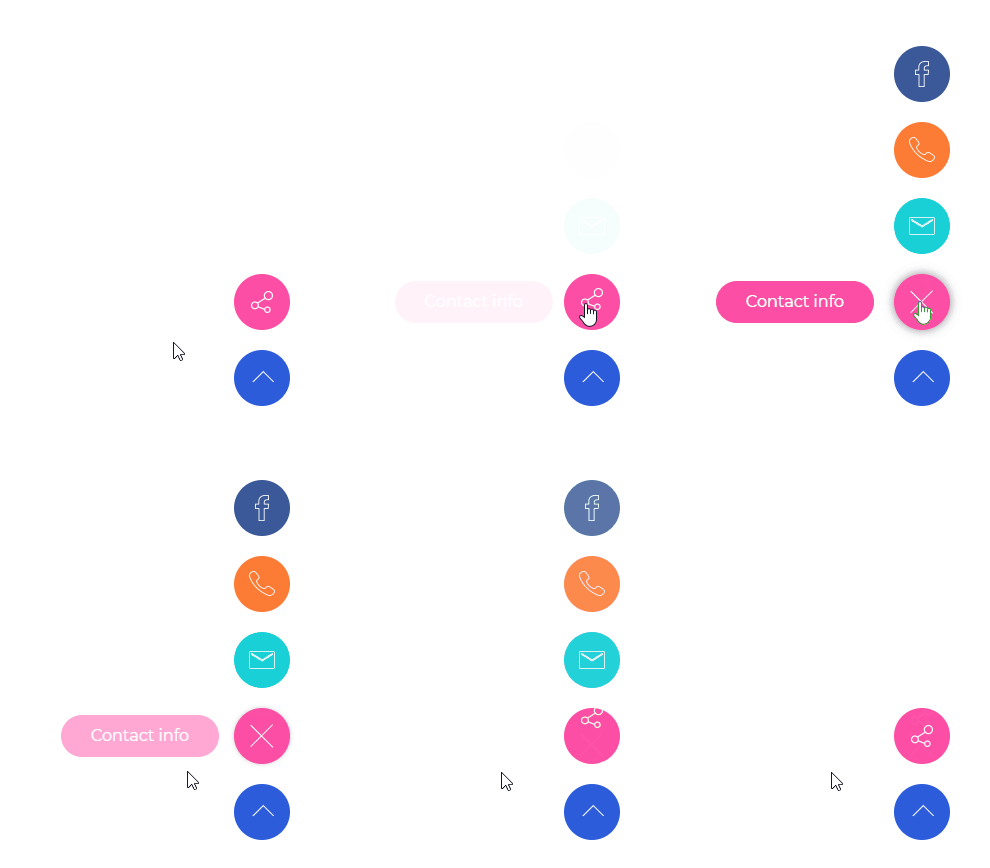
| Setting | Description |
|---|---|
| Enabled Fixed Widget | Whether to display the fixed widget |
| Social Media icon | Set the text and link of each social media icon |
| BackTop | Whether to display the back-to-top icon |
| BackTop Text | The text displayed when hovering over the back-to-top icon |
Page Title
| Setting | Description |
|---|---|
| Page Title Enabled | Whether to enable the page title |
| Page Title Layout | The layout of the page title area |
| Vertical Layout | Displays the title and the breadcrumbs on two separate lines |

| Setting | Description |
|---|---|
| Horizontal Layout | Displays the title and the description on the same line |
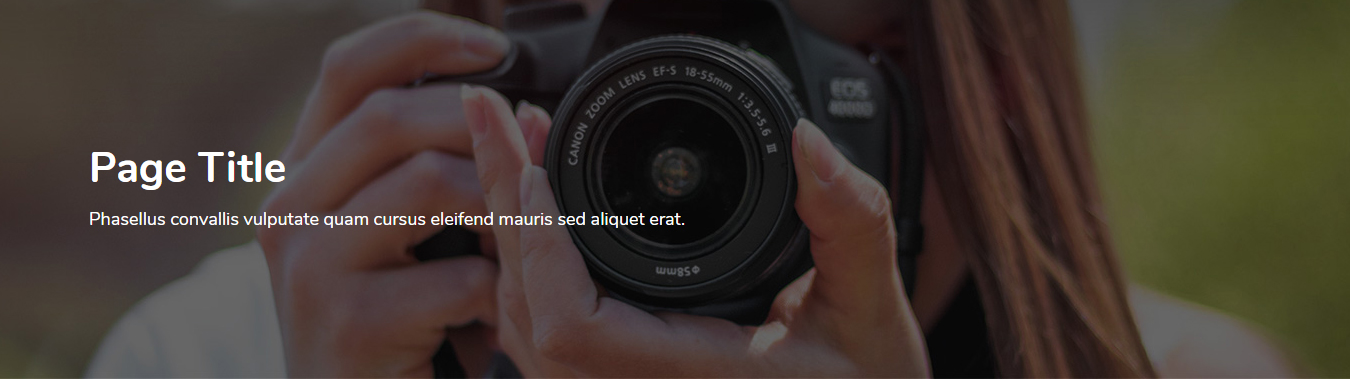
| Setting | Description |
|---|---|
| Height | The height of the page title area |
| Display Arrow | Whether to display the down arrow. When the arrow is clicked, the page scrolls to the content area |

| Setting | Description |
|---|---|
| Display Breadcrumbs | Whether to display the breadcrumbs |
| Scrolling Text Animation | Whether to display the scrolling text animation when the page scrolls |
| Background Color | The background color of the page title area |
| Border Color | The border color around the title |
| Background Image | The background image of the page title area |
| Color Overlay | Whether to display a background overlay. The overlay covers the page title; you can set the overlay color and its opacity |
| Font Color | The text color of the page title area |
| Font Size | The text size of the page title area |
| Background Region | How far the background extends: whether it includes the header area |
Breadcrumbs
| Setting | Description |
|---|---|
| Display Breadcrumbs | Whether to display the breadcrumbs area |
| Location | The position of the breadcrumbs area: inside or outside the page title |
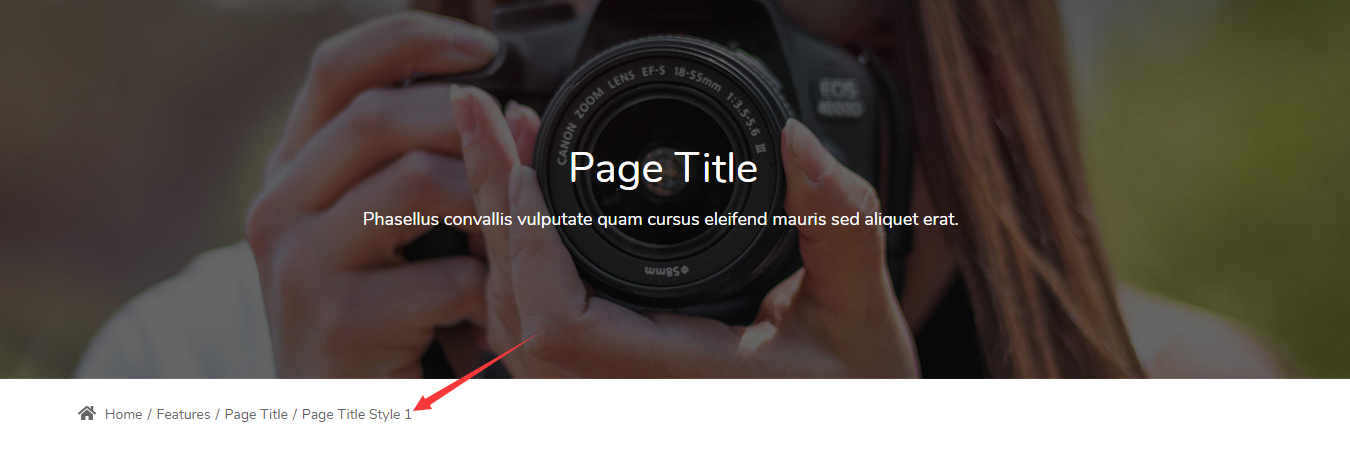

| Setting | Description |
|---|---|
| Text Align | The alignment of the breadcrumbs text: left, center, or right |
| Layout | The width of the breadcrumbs area |
| Background Color | The background color of the breadcrumbs area |
| Spacing | The spacing around the breadcrumbs text |
| Display Border Line | Whether to display the separator line at the bottom of the breadcrumbs area |
| Breadcrumbs Style | The style of the breadcrumbs; 3 options are available |



| Setting | Description |
|---|---|
| Breadcrumbs Accent Color | The accent color of the breadcrumbs |
| Breadcrumbs Color | The text color of the breadcrumbs |
| Breadcrumbs Font Size | The text size of the breadcrumbs |
| Breadcrumbs Line Height | The line height of the breadcrumbs text |
Sidebar
| Setting | Description |
|---|---|
| Enabled | Whether to enable the sidebar |
| Sidebar Position | Show the sidebar on the left or right side of the page |
| Sidebar Width | The width of the sidebar. The theme is built on the Bootstrap framework, which divides the content area into 12 columns; set the number of columns the sidebar occupies |
| Fixed Sidebar | Whether to enable the fixed sidebar feature. When enabled, the sidebar stays fixed and does not scroll with the content |
| Sidebar Spacing | The spacing around the sidebar |
Sidebar Menu
| Setting | Description |
|---|---|
| Display Sidebar Menu | Whether to enable the sidebar menu |
| Menu level | The menu levels to display. Set it to ALL to display menu items of all levels; set it to 1 to display the level below the top-level menu (not including the top-level menu itself); set it to 2 to display the level below the second-level menu, and so on |
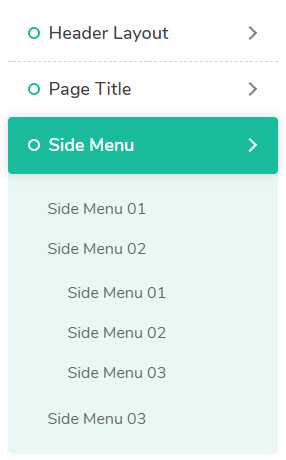
| Setting | Description |
|---|---|
| Menu Color | The text color of the menu |
| Menu Font Family | The font family of the main menu text |
| Menu Font Weight | The font weight of the main menu text |
| Menu Font Size | The font size of the main menu text |
| Menu Line Height | The line height of the main menu text |
| Sub Menu Font Family | The font family of the submenu text |
| Sub Menu Font Weight | The font weight of the submenu text |
| Sub Menu Font Size | The font size of the submenu text |
| Sub Menu Line Height | The line height of the submenu text |
Footer
| Setting | Description |
|---|---|
| Footer Mode | The display mode of the footer: Scroll (the footer scrolls with the page) or Fixed (the footer is fixed at the bottom of the page) |
Plugins
The theme integrates several jQuery plugins and CSS plugins that you can enable or disable as needed. Disabling plugins your site does not use speeds up page loading.
| Setting | Description |
|---|---|
| jQuery Library | Whether to enable the jQuery plugins |
| CSS Library | Whether to enable the CSS plugins |
| Google Map API | The API key for Google Map; you can get it from Google's official site |