
Installation
This guide describes how to install the Obvio theme and its bundled modules on a DNN site. The process consists of 3 steps: adjust the upload limit → install the theme and modules → apply the theme.
Requirements
To use skins and modules, you must be running DNN 9.8.0 or higher. You need a working version of DotNetNuke already installed. If you need help installing DNN, follow the instructions in the DNN Documentation Center.
Installation Steps
1. Adjust the Upload Size Limit
The theme and module packages are large, so increase the upload limit first:
- Log in to your site as super administrator (Host)
- Go to Settings > Security > More
- Select the MORE SECURITY SETTINGS tab
- Change Max Upload Size to 28 (MB) or higher
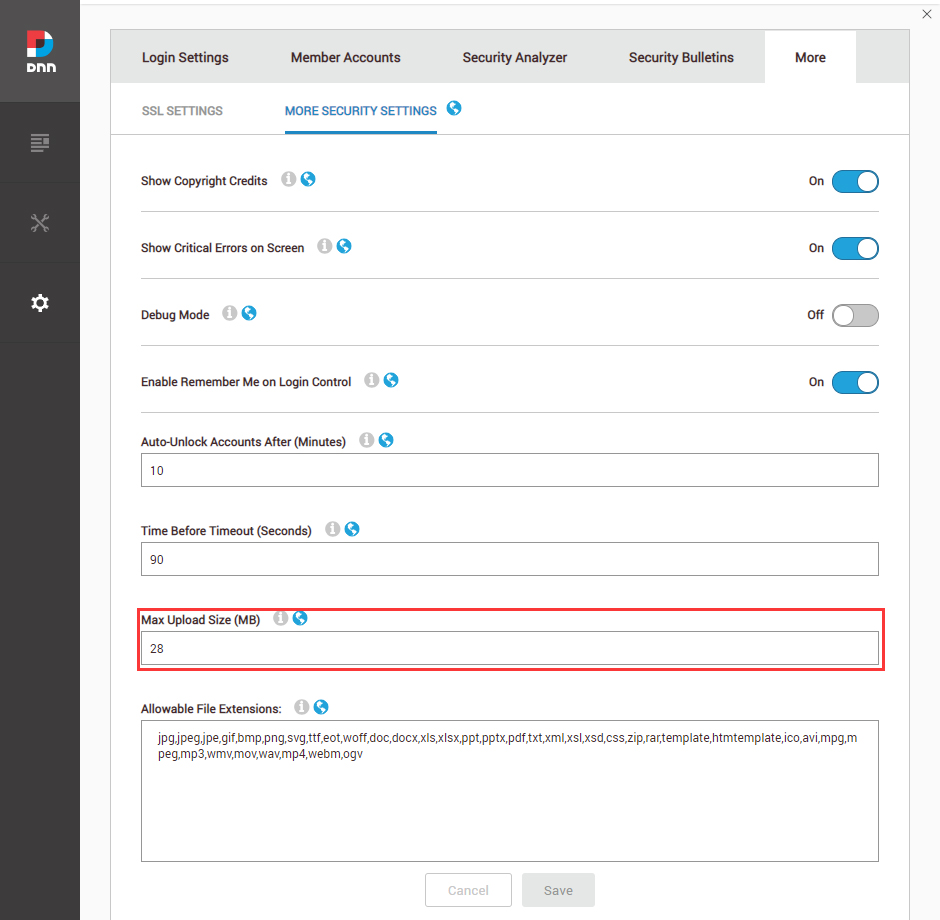
2. Install the Theme and Modules
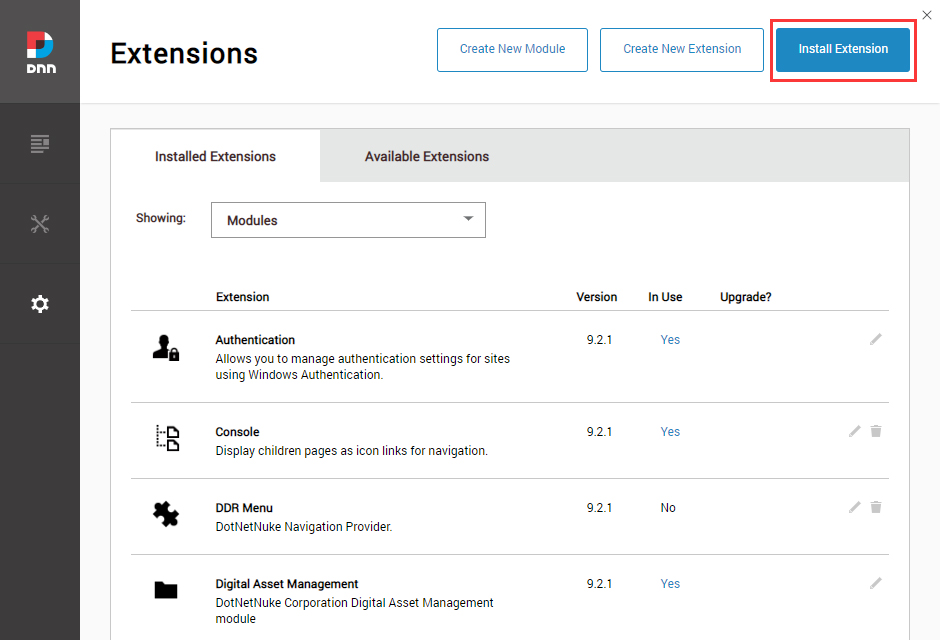
- Go to Settings > Extensions and click Install Extension
- Upload and install the following packages:
| Package | Description |
|---|---|
Obvio-theme_x.x.x.zip | The Obvio theme |
DNNGo_ThemePluginPro_x.x.x_Release_Install.zip | Core module (required) |
| Other module packages | Install as needed, see What's Included |
Install the Core Module First
Make sure you install DNNGo ThemePluginPro first — the layout and settings features of the theme all depend on it.
3. Apply the Theme
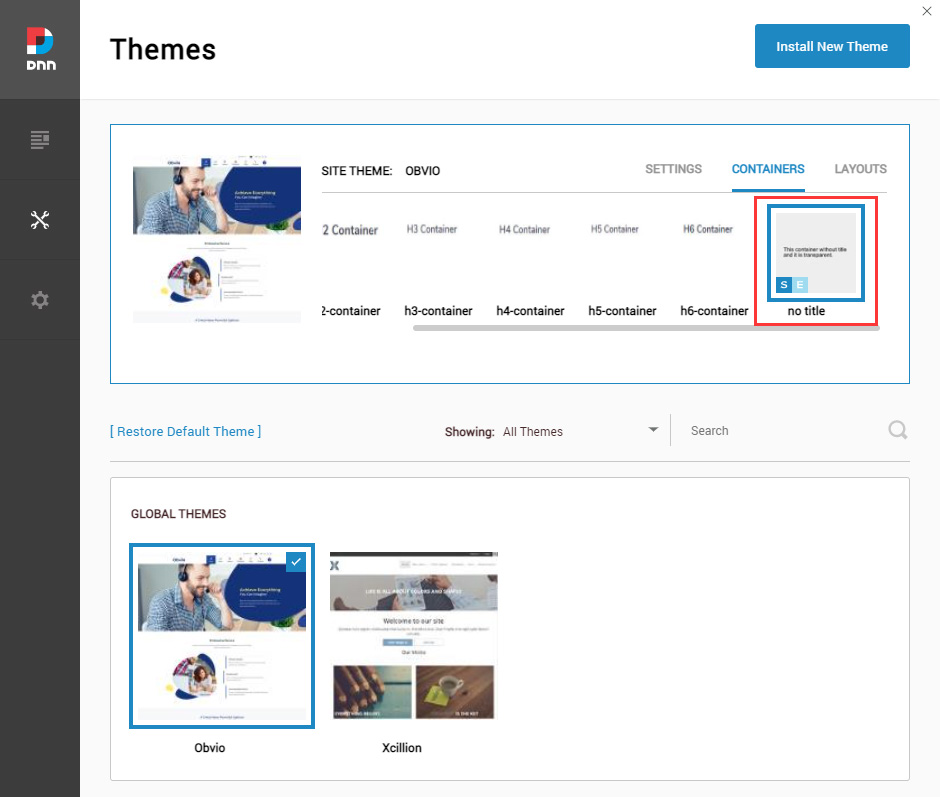
- Go to Manage > Themes
- Select and apply Obvio
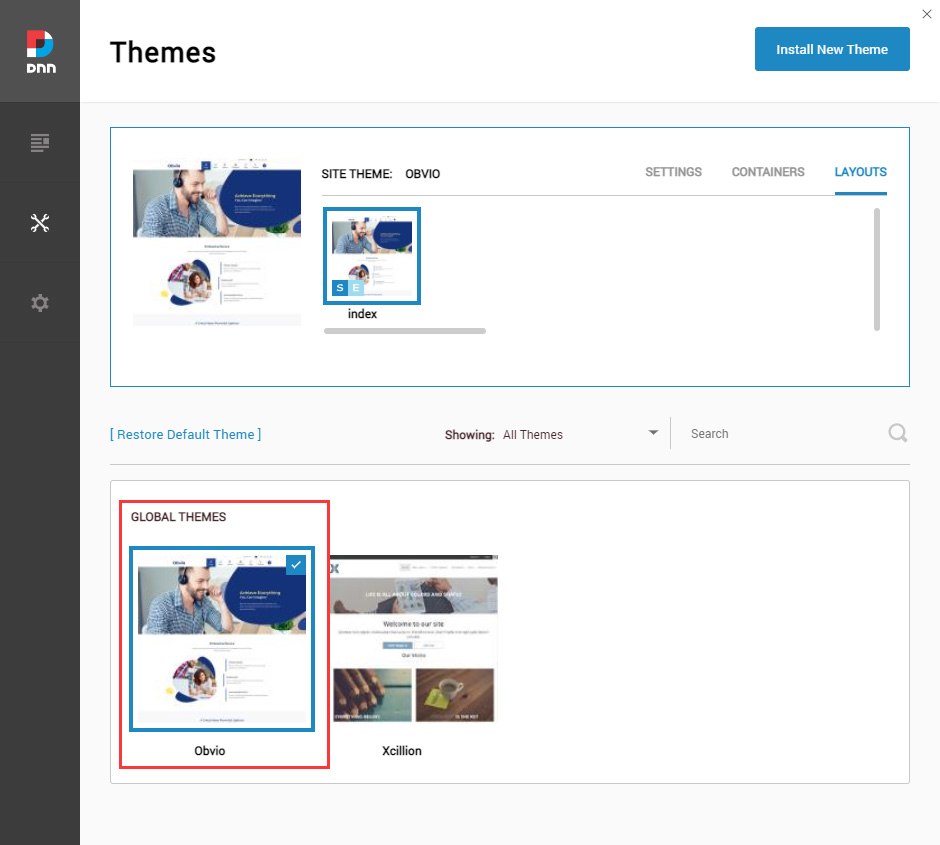
- Set both Site Theme and Edit Theme to Obvio – index
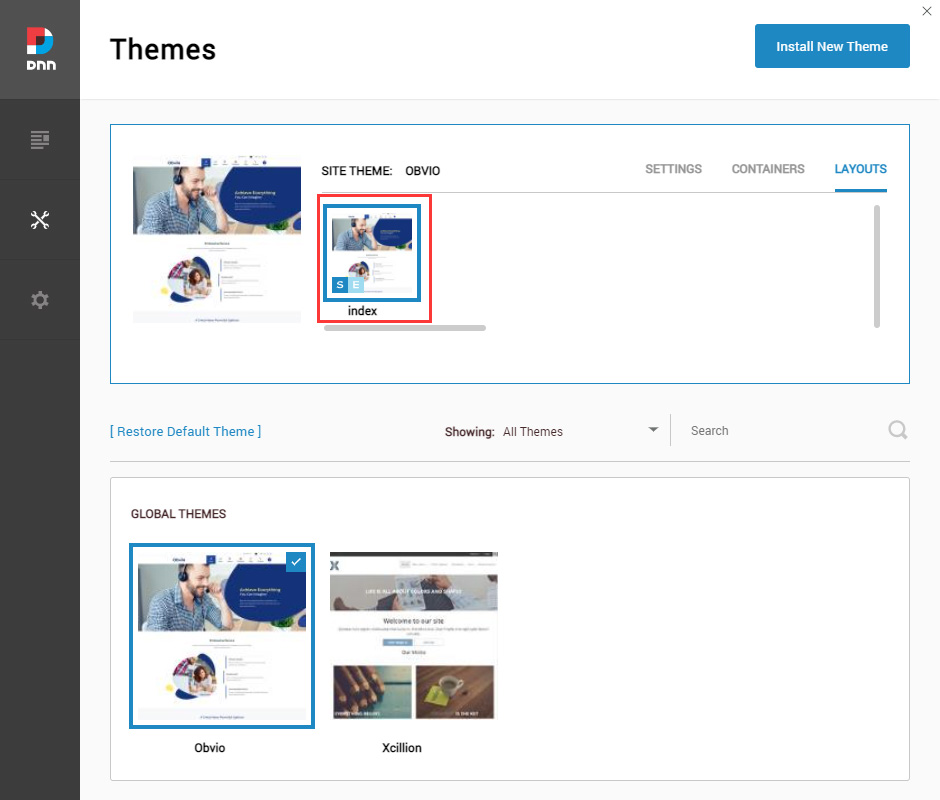
- Set both Site Container and Edit Container to Obvio – No Title
Next Steps
After installing and applying the theme, you still need to initialize the theme, upload resource files and adjust the HTML editor settings before first use. Continue with Preparations Before Using the Skin.
Technical Support
If you run into any problems during installation, please contact: [email protected]