Dashboard Module
DNNGo_xEvent_DashBoard is the companion module of xEvent. Use it to display categories, archives, authors, a calendar — even complete list skins — anywhere on a page, combined flexibly with the main module.
::: note Standalone module Dashboard is an independent DNN module (installed together with the main module) with its own license status. After adding it to a page, open its admin area via the module's manage menu: Options, Effect List, Style, Settings. :::
Setup & Binding
When the DNNGo_xEvent_DashBoard module is added to a page for the first time, you are prompted to open the settings page and bind it to an xEvent main module.
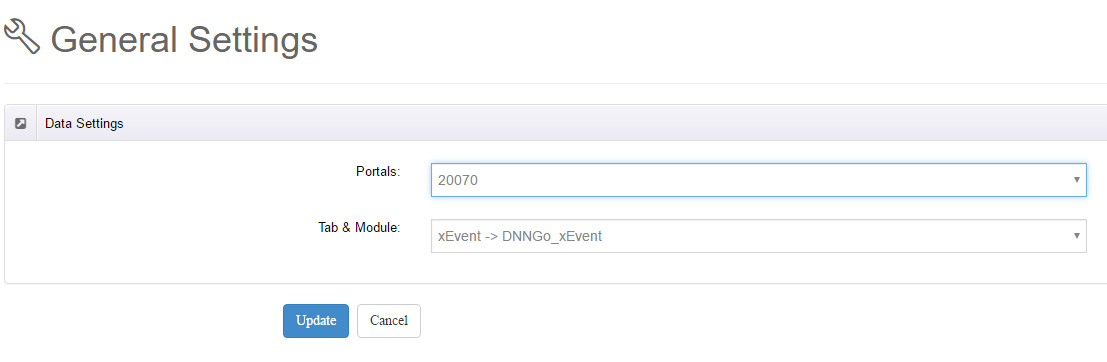
Click Settings in the prompt to open the General Settings page and pick the data source in the Data Settings panel:
| Field | Description |
|---|---|
| Portals | Choose the child portal — all portals of the DNN installation are listed; switching refreshes the next field |
| Tab & Module | Choose the xEvent instance, listed as "page path → module name" for the selected portal |
Click Submit to save; the Dashboard then displays the events of the selected main module.
Effect List
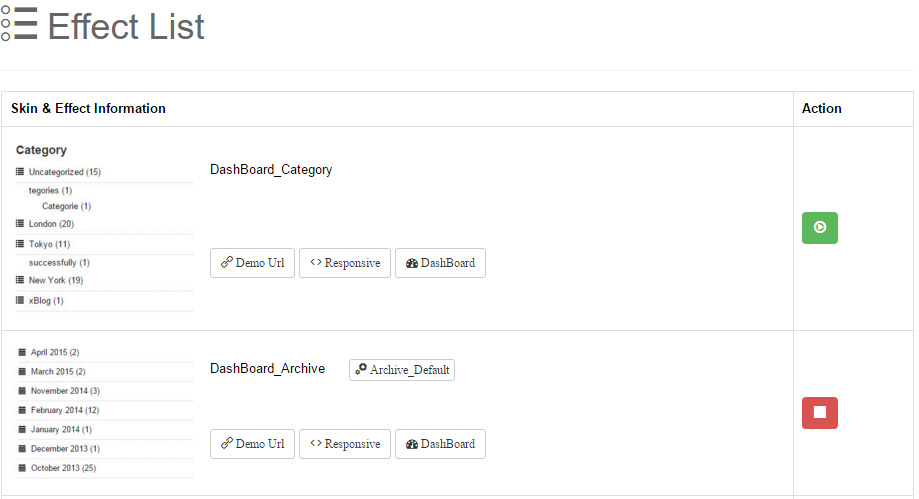
Open Effect List to choose the display effect. Effects appear as cards (preview image + name + feature tags); click the green play icon to apply one. The active effect shows a theme shortcut button (e.g. Skin_01_Default) that jumps to Options.
Seven effects in two groups:
Dashboard Effects (4)
Summaries of event data, all responsive with a Demo Url:
| Effect | Shows | Key options |
|---|---|---|
| DashBoard_Category | Category list | — |
| DashBoard_Archive | Monthly archive | Display size |
| DashBoard_Author | Event authors | Display size |
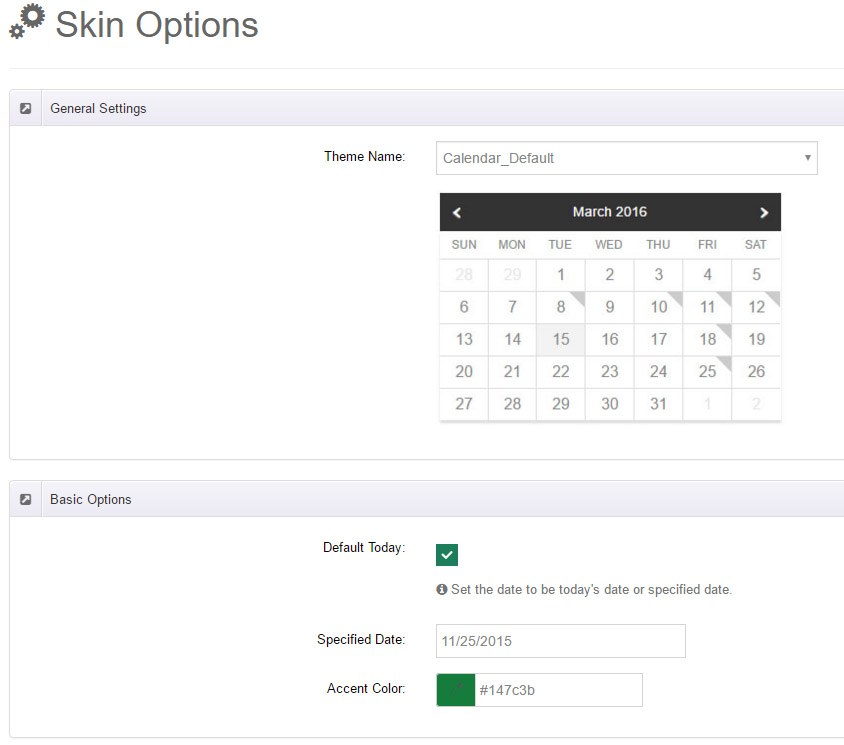
| DashBoard_Calendar | Event calendar | Default date, accent color, popup elements (title, date, timezone, location, category, tag, custom models) |
Full List Skins (3)
The Dashboard can also load the main module's complete list skins as a standalone event display area:
| Skin | Features |
|---|---|
| Skin 01 Calendar | Responsive, Ajax, Skin List, DashBoard (month/week/day/timeline/map/accordion views — see Event List Skins) |
| Skin 02 TimeLine | Responsive, Skin List, DashBoard |
| Skin 03 AccordionEvent | Responsive, Skin List, DashBoard |
Options
After applying an effect, adjust it under Options.
When a full list skin (e.g. Skin 01 Calendar) is applied, the options match the main module's skin options (Basic Options, per-view settings — see Skin Options) plus an extra Data Filter panel:
- Choose Categorie: multi-select tree of categories; the Dashboard shows only events in the selected categories (All Categorie by default).
- Feature: show only featured events.
When a dashboard effect (Category, Archive, Author, Calendar) is applied, Options contains that effect's own settings (display size, date formats, popup elements and so on).
Style
Same as the main module — edit the active effect's stylesheet directly. See Skin Style.
Combining
Add multiple Dashboard instances to the same page with different effects (e.g. categories + archive + calendar in a sidebar); they can share one main module as the data source.