Skin Style
The Style page lets you edit the active skin's stylesheet directly — no need to log into the server to tweak files. Open Event List Skins → Style (or Event Detail Skins → Style).
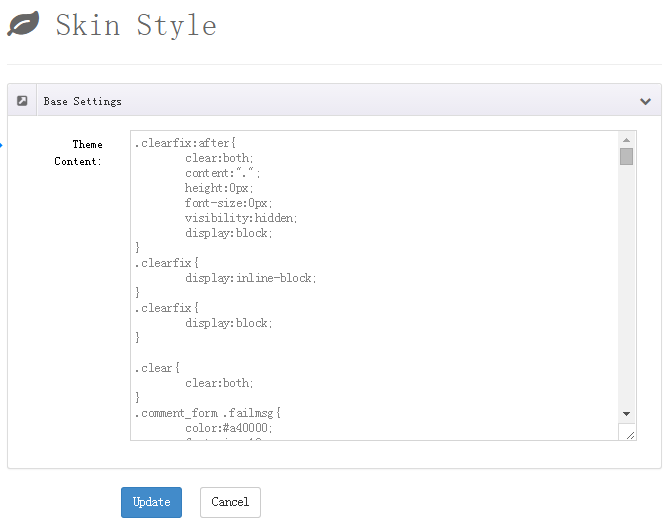
Editing Styles
The page contains a single Basic Settings panel:
- Theme style: a multi-line editor loaded with the stylesheet of the skin's current theme (
Themes/<theme>/Style.css). - Click Submit to save — the content is written straight back to the stylesheet and takes effect immediately. Cancel discards your changes.
Back up first
Editing styles directly requires some CSS knowledge. Copy the original content somewhere safe before editing so you can restore it if something breaks.
Editing Files on the Server
You can also edit the skin files directly on the server:
- List skins:
/DesktopModules/DNNGo_xEvent/Template_Effect/<skin folder> - Detail skins:
/DesktopModules/DNNGo_xEvent/Template_Detail/<skin folder>
Each skin folder contains:
| File/Folder | Description |
|---|---|
View_Template.html | Main template file (NVelocity syntax) |
TemplateSetting.xml | Skin option definitions |
TemplateDB.xml | Template data structure |
Themes/ | Theme styles (one subfolder per theme, containing Style.css) |
preview.jpg | Skin preview image (shown in Skin List) |
TIP
To add a new theme (color scheme), duplicate an existing folder under Themes/ and modify its Style.css — the new theme appears automatically in the Theme Name dropdown of the Skin Options.