Categories
The Categories page manages event categories. The page has two columns: the left column creates/edits a category, the right column searches, sorts and bulk-manages existing ones.
Add New Category
The left column is the category form:
| Field | Description |
|---|---|
| Name | Category name, required |
| Parent category | Dropdown of parent categories building a multi-level tree; pick [Select] (default) for a top-level category |
| Description | A short description of the category's topic |
Click Submit to save or Cancel to reset the form.
TIP
The parent dropdown shows hierarchy with tree prefixes (├─, └─). When editing a category, the form loads its current values.
Search
The search box (Search Text Field) at the top of the right column searches by category name and supports voice input.
Bulk Actions
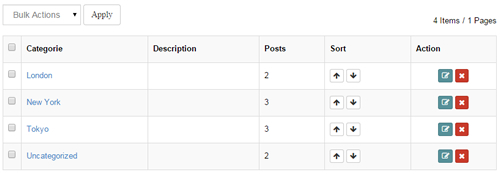
Check categories (header checkbox toggles all), choose Delete in the Bulk Actions dropdown and click Apply to delete them in bulk. A confirmation dialog appears first.
The right side shows the category statistics (e.g. "6 Items / 1 Pages").
Category List
| Column | Description |
|---|---|
| Checkbox | Select categories; header checkbox toggles all |
| Category | Category name; click to preview the category page on the front end in a new window |
| Description | Category description |
| Events | Number of events in the category |
| Sort | Up/down arrow buttons to reorder categories (front-end lists follow this order) |
| Action | Edit, Remove (delete, with confirmation) |
- On small screens the Description and Sort columns are hidden and Action collapses into a gear dropdown (up / down / Edit / Remove).
- The system ships with a default Uncategorized category that cannot be removed.
Working with Events
- Check categories in the Categories panel of Add New Event, or create one inline.
- List skins can filter events by category via the Choose Categories option in Skin Options.
Author permissions
Authors see the categories panel by default; disable it in the Author Settings of the General Settings if needed.