Quick Start
This page walks you through creating your first LayerGalleryPro slider from scratch: add the module → create a slide → upload a background → publish.
Step 1: Add the module to a page
Log in to DNN with an admin account, go to the target page, and add the DNNGo LayerGalleryPro module to a Pane.
Step 2: Open the management interface
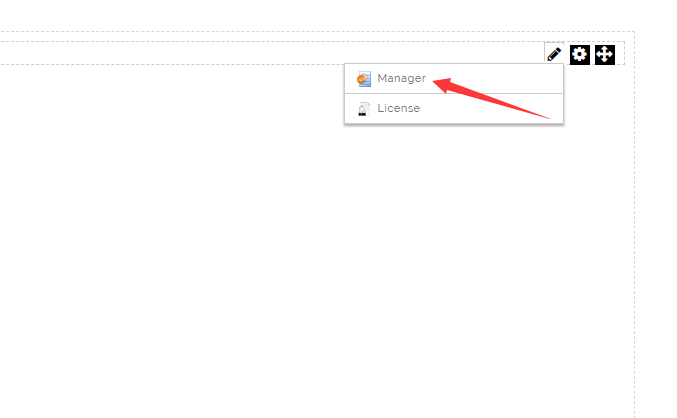
After the module loads, click the Manager button on the page to open the management interface.
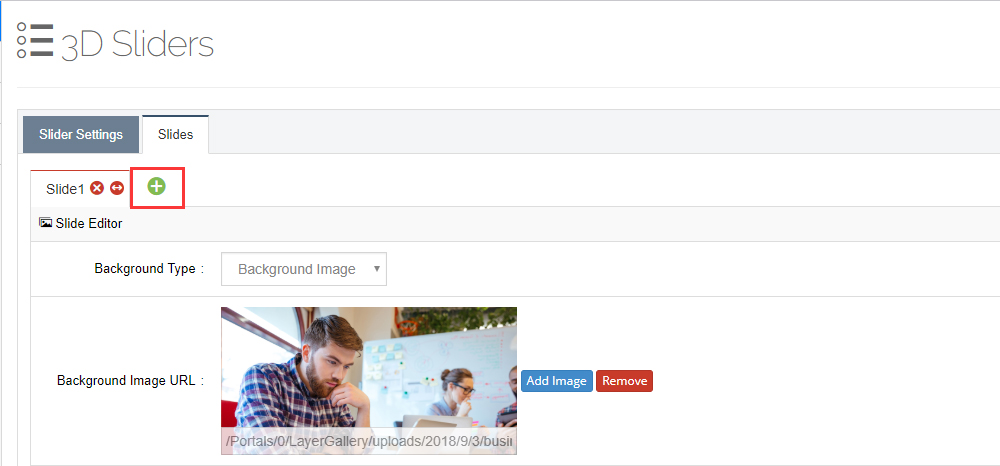
Step 3: Add a new slide
- Click the + sign to add a slide.
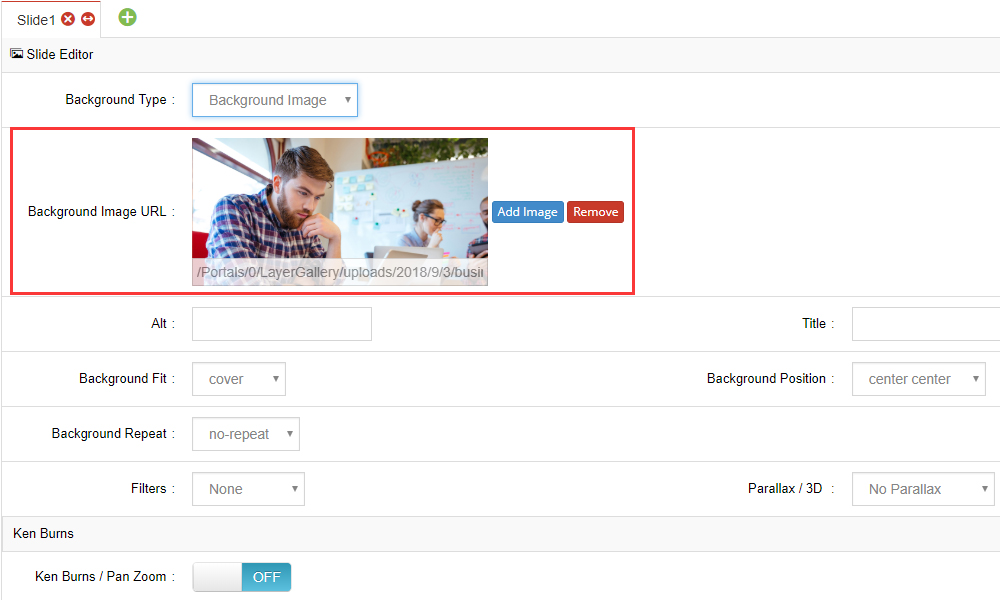
- Upload a background image.
- Click the update button.
Step 4: View the result
After saving, return to the page to see the slider playing with the default effect. From the management interface you can continue to:
- Change the slide transition animation for each slide;
- Add content layers to slides (text, images, videos, buttons);
- Adjust layout, navigation, parallax and more in the global settings.
Trial version note
The trial version is limited to a single animation effect. For more amazing effects, visit the DNNGo website and purchase the full LayerGalleryPro module.
Importing sample data
To see the module in action quickly, import the XML sample data shipped with the install package (or downloaded from our website) via the Import & Export screen. See Export & Import.
Next Steps
- Creating a Slider — learn the slide editing workflow in detail
- Background Type — configure image, color or video backgrounds
- Slide Layers — add text, images, videos and buttons to slides