Export & Import
With export and import you can back up slider data as an XML file, or reuse it on other sites/module instances.
Where to find it
Click Import & Export in the top menu of the management interface to open the Export & Import page. The page has two panels: All Items Export and All Items Import.
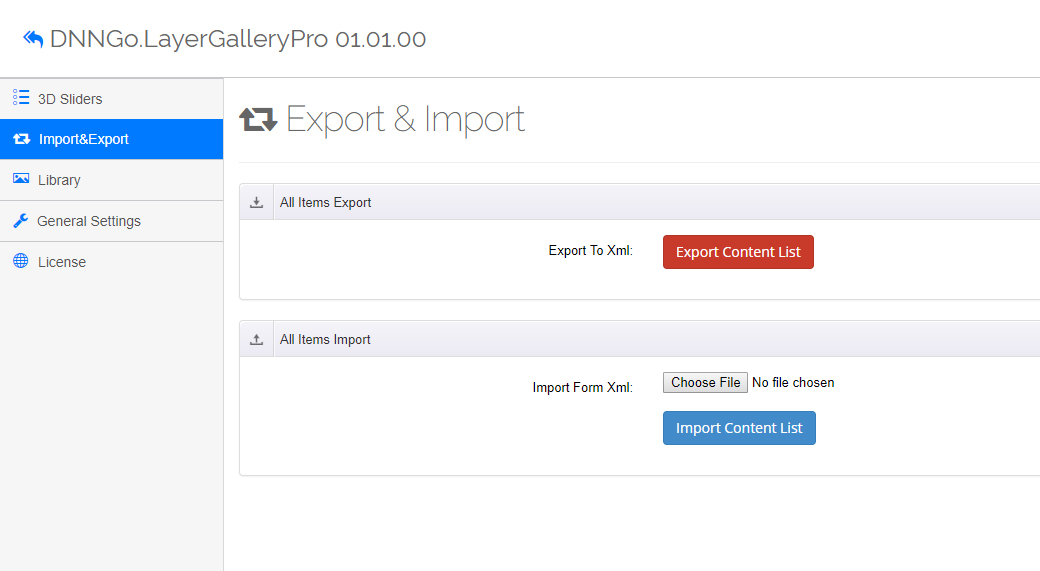
Export
In the All Items Export panel, click Export To Xml (the button reads "Export Content List").
The exported XML file contains:
- All content items of the current module instance (every slide with its settings);
- the module's global settings (the parameters configured in Slider Settings).
The file downloads to your computer for later use. Typical uses:
- Backup: back up slider data before making changes so you can quickly restore if something goes wrong.
- Migration: move a slider built on a dev/demo site to the live site.
- Reuse: use a carefully designed slider as a template across multiple projects.
Import
In the All Items Import panel:
- Click the file chooser next to Import Form Xml and select a previously exported XML file.
- Click the import button (Import Content List) and confirm with OK in the confirmation dialog.
- A message shows the number of successfully imported items when done.
Import validation
The file is validated on import: only .xml files are accepted, and empty files or files without valid data are rejected with a clear message. Since version 2.2.0, wrongly rejected file names, empty files and zero-item imports all return clear messages.
Sample data
The sample data (XML files) provided on our website is imported through this feature, so you can see the module in action quickly.
Related feature
If you just want to reuse data within the same site, the more convenient Copy From Other Module feature copies data directly, with no export file needed.
Next Steps
- Copy From Other Module — copy module data within the site
- Quick Start — import sample data