General
The slider's general settings appear as Global Settings in the management interface, and include four groups of options: Slideshow, Defaults, Progress Bar and Misc.
Slideshow
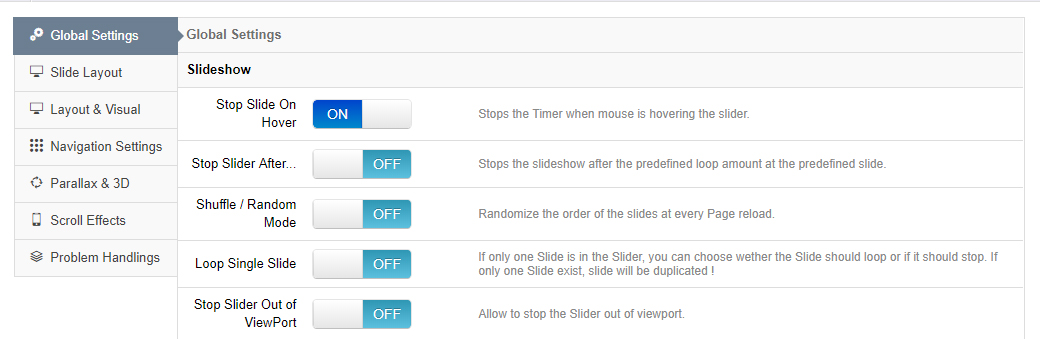
Stop Slide On Hover
Stop slider progress when the user hovers the mouse over the slider.
Stop Options
- Amount of Loops: Stop the slider after all slides have looped a set amount of times.
- At Slide: Stop the slider at a specific slide.
Shuffle / Random Mode
Randomize the slide order every time your web page is visited.
Loop Single Slide
Choose to loop your slider if it has only one slide.
Note
If this option is enabled and the slider has only one slide, the slide will be duplicated for looping.
Stop Slider out of Viewport
Stop the slider when the page is scrolled and the slider is no longer visible. When enabled, the following sub-options are available:
- Out Of ViewPort: choose Pause — the slider must be at least partially inside the viewport to continue playing.
- Area out of ViewPort: a viewport area percentage (default 80%) — at least this portion of the slider must enter the viewport before it starts again.
- Preset Slider Height: pre-calculate the slider's height to support inline links.
Defaults
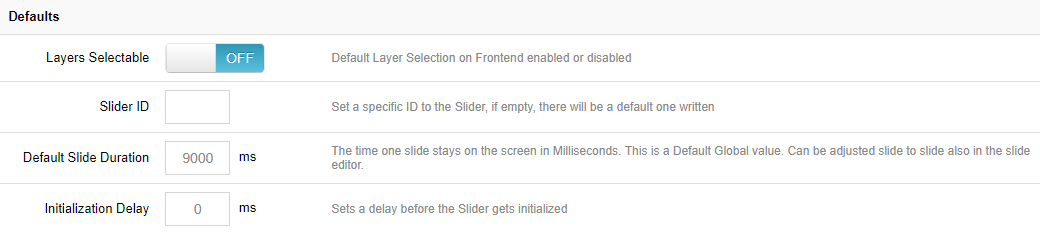
Set the default individual slide settings. If a slide does not define its own value (such as the slide delay), the default value defined here will be used.
Progress Bar
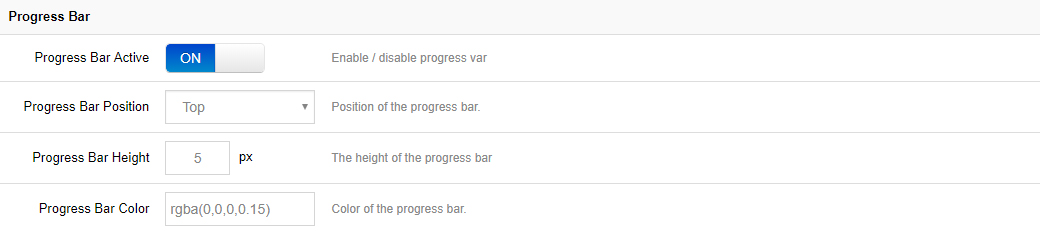
If active, a progress bar shows the remaining time of the current slide. You can set:
- Position: top or bottom of the slider
- Height: the progress bar's height in pixels
- Color & transparency: its visual appearance
Misc

Browser behaviour varies when switching between windows/tabs (JavaScript stops executing, etc.). But these options will often correct slider issues related to switching between tabs and windows.
Next Steps
- Slider Layout — set the slider's size and layout mode
- Slide General Settings — override defaults per slide